Production orders
Production orders contain information about what is to be produced, how much, and the planned finish date. Supply Chain Management assigns an order status to each step in the life cycle of the order. This unit explains how to create a production order.
In companies that conduct production in-house, they often create production orders to:
- Meet sales demand when inventory is insufficient.
- Supply BOMs as subassemblies to other items in demand.
- Meet a demand that authorized personnel foresees.
- Meet forecasted, end-item demand.
When you first create an order, the system automatically assigns it the status of Created. The status shows where the item is in the production process.
Three ways that you can create production orders in Supply Chain Management are:
Manually - You can create production orders on the Production orders list page by selecting Production control > Production orders > All production orders.
Directly from a sales order line from the item - You can create production orders directly from a sales order by selecting the sales order line and then selecting Product and supply > Production order.
When you create a production order directly from a sales order line, the information in the order automatically contains the valid date and quantity ranges. You don't need to set up this process manually. If you need to make changes after you create the production order from a sales order, you must do so manually.
As a result of a planned order in requirement calculation – The system automatically creates production orders when you run Master planning and firm the planned production orders. You can select the production status that you want to assign to the resulting production orders and time fences. To define these parameters and others that guide the behavior of planned orders, select Master planning > Setup > Coverage > Coverage groups and then expand the Other FastTab.
Consider the following fields when you're creating a production order:
- Production - This field displays the production order number and is a unique identification of the production order. When you create new production orders, the system allocates the number automatically or you can allocate it manually.
- Item number - Displays a unique identification of the item to be produced. You can't change this field. You can define the item to be produced when you set up production.
- Quantity - Contains the scheduled production quantity.
- Report remainder as finished - Displays the number remaining to be reported as finished.
- Delivery - Displays the desired delivery or finish date for the production. Use this field to adjust the production's Operations or Job scheduling, where you can have the system perform scheduling backward from delivery date. When you're conducting Operations scheduling or Job scheduling for a production order that has automatic creation of pegged orders for components that are defined in the BOM, the system automatically sets the delivery date for the under-productions to the date when the production uses the items.
- Status - Shows exactly where the production order is in the overall production cycle. The system automatically updates the production status whenever you run updates or scheduling on a production order. The typical life cycle of a production order begins with the start of the production process when you first create the order. At this point, the system automatically assigns the Created status to the order. Status updates for subsequent phases include Estimated, Scheduled, Released, Started, Reported as finished, and Ended.
- Remain status - Shows the remainder status on the production order.
- Reference type - Displays connections to other orders, including the item reference type of the production. If you create the production order directly to an order line, Sales order displays. If you create the production order for a purchase or a project, Purchase order or Project displays. If a reference to another production order shows, Production displays. You can't update this field.
- Pool – Use production pools to group productions with similar characteristics, such as the type of item to be produced or the person who created the production orders.
- Locked for rescheduling - Indicates whether the production order is locked for rescheduling.
Production order details page
The General tab on the Production orders page is where you can view or modify general identification and production information, status, scheduling dates, and production pool groupings for the selected production orders.
Use the Setup tab to define the criteria that you want to use to process the production order. These criteria include the date that the BOM becomes effective, the route number on which the production order is based, production scheduling information, the method for posting the order to the ledger, and the measurement factors on the item that's being produced.
You can view all related production orders, including the number of top-level production orders that the specific production order is a component of and the alphanumeric identifier of the planned order.
The References tab on the Production orders page contains information such as Reference type. If you create the production order directly to an order line, the sales order displays. If a reference to another production order shows, the production order displays.
The Update tab contains fields with information that relates to posting, inventory, latest scheduling, and quantity. Also, you can view the latest updates to the current production order on the Update tab.
The Inventory Dimensions tab is where you can view or change information about the Product, Storage, and Tracking dimensions that the production order is associated with.
Use the Financial Dimensions tabs to view or change information about the department that the production order is associated with, its cost center, and its purpose.
Use the Warehouse tab to view or change information about the selection of the Release to warehouse value to partially or fully reserve raw materials for a warehouse that the Warehouse management module manages.
Estimation
Use the Estimate page to select a production order and run an estimate of how much it might consume in material and capacity costs. Running an estimation is a mandatory step in the production life cycle and occurs after you create a production order. If you don't run cost estimation, the system calculates it automatically before it continues with the next step.
Cost management > Manufacturing accounting > Production orders > Process > Estimate
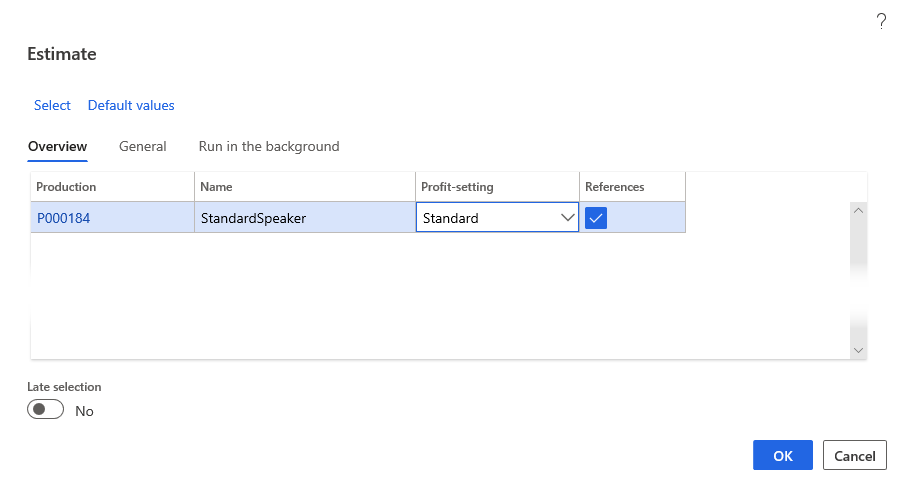
The process of estimating a production order provides the projected material and capacity consumption costs for producing an item in the production. Its basic function is to estimate item and route consumption in connection with the production process. These estimates form the basis for subsequent scheduling and production cycle processes.
The estimation run calculates the following values:
- Production cost - The top line of the estimate. It shows the complete cost of running the production and the total sales price for the production. It's the sum of all cost lines on the estimate.
- Route or work center costs - The costs for the operations that are involved in a production, including elements such as setup time, run time, and overhead.
- Material costs - The costs and prices of the BOM components that are necessary for producing the item.
Automatic estimation and scheduling
As a part of the production life cycle steps, if a production isn't already cost estimated or scheduled before it's ready for release, you can set up Supply Chain Management to run the estimation and scheduling steps automatically.
Wait as long as you think is practical before changing your orders with the status of Scheduled to the status of Released. The reason for waiting is because you can still reschedule the scheduled orders without needing to recall various versions of printed production papers that the system typically prints during the change of status.
When you release a production, you can start a job that you can set up as a batch or night job, which prints all route cards and job cards. This procedure is common in companies with many daily production orders.
Release production orders
After you estimate and schedule (or reschedule) the production order, the production order is ready for release. When you release a production order, it leaves the front office and is available to the shop floor for production.
The fields on the Overview tab of the Release page are:
- Production - Specify the production number to be released. If you select Release from the Production orders page, the system automatically fills in the fields with the current production and the Name field displays. You can select any production that doesn't have the Reported as finished or Cost accounted status.
- References - If you select this checkbox, the system releases references that are associated with the production under the same conditions that apply to this one. The system only releases the current and underlying productions.
Cost management > Manufacturing accounting > Production orders > Process > Release
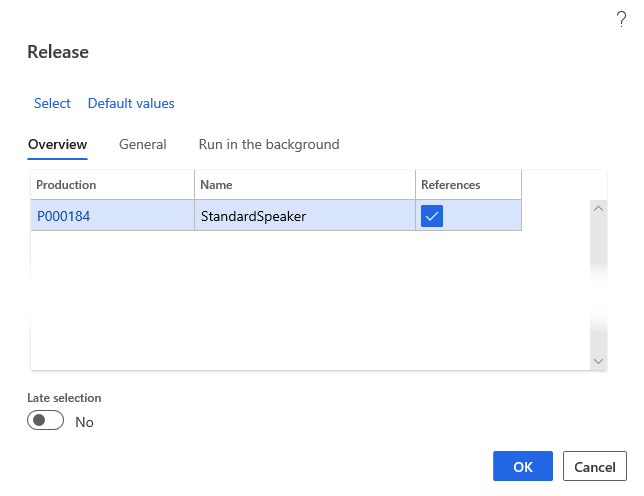
To release all productions in the production hierarchy when you release the main production, indicate that the system must release the references. You can also release specific productions in the hierarchy and its underlying productions in the same way by releasing the specific production and then indicating that the system must also release the underlying references.
Start production orders
After you release the production order and create reports, the next step is to start the production order. You can start all operations in the production order, or only some, and then save the rest until later. When you start the order, its status changes to Started, regardless of whether you start the complete production or only part of the production.
To start a production order, select Production control > Production orders > All production orders. Select the necessary production order and then select Start from the Action Pane. When the production status changes to Started, pick the items that are composing the production's BOM. (The printout of the items that are involved in a production is called the picking list.) By default, the system suggests starting the quantity that's not yet started. You can also pick item and route consumption in connection with Start.
Cost management > Manufacturing accounting > Production orders > Process > Start
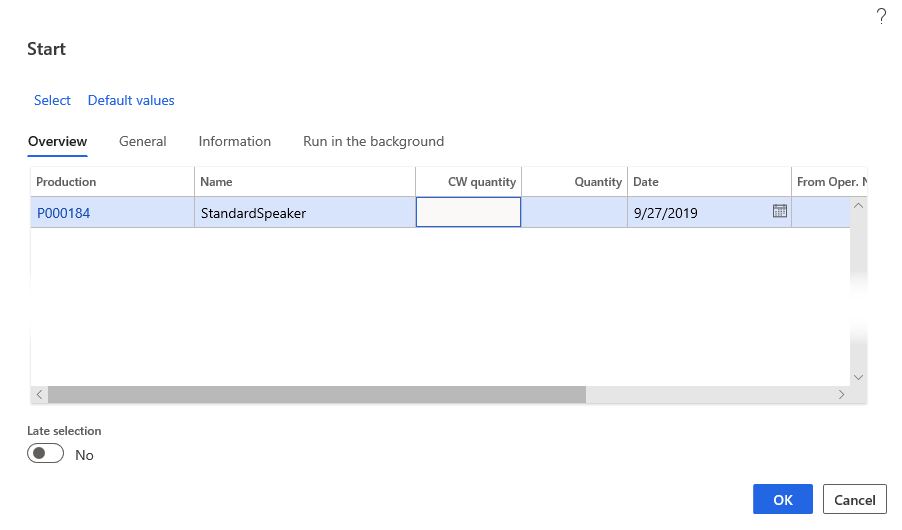
You can change a production order with the status of Release or Start.
For example, you can change the BOM or route. However, if the change affects costs or scheduling, you must recalculate consumption and reschedule the production. You can do this task by running an operation scheduling or job scheduling update.
Report production orders as finished
Use the Report as finished page to report all or a part of a production as finished. When you report an order as finished, it receives the status of Reported as finished.
This process allows for the items that are reported as finished to be available in inventory, and it frees resources to schedule other production tasks. The report automatically sends information about the quantity of items produced, the number of units in error, and the cause of the errors.
If a production hasn't been through the update steps in the production life cycle, Supply Chain Management does an automatic update. These updates can include the following steps in the life cycle:
- Estimation
- Scheduling
- Release
- Start
End production orders
The final step in the life cycle of a production order is End. When production is complete and you formally end orders, the system also cost-accounts the orders. The system generates a receipt transaction with the Purchased status for the production item. This transaction covers receipts for created items that have the status of Ordered and items that are reported-as-finished and have the status of Received. Then, the system deletes receipt transactions that you previously generated.
Cost management > Manufacturing accounting > Production orders > Process > End
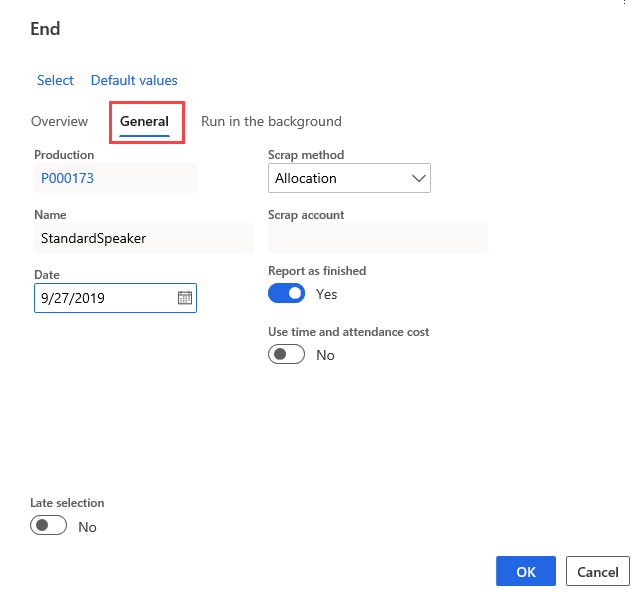
Supply Chain Management automatically reverses previously posted items and work in process (WIP) in the ledger and then posts and closes all journals. When a production is ended, the system calculates actual costs. These costs are based on realized material and time consumption. You can compare actual costs to estimated material and time consumption costs that you calculated when estimating the production order.
Final price calculation
Final price calculation covers the following options:
Consumption of items - The calculation for the cost amount for item consumption is as follows:
Component item consumption * Cost price = Realized cost amount
If the consumed items aren't open-transaction marked, the system uses average cost and it takes the item's cost price from inventory. However, if the item is open-transaction marked for a receipt transaction with the Purchased status, the system takes the item's cost price from that receipt transaction. For costing of the item consumption, the program issues a transaction with the Sold status. The system deletes the original issue transaction with the On order or Picked status.
When a production order comes to the costing process, the system handles all products with type Item or Service in the BOM the same way.
Finished items – The calculation for the cost amount for finished items is as follows:
Number of finished items * Item's cost price = Realized cost amount
The system takes the item's cost price from the item when you calculate costing. During the costing of item gains, the original inventory transaction updates to the Purchased status from Ordered or Received.
Consumption of operations - Operation consumption includes run times, setup time, and processed quantity. The calculation for consumption of operations is as follows:
*(Reported time consumption * Reported hourly cost price) + (Reported processed quantity Reported quantity cost price) = Realized cost amount
Calculation of the cost amount for the consumption of run time, setup time, and processed quantity is as follows:
- When you select automatic picking of resources, the system automatically retrieves the cost price from the run time category, setup category, and quantity category that are on the route.
- If you report the number of finished items for the operations by using the report-as-finished journal, these items are the ones that the system uses in costing.
When you assign the production order the Ended status and you can no longer update it, the system cost-accounts the production order, and then it generates a receipt transaction with the Purchased status for the produced item. Then, the system closes all journals that are associated with the production order.