Configure a code app to use Power Platform connections
The introduction frames the equipment-provisioning code app as a shell that still needs live data from Power Platform. Before an employee submits a replacement request, the app shows whether a replacement device is currently available, and that answer lives in an external logistics service, not in Dataverse.
This unit explores how you configure the code app to reach that service through a Power Platform connector: you set up a connection, add it to the app as a data source, and call the typed, generated service that results.
Separate connectors, connections, and data sources
Three terms do different jobs in this workflow, and mixing them up is a common source of confusion:
- A connector defines how Power Platform talks to an external service: think of it as the shared contract for the organization's logistics system, identified by a connector ID.
- A connection is an authenticated instance of that connector: it holds the credentials that let a specific user or app reach the logistics service.
- A data source is what you add to the code app itself so your code can call that connection.
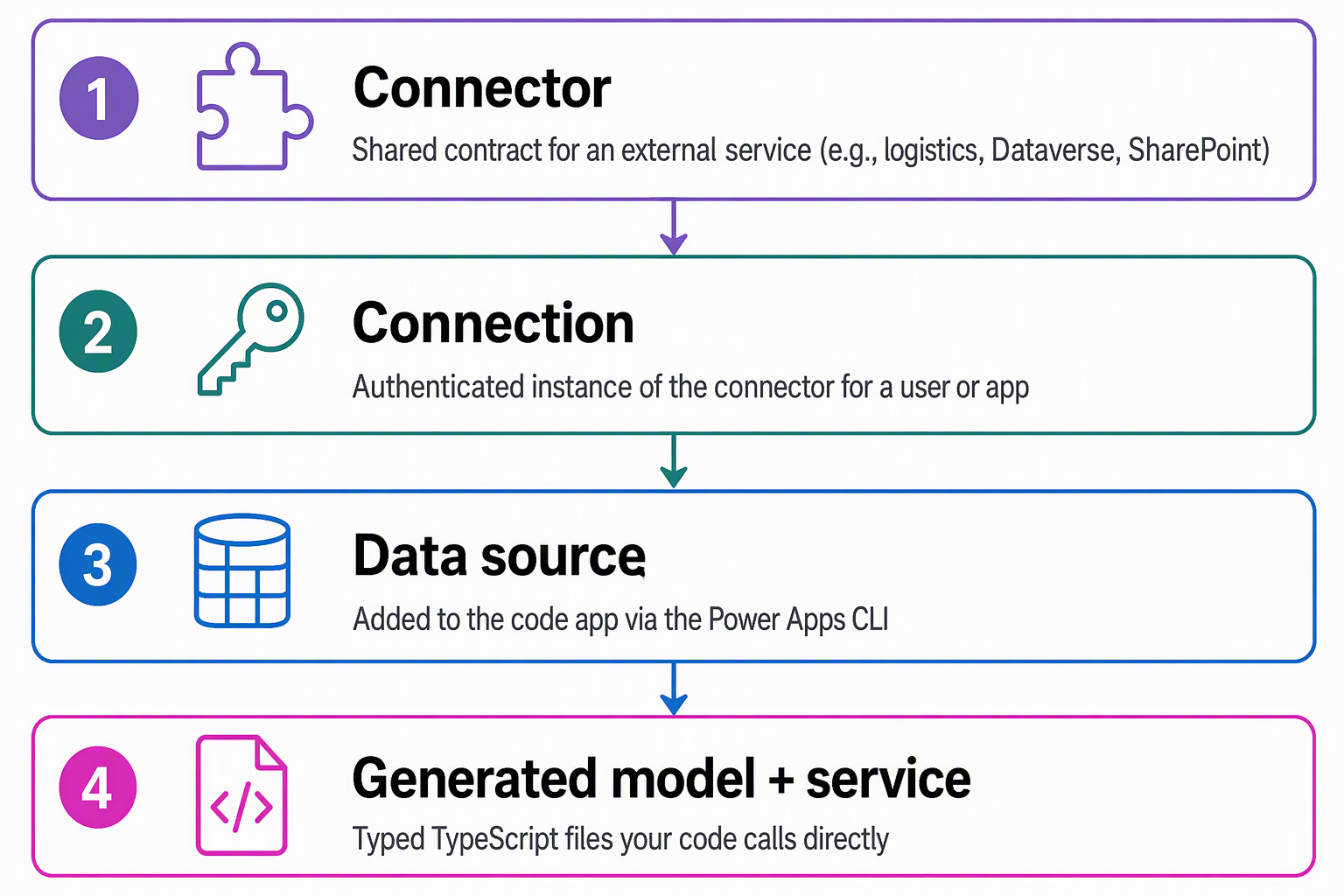
You create and inspect connections with the Power Apps CLI before you touch the app. Running pa connection create sets up a new connection and returns its connection ID, while pa connection list shows every connection you already have, along with the connector identifier each one belongs to:
pa connection list
You use the connection ID and connector identifier from this output in the next step, when you wire the connection into the app as a data source. Keep both values handy, since the CLI command that adds the data source needs them.
Decide whether your data source is tabular or non-tabular
Not every connector exposes the same shape of data, and the Power Apps CLI expects you to tell it which shape you're working with. The logistics availability connector in this scenario is non-tabular: it exposes an action you call (checking availability for a device model), not a set of rows and columns.
Connectors like SQL and SharePoint are tabular: they expose datasets made up of tables, and the CLI needs to know which table you mean. Native Dataverse is table-based too, but you add it by table logical name rather than by supplying a connector-backed dataset and connection ID.
| Data source type | Example | Required flags | What gets generated |
|---|---|---|---|
| Non-tabular | Logistics availability connector | --connector, --connection-id |
A model and service pair that exposes the connector's actions |
| Tabular | SQL, SharePoint | --connector, --connection-id, --table, --dataset |
A model and service pair scoped to the specific table |
| Native Dataverse table | Dataverse | --connector, --table, --org-url |
A model and service pair scoped to the specific table |
Adding the logistics connector as a data source looks like this:
pa app add data-source --connector "shared_logisticsavailability" --connection-id "aaaaaaaa000011112222bbbbbbbbbbbb"
Some connector-backed sources support both tables and actions from the same connection. In that case, you add the table as shown above, or you add the connector's actions instead by including --as action and leaving out --table and --dataset. You can even add both to the same app, since the CLI keeps them as separate data sources.
Dataverse reaches your code app through a data source too, but native Dataverse uses its own table-focused pattern rather than the connector-backed dataset pattern SQL and SharePoint use. You add tables like Employee, Device, Request, and Allowance by logical name. The next unit covers how to shape those table and metadata operations; this unit focuses on the non-tabular connector pattern that the logistics scenario uses.
Call the generated, typed service from your app code
Adding a data source does more than register a connection with the app. It generates a typed TypeScript model and a matching service file, placed in the /generated/models/ and /generated/services/ folders of your project. For the logistics connector, you might see AvailabilityModel.ts and AvailabilityService.ts appear after you run the command.
The Power Apps client library for code apps is what exposes these generated files to your code and keeps them in sync as you add or remove data sources. Your app logic never needs to touch the underlying connection metadata that the CLI stores in power.config.json.
Learn more about how these pieces fit together in the code apps architecture overview.
With the service generated, calling it from your app looks like calling any other typed async function:
import { AvailabilityService } from './generated/services/AvailabilityService';

const result = await AvailabilityService.CheckAvailability({ deviceModel: "Standard laptop" });
if (result.data) {
  // use result.data.isAvailable, etc.
}
Notice there's no manual HTTP call, no hand-written request shape, and no separate authentication step, since the generated service and the Power Apps host handle that for you. This is the payoff of the connector and data-source model: your component code reads almost like a plain function call, while the client library and host manage the plumbing behind it.
Guiding question: Think about a connector your team already relies on outside Power Platform, something in a similar non-tabular pattern to the logistics example. If you added it as a data source today, what would the generated service's methods probably look like, and what would your component do with the response?
Choose connection references when portability matters
A connection ID points to one specific connection in one specific environment, which works fine while you're developing locally. But the equipment-provisioning app eventually moves through development, test, and production environments. A hardcoded connection ID doesn't travel well, because the connection that exists in dev doesn't exist in production. A connection reference solves this: it's a solution component that points to a connection indirectly, so the same app definition picks up whichever connection exists in the environment it's running in.
| Approach | Binds to | Best suited for |
|---|---|---|
| Connection ID | One specific connection in one environment | Early development and local iteration |
| Connection reference | A solution component resolved per environment | Apps that move through dev, test, and production (ALM) |
Switching to a connection reference starts with finding the solution and the reference's logical name:
pa solution list
pa connection list-references --solution-id <solution-id>
Then you add the data source using the reference instead of a raw connection ID:
pa app add data-source --connector "shared_logisticsavailability" --connection-ref "cr123_sharedlogisticsavailability_1a2b3" --solution-id "<solution-id>"
The logical name matters here, not the display name: it's the value the CLI output labels as the reference's logical name, and it typically starts with a prefix like cr123_.
Keep data sources in sync as the app evolves
Data sources aren't permanent once you add them. If the logistics connector's schema changes, pa app refresh data-source --name <data-source-name> regenerates the model and service files so your typed calls stay accurate. If you no longer need a data source, pa app remove data-source --connector <connector-id> --name <data-source-name> takes it out cleanly.
Once you wire up a new data source and update your component code to call it, you verify the change locally before anyone else sees it:
npm run dev
When the availability check behaves the way you expect, you build and publish the updated app so it runs in the Power Platform environment:
npm run build
pa app push
With the connector configured and the typed service wired into the component, the code app can finally answer the one question an employee asks before submitting a request: is a replacement available? The next unit builds on this same data-source model, this time pointing it at Dataverse. That way, the app can read and write the Employee, Device, Request, and Allowance tables that drive the rest of the workflow.