Configure a code app to use cloud flows and Copilot Studio agents
The previous unit leaves a submitted Request record sitting in Dataverse, waiting for someone to act on it. This unit moves past direct table calls to two mechanisms that react to that record automatically. The first is a Power Automate cloud flow that routes the request to a coordinator for approval.
The second is a Copilot Studio agent that answers an employee's questions about eligibility and status without a dedicated screen. The shift here moves you from calling data directly to triggering processes and conversations that run elsewhere in Power Platform.
Confirm the flow fits what a code app supports
Not every cloud flow qualifies for this pattern. Code apps support only solution-aware instant flows that use the Power Apps trigger; scheduled flows, automated flows, and instant flows built on other triggers aren't supported. The "Approval Workflow" flow in this scenario fits that shape.
A maker builds it as a solution-aware instant flow, so the code app can trigger it directly after a Request record exists. From there, a coordinator picks it up for approval. If a flow like this isn't in a solution yet, someone adds it to one before the code app can see it at all. Confirm that prerequisite before you plan around a flow that doesn't qualify.
Cloud-flow support also requires @microsoft/power-apps v1.1.1 or later in package.json, so confirm the installed SDK version before you attempt to add a flow.
Discover and add the approval flow
With a qualifying flow in place, list what's available in the environment before you commit to one:
pa app list-flows --search approval
The output shows each matching flow's name, status, when it was last modified, and its flow ID. That's the same kind of identifier you already used to pin down connections and connection references. Copy the flow ID for the Approval Workflow flow, then add it to the code app:
pa app add flow --flow-id a0a0a0a0-bbbb-cccc-dddd-e1e1e1e1e1e1
This command downloads the flow's OpenAPI definition, generates a typed model and service pair, such as ApprovalWorkflowService.ts, and adds the flow and its connection references to power.config.json. It follows the same generated-service pattern as the connectors and tables you've already added. Running the same command again with the same flow ID refreshes the generated files if someone changes the flow's definition later. pa app remove flow --flow-name ApprovalWorkflow takes it out when you no longer need it.
Trigger the flow right after you create the request
The generated service exposes a static Run method whose parameters match the flow's inputs, so triggering the approval process reads like calling any other typed service once the Request record exists:
import { RequestService } from './generated/services/RequestService';
import { ApprovalWorkflowService } from './generated/services/ApprovalWorkflowService';

const created = await RequestService.create(newRequest);

const result = await ApprovalWorkflowService.Run({
  requestId: created.data.requestid,
});

if (result.success) {
  // Flow triggered; result.data holds the typed response if the flow returns one
} else {
  // result.error holds failure details
}
Two access checks sit behind this call, and missing either one is the pitfall worth planning for rather than debugging later. Whoever runs pa app add flow needs access to the flow and its underlying connections, since the command fails without it.
Separately, the employees who use the app need enough Dataverse permission to invoke the flow at runtime, typically the App Opener security role or an equivalent. That's a different grant than the maker's access to the flow definition itself.
Wire up a Copilot Studio agent as a data source
Routing a request through a flow handles the transaction, but employees also ask questions that don't map to a form field: whether they're eligible for a new laptop, or what happened to a request they submitted last month. A published Copilot Studio agent, call it the equipment assistant, answers those questions conversationally, drawing on the same Employee, Device, and Request tables the app already reads.
Connecting to it starts the same way every data source in this module has: confirm a connection exists before you add anything. Check for a Copilot Studio connection with pa connection list and look for the connector API ID shared_microsoftcopilotstudio; if you don't see one, create it first. With a connection ID in hand, add the connector as a data source:
pa app add data-source --connector "shared_microsoftcopilotstudio" --connection-id <connectionId>
This generates a typed model and service pair and updates power.config.json, the identical pattern you used for the logistics connector and the Dataverse tables, pointed at a different connector.
Get the agent's name and invoke it correctly
Before you can call the equipment assistant, you need its agent name, which is distinct from its display name. Find it in Copilot Studio under Channels > Web app, where the connection string embeds the name in a URL shaped like https://{id}.environment.api.powerplatform.com/copilotstudio/dataverse-backed/authenticated/bots/{agentName}/conversations. Copy that segment exactly; agent names are case-sensitive and typically carry a publisher prefix, such as cr3e1_equipmentAssistant.
Invoking the agent means choosing the right action out of three that look similar. Use ExecuteCopilotAsyncV2, since it's the one that returns the agent's response synchronously. The other two have known limitations worth avoiding up front: ExecuteCopilot only returns a conversation ID with no response at all, and ExecuteCopilotAsync sometimes returns a 502 error instead of an answer.
import { CopilotStudioService } from './generated/services/CopilotStudioService';

const response = await CopilotStudioService.ExecuteCopilotAsyncV2({
  message: "Am I eligible for a new laptop?",
  notificationUrl: "https://notificationurlplaceholder",
  agentName: "cr3e1_equipmentAssistant"
});

if (response.data.completed) {
  const agentAnswer = response.data.lastResponse;
}
The message parameter carries the prompt, and it accepts a JSON string if the agent expects structured input rather than plain text. notificationUrl is a required placeholder the synchronous call doesn't actually use, and agentName is the value you just copied from Copilot Studio. The response carries responses as an array of strings, conversationId, lastResponse, and a completed flag.
One defensive habit pays off here: response property casing varies across implementations, so check for conversationId, ConversationId, and conversationID rather than assuming one form, the same way you'd guard against an unexpected null instead of trusting a single shape.
Choose the right mechanism for the job
The code app now has three distinct ways to act on Power Platform data. Picking the wrong one for a given task costs either a missed business process or an unnecessary round trip.
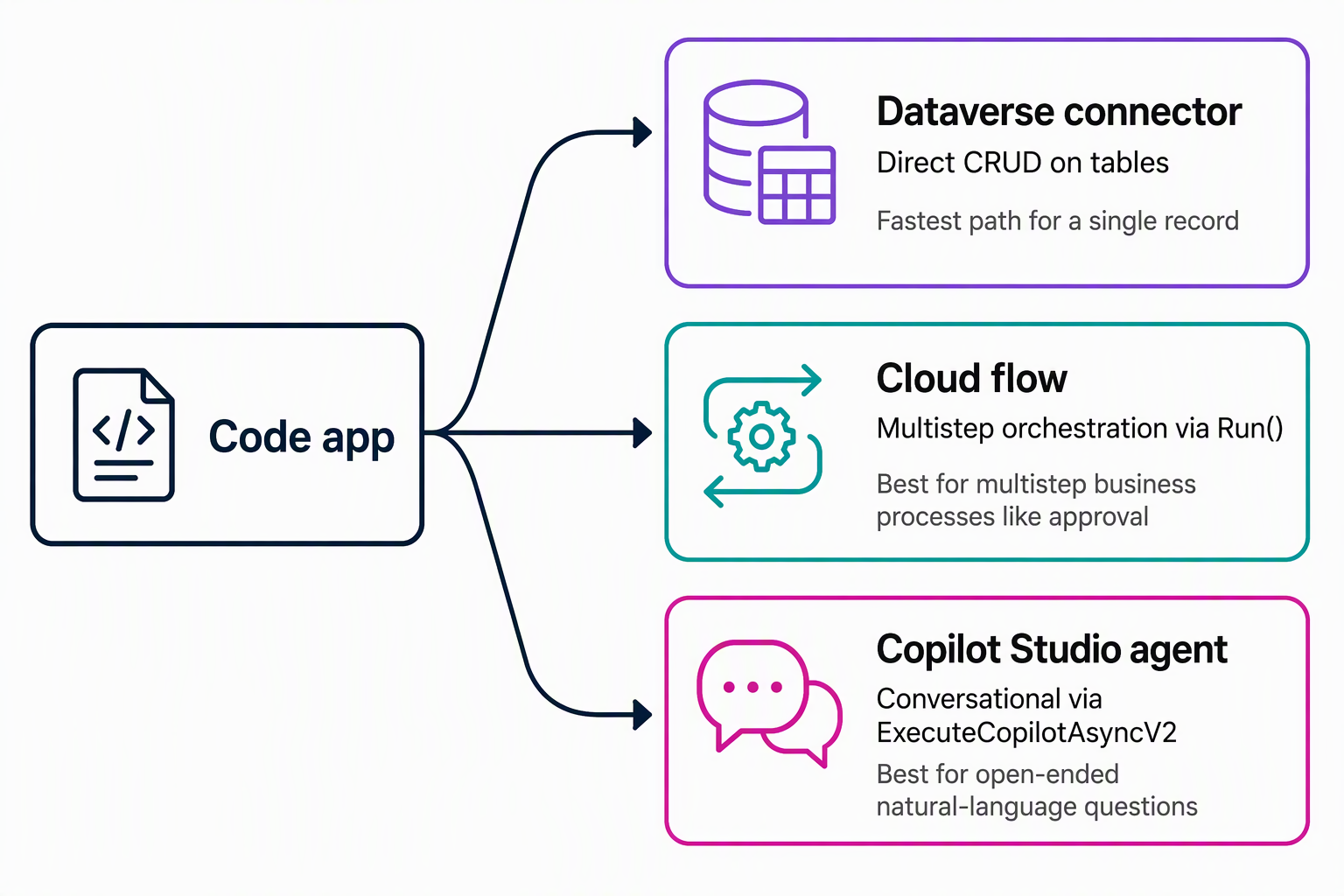
| Task | Mechanism | Why |
|---|---|---|
| Read or write a single record the app already knows how to shape | Direct Dataverse call (RequestService.create, update) |
Fastest path; no approval or multi-step logic needed |
| Route a record through a multistep business process, like approval | Cloud flow (ApprovalWorkflowService.Run) |
Encapsulates logic and hand-offs a maker owns and can change without a code deployment |
| Answer a natural-language question that doesn't map to one table or field | Copilot Studio agent (ExecuteCopilotAsyncV2) |
Interprets intent and synthesizes an answer from several tables instead of forcing the app to replicate that logic in code |
Reflect: Picture a new requirement for this equipment-provisioning app. Examples include automatically escalating a request that sits unapproved for three days, or letting an employee ask the assistant to compare two device models. For each one, which of the three mechanisms in the table fits best, and what would push you toward a different choice if the requirement changed slightly?
With cloud flows and a Copilot Studio agent added alongside the connector and Dataverse work from earlier units, the code app now reads and writes Power Platform data. It also triggers the automation that moves a request toward approval, and answers the conversational questions a form isn't well suited to handle.