Connect GCP projects to Defender for Cloud
With AWS connected, you now onboard Contoso's Google Cloud Platform environment. The GCP connector workflow follows a similar structure to AWS: configure the connector in the Azure portal, select Defender plans, and then execute a provisioning script in GCP that creates the authentication resources. The key difference is the deployment mechanism—GCP uses a GCloud shell script instead of a CloudFormation template, and authentication uses workload identity federation instead of OIDC federation.
Before you create the connector
Confirm these prerequisites:
- You have Contributor or Owner permissions on the Azure subscription where the connector resource is created.
- Microsoft Defender for Cloud is enabled on that subscription.
- You have project owner or sufficient access to the GCP project or organization being connected.
- The following APIs must be enabled on the GCP project where you run the onboarding script. If they aren't enabled, the GCloud script enables them automatically:
iam.googleapis.comsts.googleapis.comcloudresourcemanager.googleapis.comiamcredentials.googleapis.comcompute.googleapis.com
Note
For organization-level onboarding, enable these APIs on the management project, not on each individual child project.
Create the GCP connector
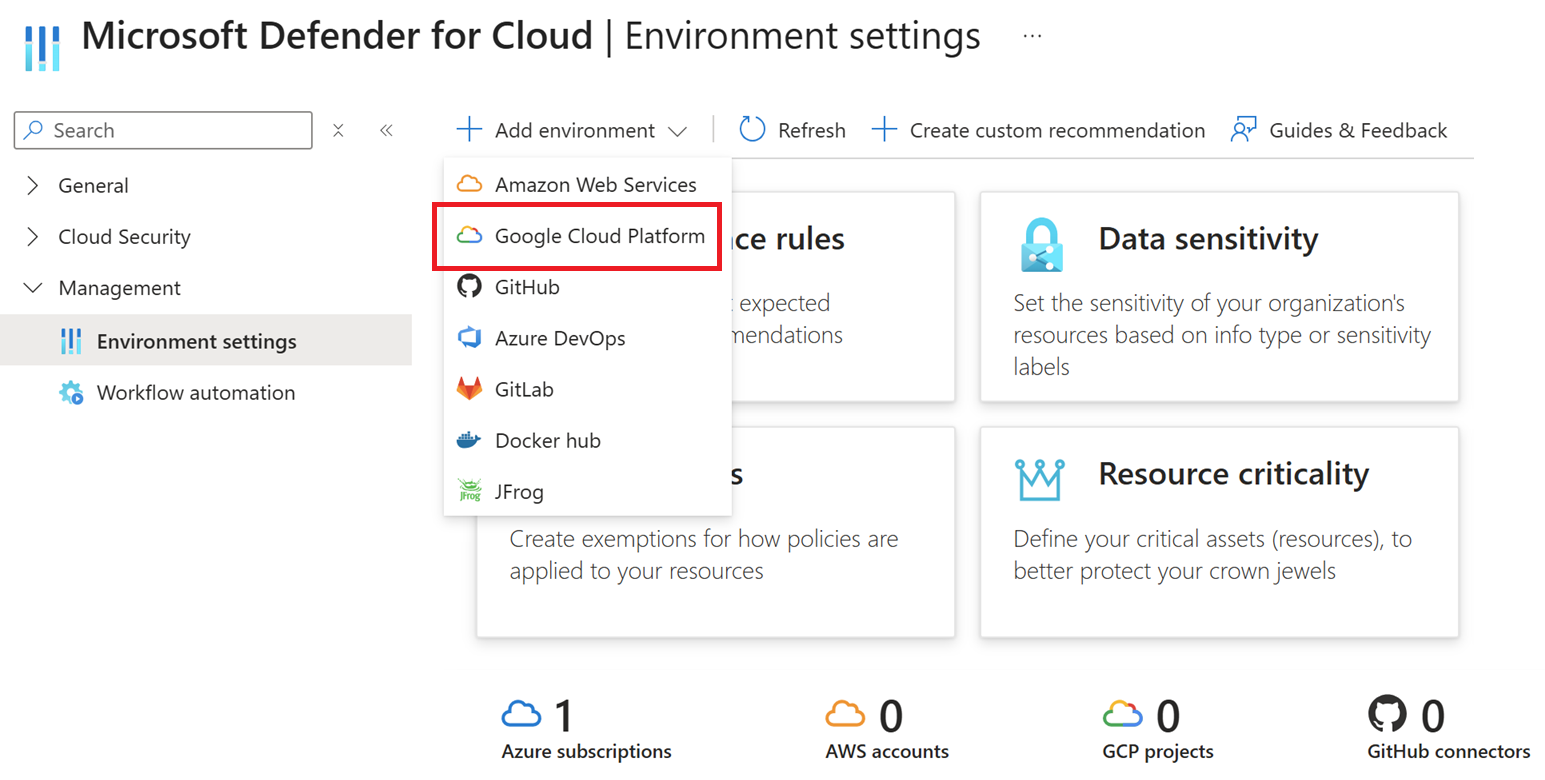
- In the Azure portal, open Microsoft Defender for Cloud and select Environment settings.
- Select Add environment > Google Cloud Platform.
- On the Account details tab, enter:
- Connector name: a descriptive name, for example,
contoso-gcp-prod - Scope: Single project or Organization
- Select Organization if you have org-level IAM access and want to cover all current and future projects under the GCP organization
- Select Single project for a targeted pilot or for projects that don't belong to a managed organization
- Subscription: the Azure subscription that owns this connector
- Resource group: resource group for the connector resource
- Location: Azure region for connector metadata storage
- Scan interval: 4, 6, 12, or 24 hours
- For Organization scope: your GCP organization ID
- For Single project scope: your GCP project number and project ID
- Connector name: a descriptive name, for example,
- Select Next: Select plans.
Select Defender plans
Toggle plans on or off based on the GCP workloads you want to protect.
Defender CSPM is always enabled. It provides configuration posture assessment across all GCP resources in the connected project or organization.
Available CWPP plans for GCP:
| Plan | What it protects | Azure Arc required |
|---|---|---|
| Defender for Servers | GCP Compute Engine VMs | Yes (autoprovisioned) |
| Defender for Containers | GKE clusters | No |
| Defender for Databases | Cloud SQL instances | No |
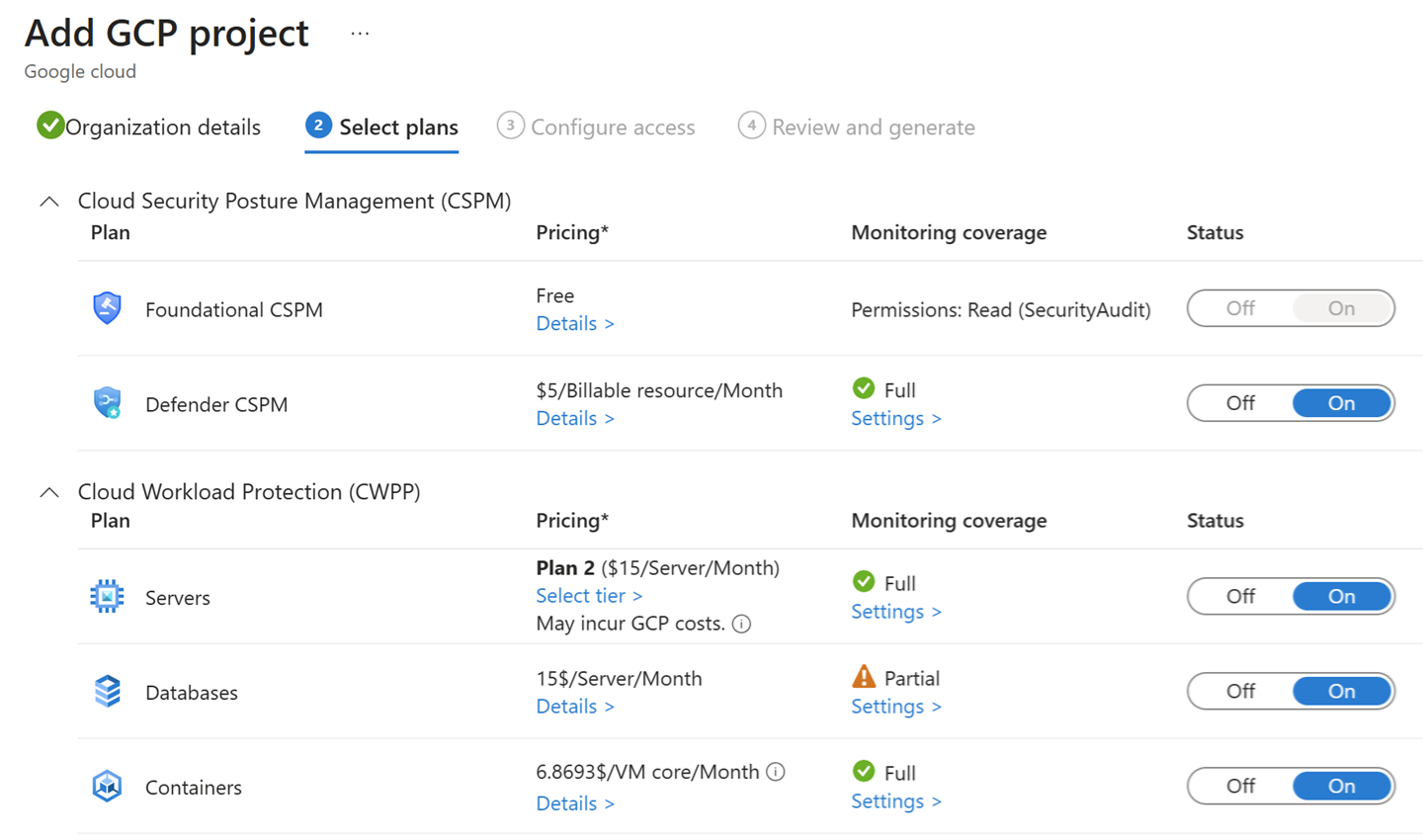
For Contoso's GCP environment, enable Defender for Servers to extend CWPP coverage to GCP Compute Engine VMs. The GCloud script generated includes Compute Engine management permissions and Google Cloud OS Config API access needed for Arc autoprovisioning.
Configure access
- Select Next: Configure access.
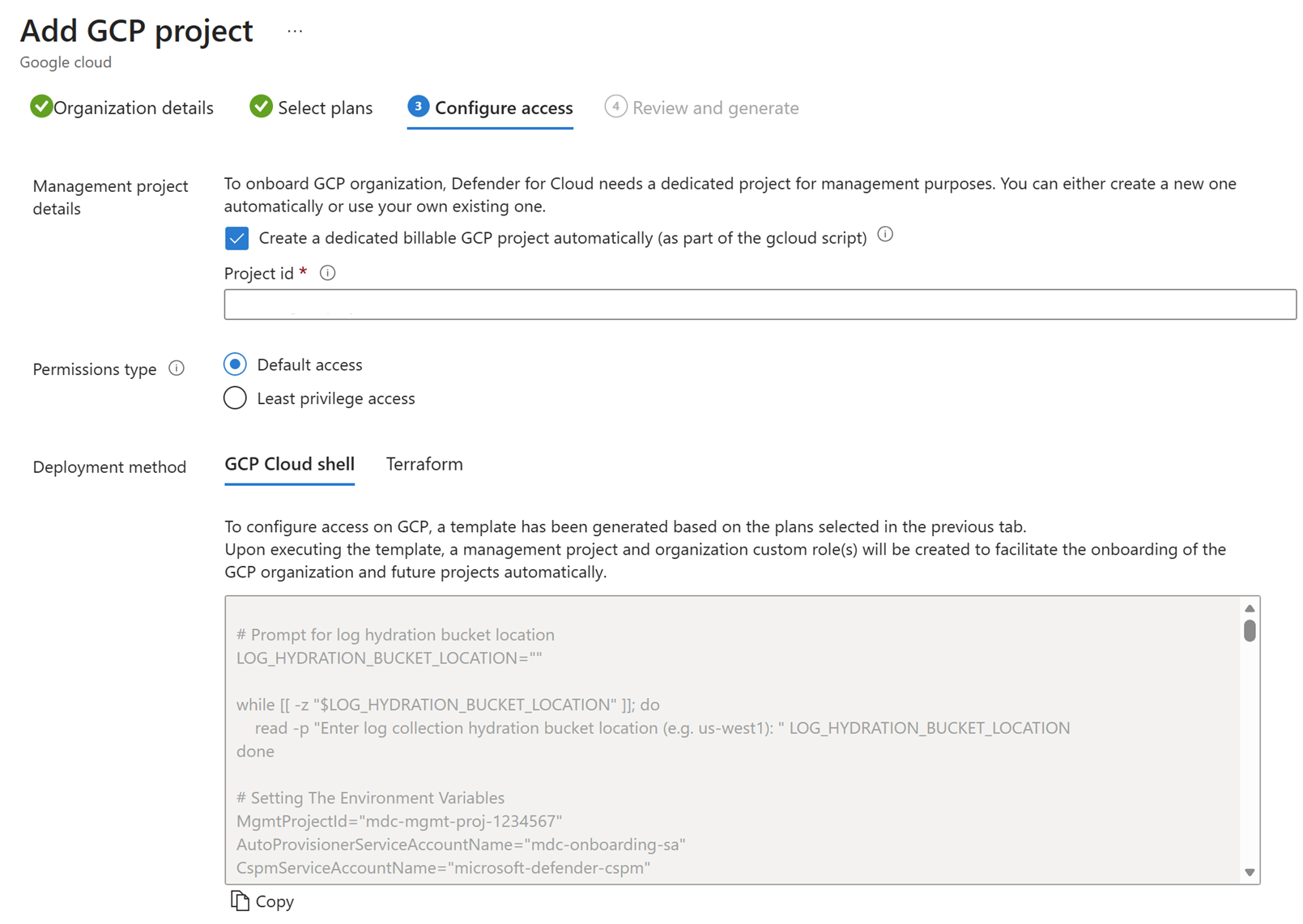
- Select the permission type:
- Default access: broader permissions that support current and anticipated future Defender capabilities. Easier to configure initially.
- Least privilege access: grants only the minimum permissions required by the plans you selected. Least access is the recommended choice for production environments and aligns with Contoso's security policy.
- The portal displays the GCloud script, customized to your plan selections and permission type.
Note
If this GCP connector already uses Least privilege access and you want to enable AI Security Posture Management (AI SPM) for AI workload visibility—including Google Vertex AI—the existing service account bindings don't include the required permissions. Rerun the updated GCloud script to add them.
Run the GCloud script
The GCloud script creates all authentication resources in your GCP environment. Unlike the AWS CloudFormation template, you don't download the GCloud script as a file—you run it directly in Google Cloud Shell from your browser, or copy and run it locally in an environment where the gcloud CLI is installed.
To run in Google Cloud Shell:
- Open the GCP Console and activate Cloud Shell.
- Copy the GCloud script from the Defender for Cloud portal.
- Paste and run the script in the Cloud Shell terminal.
- When prompted, confirm permission to create resources.
The script creates:
- A workload identity pool named after your connector
- **Workload identity providers—one for each enabled Defender plan—each configured to trust tokens from Microsoft Entra ID
- Service accounts with IAM policy bindings scoped to the connected project (or organization for org-level onboarding)
The permissions granted to each service account depend on which plans you selected and whether you chose default or least privilege access. The script output confirms each resource created and highlights any errors.
Tip
Save the GCloud script output for your deployment records. The service account names, workload identity pool ID, and provider IDs are useful when troubleshooting connector health issues later.
For organization-level connectors, the script creates resources at the organization level and configures policy bindings that apply across all projects. Individual projects within the organization don't require separate script runs.
Complete connector creation
- After the GCloud script completes successfully, return to the Azure portal.
- Select Next: Review and generate.
- Review your selections—connector name, scope, plan configuration, and permission type.
- Select Create.
Defender for Cloud creates the connector resource and schedules the first scan. GCP first scan results appear within up to six hours. Allow that time window before evaluating the connector's recommendation output.
Validate GCP connector health
- In Defender for Cloud, select Environment settings.
- Locate the GCP connector.
- Check the Connectivity status column.
- Select the status value to open the Environment details page, which lists any specific issues and remediation steps.
Common GCP connector health issues at initial deployment:
- Required APIs not enabled: the GCloud script typically enables APIs automatically, but network restrictions or org policy constraints can prevent API enablement. Manually enable the five required APIs in the GCP Console or org policy.
- Workload identity pool creation failed: typically caused by organization policy constraints on workload identity pool creation. Review GCP org policies that restrict IAM or resource creation.
- Service account permission denied: IAM permissions on the GCP project or organization didn't propagate before Defender for Cloud's first authentication attempt. Wait a few minutes and select Rescan in the Environment details page.
Note
After the GCloud script completes and the connector is healthy, verify coverage for all connected environments in the next unit.