Decide who can use usage-based AI services
A spending policy enables and governs a usage-based AI service, such as Copilot Cowork, for a defined group of people or a defined set of agents. Without one, a service stays unavailable or request-only—and billing doesn't start until an admin creates one.
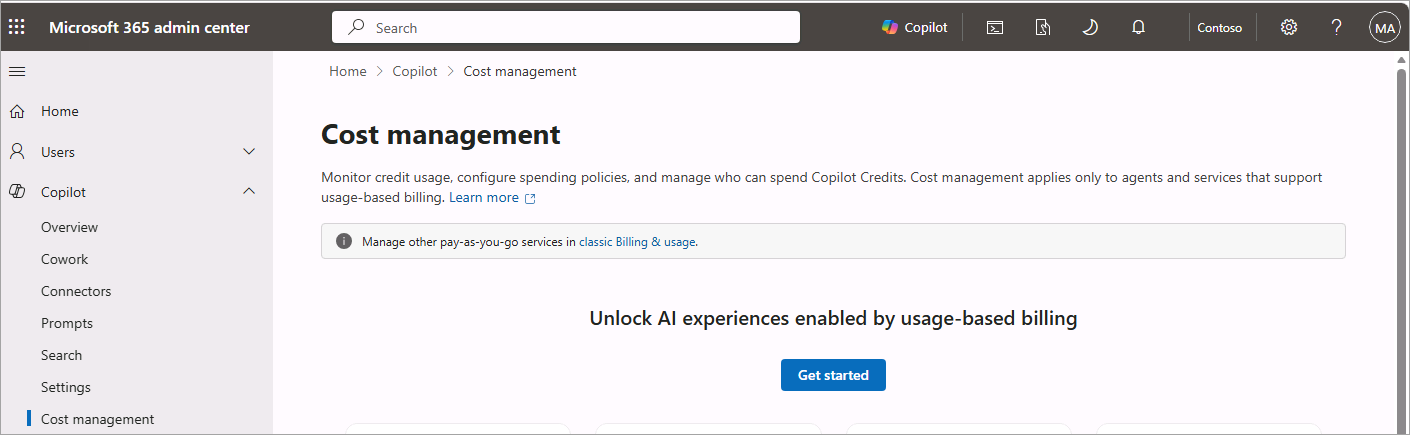
You manage every policy in this unit in Copilot > Cost Management in the Microsoft 365 admin center.
The Microsoft 365 admin center supports two kinds of spending policy:
| Policy type | Policy scope | Use cases |
|---|---|---|
| Identity-based | The people who use the service | A pilot cohort or business unit, defined by Microsoft Entra ID security groups or individual users |
| Resource-based | The agent or environment itself, regardless of who uses it | A specific agent or Copilot Studio environment that needs its own budget, no matter who runs it |
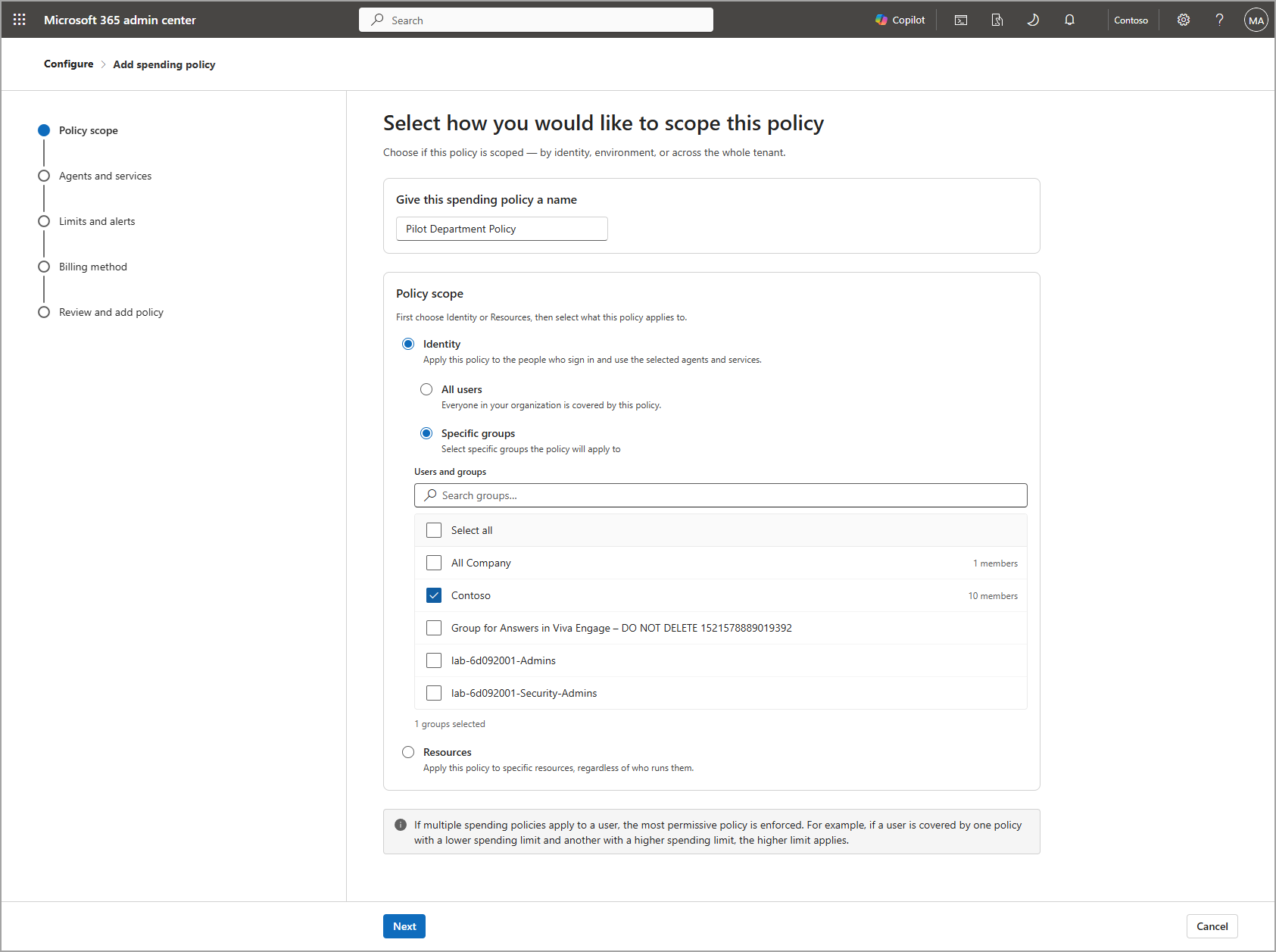
You create and manage both policy types from Copilot > Cost Management in the Microsoft 365 admin center. The first time an admin activates a service, Microsoft 365 creates a default, organization-wide policy; admins can then add policies that target specific groups, users, agents, or environments.
Five decisions before you create a policy
Design a spending policy around five questions:
Who or what is in scope? For an identity-based policy, this is a pilot cohort or business unit defined as Microsoft Entra ID security groups or individual users; the default policy can cover the whole organization, and additional policies can scope to specific groups. For a resource-based policy, this is specific agents, specific environments, or all environments.
Which services does the policy govern? Choose which usage-based services the policy applies to, such as Copilot Cowork, and whether Allow new Agents and services as they become available should add future supported services automatically (on by default) or leave them for manual review.
What are the spending limits? Set a monthly policy limit, and optionally a per-user cap so that one person can't consume the whole budget. Size both from your Copilot Credit Estimator planning range.
What's the billing method? Choose how to fund the policy—prepaid capacity packs, a prepurchase plan, or pay-as-you-go—and connect it to the organization's Azure billing. When more than one funding source is available, the service uses credits in order: prepaid capacity packs first, then a prepurchase plan, and then pay-as-you-go.
Who owns it, and who's alerted? Assign a budget owner and alert recipients, set alert thresholds, and decide whether to notify users as they approach their limit.
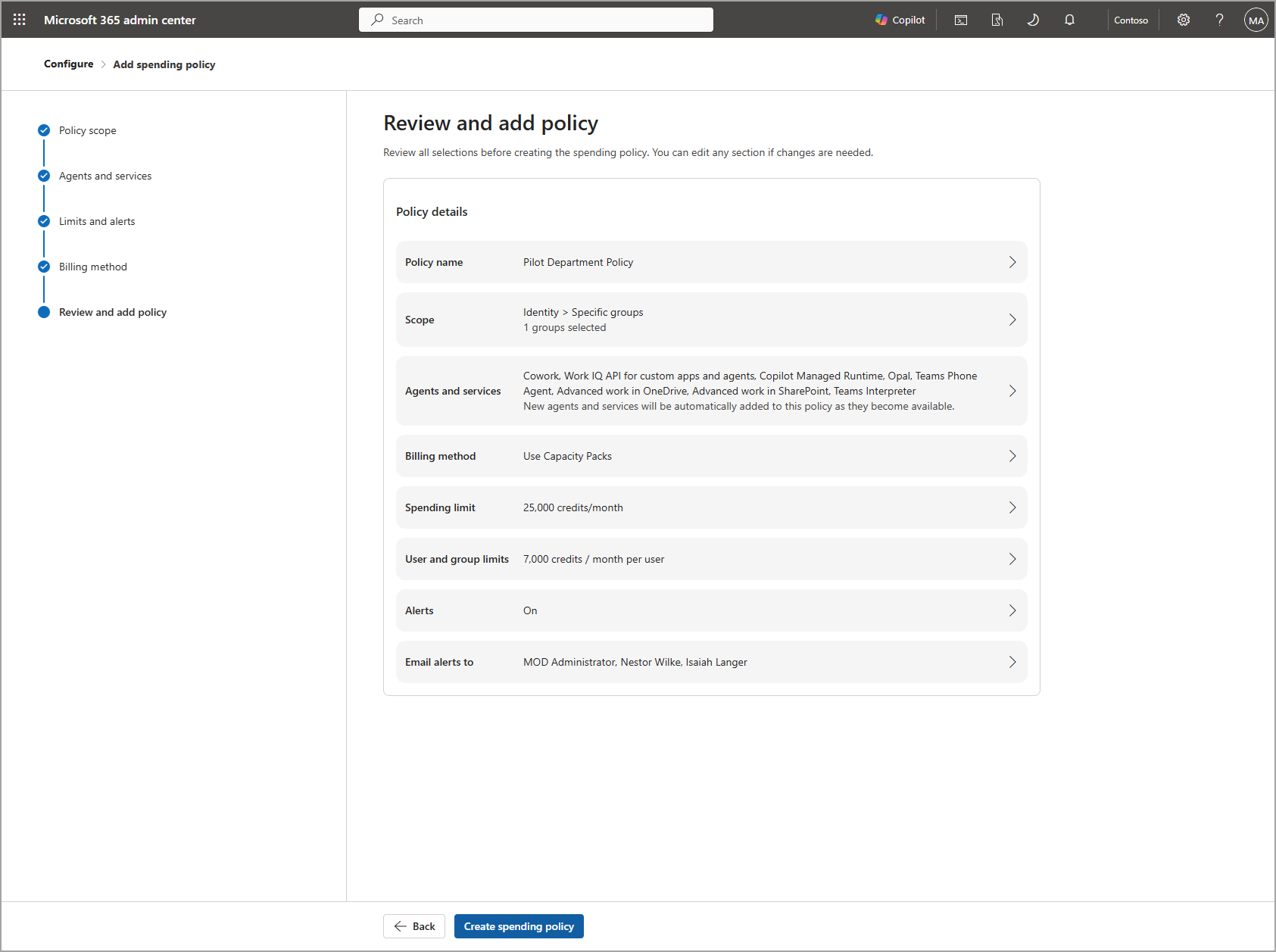
A Global Administrator or Billing Administrator can update a policy's billing method at any time—changing it doesn't require deleting and recreating the policy. Everything else about the policy, including its scoped users and groups, spending limits, alerts, and enabled services, stays in place when the billing method changes.
When a user is covered by more than one policy
Organizations often run a default, organization-wide policy alongside one or more scoped policies for pilot groups. If multiple spending policies apply to a user, the system enforces the most permissive policy. For example, if one policy covers a user with a lower spending limit and another covers them with a higher spending limit, the higher limit applies.
In practice, the system selects exactly one policy to apply, using this order:
- The policy with the highest per-user limit.
- If tied, the policy with the largest overall policy limit.
- If still tied, the most recently created policy.
If a policy has no per-user limit, the system uses its overall policy limit for that comparison. The selected policy applies in full—its own billing method and limits—without combining settings from the other. Once a user reaches the limit on their chosen policy, they stay on it rather than switching to another policy they also belong to.
Model and effort access
A spending policy can also control which model families and effort levels a group can use—reserve a more capable model for a priority project, for example, while keeping everyone else on a cost-efficient default. This setting also controls which models Auto can select for that group.
Caldova decision
Caldova creates an identity-based spending policy scoped to its pilot department's Microsoft Entra ID security group, rather than changing the organization's default policy. The department lead sets the monthly policy limit from the Copilot Credit Estimator range, adds a per-user cap so no single pilot user can spend the whole budget, and connects the policy to the department's own Azure resource group so the pilot's spend stays easy to find later.