Prepare the environment and connections
With a clear picture of how the conversion pipeline works, the next step is to set up the components the tool needs before you open the Migration Wizard. A complete, working environment reduces the chance of mid-conversion failures and ensures that scratch-schema validation reflects your actual production target.
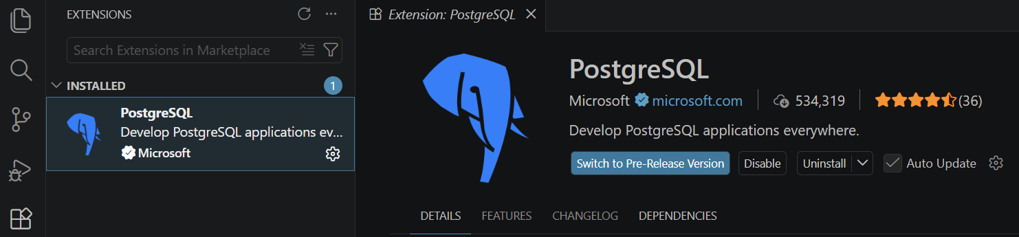
Install the VS Code PostgreSQL extension
The schema conversion capability is built into the PostgreSQL extension, so no separate installation is needed.
- In VS Code, open the Extensions view (
Ctrl+Shift+Xon Windows/Linux,Cmd+Shift+Xon macOS). - Search for
ms-ossdata.vscode-pgsqlor search forPostgreSQL. - In the results, locate PostgreSQL published by Microsoft. Several PostgreSQL extensions exist in the Marketplace, so verify the publisher before you install.
- Select Install. After installation, an elephant icon appears in the Activity Bar, your entry point to the PostgreSQL extension and the Schema Conversion feature.
Prepare Azure Database for PostgreSQL flexible server
The tool uses an Azure Database for PostgreSQL flexible server as the scratch database for validation. Prepare a server before you start a conversion.
Version: Use PostgreSQL version 15 or later. The tool generates DDL that targets the major version of the scratch server. Use the same major version on the scratch server as on your production target to avoid syntax or feature differences at deployment time.
Required PostgreSQL extensions: Several extensions translate Oracle built-in packages, spatial types, and full-text search. Allow-list and install the extensions your converted schema needs before you run a conversion. Common extensions for Oracle-to-PostgreSQL migrations include:
| Extension | Purpose |
|---|---|
orafce |
Oracle built-in package compatibility (DBMS_*, PLV*, UTL_FILE, and common functions) |
uuid-ossp |
UUID generation, equivalent to Oracle SYS_GUID |
pg_trgm |
Trigram indexes for LIKE/ILIKE and fuzzy text search |
postgis |
Spatial types and operators (replaces Oracle Spatial) |
postgis_topology |
Topology model for PostGIS |
postgis_tiger_geocoder |
Geocoder bundled with PostGIS |
pg_partman |
Time- and range-based partition management |
pg_stat_statements |
Per-query performance telemetry |
To allow-list extensions, open the Azure portal, navigate to your Azure Database for PostgreSQL flexible server, select Server parameters, search for azure.extensions, and add each extension. For extensions such as pg_partman and pg_stat_statements that require shared_preload_libraries entries, a server restart is needed.
Connect to the scratch database and install each extension:
CREATE EXTENSION IF NOT EXISTS orafce;
CREATE EXTENSION IF NOT EXISTS "uuid-ossp";
CREATE EXTENSION IF NOT EXISTS pg_trgm;
-- Add others as needed for your schema
search_path configuration: The orafce extension installs Oracle-compatible packages in dedicated schemas (oracle, dbms_*, plv*, utl_file). Add those schemas, along with the PostGIS (topology, tiger) and pg_cron (cron) schemas, to search_path so converted code can reference them without schema qualification. Set it at the database level to persist across sessions:
ALTER DATABASE <scratch-db> SET search_path TO
    public, oracle, topology, tiger, cron,
    dbms_random, dbms_alert, dbms_assert, dbms_output, dbms_pipe,
    dbms_sql, dbms_utility, plvchr, plvdate, plvlex, plvstr,
    plvsubst, plunit, utl_file;
Required privileges: The PostgreSQL user the tool uses to connect to the scratch database must be able to create and drop objects, and must belong to the azure_pg_admin role to create the required extensions.
Note
The connecting user must have CREATE privileges on the scratch database and membership in the azure_pg_admin role. The tool creates and drops scratch schemas named with the _mig_scratch_ prefix during the validation stage.
Prepare the source Oracle environment
You need a set of minimum privileges on the Oracle side so the tool can read schema metadata. The tool never queries row-level application data, reading only from the Oracle data dictionary.
Grant the Oracle connection user permission to connect, read the data dictionary, and read the SYS.ARGUMENT$ catalog. CONNECT and the SYS.ARGUMENT$ grant are always required; for dictionary access, grant either SELECT_CATALOG_ROLE or SELECT ANY DICTIONARY:
-- Always required
GRANT CONNECT TO <migration_user>;
GRANT SELECT ON SYS.ARGUMENT$ TO <migration_user>;

-- Dictionary access: grant either one of the following
GRANT SELECT_CATALOG_ROLE TO <migration_user>;
-- GRANT SELECT ANY DICTIONARY TO <migration_user>;
Note
Use the principle of least privilege. The migration user needs read access to data dictionary views only, not privileges on application tables or row data. The tool never queries application data.
Additionally, verify that the Oracle sessions parameter is greater than 10 so the tool can open enough concurrent metadata reads:
SELECT name, value FROM v$parameter WHERE name = 'sessions';
If the value is 10 or below, work with your Oracle DBA to increase it before running the conversion.
Choose the Oracle connectivity mode
The tool supports two modes for connecting to your source Oracle database. It reads your sqlnet.ora and tnsnames.ora configuration and selects the mode automatically; the UI exposes no manual selector.
Use thin client mode (default)
Thin mode connects to Oracle over standard TCP/IP without requiring Oracle Instant Client. It supports Oracle 12.1 and later and suits most environments. The tool uses thin mode by default, so no action is required to select it.
Use thick client mode
Thick mode uses Oracle Instant Client libraries. The tool switches to thick mode automatically when it detects that your Oracle network configuration requires it, specifically when sqlnet.ora sets SQLNET.CRYPTO_CHECKSUM_CLIENT or SQLNET.ENCRYPTION_CLIENT to REQUIRED or REQUESTED (indicating native network encryption is in use).
If your environment requires thick mode, install Oracle Instant Client before starting the conversion:
- Download Oracle Instant Client Basic or Basic Light from Oracle's website for your operating system.
- Extract it to a local directory.
- Add that directory to the system
PATHenvironment variable (andLD_LIBRARY_PATHon Linux). - Restart VS Code to pick up the updated environment variables.
Note
The schema conversion feature isn't supported on ARM64 architecture on either Windows or Linux, in thin or thick mode. Thick client mode additionally requires Oracle Instant Client, which is available on Windows and Linux only.
Configure Microsoft Foundry authentication
The tool calls a language model in Microsoft Foundry during the AI-powered transformation stage. You need a Microsoft Foundry resource with a gpt-5.2 deployment before you run a conversion.
Note
Configure your Microsoft Foundry deployment with at least 500,000 tokens per minute (TPM) for reliable performance on schemas of moderate complexity. Run one conversion project at a time, because concurrent projects compete for the same Foundry quota and can cause throttling or partial conversions.
The schema conversion feature itself is free. You're billed only for the Microsoft Foundry tokens each conversion consumes and for the Azure Database for PostgreSQL servers, so downsize or delete the scratch server after the conversion completes. See Microsoft Foundry pricing and Azure Database for PostgreSQL pricing.
Your Foundry endpoint URL is the resource URL. A Foundry resource exposes several equivalent hostnames; any of these formats is valid:
https://<your-resource>.services.ai.azure.comhttps://<your-resource>.openai.azure.comhttps://<your-resource>.cognitiveservices.azure.com
Confirm your endpoint matches one of these formats before you select Test Connection in the Migration Wizard.
The tool supports two authentication methods for Microsoft Foundry:
Authenticate with an API key
API key authentication uses a deployment-specific key to authorize requests. You provide the endpoint URL and the key in the Migration Wizard. This method is straightforward and suits development and testing scenarios.
Authenticate with Microsoft Entra ID (recommended for production)
Microsoft Entra ID provides token-based, identity-driven access without managing API keys. To use it:
- In the Azure portal, assign the Foundry User role (formerly Azure AI User) to the signed-in identity on the Microsoft Foundry resource (under Access control (IAM)).
- Install and sign in to the Azure Account extension in VS Code.
- In the Migration Wizard Microsoft Foundry configuration step, select Microsoft Entra ID as the authentication method. The tool acquires the token automatically from your signed-in Azure Account session.
Secure connections and networking
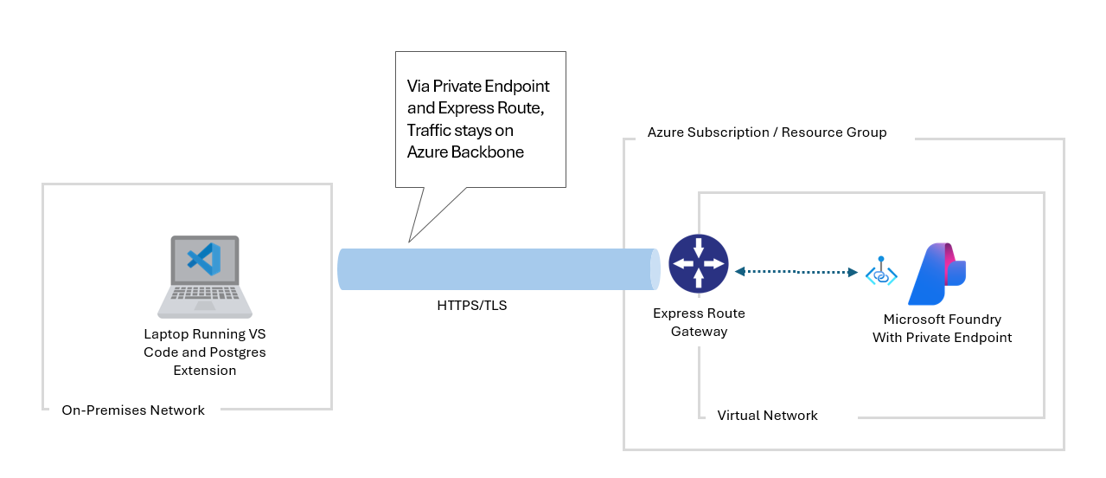
The tool runs in VS Code and establishes outbound connections to three endpoints: your source Oracle database, your Azure Database for PostgreSQL flexible server, and the Microsoft Foundry endpoint. Confirm that each connection is reachable from the machine running VS Code before you start a conversion.
During the transformation stage, the conversion sends schema metadata to the Microsoft Foundry model: DDL, table and column names, function bodies, view definitions, and trigger code. The model needs that context to produce accurate PostgreSQL output. Row-level application data is never sent. The model runs in your own Azure environment through your Foundry deployment, so data residency follows the region you deploy to. As an added control, consider enabling Foundry content filtering.
Microsoft recommends connecting to your Microsoft Foundry resource by using a private endpoint to keep inference traffic off the public internet. Apply private endpoints or firewall rules to the Azure Database for PostgreSQL flexible server as well. Store Oracle and PostgreSQL credentials in Azure Key Vault rather than in plain text, and don't commit credentials to source control.
Review your setup: Before proceeding to the conversion, verify that you can reach all three endpoints from your VS Code workstation, that the required extensions are installed in the scratch database, and that both the Oracle and PostgreSQL users have the appropriate privileges. A few minutes of verification now prevents troubleshooting mid-conversion.