Prerequisites and mapping setup
Before you begin using the integrated services of prospect-to-cash and dual-write features, you need to first consider various prerequisites and mapping setup requirements.
Setup in Sales
Before proceeding, make sure that the following settings are active and configured. Verify with the instructions and screenshots in the following sections.
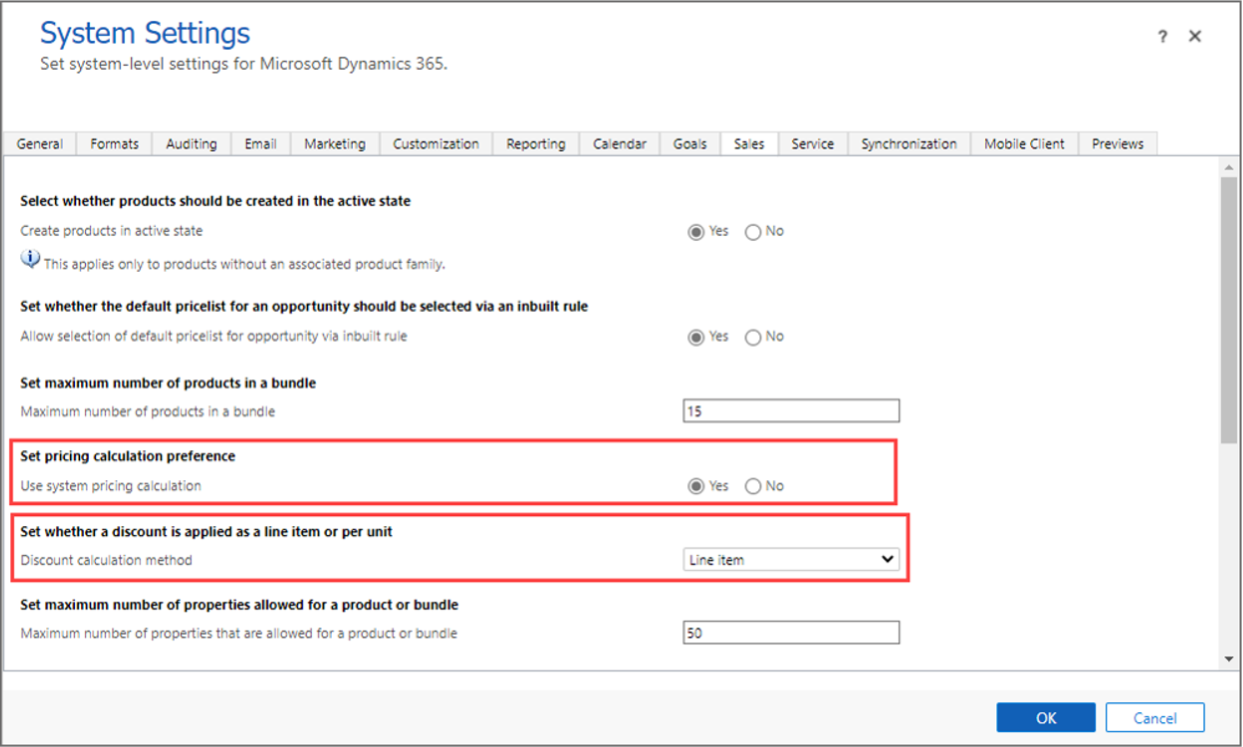
To begin, in Dynamics 365 Sales, go to Settings > Administration > System Settings > Sales and make changes to the following locations.
Set the Use system pricing calculation option to Yes.
Set the Discount calculation method column to Line item.
Setup in Supply Chain Management
To use and configure dual-write, start by linking your Supply Chain Management environment to Microsoft Dataverse by using the Dual-write wizard, and then enable the entity maps.
To configure dual-write in Supply Chain Management, follow these steps:
Sign in to Supply Chain Management.
Go to the Data management workspace.
From the Data management workspace, select the Dual-write tile.
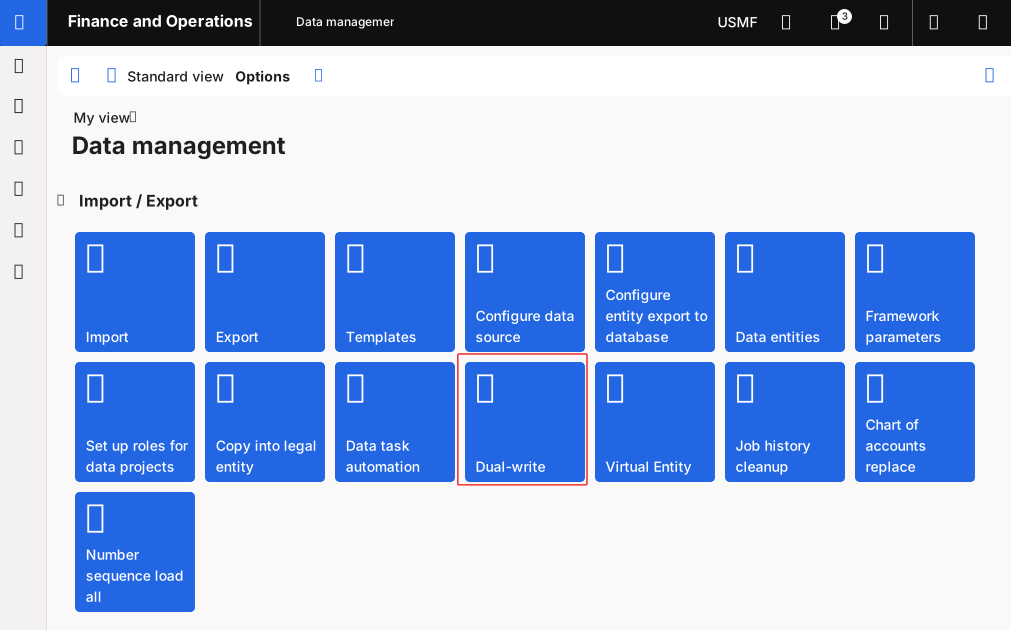
Select New link to environment, which will launch the Set up link to Dataverse wizard.
On the Choose environment page, select the environment to link to. This page will display all Dataverse environments that the signed-in user is an administrator for.
Select your legal entities to link. A health check will then run to verify that your system meets the requirements for enabling dual-write.
A summary will display. Review the privacy notice and content and then select Create. A link is now created between Supply Chain Management and the Dataverse environment.
Apply the dual-write application orchestration solution.
On the Dual-write page in Supply Chain Management, select Apply solution to apply the entity maps that you downloaded when the link was created between the environments.
After you apply the solution, the default entity maps will show as published.
Sites and warehouses
Site and Warehouse columns are required in Supply Chain Management for quotation lines and order lines, respectively. The location and warehouse columns will automatically populate when a product is added to a quotation line or order line if the default order settings are configured to do so.
Number sequences for quotations and orders
When quotations and orders are made and synced in Sales and Supply Chain Management, the number sequences for Supply Chain Management and Sales aren't linked. When a sales order that was created in Sales is synced to Supply Chain Management, it has the same sales order number in both places. Employ different number sequence systems in the two apps to help ensure that the sales order number isn't duplicated.
For example, the sequence in Supply Chain Management begins with the number 1, followed by 2, 3, 4, 5 (and so on), but the series in Sales starts with the number 100, followed by 99, 98, 97 (and so on). An order number will be generated in Supply Chain Management because if you establish 100 sales orders in Sales, an order number will be generated. Essentially, as sales orders are placed in Supply Chain Management and Sales, the two number sequences will eventually overlap. Use a number sequence in Supply Chain Management, such as F1, F2, F3 (and so on), and a number sequence in Sales, such as C1, C2, C3 (and so on). The sales order numbers that are generated by these sequence numbers will never be duplicates.
Templates
Prospect-to-cash includes a collection of core table maps that work together during data interaction. See Prospect-to-cash in dual-write > Templates to view the list of table maps in finance and operations apps and Customer engagement apps.