Enabling Copilot in Microsoft 365 apps
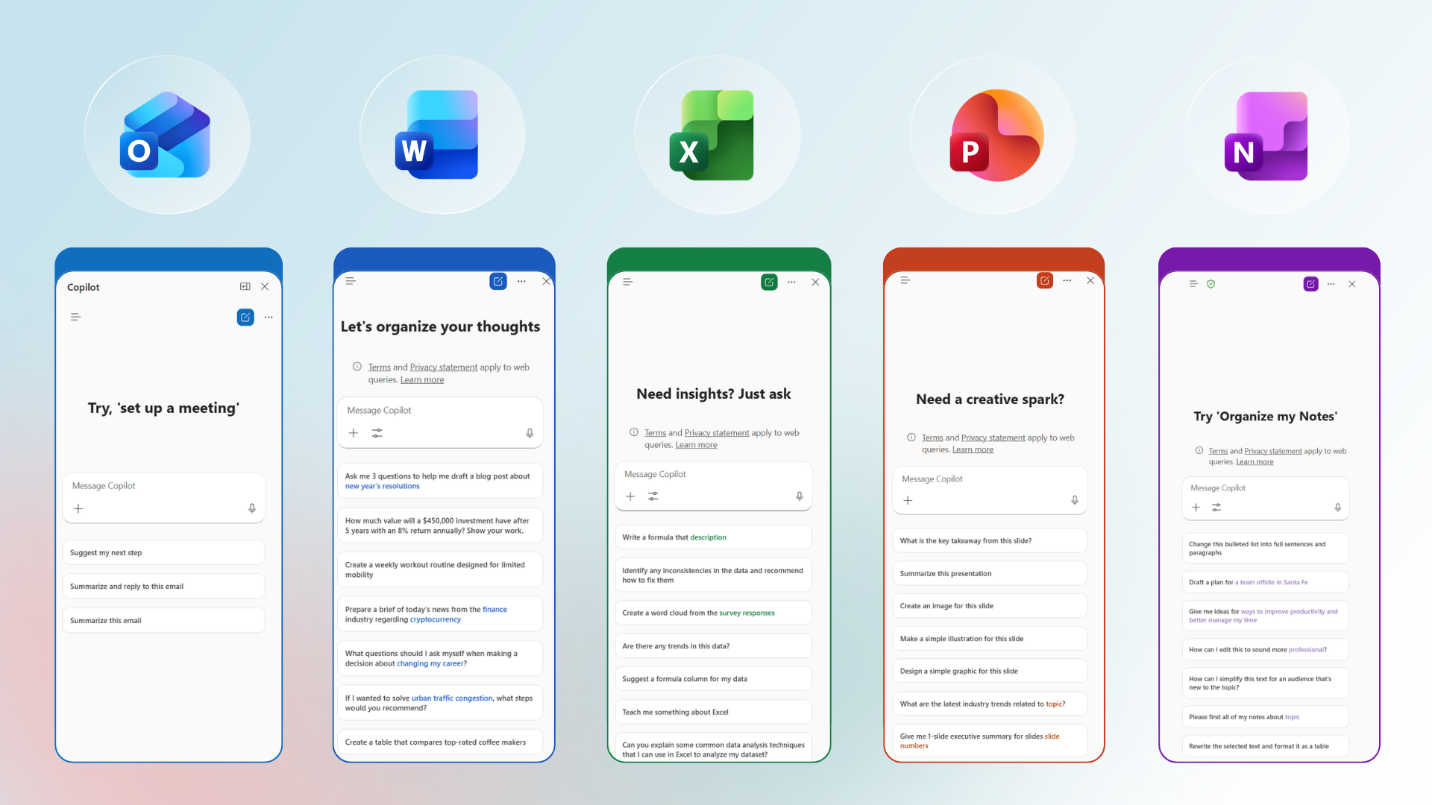
With Microsoft 365 Copilot chat in Outlook, Word, Excel, PowerPoint, and OneNote, users can take advantage of a unified chat experience across the apps people use every day. This allows Copilot to be a true AI assistant, helping users draft documents, analyze spreadsheets, or catching up on email.
Copilot Chat is secure AI chat grounded in the web built right into Microsoft 365 apps. It's content-aware, meaning that it quickly understands what is being worked on, tailoring answers to the file that's open. This feature is included at no extra cost for Microsoft 365 users. When you need help, you can open Copilot Chat in a side pane and get assistance right where you're working—reducing the need to copy and paste, upload files, or switch between apps.
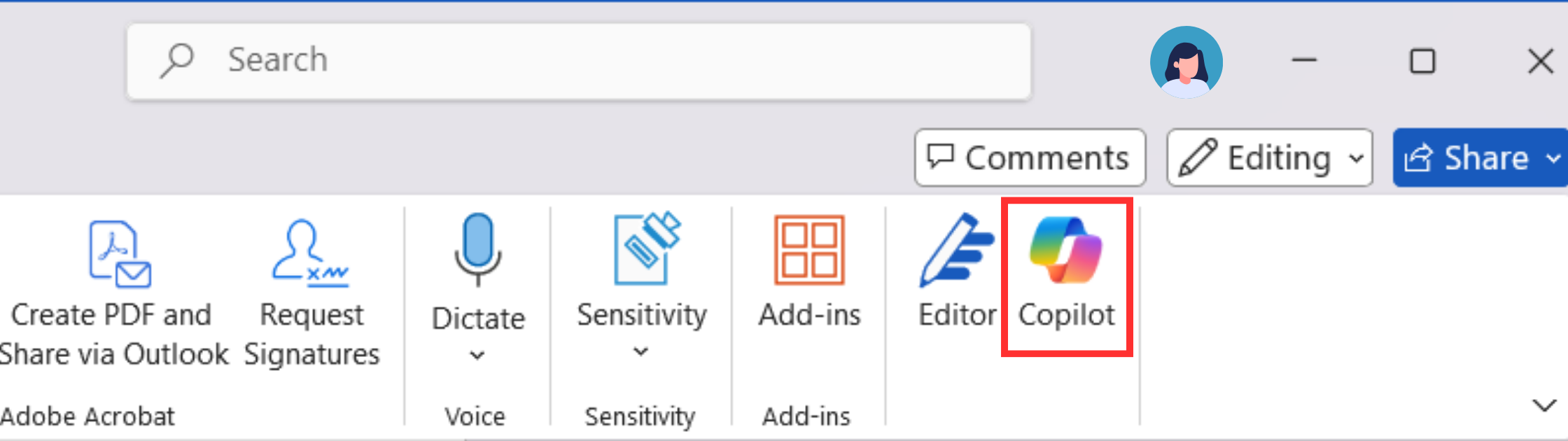
Copilot is available in the Home tab of Microsoft 365 apps on both the web and desktop apps. The button should appear automatically. Let's explore how to enable this button across Microsoft 365 apps in case it isn't visible.
First, ensure you're using the correct account. Make sure that you're signed into your Microsoft 365 apps with an account that has a Copilot license—meaning a Microsoft 365 Personal or Family subscription. For new or locally saved files, make sure you're signed in with the Microsoft 365 account that has a Copilot license.
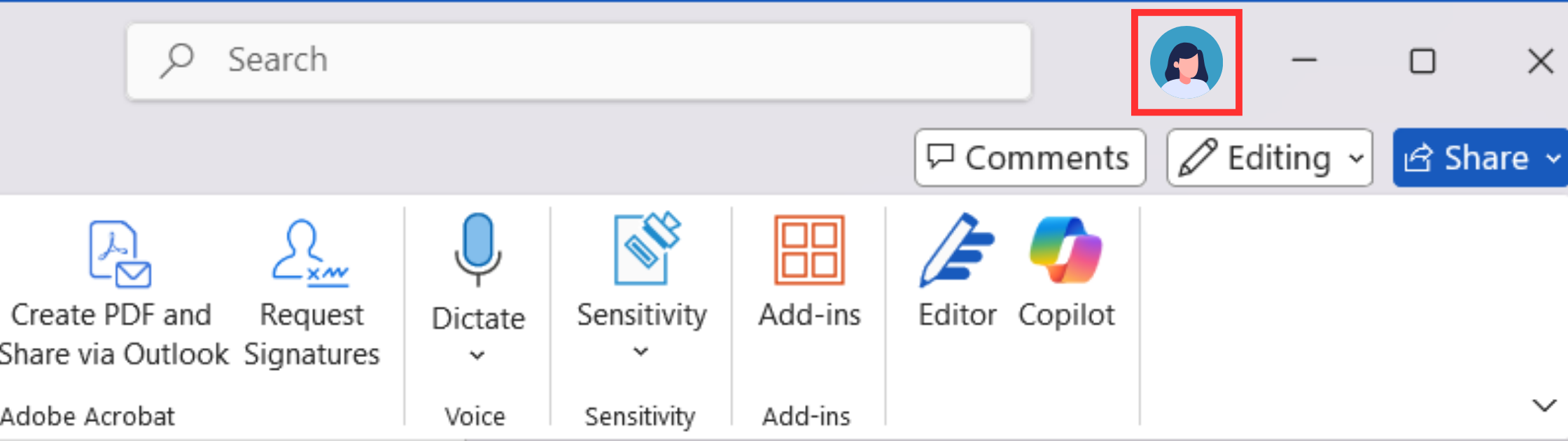
The steps to turn on the Copilot button are different on desktop and on the web. Let's look at both:
Enabling the Copilot button on Windows
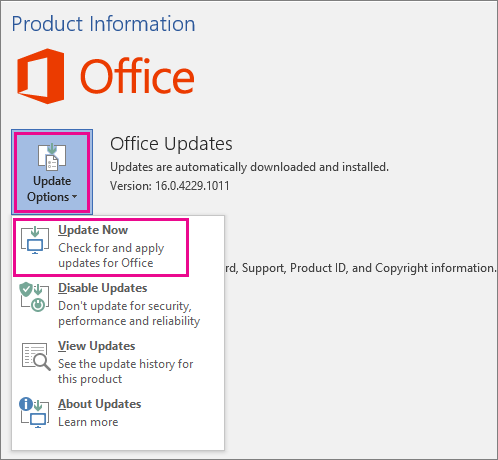
Make sure you're using the latest version of Microsoft 365: To get access to the newest features, check for updates by doing the following:
- Open any Office app, such as Word, and create a new document.
- Go to File > Account.
- Under Product Information, choose Update Options > Update Now.
- Close the "You're up to date!" window after Office done checking for and installing updates.
Note
You may need to select Enable Updates first if you don't see the Update Now option right away.
- Refresh your license: In any Microsoft 365 app, go to File > Account. Then select Update License. Finally, close and restart any Microsoft 365 apps you have open to refresh the license.
Enabling the Copilot button on the Web

When launching a Microsoft 365 app experience on the web, if the Copilot button isn't visible after account sign-in, select the Refresh icon in your browser to make the Copilot button appear. It's important to note that if you have third-party cookies blocked in your browser, Copilot will be unable to validate your license. If Copilot still isn't working after refreshing your browser, try enabling third-party cookies.
Now that Copilot is enabled in your Office apps, you're ready to accelerate your creativity and productivity. In the following units, you'll learn how to use Copilot in Word, Excel, PowerPoint, Outlook, and OneNote to enhance your Microsoft 365 experience.