Copilot in PowerPoint
Image you are in a group of photography enthusiasts. Copilot in PowerPoint can help you quickly create slides, suggest images from your library, and organize your ideas into a presentation that you're excited to share. Let's explore how Copilot can assist you level up your presentations.
Create a new presentation with Copilot
By using natural language text prompts, Copilot can help you build and refine a presentation. Follow these steps to use Copilot to help create your presentation:
Start a new presentation in PowerPoint.
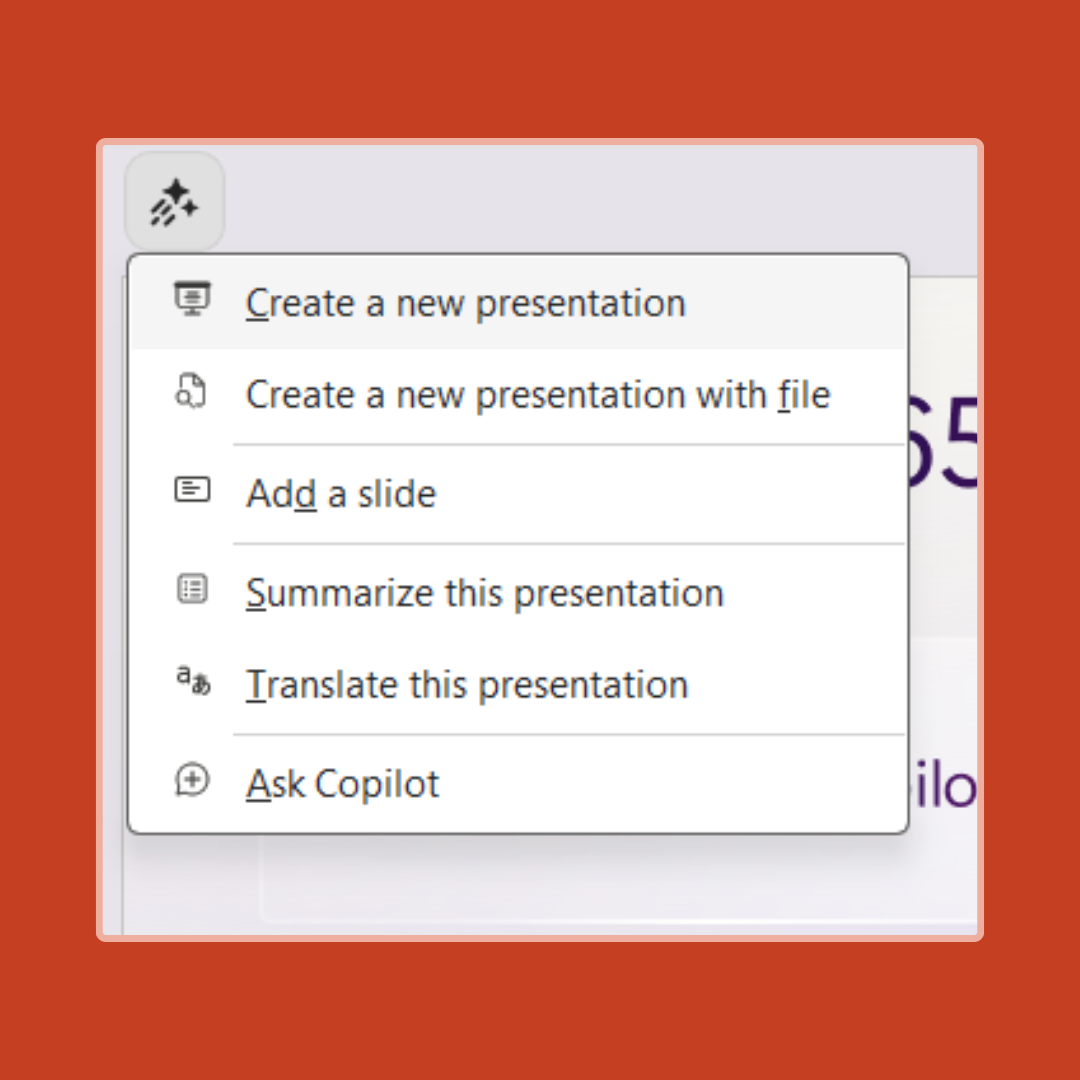
Select the Create a presentation option in the Copilot menu above your slide.
Complete your prompt with a description of the presentation you'd like Copilot to help draft. You can also select the paper clip button or enter / to choose a file that you'd like Copilot to reference when creating your presentation.
Note
You can add up to five Word documents, PDF files, TXT files, Excel files, and Loop/Pages for Copilot to reference when creating your presentation.

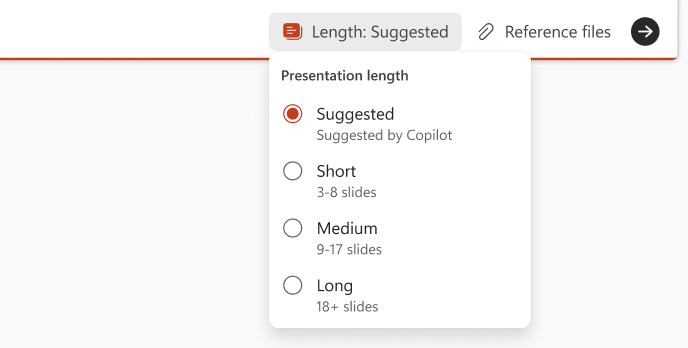
Indicate a presentation length if you'd like to provide one and select the arrow to generate your presentation outline. You can use a suggested length from Copilot or define Short (3-8 slides), Medium (9-17 slides), or Long (18+ slides) presentation length.
Review and modify the topics that Copilot generates for you. To refine your prompt and regenerate a new set of topics, select the pencil button.
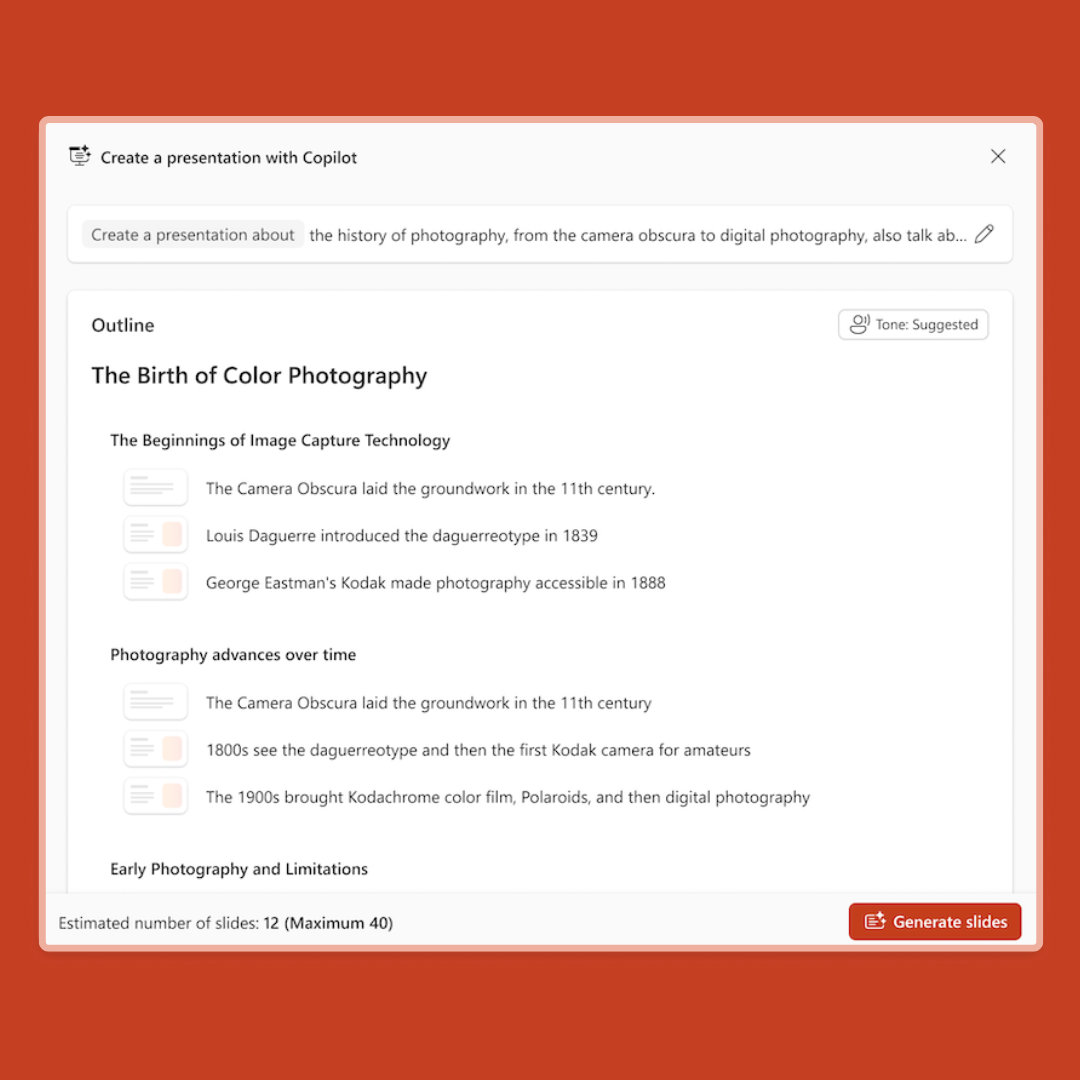
Adjust the tone of your presentation and regenerate your presentation outline.
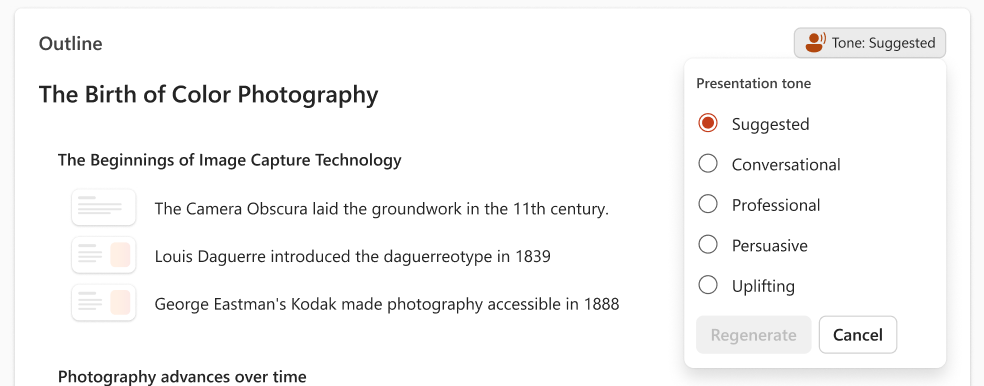
Add a topic by selecting the + button, then describe your topic. You can also select the paper clip button or enter / to choose a file that you'd like Copilot to reference when adding a topic.
Select a Presentation Style or choose a template that is available from your organization.

Choose the source for images in your presentation. If you'd like to use AI-generated images, you can choose a style for your images.
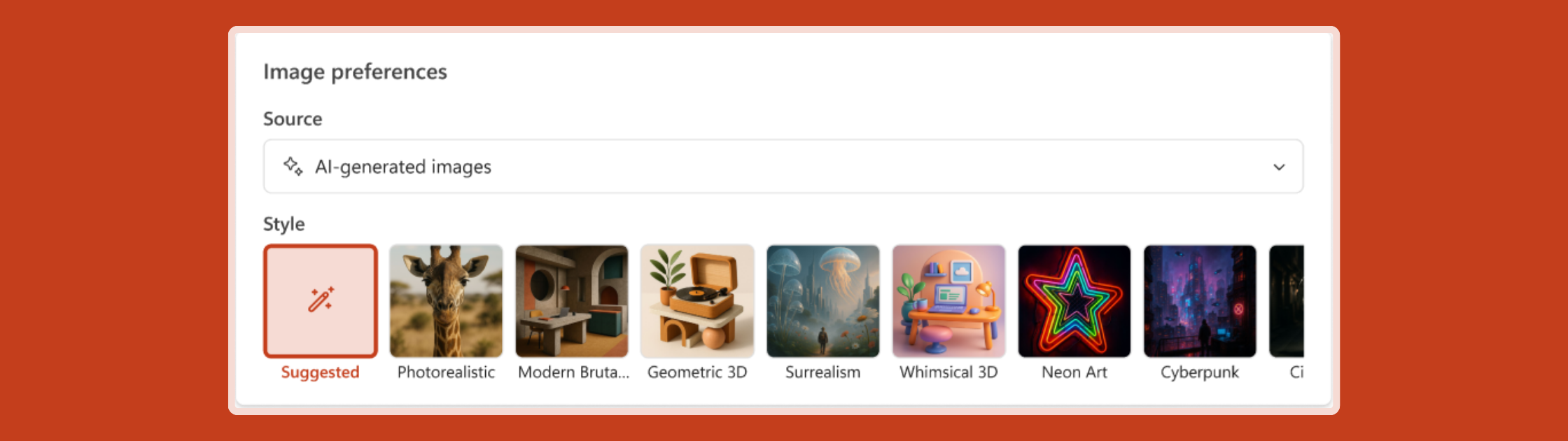
If you're happy with your topics, select Generate slides and Copilot will draft a presentation for you.
To ensure the best results, it's recommended to use Styles in Word to help Copilot understand the structure of your document. By using the structure, Copilot can better break up the sections of your document into slides of a presentation. Additionally, make sure to include any relevant images as this will help Copilot incorporate them into your generated presentation.
Add an image to your presentation with Copilot
Let's say that you have your presentation built, but you realize that an image would really help to elevate a slide. Copilot can help suggest stock images for your presentations. Ask Copilot to add the kind of image you want, and it chooses one from stock images.
If you're using Microsoft 365 Copilot and your administrator has set up access to brand images, Copilot can suggest those images as well.
Additionally, Copilot in PowerPoint can also create an image using the DALL-E 3 image generator to create an AI-generated image that you can insert into your presentation. The more specific that you can be about the type of image you want, the better the response you're likely to get.
Designer's Image Creator works best when you're more descriptive—it's crucial to add details like adjectives, locations, or even artistic styles such as "digital art." Consider what a basic prompt looks like versus a more descriptive one:
- Basic prompt: "Create an image of an astronaut."
- Descriptive prompt: "Create a close-up photo of an astronaut in a glowing suit, as if the galaxy is inside of it, putting on their helmet, realistic, bright colors."

Tip
Adding a few details (like style, view, and action) can help Copilot generate an image that's closer to what you had in mind.
Summarize your presentation with Copilot in PowerPoint
Imagine that you're sent a presentation to review. It's long, but you don't have enough time to fully review it in deep detail. Copilot in PowerPoint can help summarize the main points of this presentation and give you a bulleted summary so you can understand the key points. Let's explore how to use this feature:
- Select the Copilot button from the ribbon. The Copilot pane opens on the right side of your screen.
- Type "Summarize this presentation" in the prompt field and send it.
After a summary is generated, Copilot references show where it pulled information from in the presentation for easy access in case you need more detail. In addition to summarizing, Copilot can also show you slides that might need special attention. To do this, ask Copilot to "Show key slides," and Copilot will try to identify which slides might be worthy of a look. You can also skip straight to the call-to-action items by asking Copilot, "Show action items." You'll get a list of tasks that Copilot was able to identify in the presentation.
With the capabilities of Copilot in PowerPoint you can create, edit, and review presentations with elevated efficiency—enabling you to focus on your tasks and stay on track.