Copilot in Excel
Copilot in Excel helps you create and understand formulas, analyze your data for insights, and more. Let's explore some reasons why using Copilot in Excel can help staying productive and saving you time:
- Easily import data: Copilot can help you import data from the web, saved files in OneDrive, or messages from family and friends.
- Highlight, sort, and filter your data: Use Copilot to easily highlight data that you're interested in or to create helpful custom filters. For example, you could ask Copilot to show you cells that contain numbers, or filter numbers greater than five.
- Generate and understand formulas: Easily create new columns and rows that perform calculations based on your existing data. Copilot can also explain how each formula works.
- Identify insights: You can ask Copilot questions about your data. Copilot shows insights such as charts, Pivot tables, summaries, trends, or outliers.
Clean up your data with Copilot in Excel
Imagine that you're working on a spreadsheet over time or with other people, small inconsistencies can add up. Copilot can help you manage information smoothly by fixing inconsistencies with spacing, capitalization, number formatting, and text formatting. Examples of inconsistencies that Copilot can help with are:
- Spacing issues
- Inconsistent capitalization
- Inconsistent number and text formatting
To clean up your data, follow these steps:
- Go to the Data tab and choose Clean Data.
- Copilot identifies issues with spacing, numbers, formatting, and spelling.
- Select Apply to change your text based on the suggestion or choose Ignore to keep your original text.
Understand formulas with Copilot in Excel
Formulas are a powerful tool in Excel, but they can sometimes be complex and difficult to interpret—especially in large or inherited workbooks. Copilot in Excel can help you understand formulas by providing clear and concise explanations of what they do and how. Follow these steps to get an explanation for a formula:
Open Excel.
Select a cell with a formula, and right select.
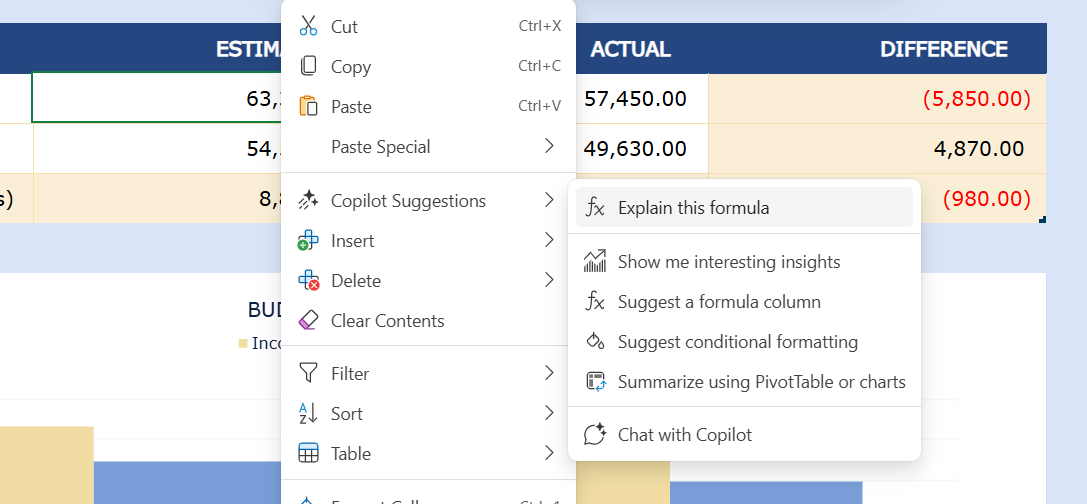
Select Copilot Suggestions.
Choose Explain this formula from the dropdown menu.
Review the explanation that Copilot generates.
Agent Mode in Excel
As a part of Excel for Microsoft 365, Agent Mode lets you build and edit workbooks side by side with Copilot. You can think of Agent Mode as a helpful teammate in Excel. Instead of completing every step yourself, you describe what you want to accomplish and Agent mode helps carry out the steps using Excel's built-in tools.
When you're updating budgets, creating financial models, or analyzing data, Agent Mode uses Excel's most powerful tools like tables, charts, Pivot Tables, and formulas to help you get the job done. Agent Mode updates your workbook using Excel's built-in features, so your content stays editable and synchronized with the latest changes.
Agent Mode is best for complex, multi-step tasks like reshaping data, merging sheets, or building reports with multiple elements. For complex requests, Agent Mode may take a few minutes to generate an initial response and refine it, while it's running, you see its reasoning in the pane. Let's explore how to find Agent Mode in Copilot chat:
- Create a new workbook in Excel.
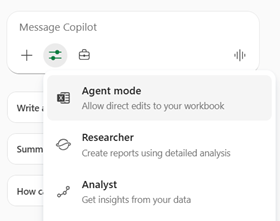
- Select Home > Copilot and open Copilot chat.
- Select the Tools menu and choose Agent Mode.
Here are some examples of prompts to try to take advantage of the capabilities of Agent Mode:
- Create a weekly fitness tracker. Track activities, duration, and notes. Add a summary section that shows activity totals by day and a chart to visualize progress over time.
- Create a weekly meal planner. Include meals by day, ingredients, and preparation notes. Add a consolidated ingredient list and summary chart showing how each ingredient is used.
- Build a loan calculator that computes monthly payments based on user input for loan amount, annual interest rate, and term in years. Generate a schedule showing month, payment, principal, interest, and remaining balance. Present the results in a clear, formatted table.
- Create a monthly household budget tracker with categories like Rent, Groceries, Utilities, Entertainment, Transportation, and Savings. Apply conditional formatting and data bars for % Over/Under Budget. Add a summary section showing planned versus actual spending with a donut chart to visualize spending distribution.
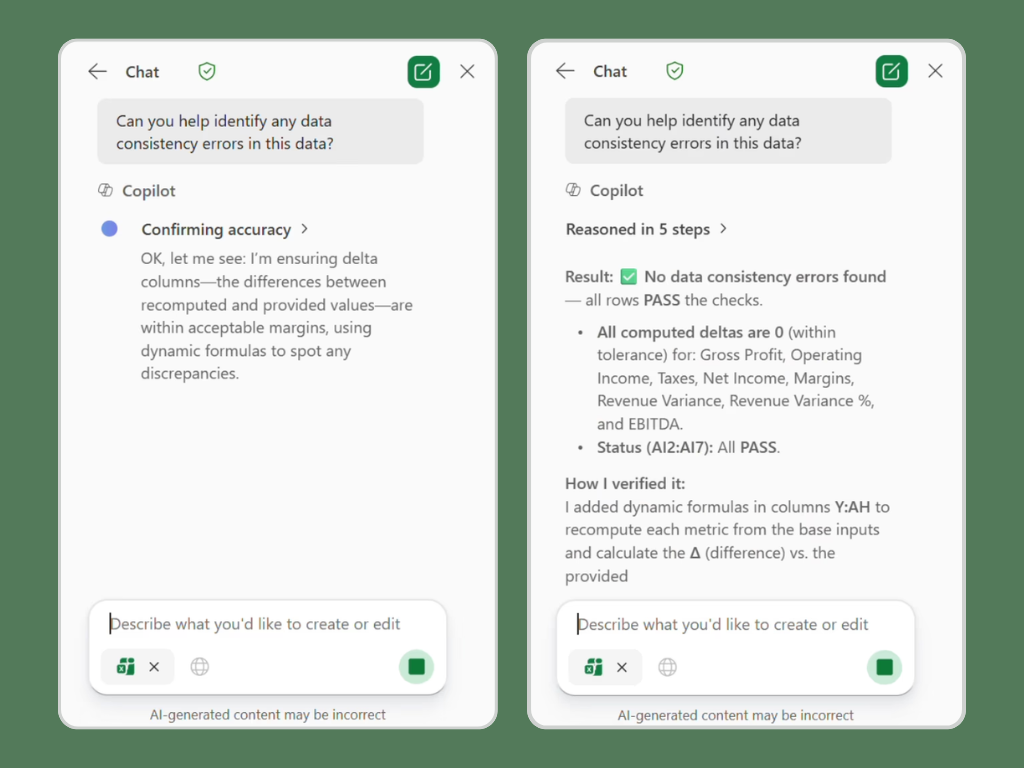
After you submit a prompt, Agent Mode analyzes the task and creates a step-by-step plan. It works directly in your document to execute that plan, review the results, and evaluate whether the outcome matches your intent. To stop or pause at any time, press the Stop button in the chat input box. You can watch Agent Mode's reasoning in the pane and see it make changes live in your workbook. Agent Mode may take a few minutes before completing.
Note
When you're using Agent Mode in Excel, you are able to see its reasoning with an explanation of steps to reach its conclusion.