Copilot in Outlook
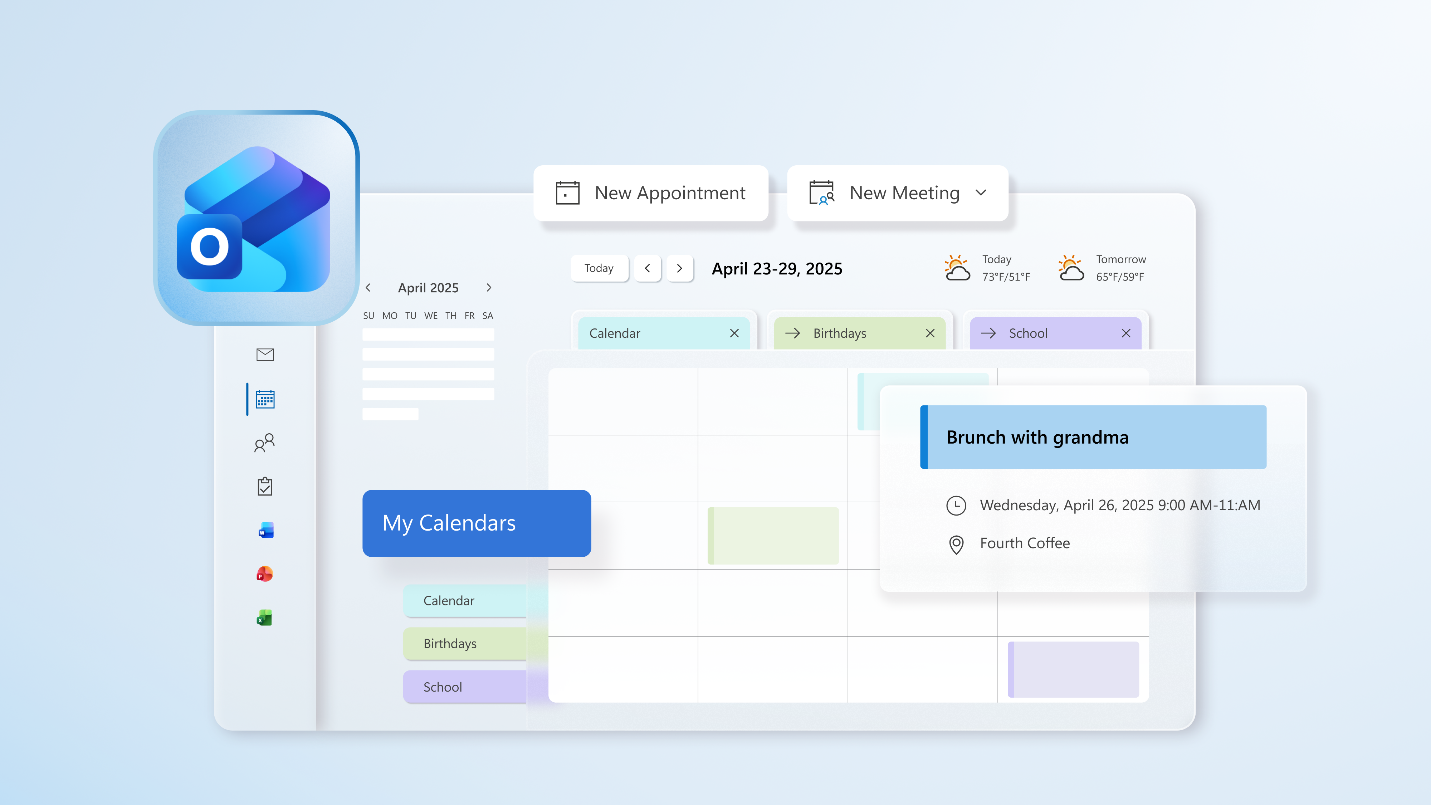
Copilot is deeply integrated into Outlook, allowing you to retrieve information contextually and take action—all while being able to use Outlook side by side with chat. It supports conversations about your data, information from the web, questions about your inbox and calendar, and even allows you to act directly in Outlook.
You can use Copilot chat in Outlook to ask questions about your inbox, calendar, meetings, and other limited data and take action directly in Outlook. Here are some examples of the types of prompts you can use:
- "Help me plan my week."
- "Catch me up on emails I might have missed recently."
- "What's coming up on my calendar next?"
- "Set up a meeting with someone I talk to often."
- "Show me any unread emails I should look at first"
Draft an email message with Copilot in Outlook
With Copilot, you can get help crafting an email with the proper tone of voice, clarity, and professionalism. Here's how to do it:
- Open Outlook, select Home > New mail.
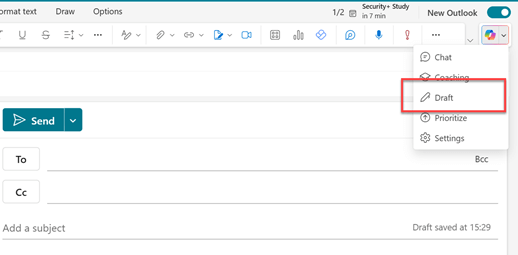
- To start a new message, select the Copilot icon from the toolbar above the blank email, and select Draft from the dropdown menu. If you don't see the icon in the toolbar, select the Copilot icon or the Draft with Copilot text in the email message area.
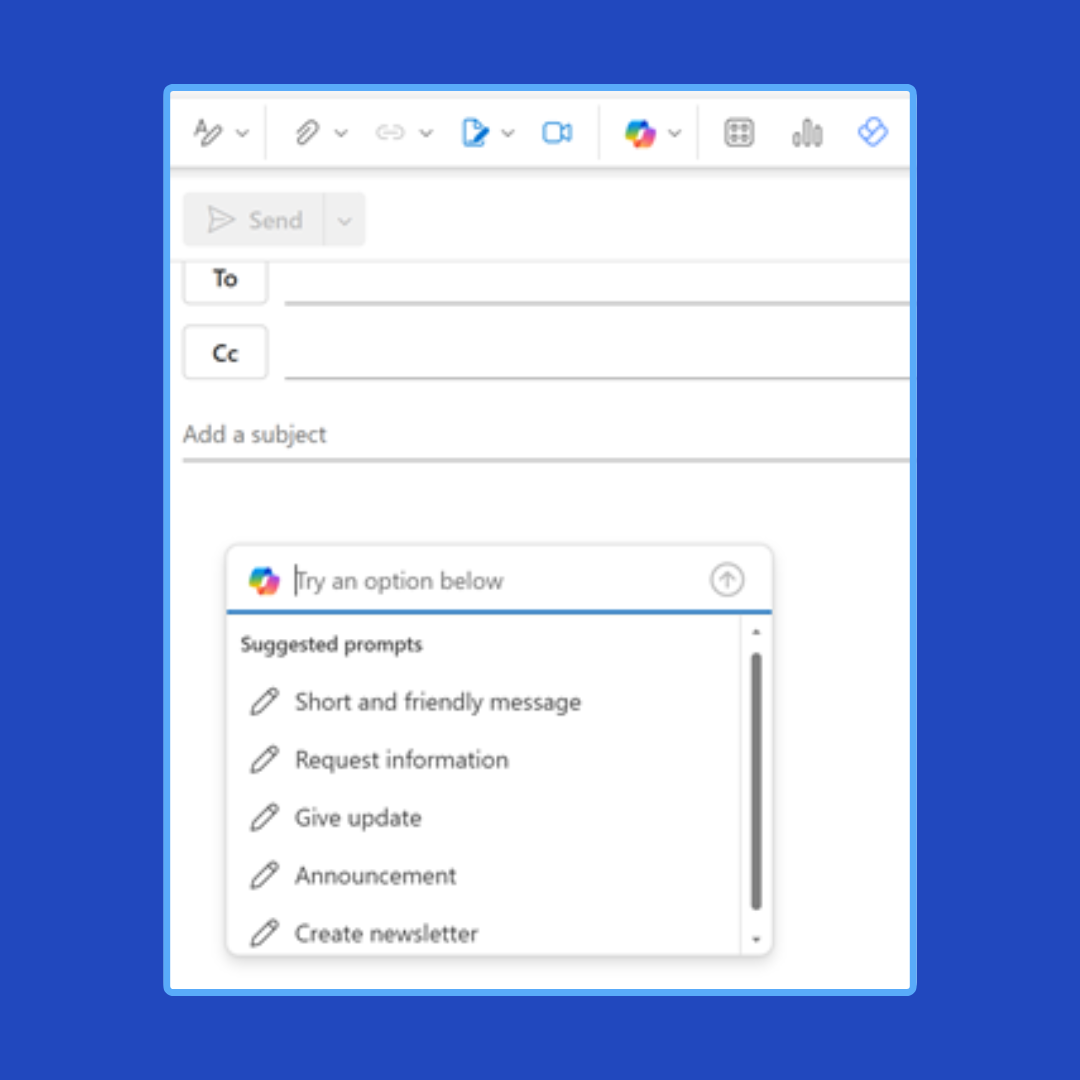
- In the Copilot box, type your prompt—or select and edit one of the suggested prompts from the dropdown.
- When you're finished, select the Generate arrow. Copilot drafts a message for you.
- Review the draft. If it's not right, choose one of the options to adjust the text, or enter a new prompt and select Generate again.
- When you're happy with the result, select Keep it.
- Make any final edits, then select Send.
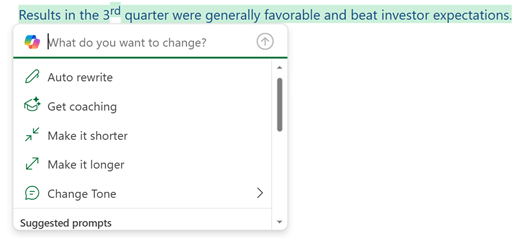
If you want Copilot to help you with text you've already written in an email message, simply highlight that text, then select the Copilot icon next to your selected text.
Create a meeting agenda with Copilot in Outlook
Copilot can also help you create meetings and meeting agendas quickly, saving you time, and keeping your meetings on track. Let's explore how to use Copilot to create a draft meeting agenda:
- Create a new meeting and add a title and attendees.
- Scroll down to the meeting description in the event form.
- Select the Copilot button, or press Alt + I to open Copilot.
- Select the prompt entry field and:
- If you've already set the meeting title and attendees, you can select Auto draft an agenda.
- Choose a suggested prompt based on your title and attendees and build on it.
- Explicitly type a prompt with the goal, talking points, or other meeting details for the agenda you want.
- Once Copilot creates a draft agenda, you can choose Keep it, Discard, or Adjust the tone or length.
- With Adjust the tone or length, you can choose to Retry, Make it shorter, Make it longer, or Change Tone.
- Use < Previous or Next > to scroll through agenda versions and select Keep it when you find one you like.