Copilot in OneNote
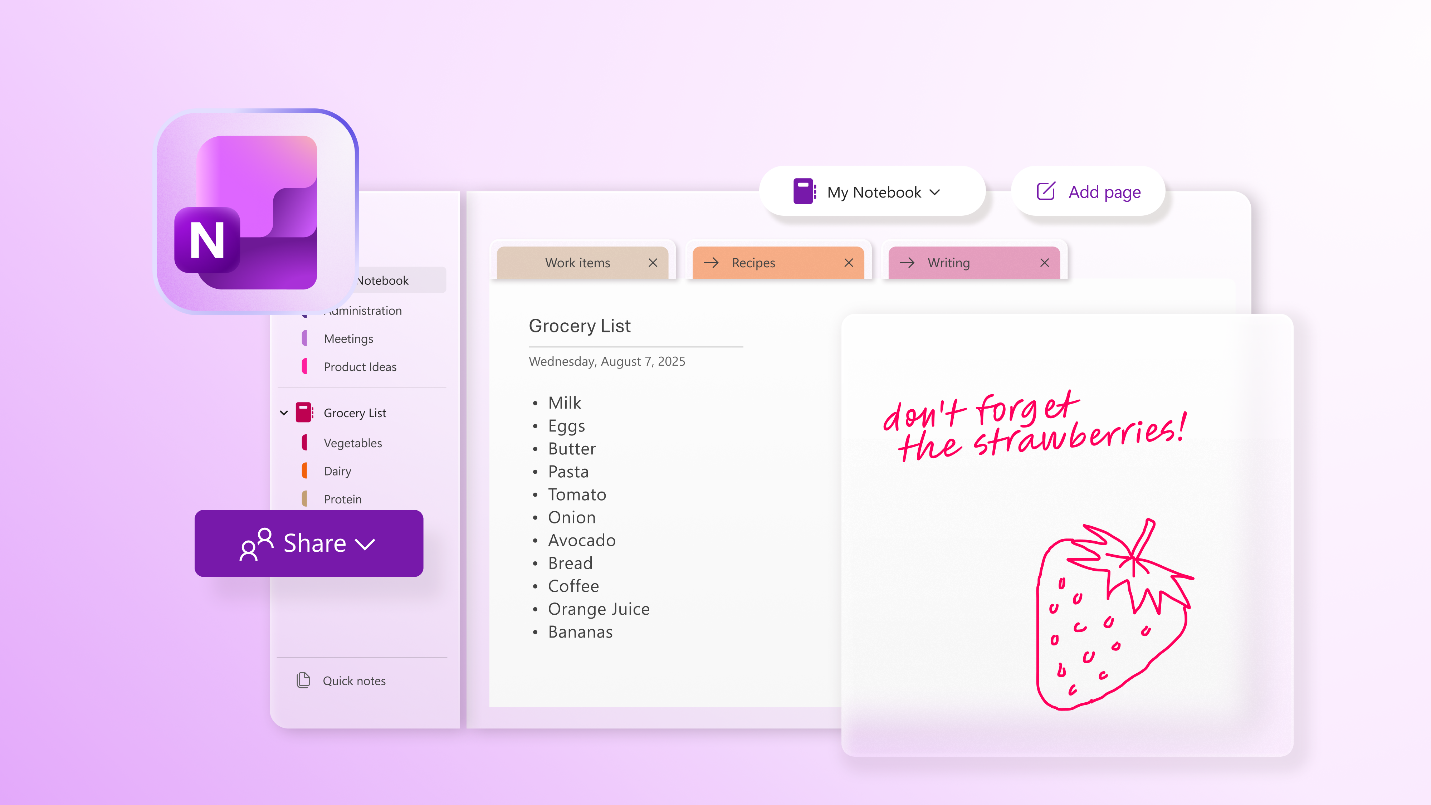
Copilot in OneNote can help you understand, create, and recall information at the select of a button. Using large language models in combination with your note, Copilot can help generate summaries, ideas, and drafts based on your content.
Using Copilot in OneNote you can:
- Generate summaries.
- Create task lists.
- Analyze your ideas.
- Rewrite your notes for clarity.
- Create new content like presentation outlines and meeting drafts.
- Chat with Copilot to get assistance in real-time.
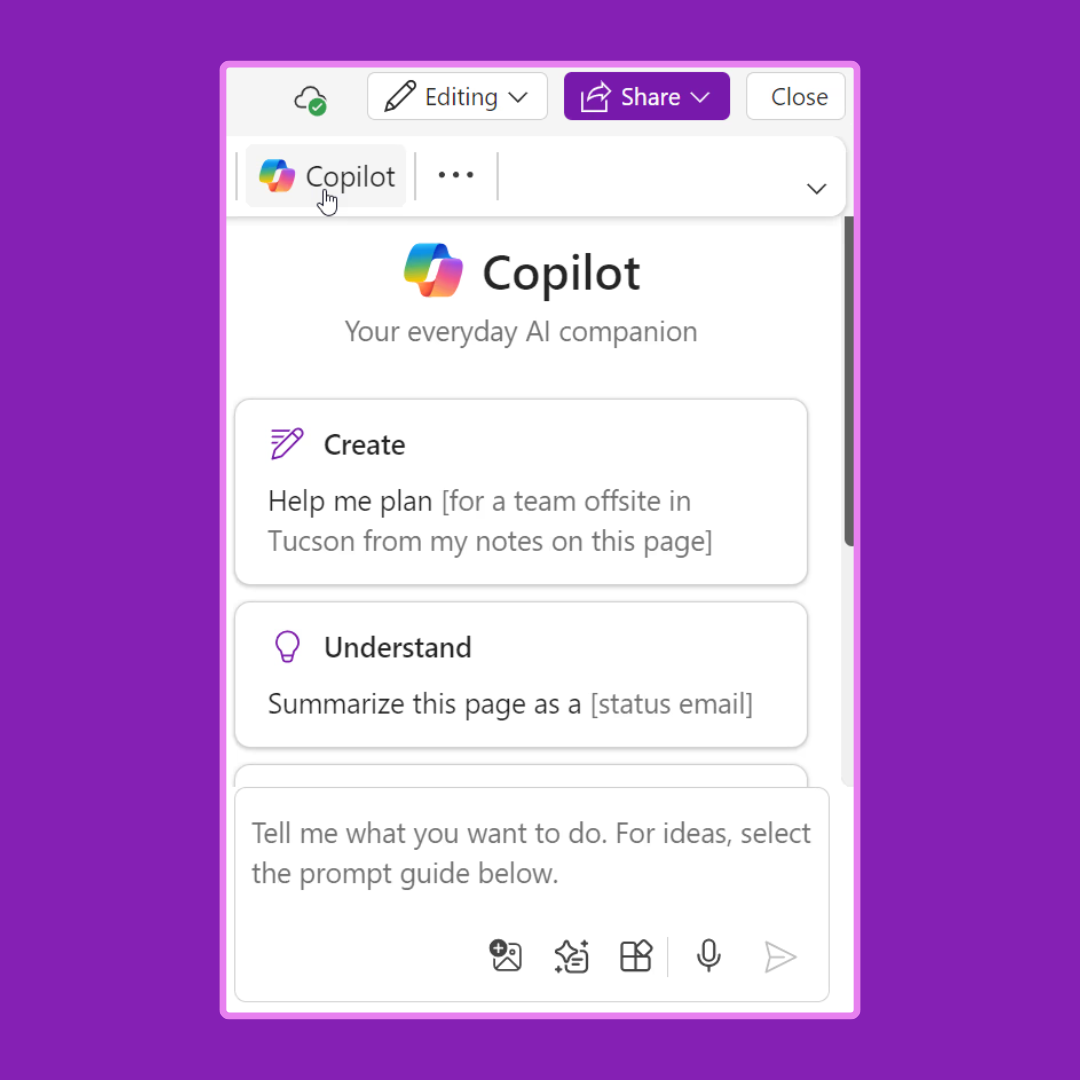
To start interacting with Copilot in OneNote, select the Copilot button from the Home Ribbon.
Summarize your notes
When you have numerous notes, Copilot can help make sense of everything for you. This is especially useful if you take a lot of notes quickly that may be difficult to understand later. Copilot's Summarize feature makes it easy to make sense of an entire section by default, a selected portion of text, and a specific topic or feature. Here's how to use it:
- Select the Copilot button in the ribbon to open the Copilot pane.
- Once you've entered the details (such as key points, action items, or specific questions you want answered), select the Send arrow.
- Copilot generates a summary of your content. You can select Copy to copy Copilot's response and paste it in OneNote or other apps.
Create task lists
Copilot can also create task lists for follow-ups from your notes, a page, or a section. Here's how:
- Select Copilot from the ribbon to open the Copilot pane.
- Type your prompt in the search box.
- Once you've entered the details (such as specific tasks, deadlines, or priorities), select the Send arrow. For example, you could enter "Draft a to-do list for my upcoming project brainstorming session, including tasks like preparing talking points, sending invites, and finalizing the agenda."
- Copilot generates a task list in the Copilot pane. You can select Copy to copy Copilot's response and paste it in OneNote or other apps.
Create new notes, pages, and sections
Imagine that you need to work on an assignment but you're not sure where to start. Copilot can help when you're stuck on a blank page and unlock your creativity.
If you need inspiration to ideate on a new assignment, Copilot can help you break mental blocks and provide ideas to get you started. Do the following:
- Select Copilot in the ribbon to open the Copilot pane.
- In the compose box, enter "Give me ideas" and details to specify what types of ideas you want.
- Choose the View Prompt icon to open the Copilot prompt menu and select Give me ideas for.
- Select the Send arrow.
- Copilot places the ideas in the Copilot pane. You can select Copy to copy Copilot's response and paste it in OneNote or other apps.
For larger projects that have overwhelming workloads, Copilot can draft an easy-to-follow plan so you can save time on planning and be more productive. Do the following:
- Select Copilot in the ribbon to open the Copilot pane.
- In the compose box, enter "Draft a plan" and details about what type of plan you need.
- Select the Send arrow.
- Copilot places the plan in the Copilot pane. You can select Copy to copy Copilot's response and paste it in OneNote or other apps.
Once the draft of your project is complete, it may need a rewrite. This is usually a difficult process, but Copilot in OneNote can help by rewriting your content for tone, style, formality, and even length. You can also ask Copilot to provide several options for its rewritten responses. Do the following:
- Select Copilot in the ribbon to open the Copilot pane.
- In the compose box, enter a prompt like "Rewrite" and details to clarify how you want the text to be rewritten. You can also do this by selecting some text and clicking the Copilot icon to get the menu option to Rewrite selected text.
- Finish typing in the rest of your prompt to specify the section, selected text, or topic or feature you want to rewrite.
- Select the Send arrow.
- Copilot places the rewritten text in the Copilot pane. You can select Copy to copy Copilot's response and paste it in OneNote or other apps.
The features in Copilot are continuously expanding to enhance your experience and productivity. To explore these new capabilities:
- Use the Copilot pane: Access a comprehensive overview of all available features and tools.
- Click the on-canvas OneNote icon: Quickly access specific features tailored to your current task. This icon appears next to selected text or within the page of your notebook.
- Check the Help section: Find detailed examples and step-by-step guidance to make the most of the new tools.