Find action items with Word
Scenario: You receive a lengthy project Word document. You're tasked with analyzing this document, developing action items, and making key decisions around the context of the document.
How Copilot can assist: Analyzing this document takes a lot of time—time you may not have. With Copilot in Word, you can summarize the content efficiently and show action items and key decisions that need to be made.
Outcome: You have a deeper understanding of the document with faster comprehension and now have clarity on how to continue with this task while maximizing your efficiency.
Next, let's explore how to use this feature:
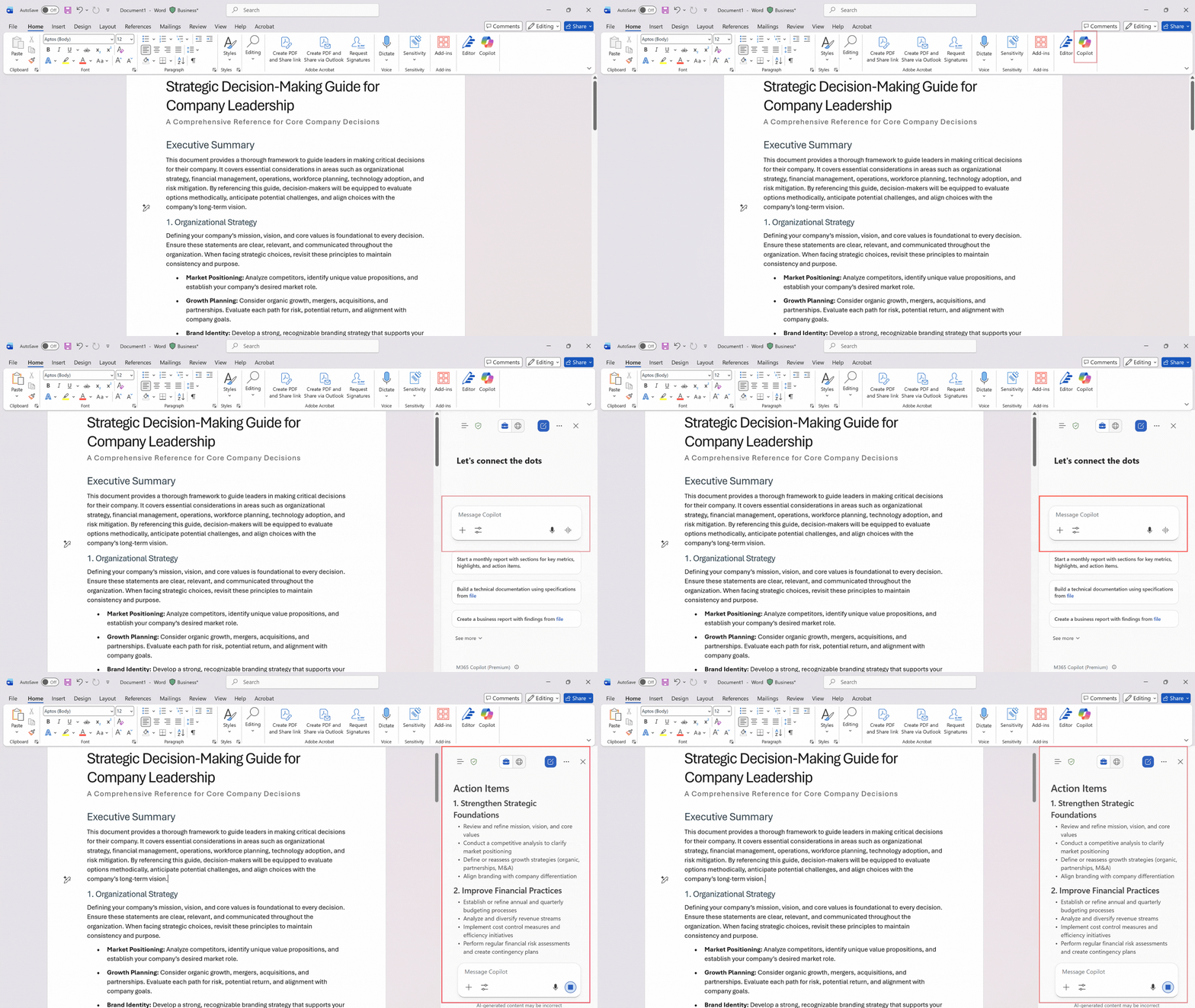
- Open the document in Microsoft Word.
- In the top ribbon, select the Copilot icon.
- In the chat dialog box, type "Summarize this document and identify action items."
- Copilot instantly summarizes and provides key action items from the document—saving you time.
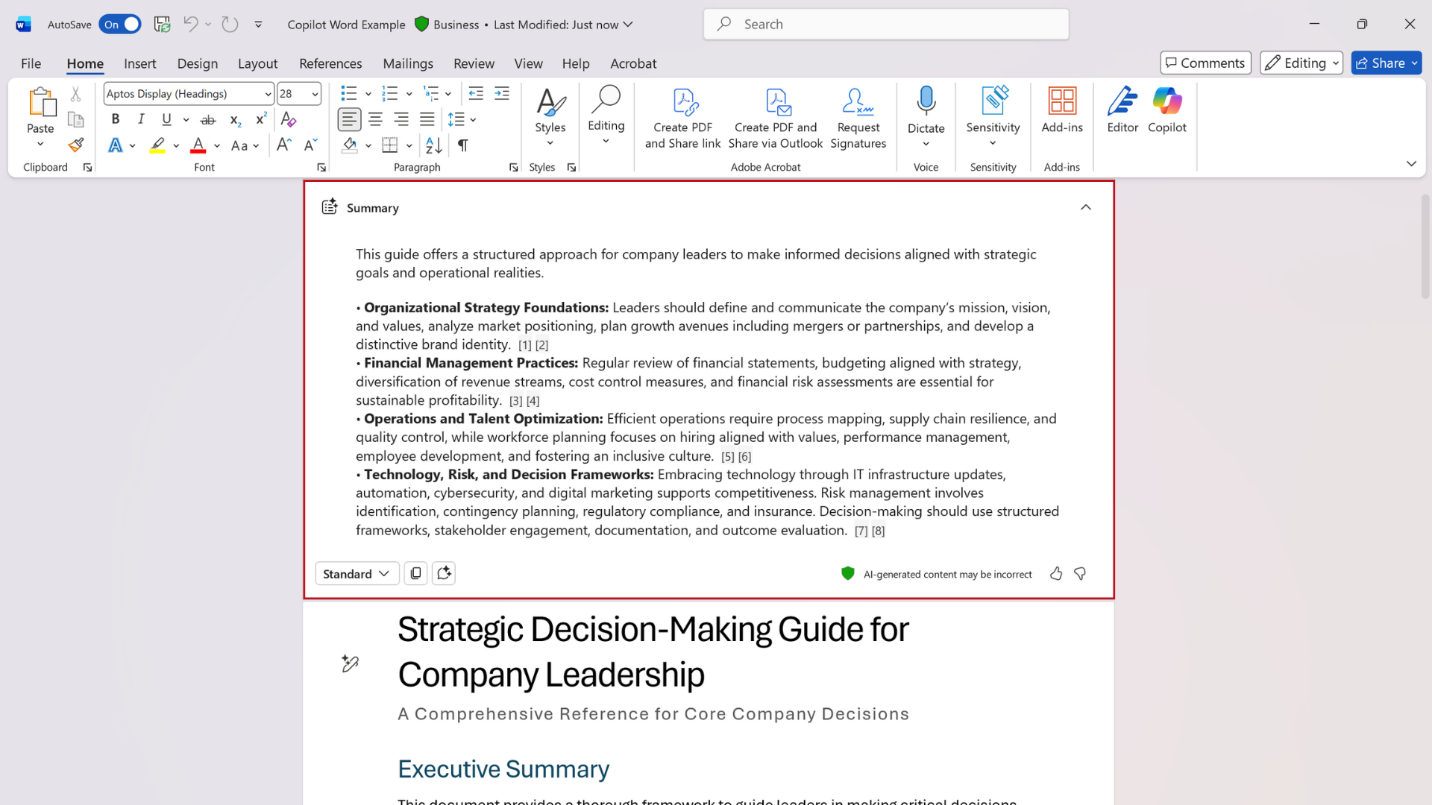
Depending on your license and organizational settings, you may see an automatic summary preview when you open a document. In this instance, select View More to see the full summary. You can click on the suggestion pills underneath the summary to open Copilot Chat and chat about the document.