Analyze data with Excel
Scenario: You're a business analyst, and you need to review weekly sales numbers and find trends and provide a report to company decision makers.
How Copilot can assist: With a large amount of data in the spreadsheet, Copilot helps make sense of the data by finding trends, anomalies, and drivers—then generating a summary narrative.
Outcome: Copilot helps you understand the data's story more efficiently without manual analysis.
Next, let's explore how to use this feature:
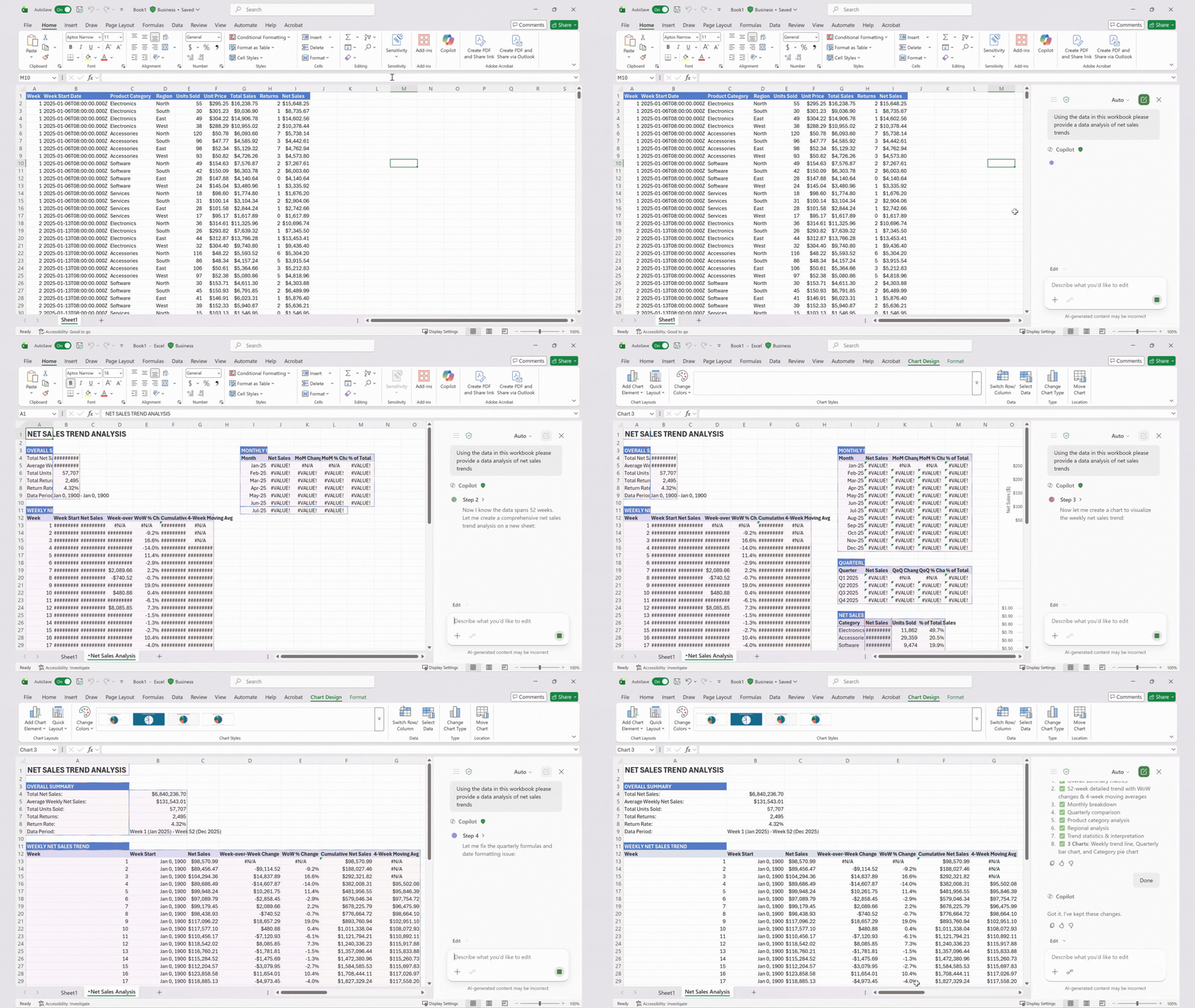
Open your weekly sales number document in Excel.
From the Home tab on the ribbon, select Copilot.
Ask Copilot a specific question about the insights you need. The more specific your prompt, the more useful the results will be. For example:
Less effective: What does this data show?"
More effective: Analyze weekly sales by region, identify trends and outliers, and present the results in a PivotTable."
Review the insights provided to find ones that help you the most.
Editing with Copilot in Excel lets you build and edit workbooks side by side with Copilot. When you're analyzing data, Copilot uses Excel's most powerful tools like tables, charts, PivotTables, and formulas to help you get the job done. Copilot updates your workbook using Excel's built-in features, so your content stays editable and synchronized with the latest changes—ensuring that you stay in control. Here's how to edit with Copilot in Excel:
- Open your workbook in Excel.
- Select Home > Copilot to open the pane.
- When you open Copilot, editing is on by default. Above the prompt box you'll see Allow editing.