Communicate effectively with Outlook and Teams
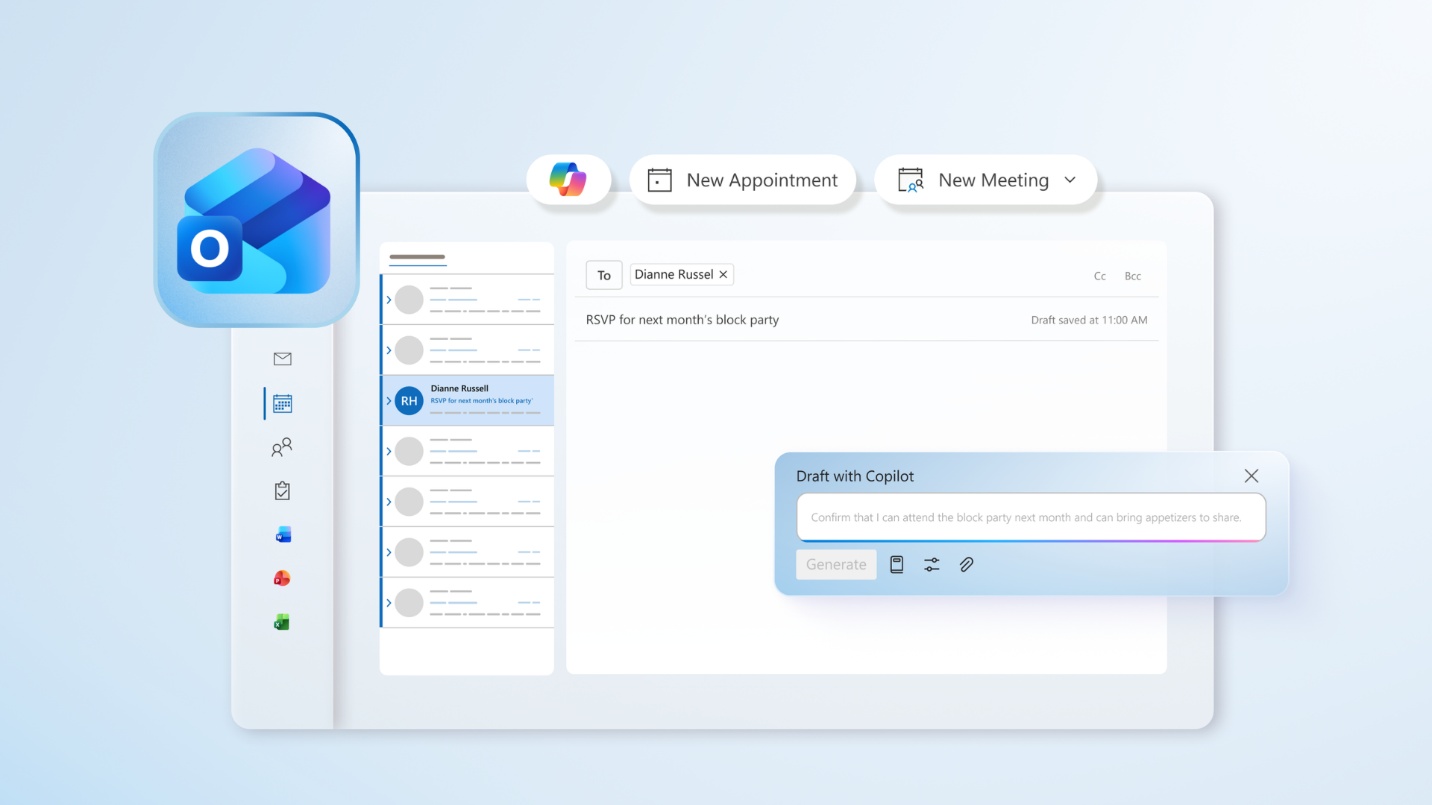
With Copilot integrated into Outlook and Teams, business users can communicate with colleagues and stakeholders effectively and never miss an important moment. Let's start with Outlook.
Scenario: You're a project manager that was away at a conference. When you return to your office, you see a long email thread in your inbox with multiple recipients, and you need to catch up quickly.
How Copilot can assist: With Copilot built into Outlook, you can get a summary of the key points and quickly draft a reply to the recipients on the thread.
Outcome: By quickly reading and analyzing your email thread, Copilot helps you respond confidently and reduces cognitive load—allowing you to focus on your next project.
To summarize an email in Outlook, do the following:
- In classic or new Outlook, choose the conversation that you want.
- Select Summary by Copilot (or it might say Summarize) at the top of the email thread. Copilot scans the thread to look for key points and create a summary for you.
- The summary appears at the top of the email and may also include numbered citations that, when selected, takes you to the corresponding email in the thread.
- If you're using new Outlook and the email has attachments (PDF, PowerPoint, or Word), you can select Summarize a file. Wait for the summaries to be generated, then review them for a quick view of what you've been sent.
Now that you're up to speed on the contents of the email thread, it's time to draft an email. Copilot can help with this as well. Follow these steps to draft your reply email with Copilot in Outlook:
- In Outlook, select Home > New mail.
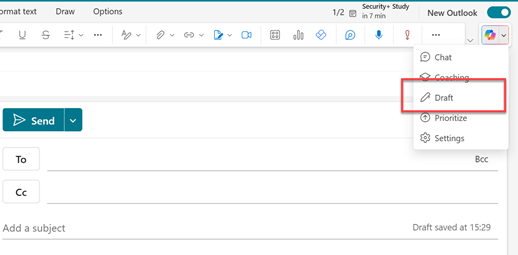
- To start a new message, select the Copilot icon from the toolbar above the blank email, and select Draft from the dropdown menu. If you don't see the icon in the toolbar, select the Copilot icon or the Draft with Copilot text in the email message area.
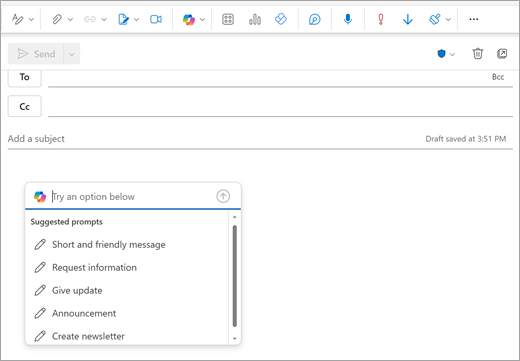
- In the Copilot box, type your prompt—or select and edit one of the suggested prompts from the dropdown.
- When you're finished, select the Generate arrow. Copilot drafts a message for you.
- Review the message. If it's not what you want, you can either choose one of the options in the dropdown to change the length or tone, or you can enter a new prompt and select the Generate arrow again.
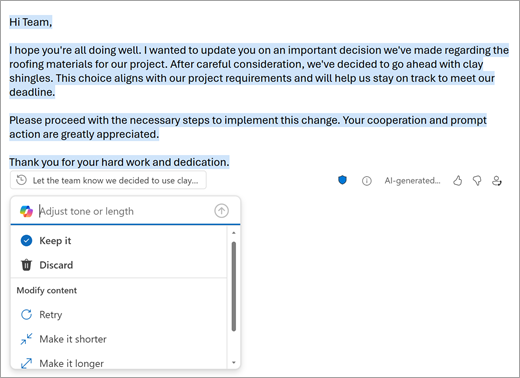
- When you're satisfied with the result, select Keep it. Note that the sensitivity level of the draft may change if the sensitivity assigned to the generated output is higher than the draft's level.
- Edit the draft as needed, and then select Send.
Note
These instructions are for new Outlook. Steps on drafting an email with Copilot in classic Outlook can be found on Microsoft Support.
Copilot can also assist in Teams meetings. Let's explore how Copilot can assist with staying organized and on task.
Scenario: Imagine that you were in a Teams meeting where project direction was discussed, and you need to track decisions and next steps.
How Copilot can assist: With Copilot in Teams, you can extract action items and generate a follow-up message or email.
Outcome: With Copilot's help, you improve your accountability and follow-though—ensuring that your projects move along at the correct pace.
You can access Copilot after the meeting from the meeting chat and from the Recap tab. To ask questions about what was said in the meeting after it ends, there must be a meeting transcript available.
- From the meeting chat: Copilot provides comprehensive information and insights using what was written in the chat and spoken content captured in the meeting transcript if one is available.
To start, select Open Copilot in the upper-right corner of the chat. Then, send a prompt in the compose box. For example, asking "What ideas were discussed?" results in a response that incorporates ideas shared aloud and in the chat. Copilot's response cites which sources were used to give the answer.
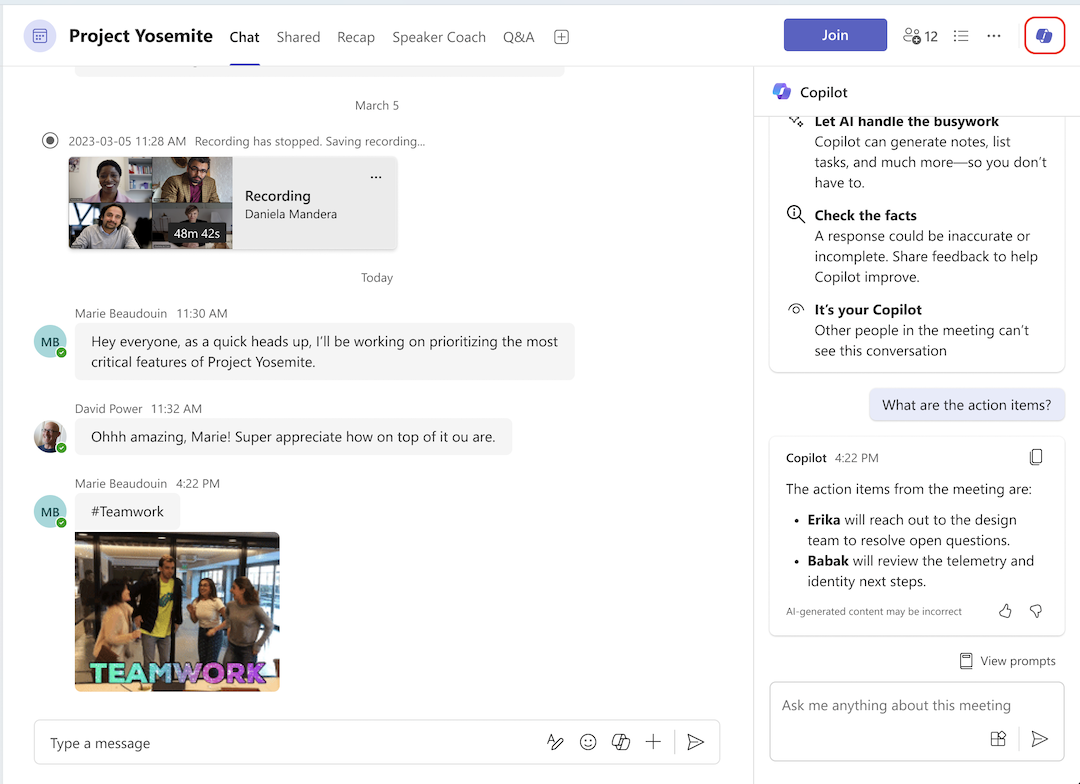
Before the meeting starts, you can use Copilot in the meeting chat thread, just like any other chat. If someone starts transcription in the meeting, Copilot includes chat data from up to 24 hours before the meeting along with the transcript. If the transcript is available, Copilot can use both chat and transcript as sources in the meeting chat.
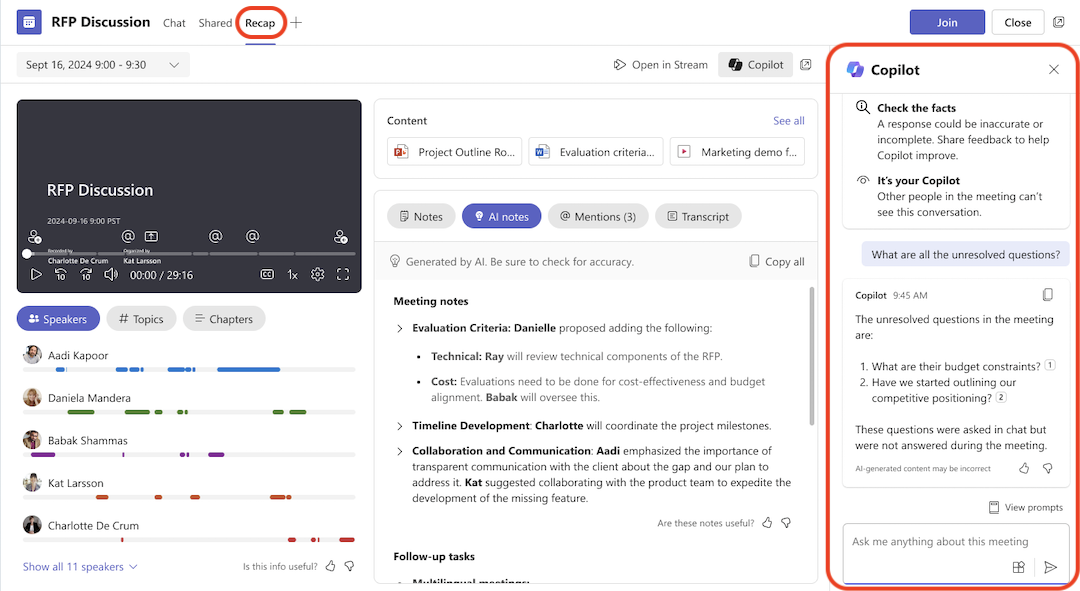
- From the Recap tab: If transcription was turned on during the meeting, Copilot can also be accessed from the Recap tab in the meeting chat. Open Copilot to see the same conversation history with Copilot as the one accessed from the meeting chat.
Important
Any earlier conversation history with Copilot in a recurring meeting will not be available if a later meeting in the series is transcribed. If the transcript from a transcribed meeting is no longer available, Copilot will be unavailable and all earlier conversation history with Copilot will be removed.