Add knowledge to an agent
With Microsoft Copilot Studio's generative answers feature, your agent can retrieve and present information from various internal or external sources without the need for creating specific topics. These answers can serve as the primary source of information for your agent or as a fallback when preauthored topics can't address a user's inquiry. This allows for the quick creation and deployment of a functional agent.
In this unit, you add knowledge to an agent.
Understand how agents use knowledge
The generative answers feature serves two main functions:
- Specific Knowledge Sources: Generating answers based on internal/external knowledge sources.
- General Knowledge (Allow ungrounded responses): Using the model's general knowledge to generate responses even when no knowledge source or tool was used in that turn.
It's important to understand which of these apply to your use case.
By enabling Allow ungrounded responses in the Generative AI settings, your agent attempts to answer questions even if it isn't explicitly provided with the necessary information. If your use case requires the agent to only answer questions based on the information you supplied, you should disable this setting.
Disable General Knowledge (Allow ungrounded responses)
Once you are in Copilot Studio, the Allow ungrounded responses setting can be accessed by selecting Generative AI from the Settings menu. This setting manages whether your agent can generate responses using only the model's general knowledge. This setting requires that the agent has generative orchestration turned on.
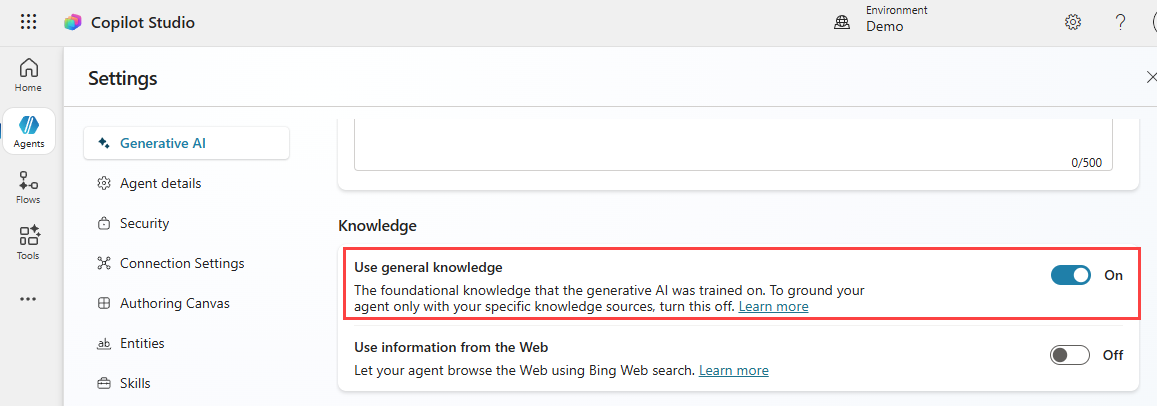
When turned on, your agent can respond by using the model's general knowledge, even when it doesn't use any knowledge sources or tools. When turned off, the agent blocks any response generated in a turn where it didn't use a knowledge source or tool, and the fallback topic triggers instead.
If your use case requires the agent to only answer questions based on the information you supplied, you should turn off the Allow ungrounded responses setting.
Web Search
The Use information from the web/Web Search setting on the Generative AI settings page (also available in the Knowledge section of the agent's Overview page) lets your agent access broad, real-time, and up-to-date information beyond what is available in predefined or enterprise-specific knowledge sources. This setting requires that the agent has generative orchestration enabled.
When turned on, Web Search triggers when a user's question might benefit from information on the web. It searches all public websites indexed by Bing using Grounding with Bing Search. This type of search happens in parallel with any searches of public websites you added as knowledge sources. Results from Web Search are interleaved with results from your configured public website knowledge sources.
You can toggle the Use information from the Web option On or Off.
Add knowledge sources to an agent
Knowledge sources can be incorporated into agents during their initial creation, added after the agent is created, or added to a generative answers topic node.
Suggested knowledge sources
If you created your agent using a natural language description, the agent may include several suggested knowledge sources. You can Add or Dismiss the suggestions.
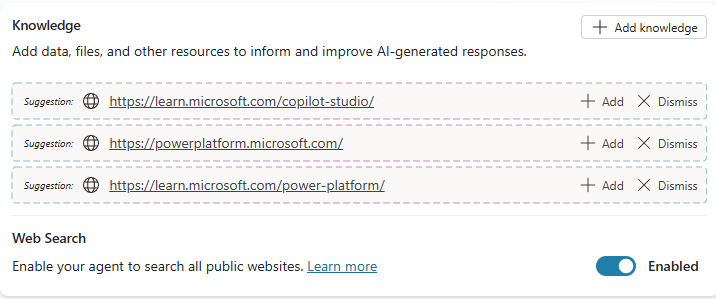
You can also see suggested knowledge sources when adding knowledge to an existing agent. These suggestions are based on knowledge sources that were recently added to other agents in your environment.
Add knowledge to an existing agent
After the initial creation process, you can add knowledge sources at the agent level from the following areas in Copilot Studio:
- Overview tab
- Knowledge tab
You can add the following knowledge sources to your agent:
- Public websites
- Documents (file upload)
- SharePoint
- Dataverse
- Azure AI Search
- Enterprise data using connectors
- Unstructured data (SharePoint files/folders, OneDrive)
When adding a knowledge source, you should provide a name and description. The knowledge name for each source must be unique. The description should be as detailed as possible, as the description aids generative orchestration.
Add public websites as a knowledge source
Select the Knowledge tab then select + Add knowledge. This displays the list of knowledge sources.
Select the Public websites tile.
Enter
https://learn.microsoft.com/en-us/microsoft-copilot-studio/in the Public website link field.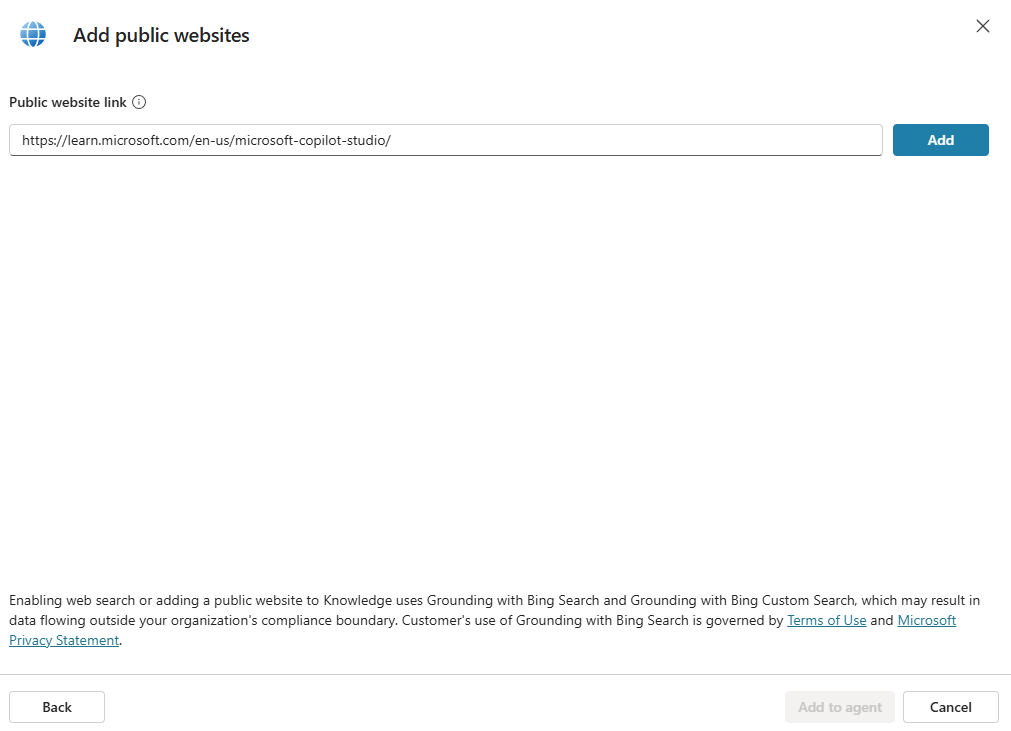
Select Add.
Enter a unique Name and a detailed Description.
Select Add to agent.
URL depth considerations for public websites
When adding public websites as knowledge sources, URLs are limited to two path segments after the domain. A trailing forward slash is allowed. The knowledge source uses Grounding with Bing Search to return information from the web.
The following examples represent valid URL formats:
contoso.com(domain only)contoso.com/products(one path segment)contoso.com/products/software(two path segments)contoso.com/products/software/(trailing slash is allowed)
An example of an invalid URL would be:
contoso.com/products/software/azure(three path segments - not supported)
While you're limited to two path segments in the URL you specify, this doesn't mean you're limited to content from only those levels. Any publicly viewable content within the scope of the URL you specify (including deeper paths) is used to generate content for your agent. For example, if you enter www.fabrikam.com as your URL, content from www.fabrikam.com/engines/rotary and www.fabrikam.com/engines/rotary/dual-shaft are both included in the knowledge base.
Another consideration is how to specify the domain. If you enter something like use www.fabrikam.com (the www exists), only content from the www is returned. Content located on news.fabrikam.com (the www doesn't exist) isn't used, since news is a subdomain under the top-level domain fabrikam.com.
If instead, you were to enter fabrikam.com, then content on www.fabrikam.com and content from news.fabrikam.com is used, since they both sit under the top-level domain fabrikam.com.
Other items to consider include:
- Social network & forum URLs: Your agent might generate nonsensical, irrelevant, or inappropriate answers if you use a forum or social network site as your URL. Therefore, community content on social networks often increases the risk of more answers being rejected.
- Search engine URLs: Don't include URLs of search engines like bing.com, as they don't provide useful responses.
- SharePoint: SharePoint URLs can be added.
- It’s recommended to omit https:// from the URL. Recognized SharePoint URLs are from the sharepoint.com domain. SharePoint site URLs can't be more than two levels deep. Content from aspx files on SharePoint isn't used to generate answers.
Upload files as a knowledge source
Another option you can use as a knowledge source is to upload files and documents for your agent.
Important
File Upload Limits: An agent can include up to 500 files as knowledge sources. The maximum size per file is 512 MB. Files with encryption, such as sensitivity labels or password protection, aren't supported. Uploaded file content is available to anyone using the agent, regardless of file permissions or access controls. The number of documents you can upload is also limited by the available file storage for your Dataverse environment.
Select the Knowledge tab then select + Add knowledge.
Select Select to browse link in the Upload file section.
Select Add to agent.
Once uploaded, when an agent user asks a question, and the agent doesn't have a defined topic to use, the agent generates an answer from your uploaded documents. The agent uses generative AI to answer the user's question and provides an answer in a conversational style. Uploaded documents are stored securely in Dataverse.
Image, audio, video, and executable files aren't supported, see: Upload files as a knowledge source for a full list. Supported document types include Word, Excel, PowerPoint, PDF, text (.txt, .md, .log), HTML, CSV, XML, OpenDocument, EPUB, RTF, Apple iWork, JSON, YAML, and LaTeX files.
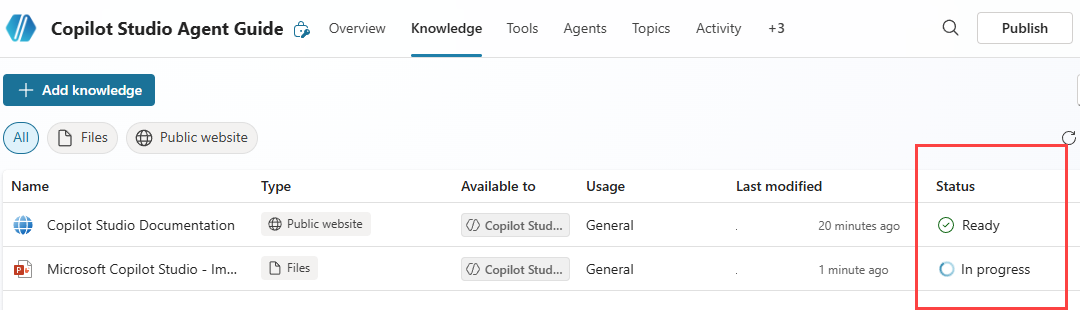
Uploaded files are automatically indexed. Indexing may take several minutes and the documents aren't used until the Status is set to Ready.
Use SharePoint as a knowledge source
SharePoint as a knowledge source works by pairing your agent with a SharePoint URL or SharePoint lists.
In the Add knowledge dialog, there are two SharePoint options. The SharePoint option in the file upload section is used to upload individual SharePoint files or folders, and enables file synchronization capabilities. The SharePoint tile option provides the full support of SharePoint in Copilot Studio.
Select the Knowledge tab then select + Add knowledge.
Select the SharePoint tile.
You can either provide the SharePoint site URL or use Browse items to select your sites.
Enter a unique Name and a detailed Description.
Select Add to agent.
Use Dataverse tables as a knowledge source
Integrating Dataverse tables as your knowledge source allows you to ground your agent in the data contained in your tables.
Select the Knowledge tab then select + Add knowledge.
Select the Dataverse tile.
Search for, and select, one or more tables. You can select up to 15 tables.
Select Add to agent.
Edit the knowledge source and update the name and add a detailed description.
Synonyms and glossary
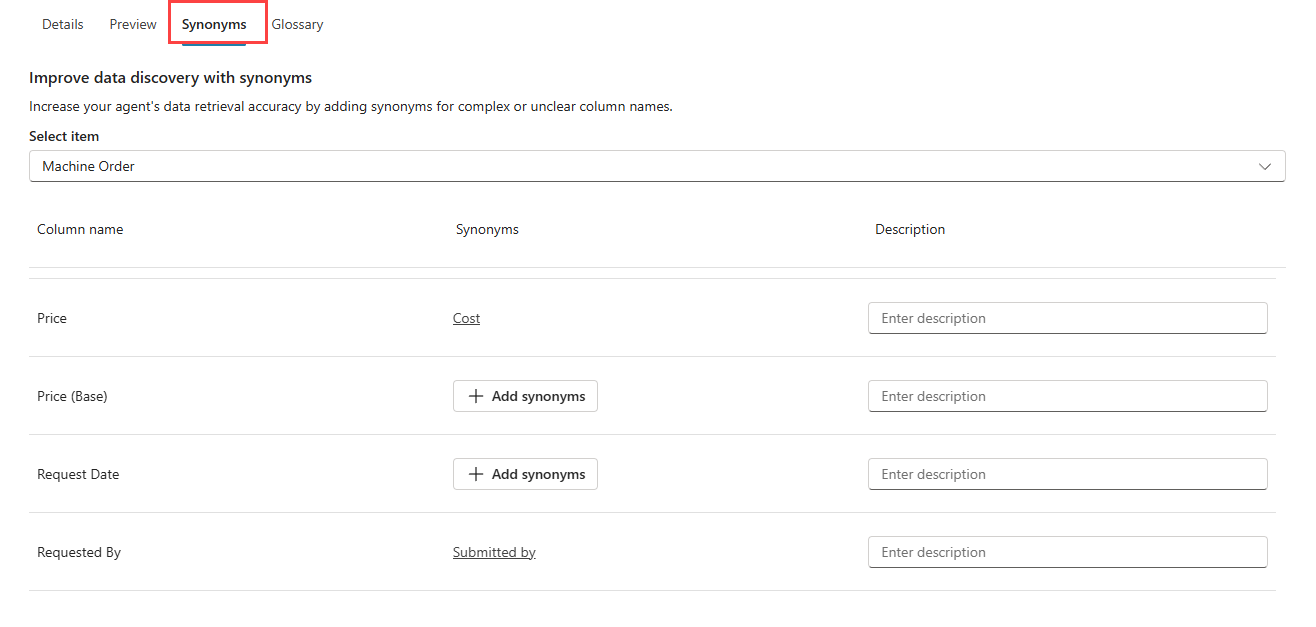
Synonyms, glossary terms, and definitions for the synonyms and glossary entries aid in generative orchestration. They provide grounding data to improve generated responses. By providing extra information for the agent to understand and interpret the information in the tables, you increase the likelihood of the agent to recognize your users requests, and return responses based on the information provided.
To add Synonyms, edit the knowledge source and select the Synonyms tab. For each column you can add one or more synonyms.
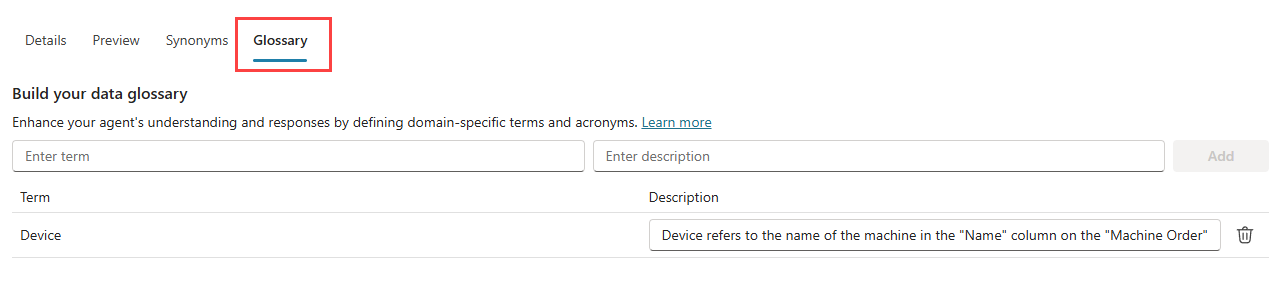
Glossary definitions are used to paraphrase the terminology in your Dataverse table, so your agent better understands user questions and can respond better.
To add Glossary terms, edit the knowledge source and select the Glossary tab.
Include and exclude options
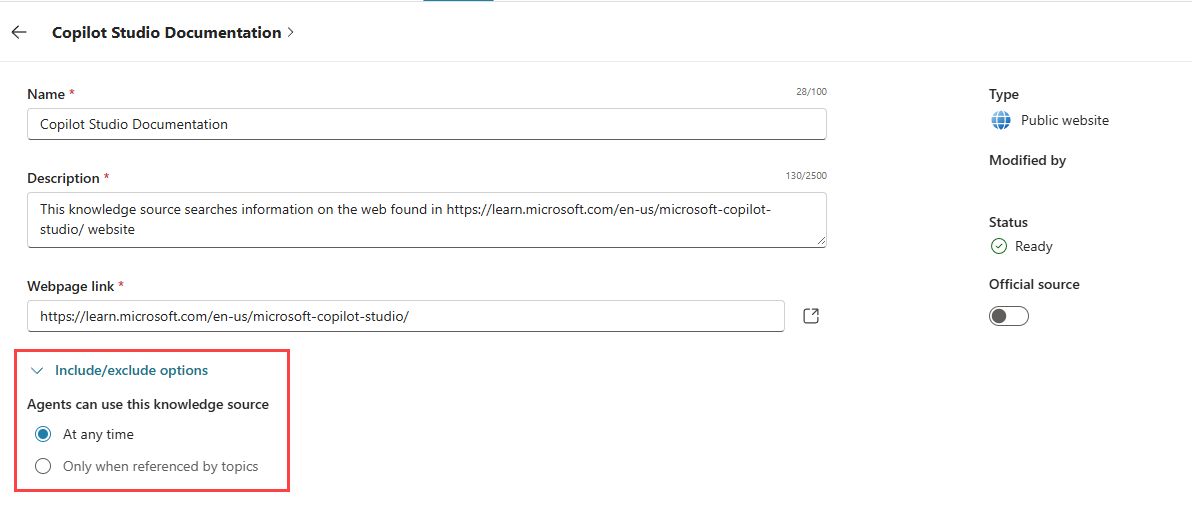
After adding a knowledge source, you can edit it and expand Include/exclude options.
The two options are:
At any time - the knowledge source is used by the agent to respond to user requests.
Only when referenced by topics - the knowledge source is used by the Generative answers node in a topic.
Official source
When adding knowledge sources to your agent, you might not always control how the information evolves over time, or you might not fully trust this information. It's important to let your users know that they should consider answers with caution, and they should verify them when appropriate.
However, when you know that information from a specific knowledge source goes through a strict verification process and is highly trusted, you can mark this knowledge source as an official source that can be used directly, without verification.
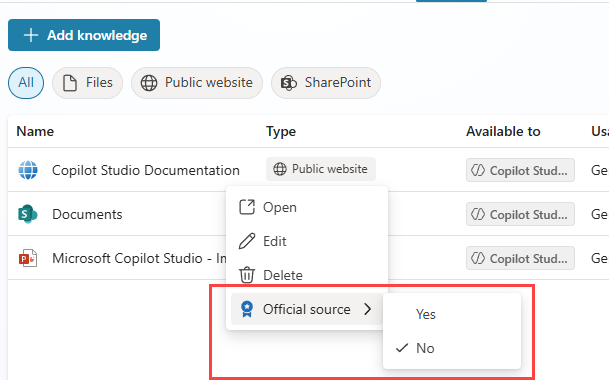
To mark a knowledge source as official, on the Knowledge page, select the ellipses (⋮) for the knowledge source, select Official source and select Yes.
Note
This feature isn't yet compatible with generative orchestration. If you want your agent to use official knowledge sources and mark them as such, turn off generative orchestration. When an agent uses authoritative knowledge sources, the response starts with a distinctive indication.