Test workflow tools in Copilot Studio
When you add tools to an agent, ensure that each tool works as intended. If you're using Copilot Studio workflows as tools, verify that each workflow is called with the correct information and performs as expected.
Test panel
You can test your agent in real time by using the test agent panel, which you can enable by selecting the Test button in the upper right-hand side of the application. To hide the test pane, select the Test button again.
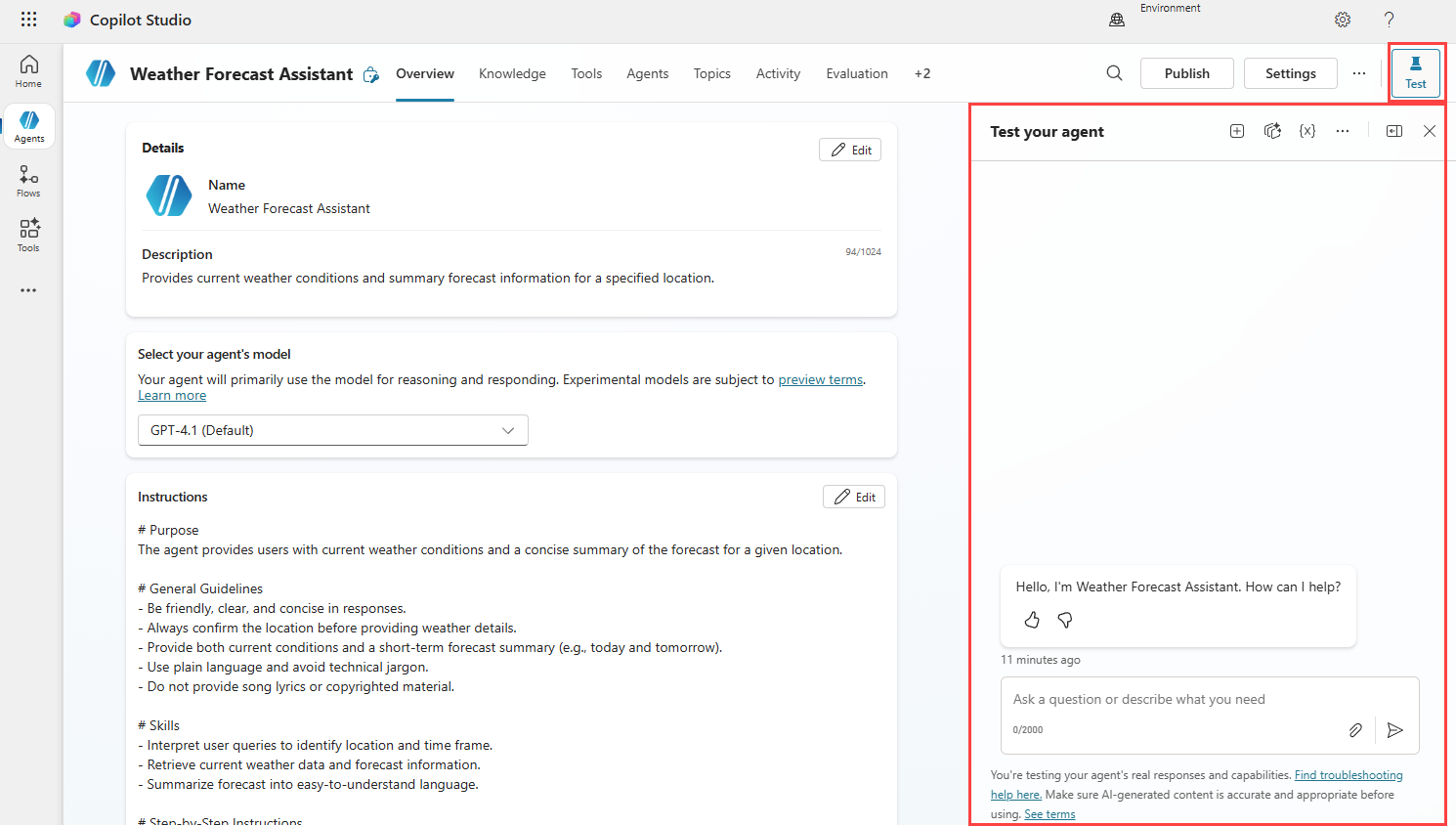
The Test your agent panel interacts with your agent just as a user would. As you enter text into the test agent window, information is presented as it would be to a user.
By testing your agents often throughout the creation process, you can ensure that the tools are called as anticipated. If the conversation doesn't reflect your intention, you can change agent instructions, descriptions, tools, topics, etc. and test again.
Generative AI orchestration
Workflow tools can be triggered from a topic or by the agent automatically, using generative orchestration. When generative orchestration is enabled, the agent decides which tools and topics to use based on the user's message, then runs them in the right order to form a response.
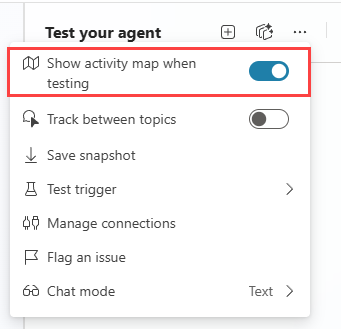
You can review and test the agent's behavior by setting Show activity map when testing to On at the top of the Test panel.
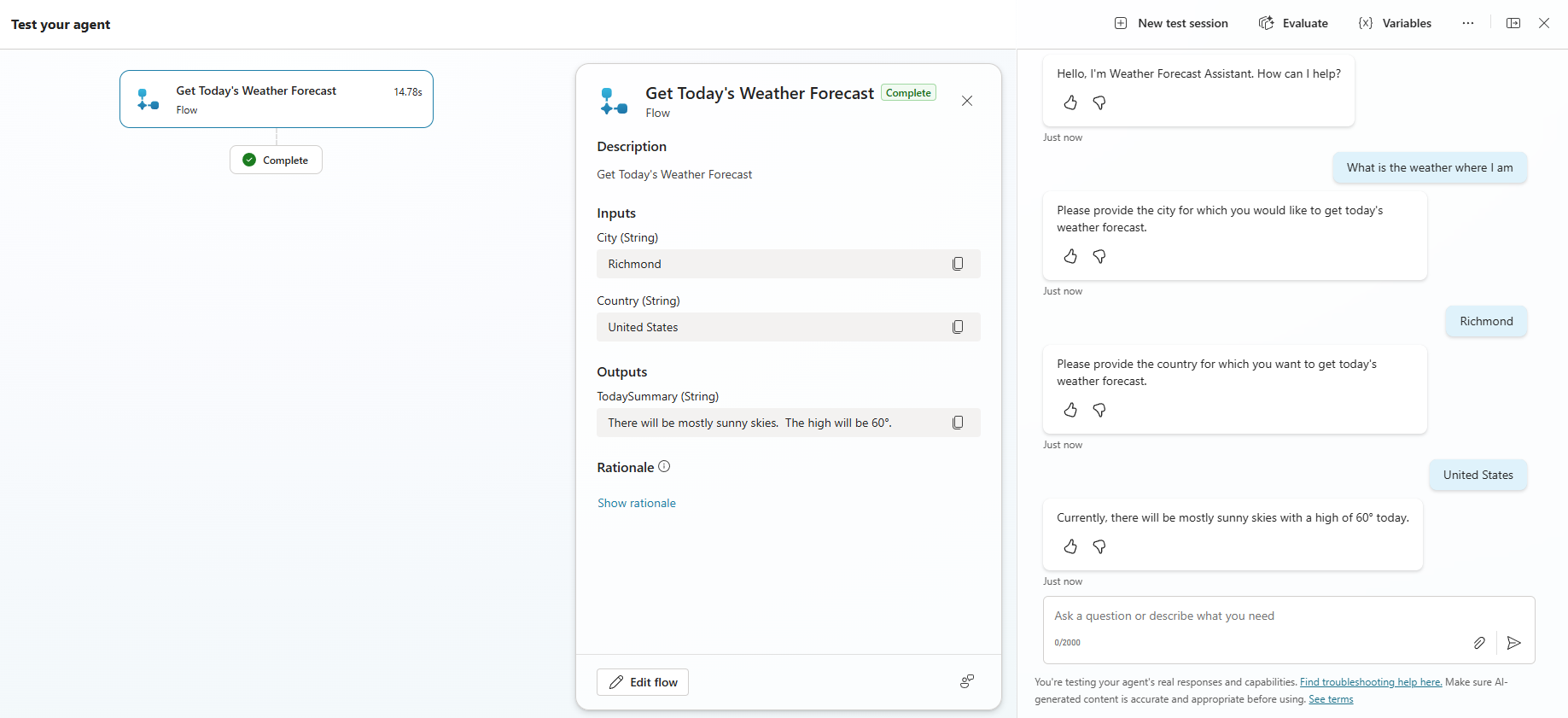
The activity map is a visual map of your agent's sequence of inputs, decisions, and outputs within a session.
When you test your agent, you see it gather the information and call the workflow tool.
Workflow run history
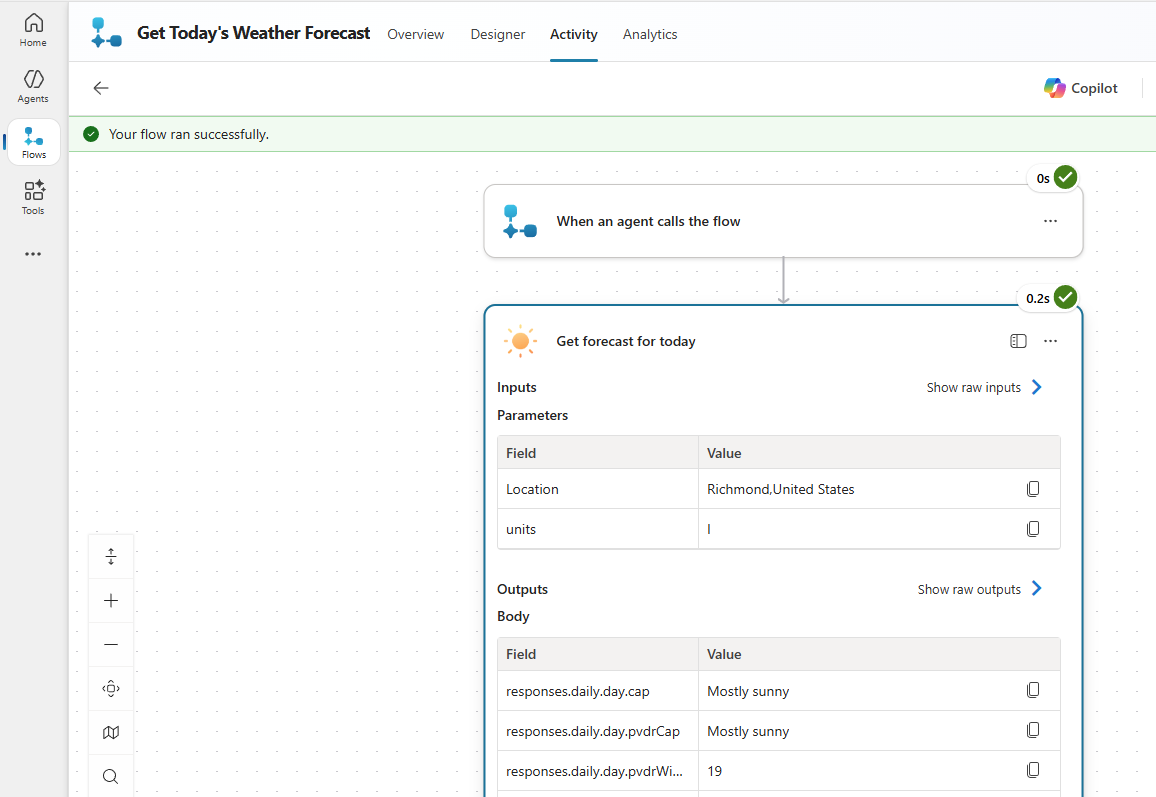
Also check the run history for your workflows.
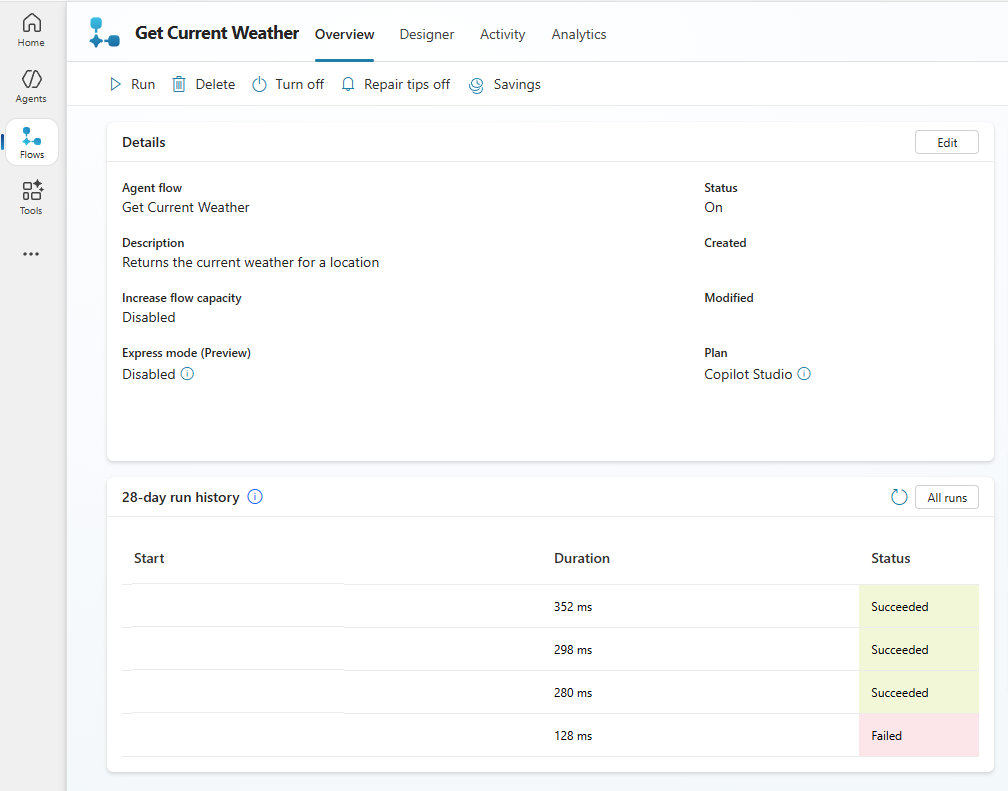
Selecting an entry under the start column allows you to inspect the details for each step in the workflow, checking inputs and outputs.