Work with entities
Agent conversations use natural language understanding to identify a user's intent based on what they input into the conversation window. For example, if a user enters the text I tried to use my gift card, but it doesn't work. Natural language understanding helps to identify and route the user to the topic related to gift cards that aren't working, even if that exact phrase isn't listed as a trigger phrase.
A key aspect of natural language understanding is to identify the entities being used in a user dialog. Think of an entity as an informational unit that represents a certain type of real-world subject such as a phone number, postal code, city, or a person's name.
Microsoft Copilot Studio comes with a set of prebuilt entities out-of-the-box. These represent some of the most used information in real-world dialogs such as age, colors, numbers, and names. The knowledge granted by entities allows the agent to recognize the relevant information from user input and save it for later use.
Let's use the prebuilt entity City. It, like other prebuilt entities, can be accessed from the entities tab. When you examine the entity, you can see an explanation, and the ways it can be used.
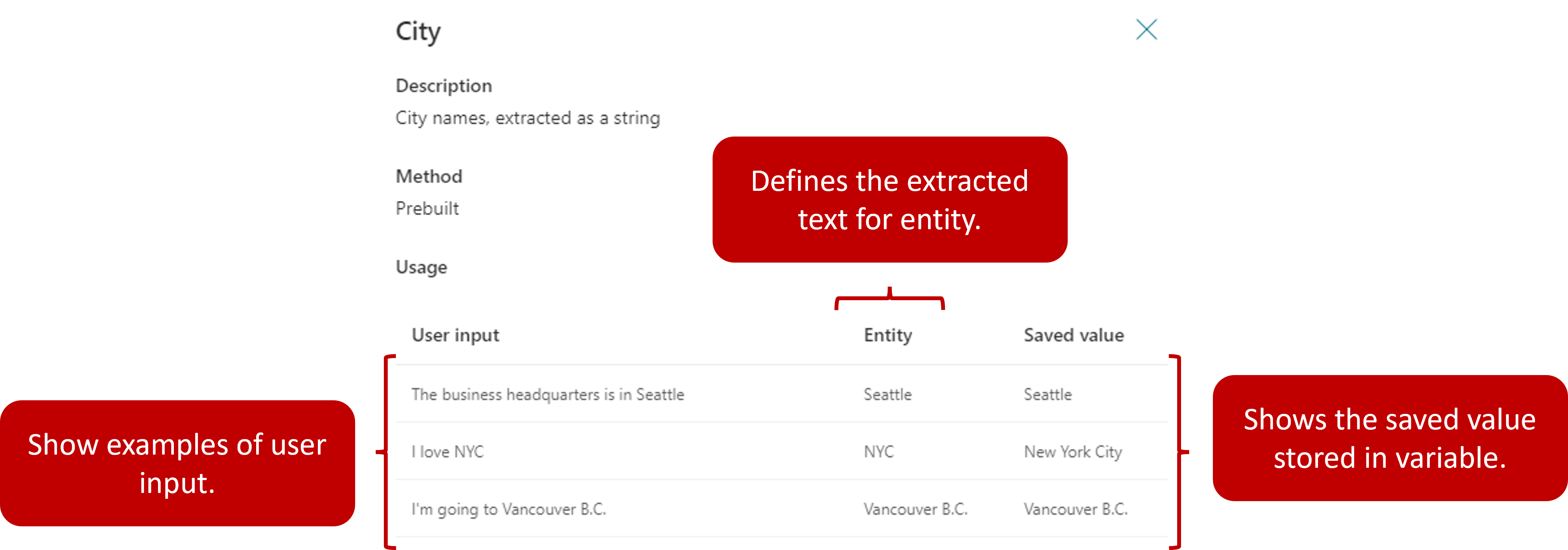
For example, when a user inputs Our business headquarters are in Seattle, using this city entity the agent knows Seattle represents the city type of information. When the agent extracts this entity and saves it to a variable, it saves Seattle as the city, even though the surrounding information was text.
When you insert a question node into a topic, you can use entities in the identify section of the question. For example, in the example below, we're asking the user what city they live in. By setting the identify field to City, the agent extracts the user's city from the text they type in.
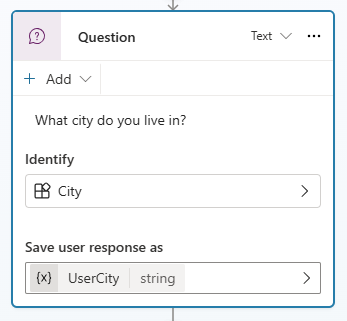
The user's city is stored in a variable called UserCity that can be used later in the topic or in the conversation.
Now we've examined some of the prebuilt entities that are available, let's examine how you can build your own custom entities as needed.
Once your entities have been defined, they're available to be used when constructing agent conversations. The easiest way to use them is by opening the authoring canvas for a topic and adding a Question node. Question nodes allow the agent to identify user-submitted information using entities and saving this information as a variable. The Identify function of a Question node tells the agent what piece of information needs to be identified from the user query.
When presented with this question in the conversation, the user simply needs to type the department they're looking for. The item is then compared to and matched to an item on the entity list.
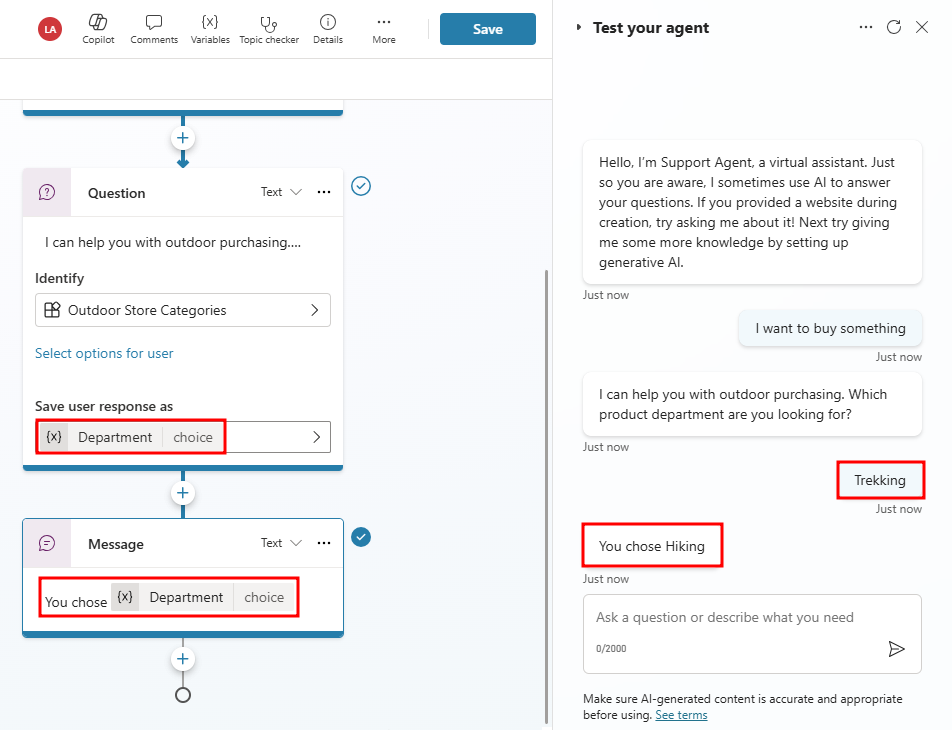
In the image above, the user has expressed interest in Trekking, which is another way of saying Hiking. The agent recognizes this, and since we defined Trekking as a Synonym of Hiking, the agent displays information related to Hiking.
In some cases, an organization might decide they would rather display buttons to users to simplify the selection. For example, if you would like some of the category items to display as buttons, users can select as their input, choose Select options for user and then pick from the list. While in a conversation, a customer can either select the item button they want or enter a different category manually as text.
Working with slot filling
Slot filling is a natural language understanding concept that saves an extracted entity to an object. In simple terms, slot filling matches what is input by a customer and stores it appropriately in a variable. For example, when asked for a category type, the customer might select Hiking, or they might type in something like Trekking as shown in the image below. Since Trekking was defined as a synonym, it should still be considered as the user entered hiking. Slot filling ensures that even though something else was entered, it's associated with the correct category. The extracted entity Hiking is used as the values for the product category variable.
Proactive slot filling
Another concept is known as Proactive slot filling. This is where the user can specify multiple pieces of information that map to multiple entities. The agent understands what information belongs to which entity automatically.
Proactive slot filling can be manually controlled at the node level. If you would like to always prompt for the question within a specific node, regardless of whether the slot has been filled from previous user responses, you can disable the Skip question option and make it ask it every time for that question node.
The default Question behavior is set to Allow question to be skipped, which allows the agent to proactively detect entities from user queries without prompting the user for information they already provided.
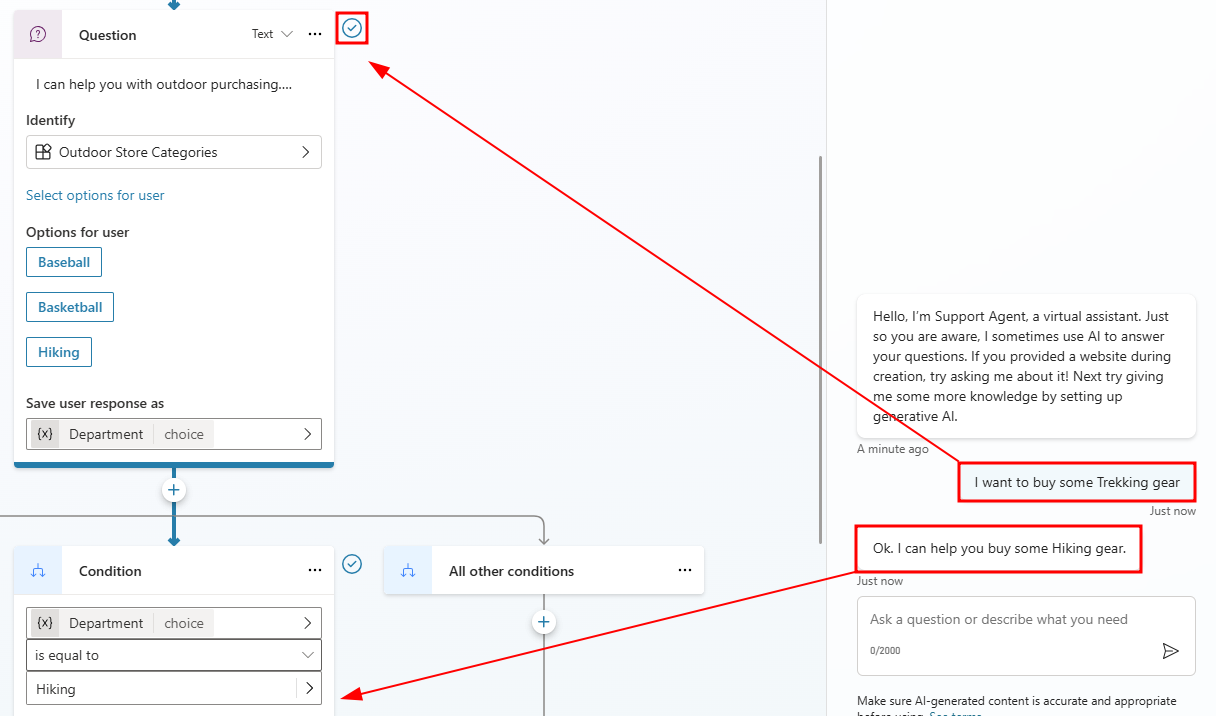
In the example below, the user wrote I want to buy some trekking gear. This includes the trigger phrase that the customer wants to buy gear, but it also provides a second piece of information, the actual type of gear. In this case, the agent fills in both the entity for buying gear, and the type of gear. This is unlike the previous example where the agent needed to prompt the user for the type of equipment. The agent takes the user input and intelligently skips the question asking for the product category.
Note
Notice that since the user provided a value for the Outdoor Sports Categories entity, the question node is skipped, allowing the agent to move the conversation forward without asking for information the user already provided.
The agent is always actively listening to user input, remembering information upfront so it can skip unnecessary steps as appropriate.
Let's restart the testing again and try another case. In this round, we added a few more question nodes asking for things like the type of hiking gear, and the price range (using the Money entity).
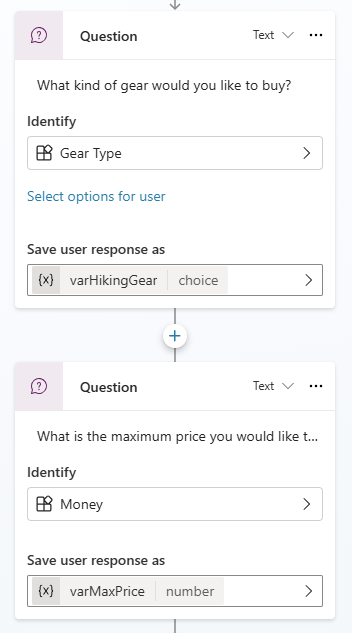
This time when the product category question is presented, instead of telling the agent only the product category, the user can say I want to buy a pair of hiking boots under $100.
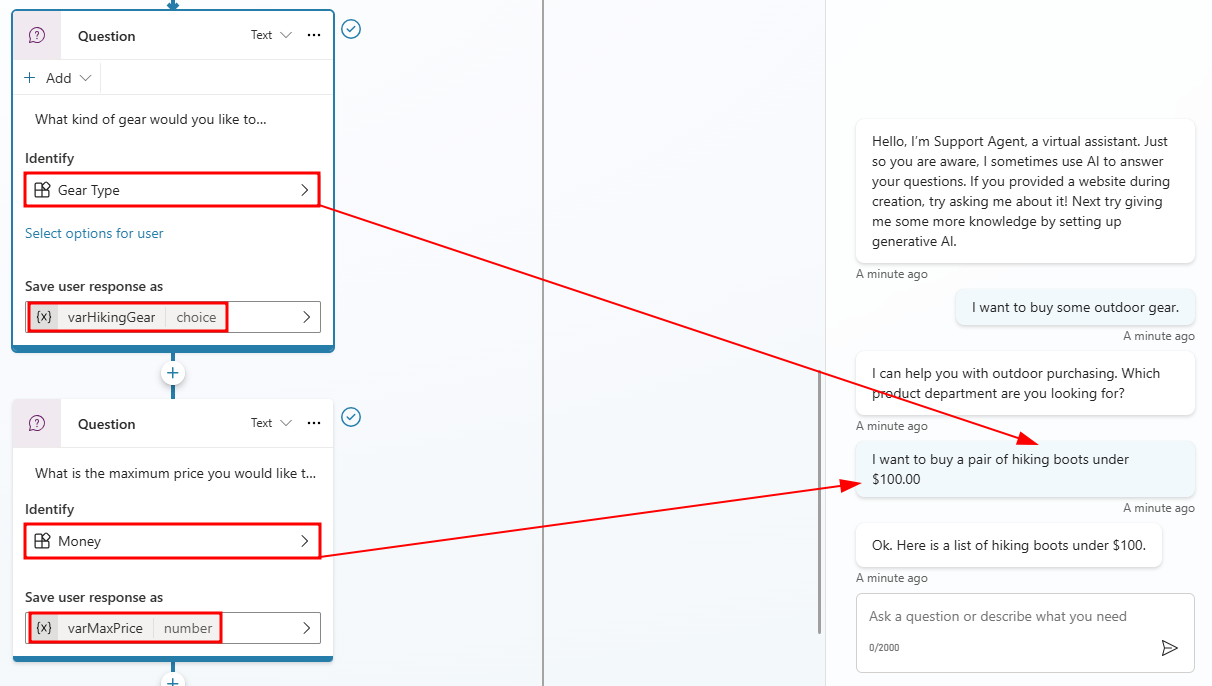
In this example, the agent isn't only able to route to the correct hiking product category path, but also actively fills the slots asking for the type of hiking gear and the target price range information.

The prebuilt entities discussed in the previous unit cover many common information types. However, there are occasions where an organization might require language understanding for more unique scenarios. For example, let's say you've been asked to build an agent for an outdoor store. It's likely the agent might need to acknowledge different types of outdoor products. A custom entity called Outdoor Store Categories could be created. The entity could store all the different outdoor products the store provides. The entity will help ensure that when someone types an outdoor product such as fishing, skiing, or boating, the agent is able to direct them to the right spot.
Custom entities are created by selecting the Settings button, and then navigating to the Entities tab and selecting Add an entity. When you create a custom entity, you need to define the type of entity you want to create.
Custom entities
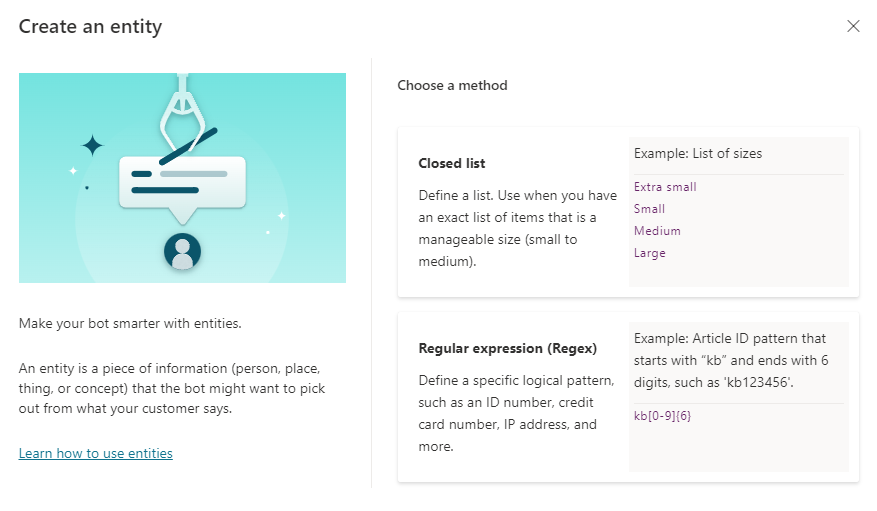
There are two types of entities that you can create:
- Closed list: Used to define a small list of items such as a list of sizes, departments, or locations.
- Regular expression (regex): Used to define a specific logical pattern, such as an ID number, credit card number, or IP address.
Closed list entities
Closed list entities are best used when you want to define a small list of items that might be useful when interacting with a customer, such as the outdoor company example we mentioned earlier. In the image below, we created a closed list custom entity called Outdoor Store Categories. We added a list of outdoor product category names.
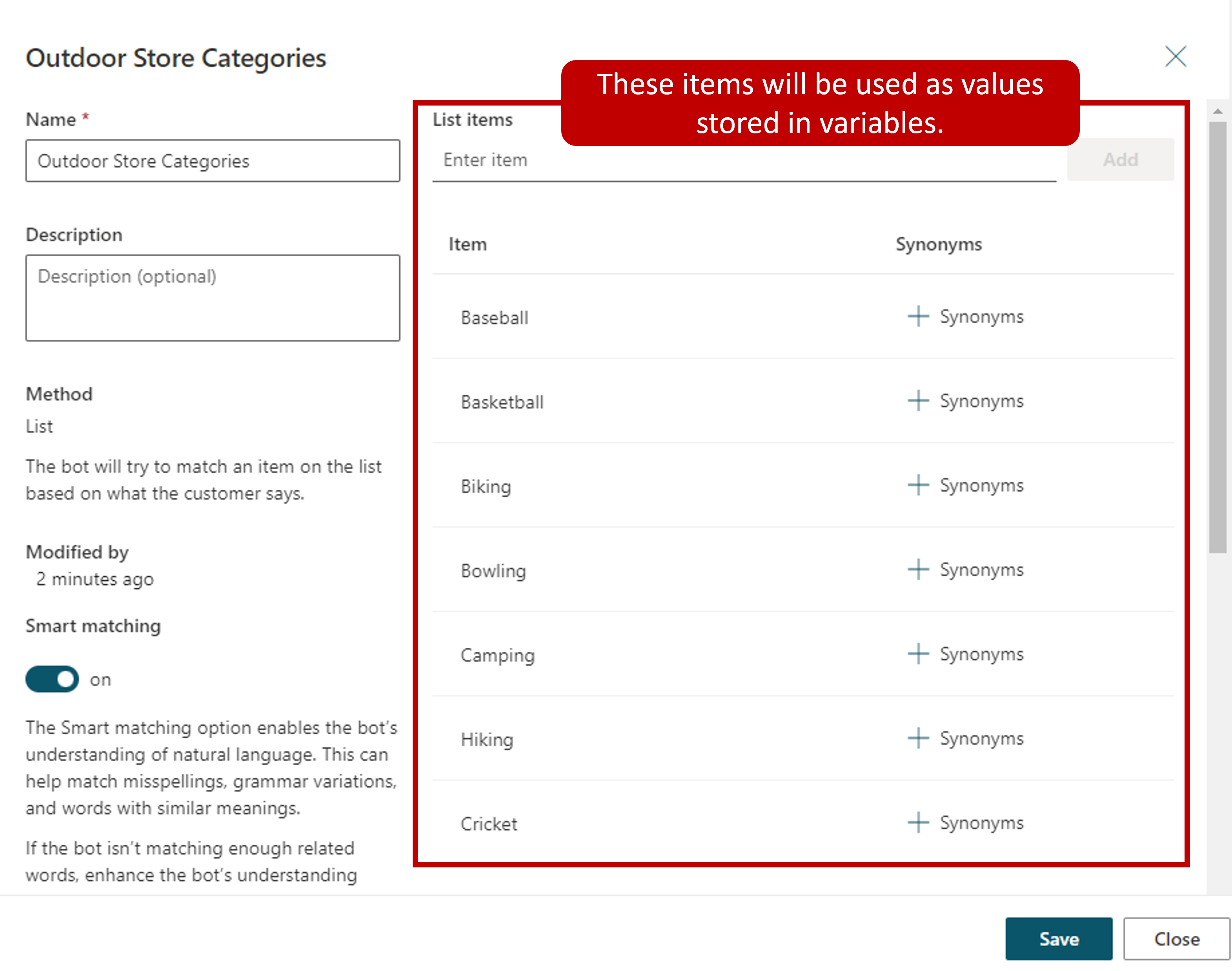
As a user interacts with a chat session, the system looks for the values defined in the list. If we have created topics specific to the items on the list, the user could be easily taken to one of those topics. For example, if a user enters I have a baseball question, the system identifies the baseball item on the list and based on configuration, could display a baseball topic.
Working with smart matching
As customers are interacting with agents, it isn't uncommon for them to mistype something, or enter a phrase that is slightly different from what is defined in the entity. For example, a customer might enter softball instead of baseball. Both sports use the same type of equipment. In terms of product categories, softball should be considered the same as baseball. Smart matching lets the agent take in user input in a fuzzy way based on the list items given to the entity. This means that it doesn't have to find an exact match.
When smart matching is on, the agent automatically autocorrects misspellings and expand the matching logic semantically, such as automatically matching softball to baseball.
Working with synonyms
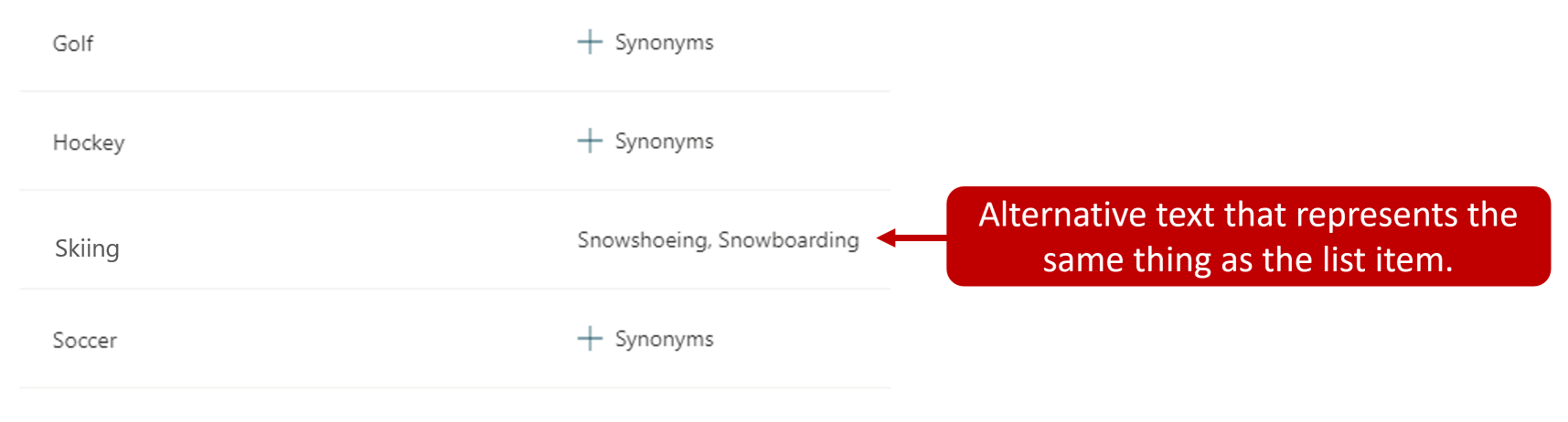
The synonym option is like smart matching, except they aren't automatic like smart matching. Synonyms are entered manually. They expand the logic to include words with similar meanings or considered similar by nature. For example, it isn't uncommon for sports such as skiing, snowboarding, and snowshoeing to be grouped together based on the fact they're all snow sports. To accommodate for this in our list, the Skiing product category could have both Snowboarding and Snowshoeing added as synonyms. If a user enters either snowboarding or snowshoeing, the agent understands that these are related to the skiing category. For other activities like Yoga, you might add Pilates. Smart match and synonyms seamlessly work together to make your agent even smarter.
Regular expression (regex) entities
Regular expression (regex) entities let you define logical patterns that you can use to match and extract information from an input. Regex entities are great for complex pattern matching against a user's input, or if you need to allow for specific variations in how a user might format or enter their input in a conversation.
For example, you could use a regex entity to identify items such as a tracking ID, a license number, a credit card number, or an IP address from a string the user enters into the agent.
When you select a regex entity, you'll need to define the following:
- Name: Defines the name of the Regex entity.
- Description: Optional description that defines more details about the entity.
- Pattern: Defines the patterns that are used to extract text.
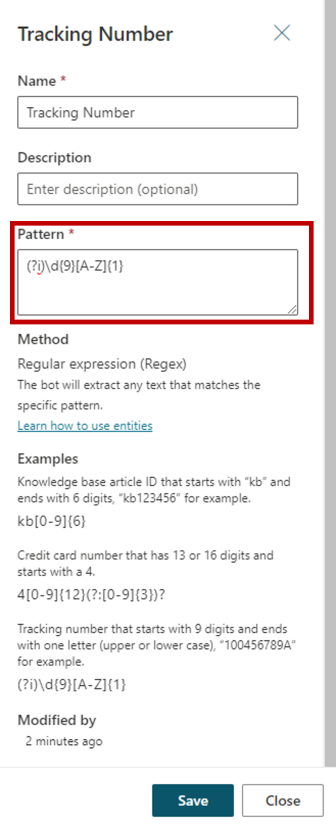
In the image above, we're creating a regex expression entity called Tracking Number. The syntax entered specifies that the tracking number starts with nine digits and end with one letter in either upper or lower case. (Ex.100456789A)
Regex entities use the .NET regular expressions syntax.
You can learn more about creating .NET regular expression syntax's using the links below:
Next, we'll look at working with variables in topics.