Add conversation nodes to topics
In a topic, conversation nodes determine and guide the path a customer follows during the interaction. Message nodes can provide information or instructions, while question nodes gather details—such as identifying the product a customer wants to return. Action nodes can then be used to generate outcomes, for example creating a custom return label that can be sent to the customer to complete the return process.
Use conversation nodes to design the topic's conversation path
Once you’ve defined how a topic is triggered, the next step is to design the conversational flow that users will follow. This flow—known as the conversation path—outlines how the agent interacts with the customer and what actions occur based on the customer’s responses.
Conversation nodes represent the individual interactions or actions within a topic’s conversation path. They can display messages to the customer, request additional information, trigger an automation, or escalate the conversation to a live representative.
Types of conversation node
There are several different node types available:
- Send a message: Displays a message to the user. Messages can include some basic formatting and numbering.
- Ask a question: Helps the agent capture information from the user. The captured information can be used to influence the flow of the conversation, or as variables in other parts of the agent.
- Ask with adaptive card: Enables you to add snippets of content to Microsoft Copilot Studio agents that can also be openly exchanged with other cloud apps and services.
- Add a condition: Allows you to add a condition to the topic flow. This can be used to direct users down specific paths based on if the condition is met or not.
- Variable management: Allows you to perform different actions on variables in the agent including setting variable values and removing them.
- Topic management: Redirect the user to a different topic in the agent, end the conversation, or skip to a specific topic step.
- Add a tool: Call a Copilot Studio workflow or call a tool to interact with external systems.
- Add an agent: Call another agent.
- Advanced: Provides advanced conversation nodes like Generative answers, HTTP requests, logging events, sending events, sending an activity, or performing user authentication.
Depending on the type of node you select, it may have different options that can be defined.
Adding node to a topic
When a new topic is created, it includes a trigger node. More nodes can be added by selecting the plus (+) icon on the line or branch between or after a node.
Message node
Message nodes are used anytime you want to provide some details or information back to the user. Messages are simple text messages, but they can also include richer components, such as images, videos, quick replies, and cards as needed.
Select the Add node icon (+) under the node after which you want your agent to send a message, and select Send a message.
In the text box, enter the message you want the agent to send.
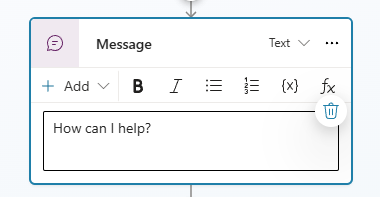
Optionally, use the tools in the node's menu bar to:
- Apply basic formatting (bold, italic, bulleted, numbered)
- Insert variables
- Add message variations
- Insert an image
- Insert a video
- Add a basic card
- Add an Adaptive Card
- Add quick replies
Message variations
To provide a more conversational experience to your users, you can specify different message variations. For example, you might add the variations "Sure. I can help you with that", and "I'm happy to help you with that." When you add message variations, the agent randomly picks one of them to use each time the node is used.
Images and videos
Images and videos can provide a great way to create a more enhanced and useful experience. For example, if you're creating an agent that helps with troubleshooting, you can use the image to display a picture of the item they're troubleshooting, or you can link to a video that provides help.
Basic card
A basic card is a general-purpose card that you can use to add text, images, and interactive elements to agent responses.
Adaptive Card
Unlike basic cards that are static in the details that they present, Adaptive Cards are platform-agnostic cards that you can tailor to your needs. When delivered to a specific app, the JSON is transformed into native UI that automatically adapts to its surroundings. For example, you could create a weather card that includes graphics and animations that display forecasts in more detail.
Cards can be designed using the Adaptive Cards Designer or author the JSON directly. For more information using the Adaptive card designer, see: Adaptive card designer.
When you design an adaptive card, under Edit JSON, enter the JSON for your card. If you need more room, you can open a larger view of the JSON editor, by selecting the Expand icon.
To learn more about working with adaptive cards, see: Using Adaptive Cards in Copilot Studio.
Quick replies
When designing an agent, it's not only important to make the experience as simple as possible. It's also important to ensure that the agent can easily identify what the user is doing and take the appropriate action.
One way you can accomplish this in Microsoft Copilot Studio, is with Quick replies. Quick replies provide suggested responses or actions for the user. When a user selects a quick reply, it sends a message back to the agent. The quick reply text is shown in the chat history as if the user typed the message. The quick reply buttons are removed from the chat history when the agent or user sends another activity.
Question node
Question nodes are often used in conversation paths. They help capture additional information from customers. Information captured from the question can be stored as variables and used in other parts of the agent or in automation. They can also affect the path the customer is taken on. For example, you might use a question node to capture the city a customer lives in. You could also use a question node to provide the customer with a list of multiple-choice options to choose from, such as a list of cities.
Like Message nodes, Question nodes can include images, videos, cards, quick replies, and message variations.
Each question node contains three base fields:
- Ask a question: The question text that you want to present to the user.
- Identify: Defines what the agent should be listening for in the user's response. For example, multiple choice options, a number, or a specific string.
- Save user response as: Defines how you want to save the data captured from the questions so it can be used as a variable later.
There are multiple predefined options, entities, that you can choose from in the Identify field. These options can not only make the experience of interacting with the agent easier, but they also make it easier for the agent to extract the correct information from the user's response.
An entity can be viewed as an information unit that represents a certain type of a real-world subject, like a phone number, zip code, city, or even a person's name. For example, setting the Identify field to City would extract only city information from the user's response. If the user entered something like I live in Seattle, it understands that Seattle is a city. If someone entered, I love NYC, it understands that NYC is an abbreviation for New York City and would store the response of NYC. There are several options like this example such as Email, Date and Time, Person name, Phone Number, and more.
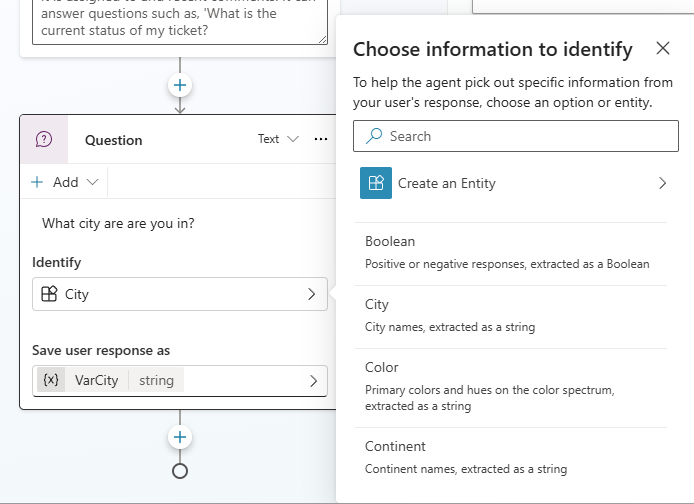
Depending on what you select for the Identify field, other field options might be presented to help provide more details for the item. For example, setting the Identify field to "Multiple choice options," displays "Options for user." Here, you can define the options that you want to present to the user. Each option would be presented in the conversation window as a multiple-choice button.
Question properties
The Question properties panel is where you can adjust behaviors like prompting, validation, and interruptions.
To open the Question properties panel, select the three dots (…) of the Question node, and then select Properties.
In the Question properties panel, select the desired category:
- Question behavior
- Entity recognition
- Interruptions
- Voice
Question behavior
Another aspect of creating questions is defining question behavior properties. These properties provide you with more detailed control over different aspects of the Question node, such as how the agent handles an invalid response or how it validates user input. For example, when creating a reservation question, you might want to limit the number of people they can request the reservation for. With question behaviors, you can define what that number is, and specify what to do when that number is exceeded.
There are multiple items that you can define while working with the question properties:
- Skip behavior: Defines what the agent should do if the variable associated with the question node already has a value from earlier in the conversation such as being captured in a previous question. There are two options here you can choose from:
- Allow question to be skipped: Skip the question if the variable has a value.
- Ask every time: Ask the question even if the variable has a value.
- Reprompt: Defines how the agent should react if it doesn't get a valid answer from the user. You can tell it to try again once, twice, or move on without getting an answer. You can also create a custom message.
- Advanced message settings: Allows you to define additional settings on the message that is sent. You can modify the following options:
- Value: Contains parameters specific to the activity to be handled by the client.
- Channel data: Contains parameters specific to the channel to be handled by the client.
Variables in message content
Message, and other nodes can also include variables in message content. Variables can be used to store information captured from a question. Inserting a variable allows you to provide more personalized messages. For example, you could use a question node to capture the city that an individual lives in. The answer to the questions is stored in a variable used later in a message to the customer such as "currently the weather in "city" is...
Topic management
Organizing your agent's topics effectively helps ensure your conversations remain manageable and easy to maintain.
Copilot Studio offers much flexibility when it comes to topic management. While there's no one size fits all, it's a good practice to keep in mind the different ways that topics can be triggered.
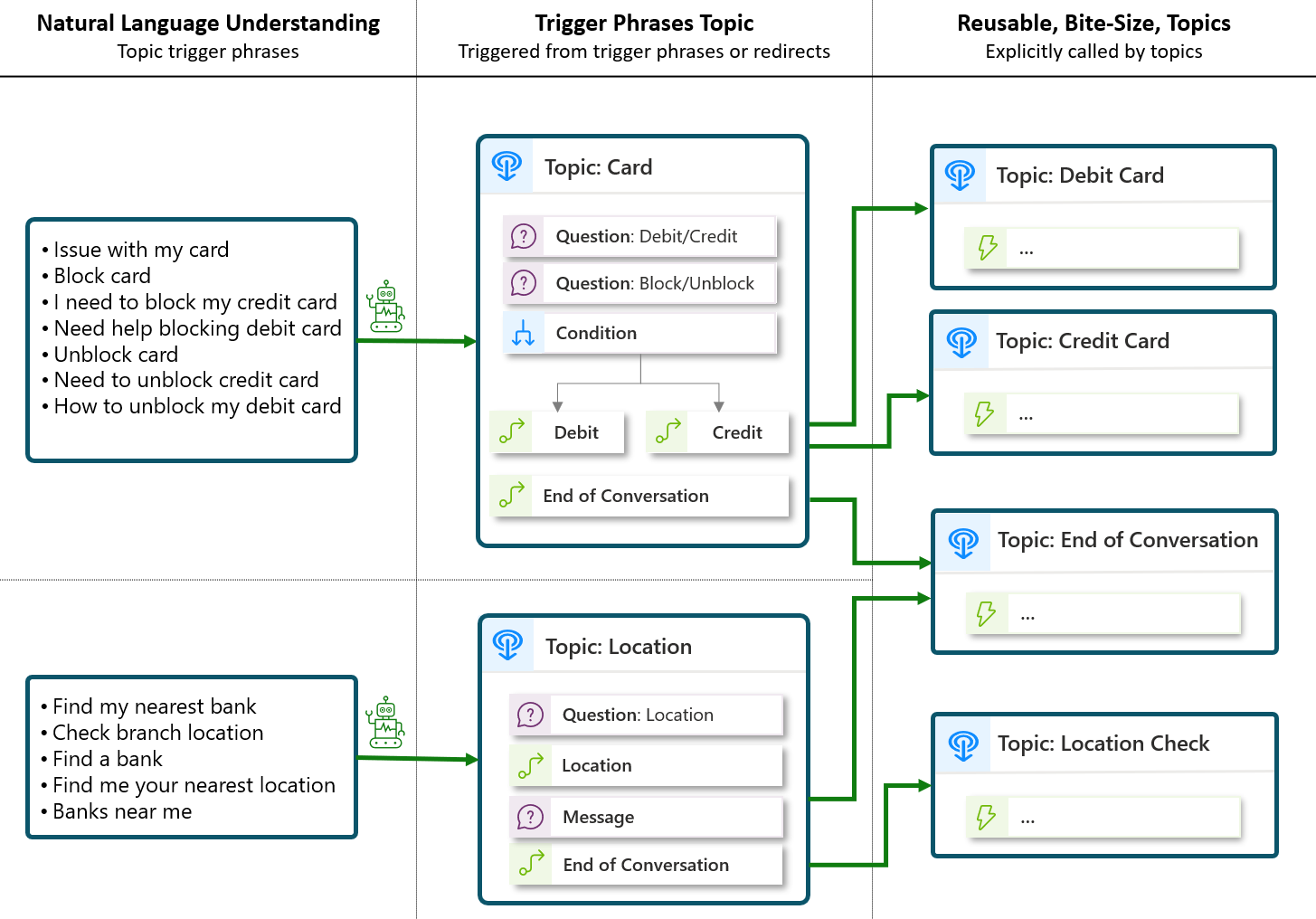
- Topics trigger based on the user utterance and the natural language understanding (NLU) model. Think of these topics as your entry point topics.
- Topics trigger when called from a redirect action. These topics can contain conversation and logic nodes, can be called by multiple topics, and can have input and output variables. They're ideally reusable, bite-size, topics.
- A topic can also be both. For example, a topic can trigger through intent recognition or by an explicit redirect.
- Events can trigger topics. For example, custom events, inactivity, and so on.
Create bite-size topics
Large topics can be challenging to maintain and update. Break down your agent logic whenever possible, especially if multiple topics share parts of your agent conversation logic.
Topics don't need to all have trigger phrases. Topics can redirect to other topics and pass variable information back and forth.
Tip
It's often more manageable to create many bite-size topics rather than a few large topics. This approach also helps make triggering more effective by clearly mapping trigger phrases to the specific topics that address those areas.
Create reusable topics
When multiple topics share conversation messages or logic nodes, group them in a new topic instead of duplicating their content. This way, a single update to that topic reflects on all the topics that redirect to it.
Topic management nodes
Under topic management you can add the following nodes:
- Go to another topic
- Recognize intent
- End current topic
- End all topics
- Transfer conversation
- Go to step
- End conversation
Many of the system topics use these nodes to control how conversations end or start over.
Go to another topic
To shift the conversation from a topic to another one without starting over, add a Go to another topic.
Select the Add node icon under the node after which you want the transition to occur, select to Topic management and select Go to another topic.
Select the desired destination topic from the list.
Pass variables between topics if needed. If the topic you're redirecting to requires input variables or is expected to return output variables to the originating topic, enter or select a value for each one.
Important
When the conversation reaches the end of the destination topic, it resumes in the originating topic by default. You can insert more nodes after the Redirect node as desired.
End current topic or all topics
By default, a redirected conversation returns to the originating topic at the end of the called topic. To exit a topic, or to end the conversation, use the End current topic node or the End all topics node.
The End current topic node ends the current topic. If the current topic is called from another topic, the conversation returns to the original topic immediately. A common use of this node is in a condition branch. One branch exits the topic early, while another branch continues the current topic.
The End all topics node ends all active topics immediately. Your agent considers the next message from the user as the first message in a new conversation.
To let the user know that the conversation is over, add an End Conversation node before the End all topics node.
End conversation
Many times, the end of a topic also represents the end of the conversation. The end conversation node signifies the end of the entire conversation and provides actions that can be initiated. You can have a survey appear that asks the user if their question or issue was answered or resolved correctly. This information is collected under the Analytics page. You could also elect to escalate the conversation hand off to a live representative if you're using a suitable service application, such as Dynamics 365 Contact Center. At the end of a response that resolves the user's issue or answers the question, select End conversation.
Add a tool
Tools are building blocks that let your agent interact with external systems. Tools expand what your agent can do, letting your agent perform various actions in response to user requests or autonomous triggers. Each tool represents a specific capability that your agent can perform. For example, you can equip your agent with tools that perform tasks like:
- Send emails using the Office 365 Outlook connector
- Check the current weather conditions and forecasts
- Read and write data from Dataverse
- Read and post messages to Teams
One of the many advantages to Microsoft Copilot Studio, is the ability to execute actions such as sending emails, locate external data, or create activities based on data entered in the agent. The add a tool node helps to facilitate this by allowing you to call a Copilot Studio workflow from the agent.
You can call a tool explicitly from within a topic. Depending on your use case, you might use your tool as part of a wider topic, which uses multiple nodes, or simply adding a single action (tool) node to a topic might be all that you need.
Select the Add node icon under the node after which you want to call the tool and select Add a tool.
Select the tool from the available tools. There are three tabs showing different types of tools:
- Basic tool
- Connector
- Tool
Basic tools tab
Under the Basic tools tab you can:
- New agent flow - Create a new workflow for this topic.
- New prompt - Create a new AI prompt for this topic.
- Upload a skill - Create a skill to extend your agent with agents built with pro-code such as the Microsoft 365 Agents SDK.
- Generate a search query - Create search query is a topic-level tool that your agent can use to capture a rewritten version of a user's input, enriched with conversation history. You can use the rewritten query in downstream tasks, such as search or summarization. This rewritten string gives makers a structured and clarified version of the original query, which you can repurpose to fit your agent's purposes.
- Perform custom search - Custom search is a topic-level tool that your agent can use to perform a search, based on an input query. The search is grounded on a customized set of data sources. The tool returns raw, unsummarized results as an output variable. You can process the results and use them in downstream tasks.
Tools tab
Under the Tools tab you can select any MCP tool, prompt tool, or workflow that has been added to the agent. You can also add an existing tool or create a new tool.
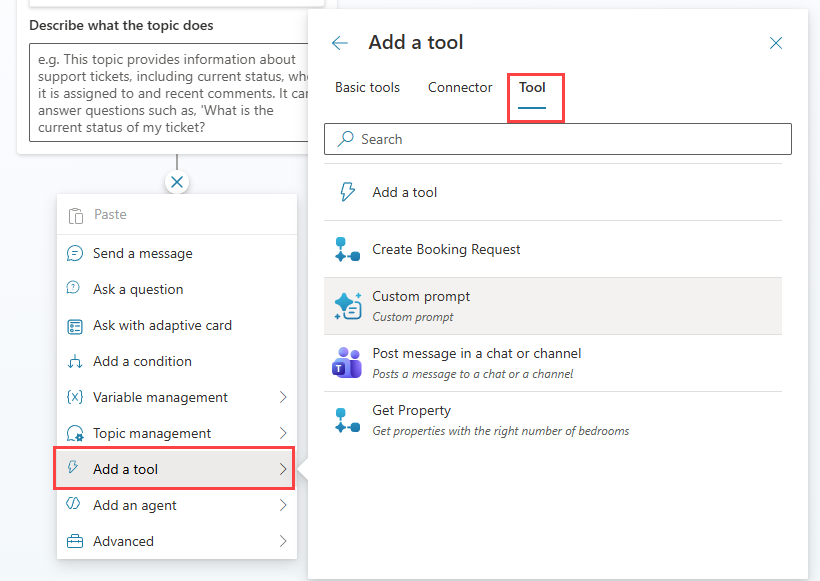
When you add a workflow as a tool to a topic, you can specify the workflow's input parameters using variables or static values.
A key benefit of a question node is that it allows you to create different conversation paths based on the customer’s response. In the next unit, we’ll explore branching, which guides each user down the most appropriate path to reach a suitable resolution.