Work with system topics
An agent can include multiple topics. Even when you use generative AI orchestration, these topics can be triggered.
System topics
System topics cover common scenarios that users are likely to encounter when interacting with your agent. Each system topic comes with a predefined structure that reflects its intended scenario, giving you a ready‑made foundation to build on that can be modified based on your needs.
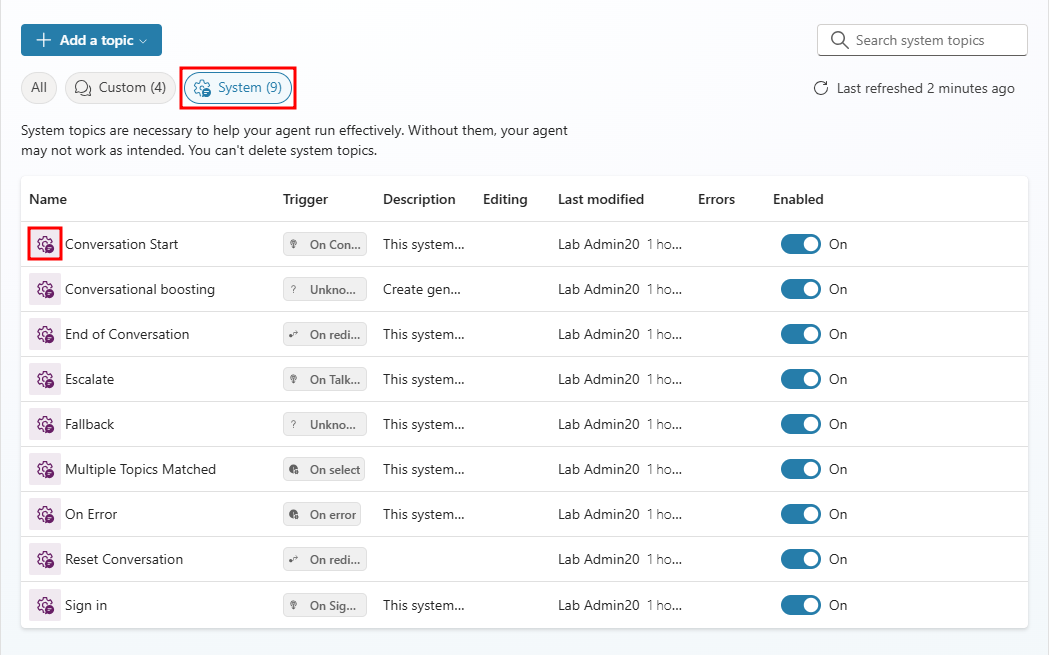
There are nine system topics:
- Conversation Start
- Conversational boosting
- End of Conversation
- Escalate
- Fallback
- Multiple Topics Matched
- On Error
- Reset Conversation
- Sign In
It can be useful to understand when the system topics are triggered by an agent and what customizations could improve your agent.
Conversation Start
The Conversation Start topic is triggered as soon as the user opens the chat window or in the test pane you select the Start new test session icon.
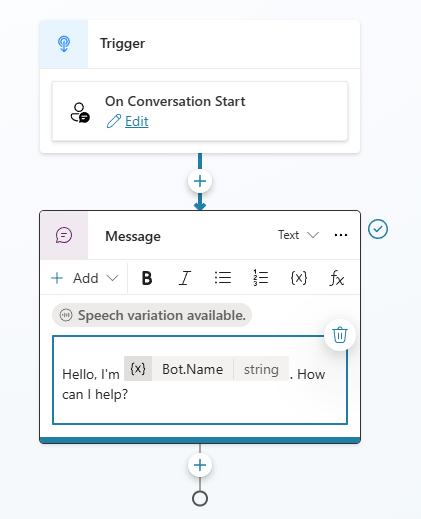
The Conversation Start topic:
- Contains the first message sent by the agent (the welcome message).
- Can be customized to disabled and change the agent’s initial behavior.
- Can be disabled to reduce cost.
The topic uses the On Conversation Start trigger and includes a single message, which contains the welcome message sent by the Copilot Studio agent.
You can update the message and alter the agent's initial behavior by adding additional nodes. For example, you might revise the welcome text or include a question node that redirects the user to another topic based on their response.
Tip
You can turn off this topic to reduce agent costs. Because every agent message—including the one in this topic—consumes Copilot Credits, turning it off can be a cost‑efficient option. This is beneficial when the agent depends on retrieval‑augmented generation to answer user questions using knowledge only and doesn’t need to perform additional structured interactions.
End of Conversation
The End of Conversation topic isn't triggered by user phrases, it's redirected to by other topics.
The topic uses the On Redirect trigger and contains question node that asks Did that answer your question? with Yes/No options.
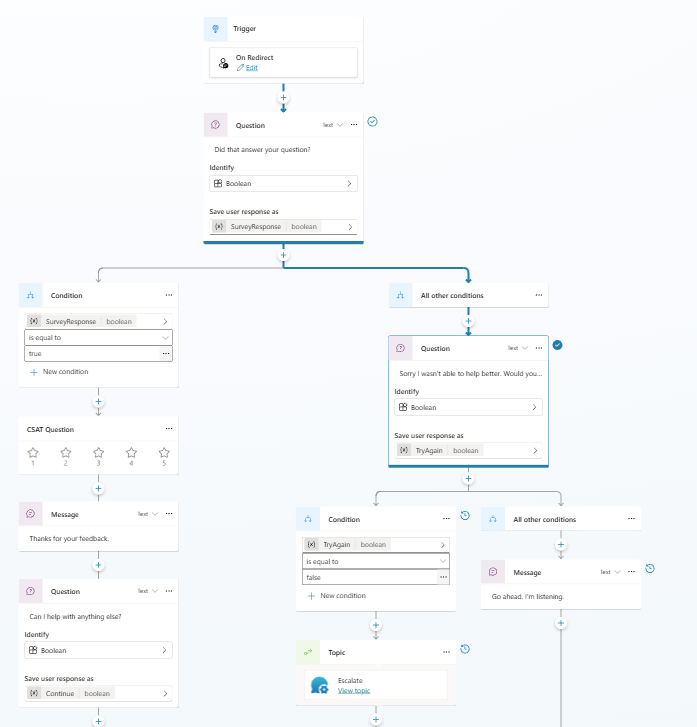
If the user selects Yes, the user is asked for their feedback with a customer satisfaction question and followed by the End conversation node.
Note
The End conversation node helps ensure that the chat session is terminated and no background topics remain active waiting for user input.
If the user selects No, the conversation is redirected to the Escalate system topic.
You should consider modifying the topic's conversation path to improve user engagement and analytics. You could add nodes before ending the conversation to personalize the final message, capture feedback, log conversation context, or store variables e.g., customer satisfaction score.
Note
If the Escalate topic isn't configured the user will see an error message to that effect.
Multiple Topics Matched
The Multiple Topics Matched topic is triggered when topics have overlapping or very similar trigger phrases and the natural language understanding model may struggle to determine the correct topic.
Note
If you're using generative AI orchestration, the agent will likely choose one of the topics automatically and this topic won't be triggered.
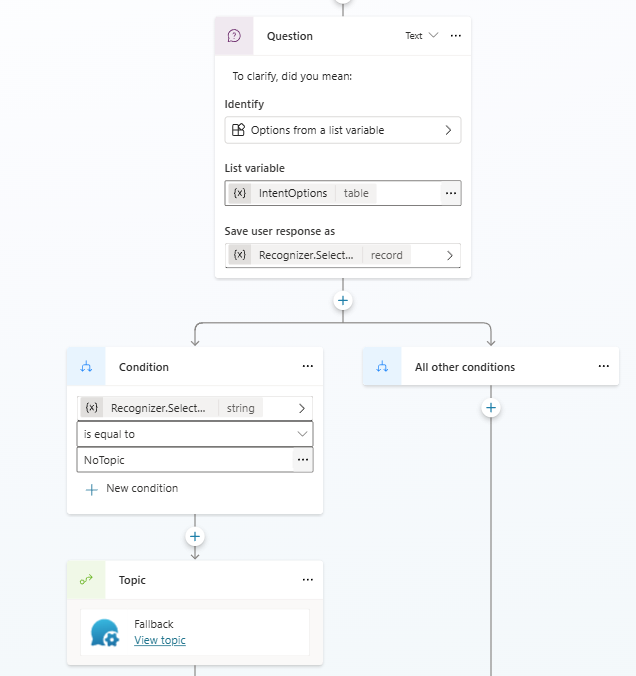
This topic contains a question node that asks To clarify, did you mean: and displays a list of possible matching topics for the user to choose from. If the user selects a topic the conversation will continue using that topic. If the user doesn't select a topic, the Fallback topic is triggered.
Tip
You can reduce the likelihood of this topic being triggered by using entities instead of creating multiple similar topics. For example, rather than maintaining separate topics like Add Voicemail, Change Voicemail, and Delete Voicemail, consolidate them into a single Voicemail topic and use an entity to capture the intended action—Add, Change, or Delete.
On Error
The On Error topic is triggered when a failure occurs during the execution of a topic—typically due to connector, tool, flow, or system‑level errors.
The On Error topic is invoked automatically when:
- A connector action fails due to timeouts, authentication issues, or unexpected data.
- A tool or Copilot Studio workflow returns an error.
- A topic explicitly uses the Raise an Error option within a connector action.
- A critical failure prevents the current topic from continuing.
This redirection happens immediately, and the original topic stops executing.
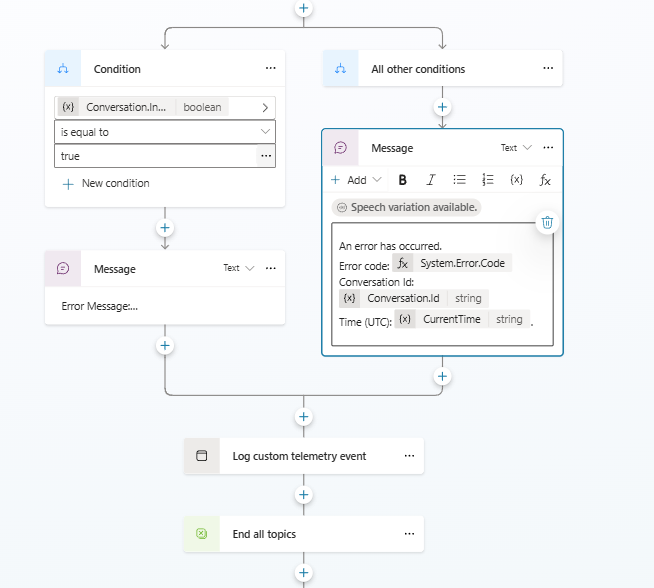
By default, the On Error topic:
- Captures technical details about the failure, including the timestamp and the system error message.
- Detects whether the agent is in test mode (e.g., being tested inside Copilot Studio).
- Sends a default error message to the user, including the error details.
This ensures the user receives a meaningful response rather than having the agent silently fail or freeze.
You should consider:
- Changing the default error message; the message displays the System.Error.Message, System.Error.Code, and Conversation.Id variables, which are useful but not user‑friendly.
- Replace technical jargon with plain language.
- Offer help or next steps.
- Adding nodes that either allow the user to restart the conversation, or redirect the user to the Fallback topic, or provide a link or route to support.
- Adding logging or telemetry nodes.
Reset Conversation
The Reset Conversation topic isn't triggered by user phrases, it's redirected to by other topics.
This topic is designed to reset the chat session. It clears conversation memory, resets variables, and forces the agent to reload its latest published configuration.
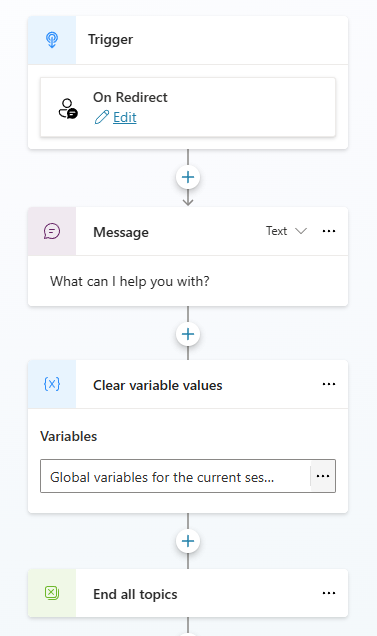
It functions like starting a new chat session—similar to opening a fresh conversation in Copilot Studio’s test window.
You may consider changing the message What can I help you with? that is issued to the user and provide the user with confirmation that their conversation has been reset.
Note
As Reset Conversation pushes the agent into a clean state, the next message may trigger the Conversation Start topic.
Sign In
The Sign In topic isn't triggered by user phrases, but by authentication requirements. The topic is triggered when:
- The agent requires user authentication, for example, accessing Dataverse data, checking personalized account details, viewing tickets, etc.
- A connected action or tool requires a signed‑in identity. If a cloud flow, API call, or connector requires authentication and the user isn't signed in, the system automatically triggers the topic.
- A custom topic explicitly redirects to the topic.
Authentication allows users to sign in, giving your agent access to a restricted resource or information. Users can sign in with Microsoft Entra ID, or with any OAuth2 identity provider such as Google or Facebook. It ensures secure access to protected actions, tools, or data, maintaining tenant‑level security.
Copilot Studio supports several authentication options under the Settings -> Security for your agent:
Select Authentication.
No authentication
Authenticate with Microsoft
Authenticate manually
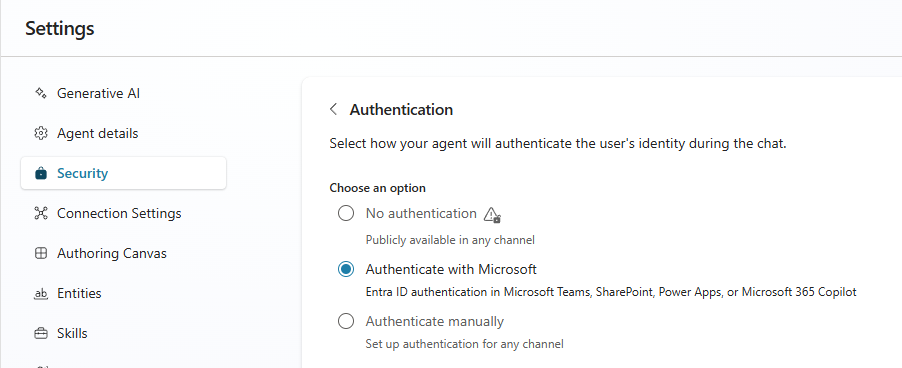
For more on authentication see Configure user authentication in Copilot Studio
Note
You can configure single sign-on (SSO) so your users don't need to sign in manually or use any identity provider that complies with the OAuth2 standard.
The Sign In topic contains a message node and an authentication node. The topic:
Prompts the user to authenticate using the configured sign‑in method.
Collects the authentication token and stores it in a system variable.
Allows the conversation to continue once authentication succeeds.
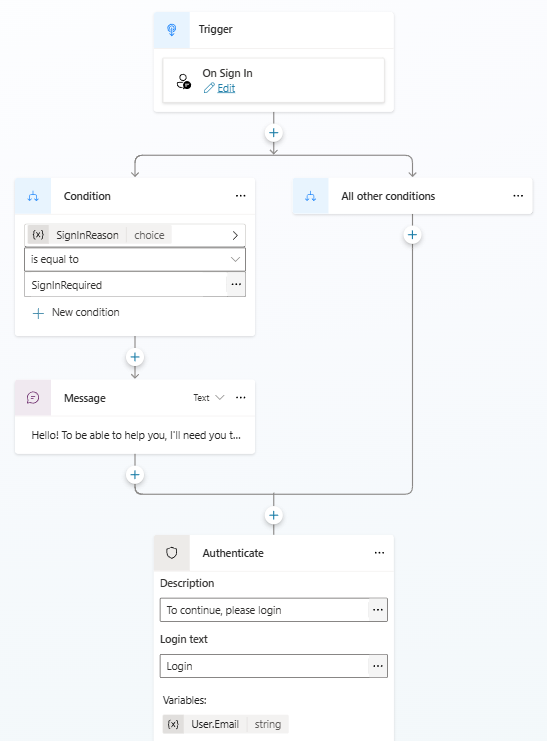
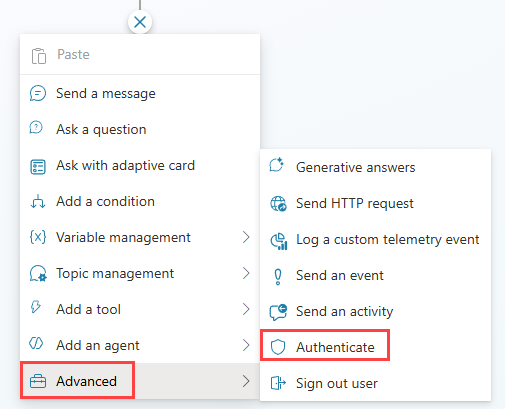
The Sign in topic authenticates the user at the beginning of the conversation. To allow the user to sign in later, you can add an Authenticate node to a topic.
You should consider:
- Tailoring the message to explain why sign-in is required e.g., I need to verify your identity to retrieve your data and to reassure the user about privacy and security.
- Add a message node to add post‑sign‑in guidance such as confirming that authentication was successful or to offer followup options e.g., Would you like to continue with checking your account?
- Creating paths for both a successful sign-in and failure to sign in. A sign-in might fail for many reasons, including errors with the identity provider's sign-in experience.
Escalate
The Escalate topic is invoked when:
A user enters hand-off phrases such as Talk to a human or Callback.
A node is configured to escalate due to invalid or missing input.
A topic redirects to it such as the End of Conversation and Fallback topics.
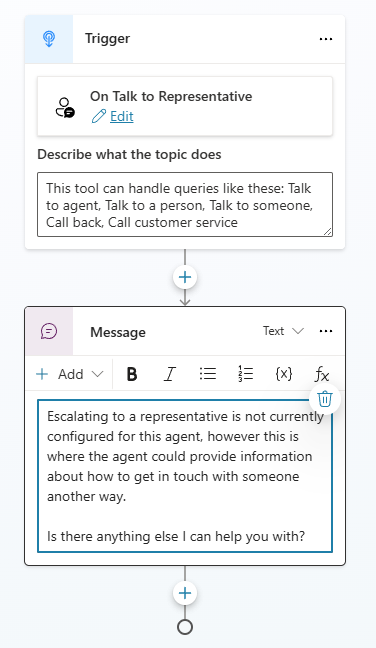
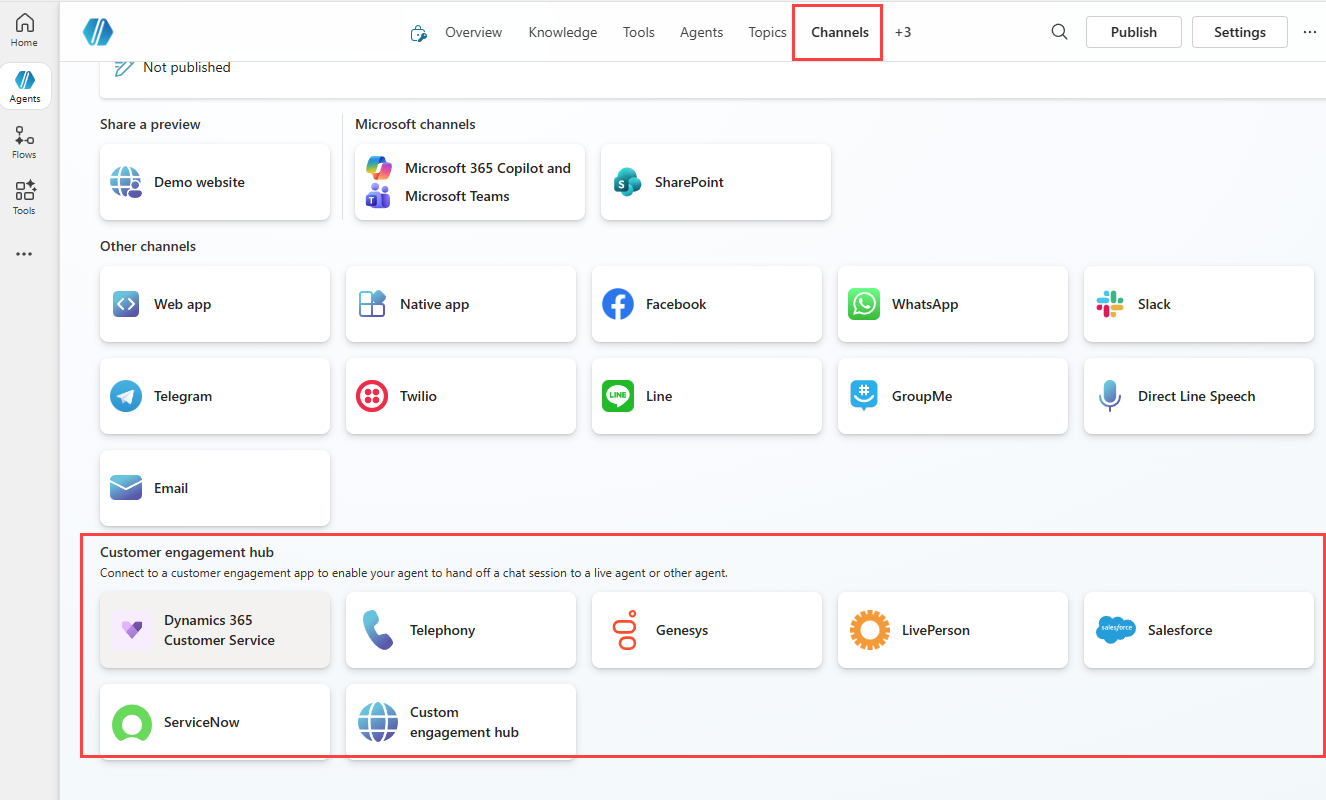
This topic is designed to initiate the hand-off of the conversation to a human representative. This requires a Customer engagement hub to be configured. Engagement hubs can be found under Channels.
Note
Dynamics 365 Contact Center is a supported engagement hub.
Once an engagement hub is configured, you should add the Transfer conversation to the topic to initiate the transfer to the engagement hub.
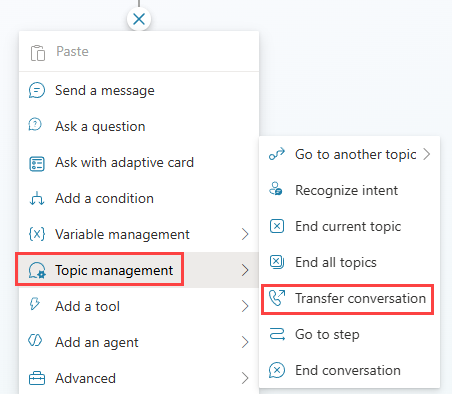
By default, all variables are transferred to the engagement hub.
For more on escalation see Hand off to a live agent
You should consider:
- Tailoring the escalation message, for example, to explain why escalation is happening and setting expectations, e.g, waiting time.
- Adding nodes to provide self-help options.
- Adding message modes and question nodes when there's no escalation capability or the escalation path isn't available due to closure or working hours.
- Adding logging or telemetry nodes.
Conversational boosting
The Conversational boosting topic is invoked when the agent can't find a matching topic. The Conversational boosting topic uses the On Unknown Intent trigger and contains a Generative answers node, which allows you to provide a response to the user by utilizing knowledge sources when there's no other topic that matches to the user's query.
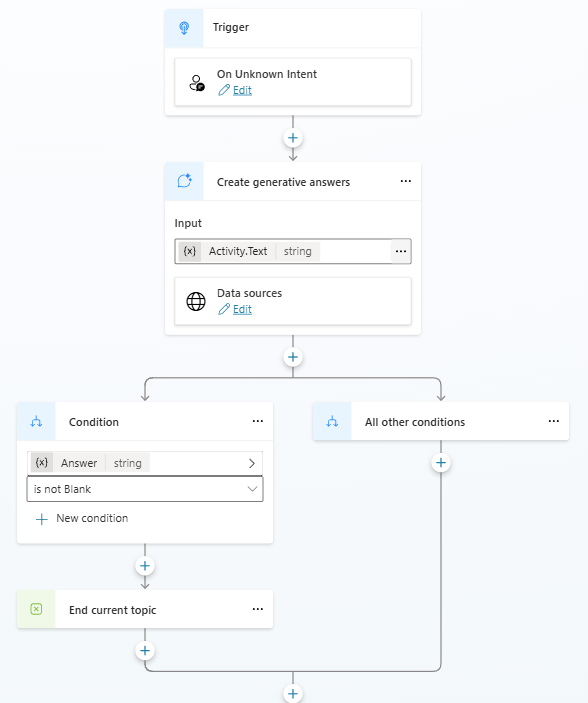
The topic acts as a fallback for unhandled questions and prevents the agent from responding with Sorry, I don’t understand and instead, it provides an AI‑generated response using available knowledge.
Note
By default, all knowledge sources that are added at the agent level are added to the Generative answers node in the Conversational boosting topic.
You can edit the options for the Generative answers node:
- Add knowledge - Allows you to upload documents and add other knowledge sources that will be used to provide real-time responses to users.
- Search only selected sources - Allows you to specify which of the knowledge sources added to the agent will be used to provide responses to users.
- Web search - Searches all public websites to provide responses to users.
- Allow the AI to use its own general knowledge - Searches specified internal and external websites to provide responses to users.
- Content moderation level - Allows you to determine how relevant you want the answers that are generated to be.
- Save LLM response - Choose the Complete response to save the answer, the citations, and the source metadata. Choose Text only to save only the answer and citation.
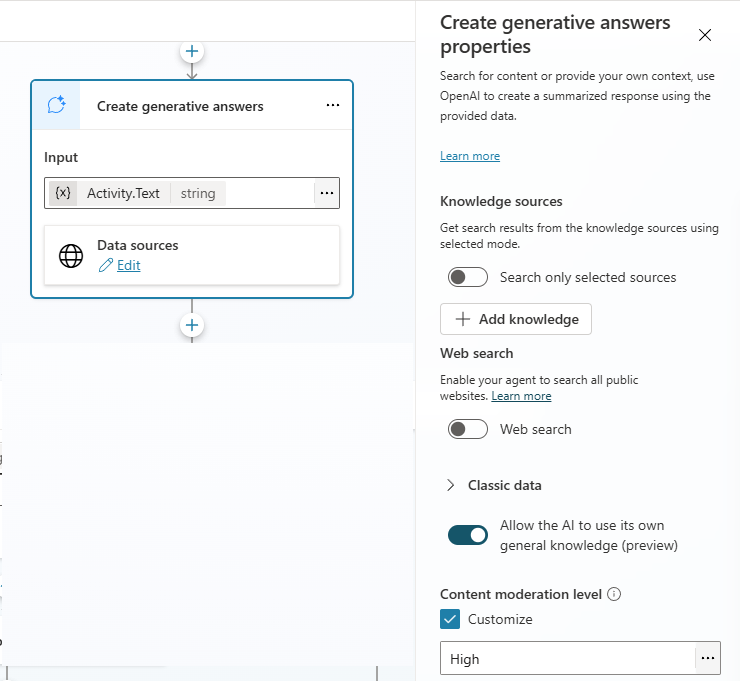
You should consider configuring the Generative answers node:
- Restricting the knowledge sources selected.
- Turning off Web search.
- Setting the Content moderation level to High so that only relevant answers are generated.
- Using the Complete response to send to the user.
Fallback
The Fallback topic is invoked when the agent can't find a matching topic. The Fallback topic uses the On Unknown Intent trigger and informs users their query couldn't be matched to a topic and asks them to try again.
Important
Both the Conversational boosting and Fallback topics use the On Unknown Intent trigger. The Conversational boosting topic is triggered first, and if it doesn't provide a response, the Fallback topic is then invoked.
This topic contains a message node that says I'm sorry, I'm not sure how to help with that. Can you try rephrasing?
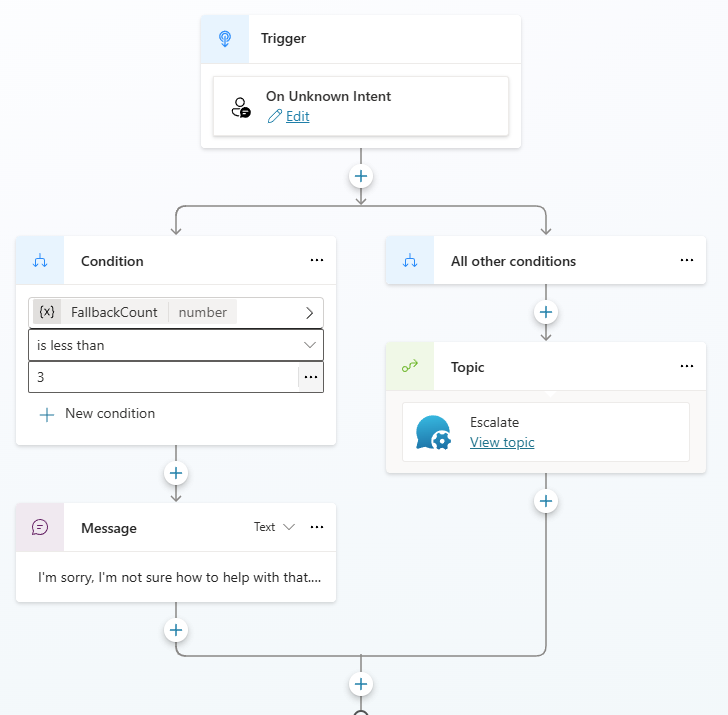
By default, the Fallback topic asks the user two times before redirecting to the Escalate topic.
If your agent doesn't have an engagement hub configured and can't escalate to a human representative, you could replace the redirection node with a Generative answers node. You can configure which knowledge sources to use, and whether web search is used, in this node.
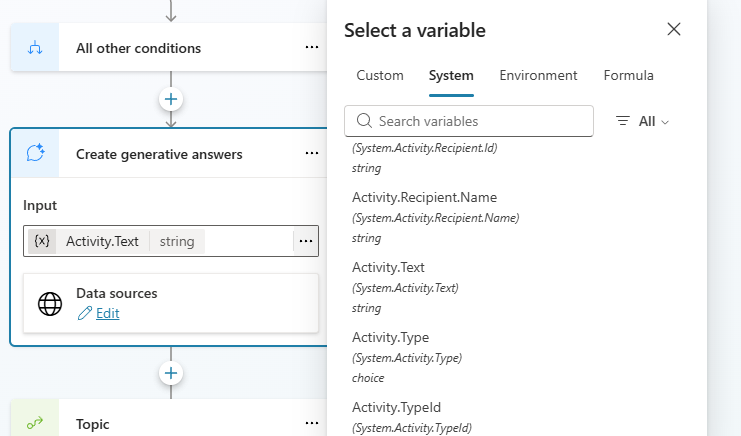
You could also add question nodes to try to better pinpoint what the user is looking for by asking them questions, providing category options, or other types of interactions with the user, and then route the user to a topic. For example, you present the user with a question such as What are you looking for assistance with? The user could be presented with a list of options such as Sales, Service, or General. Based on what the user selects they could be redirected to a topic that related to that selection
Tip
The initial unrecognized text entered by the user is stored in a variable called UnrecognizedTriggerPhrase variable.
You should consider:
- Tailoring the I'm sorry message to provide guidance to the user to improve the user experience and reduce frustration.
- Changing the number of times the I'm sorry message is displayed and using different messages each time rather than repeating the same phrase.
- Removing the redirection to the Escalate topic.
- Adding question nodes to guide the user.
- Adding nodes to provide a structured troubleshooting conversation.
- Adding a Generative answers node to use AI to respond to the user.
- Adding logging or telemetry nodes.
To learn more about the Fallback topic, see: Configure the system fallback topic.
Reset a system topic
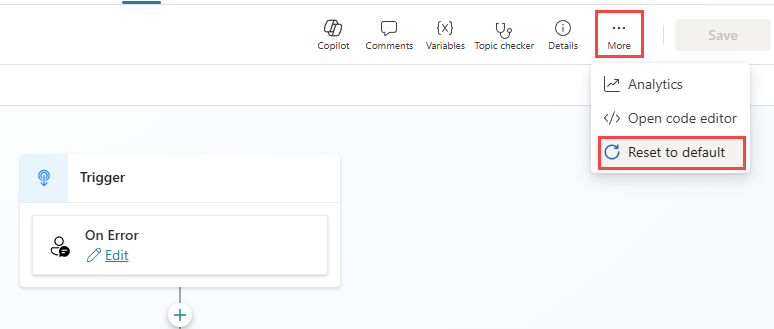
If you have changed a system topic and then find that it doesn't behave as you want, you can Reset to default.
Edit the topic.
Select More (…) on the menu bar.
Select Reset to default.
Predefined topics
There are four predefined custom topics in a Copilot Studio agent:
- Greeting
- Goodbye
- Start Over
- Thank you
These are custom topics that you can edit to meet your requirements.
Tip
You can turn off the predefined topics if your agent doesn't require them.
Greeting
The Greeting topic is triggered when a user enters welcoming phrases such as Hi or Hello. This topic has a single message node followed by the End all topics node.
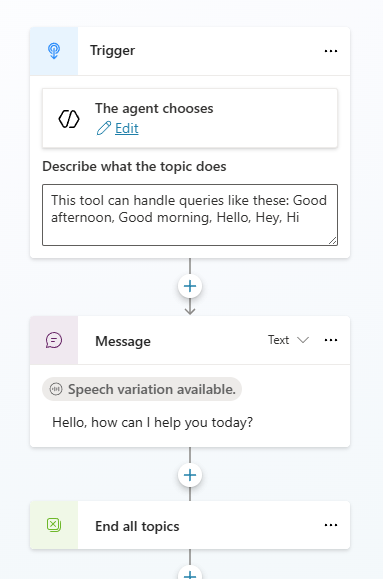
You can edit the message and add further nodes to improve user engagement.
Note
The Greeting topic isn't to be confused with the Conversation Start topic. The Greeting topic exists to respond politely to greeting intents during the conversation—not to start the conversation automatically.
Goodbye
The Goodbye topic is triggered when the user enters farewell phrases like Bye or Goodbye. It includes a question node that asks, Do you want to end our conversation? with Yes/No options. If the user selects Yes, the conversation is redirected to the End of Conversation system topic.
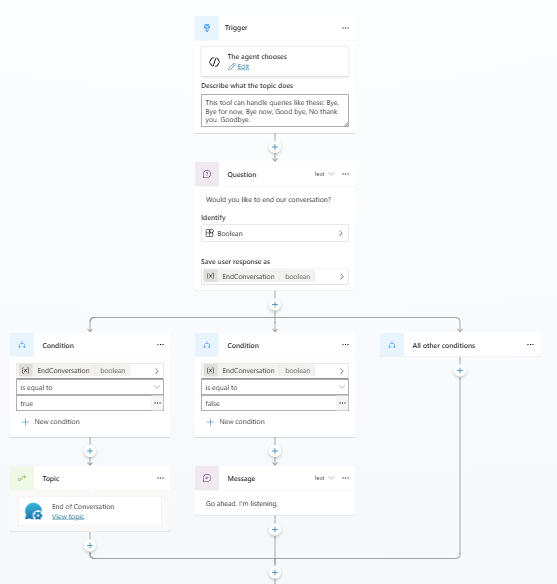
You can edit the question and add further nodes to improve user engagement.
Start Over
The Start Over topic is triggered when a user enters restart phrases such as Begin again or Start over. This topic has a question node, which asks Are you sure you want to restart the conversation? requiring a Yes or No answer. If the user answers Yes, then the conversation is redirected to the Reset Conversation system topic.
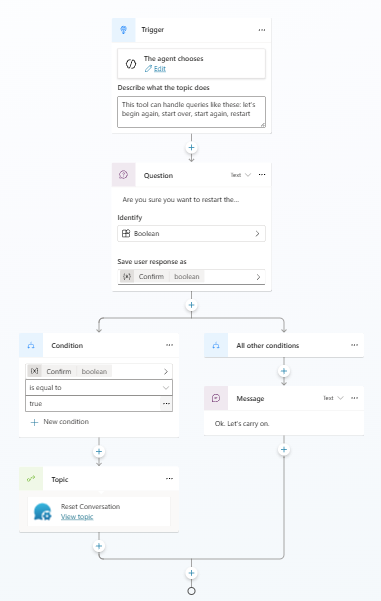
You can edit the question and add further nodes to improve user engagement.
Thank you
The Thank you topic is triggered when a user enters thanking phrases such as Thanks. This topic simply contains a single message node.
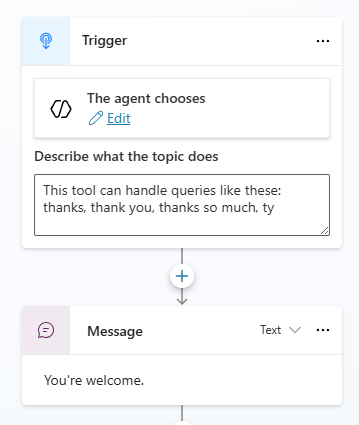
You can edit the message and add further nodes to improve user engagement.
Next, we'll look at the topics in a Copilot Studio voice-enabled agent.