Catch up on email in Outlook
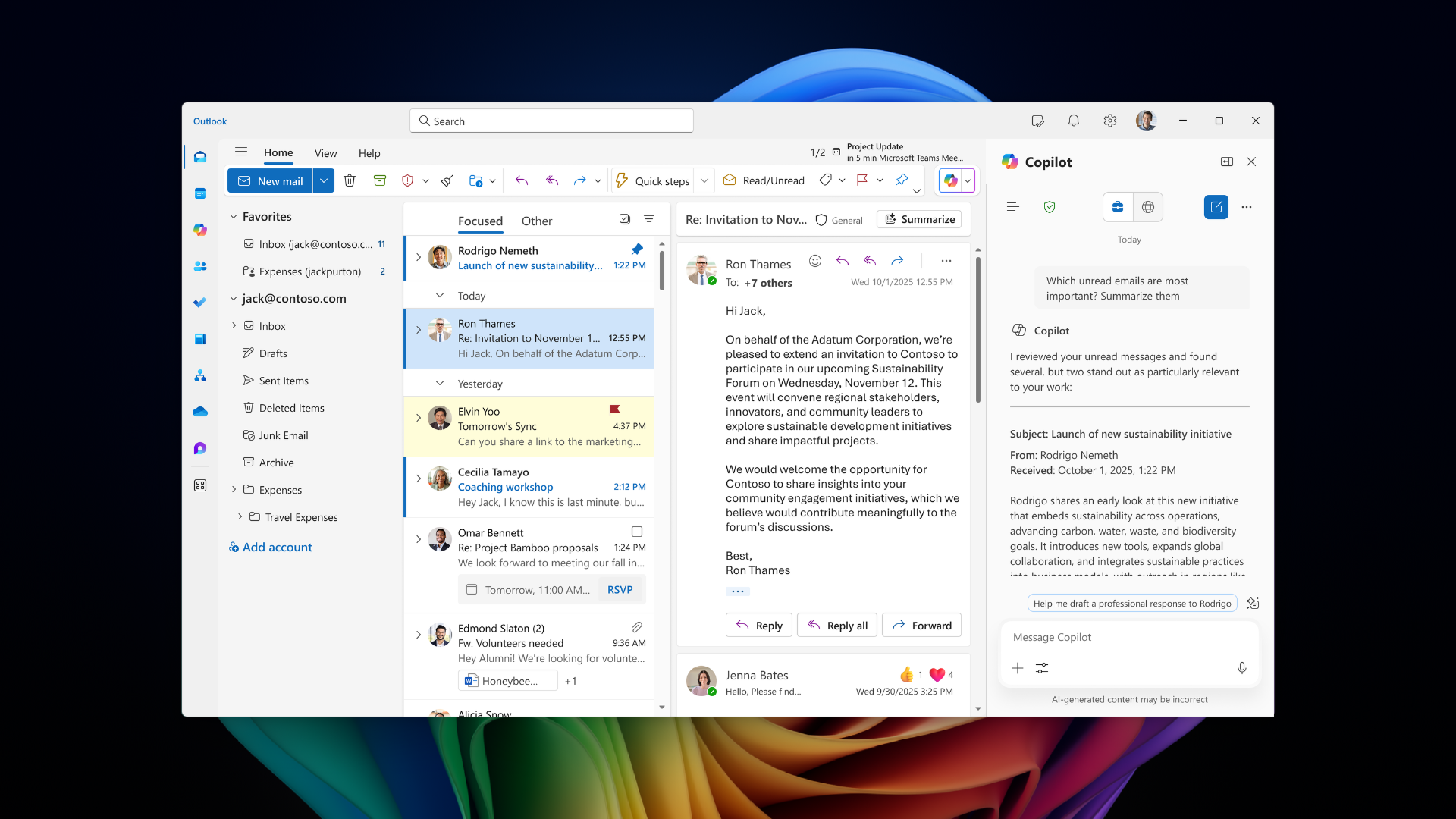
Imagine you're a traveling sales professional—facing time pressures and context switching challenges in your workflow. You've been traveling for a business conference and return to find a full inbox. Rather than reading every email thread, you can use Copilot in Outlook to quickly summarize key conversations, draft professional replies, and get coaching on tone—all while taking advantage of your Surface device's voice input and high-resolution display. Let's explore how.
Open Outlook and review your inbox: On your Surface, open Outlook. Review your inbox to identify conversations that need attention. With the high-resolution PixelSense display, you can comfortably scan subject lines, sender names, and preview panes side by side.
Summarize long email threads with Copilot: Select an email conversation that has multiple back-and-forth messages. Select Summary by Copilot (or Summarize) at the top of the email thread. Copilot scans the thread to identify key points and creates a summary, which appears at the top of the email. The summary may include numbered citations that, when selected, take you to the corresponding email in the thread. These citations offer traceability to provide more context if needed. If the email has attachments such as PDFs, PowerPoint files, or Word documents, you can select Summarize a file to get a quick overview of attached content without opening each file individually.
Draft a reply with Copilot: Once you understand the key points from a thread, you can use Copilot to draft a reply. Select New mail or reply to an existing thread, then select the Copilot icon from the toolbar and choose Draft with Copilot. Enter a prompt describing what you want to say. For example, "Write a reply confirming I'll review the updated proposal by Friday and ask if there are any outstanding items I should prioritize." Copilot drafts a message based on your prompt and the context of the email thread. Review the draft—if it's not right, adjust the tone or length, or enter a new prompt and select Generate again. When you're satisfied, select Keep it. You can also use your Surface's Studio Microphone to dictate your prompt hands-free. Press Win + H to start dictation and speak your reply instructions naturally. Voice Clarity technology helps ensure your words are captured accurately.
Get coaching on tone and clarity: If you've drafted a reply yourself and want a second opinion before sending, select the Copilot icon and choose Coaching by Copilot. Copilot reviews your draft and provides suggestions on tone, clarity, and reader sentiment. This is especially useful for sensitive communications—such as responding to a client concern or delivering a status update to leadership—where getting the right tone matters. Use these suggestions as guidance, but apply your own judgement before sending, since final accountability for the message rests with you.
Create a meeting agenda from an email thread: If an email thread calls for a follow-up meeting, Copilot can help you create one directly. Create a new meeting, add a title and attendees, then scroll to the meeting description. Select the Copilot button and either choose Auto draft an agenda or type a prompt with your goals and talking points. Copilot generates a draft agenda you can keep, discard, or adjust.