Create schema
Your catalog provides the foundation for data isolation across environments, but within each catalog you need more detailed organization for your tables, views, and functions. Different teams work on different projects, departments manage distinct datasets, and various use cases require separate namespaces. Schemas in Unity Catalog give you this logical organization layer. They let you group related data assets within a catalog while maintaining clear boundaries and access controls.
What is a schema?
A schema is the second level in Unity Catalog's three-layer namespace: catalog.schema.table. While catalogs handle environment or sensitivity boundaries, schemas organize data within those catalogs into logical categories that typically represent a single use case, project, or team workspace.
Think of schemas as rooms within the house you built when creating your catalog. Each room serves a specific purpose and contains related items. Your production catalog might contain schemas for customer_analytics, financial_reporting, and operations_metrics, with each schema grouping the tables and views needed for that specific domain.
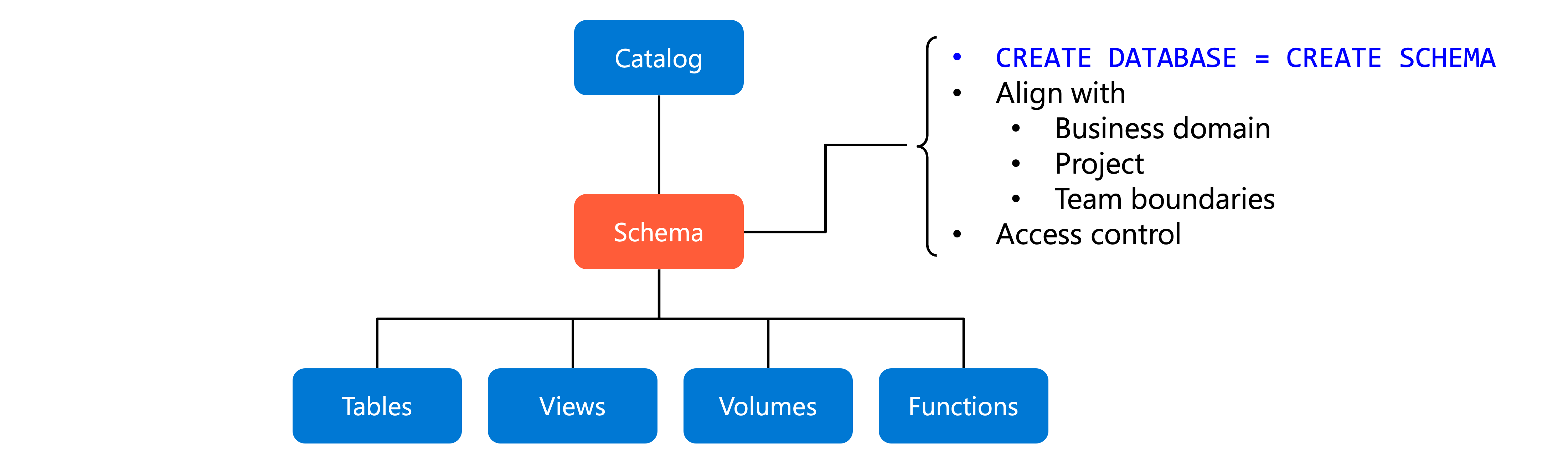
Schemas provide the organizational structure that makes your data discoverable and manageable. Instead of hundreds of tables scattered across a single namespace, you group related assets into meaningful categories. This structure helps data engineers find the datasets they need and understand how different data assets relate to each other.
In Azure Databricks, you might hear schemas called "databases." This is because CREATE DATABASE is an alias for CREATE SCHEMA. The terms are interchangeable in Databricks SQL, though "schema" aligns better with Unity Catalog's namespace hierarchy.
Organize data with schemas
When you design your schema structure within a catalog, consider how your teams work and what logical groupings make sense for your organization. Schemas typically align with business domains, projects, or team boundaries, creating clear ownership and access patterns.
Production Catalog: Department based schemas
├── marketing_analytics
├── financial_data
└── operations_metrics

Development Catalog: Project-based schemas
├── customer_churn_model
├── pricing_optimization
└── inventory_forecasting

Functional Organization: Stage-based Schemas
├── raw_data
├── cleansed_data
└── reporting_views
Department-based organization works well when different business units manage their own data. Within your production catalog, the marketing team might own a marketing_analytics schema, while the finance team maintains financial_data. Each department controls access to their own schema, granting read permissions to other teams as needed for cross-functional analytics.
Project-based organization suits environments where temporary initiatives need dedicated workspaces. Your development catalog might contain schemas like customer_churn_model, pricing_optimization, and inventory_forecasting. When a project completes, you can archive or remove its schema without affecting other work. This pattern keeps experimental work organized and makes it easy to track which assets belong to which initiative.
Functional organization groups schemas by data processing stage or purpose. You might create schemas like raw_data, cleansed_data, and reporting_views within a catalog. This pattern mirrors data pipeline architecture, where each schema represents a stage in your data transformation workflow.
Your schema organization affects both discoverability and access control. Well-named schemas help users locate relevant datasets quickly. Clear schema boundaries make it straightforward to grant appropriate permissions—data engineers might have full access to the staging schema while analysts have read-only access to curated_views.
Create a schema
Creating a schema establishes a namespace for the tables, views, and functions you'll add later. You need USE CATALOG and CREATE SCHEMA permissions on the parent catalog. A metastore admin or the catalog owner can grant you these privileges.
Using SQL, you create a schema with this command:
CREATE SCHEMA IF NOT EXISTS prod_catalog.customer_analytics
COMMENT 'Customer behavior and segmentation analysis';
This creates a schema named customer_analytics in the prod_catalog catalog. The IF NOT EXISTS clause prevents errors if the schema already exists, making your code safe to run repeatedly. The three-part namespace (catalog.schema.table) requires you to specify the catalog name, ensuring schemas end up in the correct container.
Using Catalog Explorer, you can create schemas through the Azure Databricks workspace UI:
- Select Catalog from the left navigation.
- Select the catalog where you want to create the schema.
- Select Create schema from the catalog detail pane.
- Enter a schema name and optional description.
- Select Create.
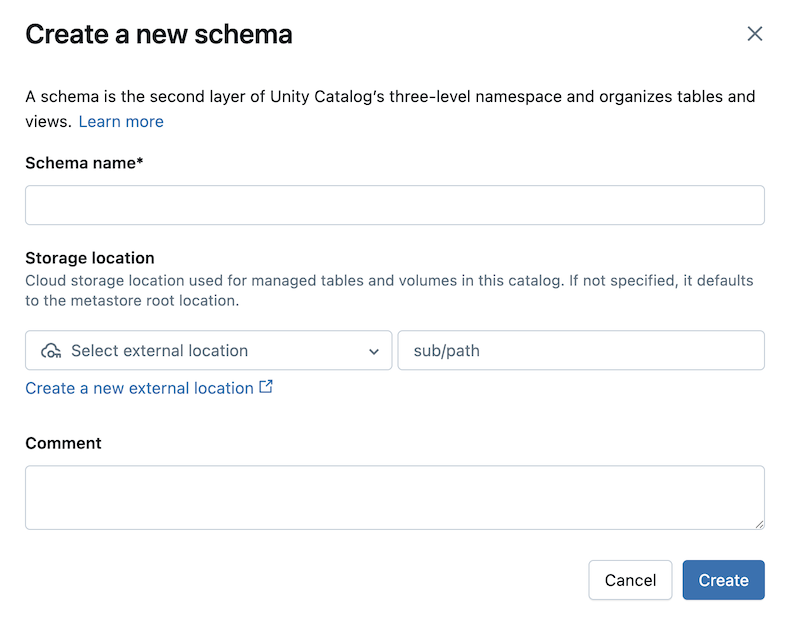
After creating the schema, you grant privileges to control who can use it and create objects within it. At minimum, users need USE SCHEMA permission to see the schema and query its contents. To create tables or views in the schema, users need CREATE TABLE or other object-specific permissions.
Each new schema includes a system-generated information_schema that contains metadata about the schema's objects. You can query this metadata to discover tables, views, and their structure.
Configure managed storage
While not required, specifying a managed storage location for your schema gives you control over where Unity Catalog stores data files for managed tables created within the schema. Without a schema-level storage location, managed tables use the catalog's managed storage (or the metastore's default if the catalog has none specified).
To configure managed storage, you need an external location already set up in Unity Catalog and the CREATE MANAGED STORAGE privilege on that location. This lets you separate data for different schemas, even within the same catalog.
CREATE SCHEMA IF NOT EXISTS prod_catalog.financial_data
MANAGED LOCATION 'abfss://finance@mystorageaccount.dfs.core.windows.net/schema-data'
COMMENT 'Financial transactions and reporting data with dedicated storage';
This command creates a schema with its own storage location in Azure Data Lake Storage Gen2. All managed tables created in this schema store their data files under this path, separate from other schemas in the catalog. This physical isolation helps you meet compliance requirements where financial data must reside in specific storage accounts with particular security configurations.
If you don't specify managed storage, your schema works the same way. Managed tables use the catalog's storage location, which simplifies management when physical isolation isn't required. You can always update the schema later to add a managed location if your requirements change.