Read Order Details
The Orders table has no total value column. Each order's value lives in its related Order Details rows: one row per line item, each with a Unit Price and a Quantity. In this unit, the flow retrieves the line items that belong to the order that triggered it.
Select (+) below the trigger and select Add an action.
Search for
List rowsand select the Microsoft Dataverse List rows action.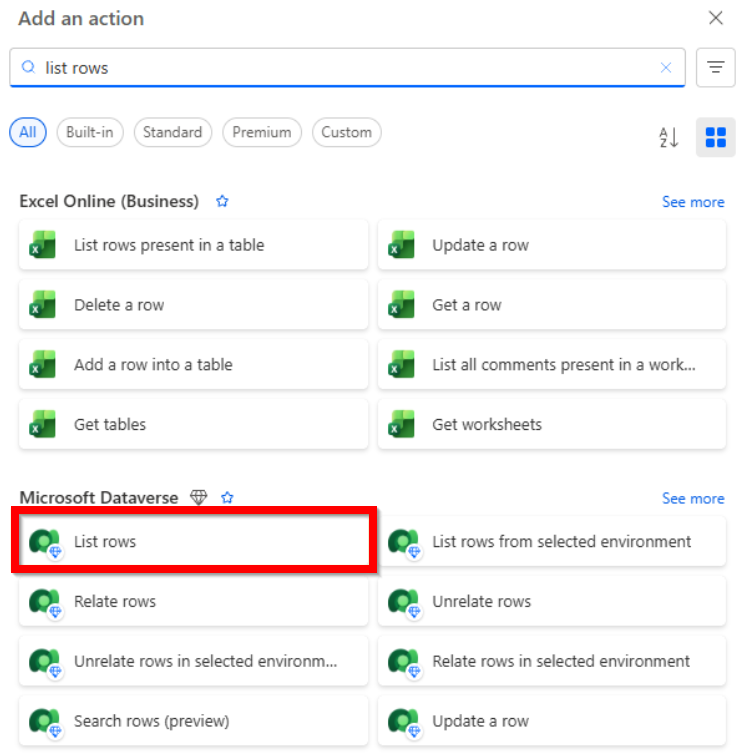
Rename the action to
List Order Details: select the action card, then select its name at the top of the configuration pane and enter the new name. Rename every action in this lab the same way, using the table in Names used in this lab.In Table name, select Order Details.
In Filter rows, enter:
nwind_OrderID/nwind_ordersid eq @{triggerOutputs()?['body/nwind_ordersid']}In plain English: "give me all Order Details whose parent Order is the order that triggered this flow." The left side is the lookup from Order Details to its parent Order; the right side is the unique identifier of the triggering order.
🔧 Setup check: After pasting, the
@{...}part should render as a token, not stay as plain text. If it stays as plain text, delete it, type the expression up toeq, and insert the order's unique identifier using the dynamic content picker (lightning bolt) instead.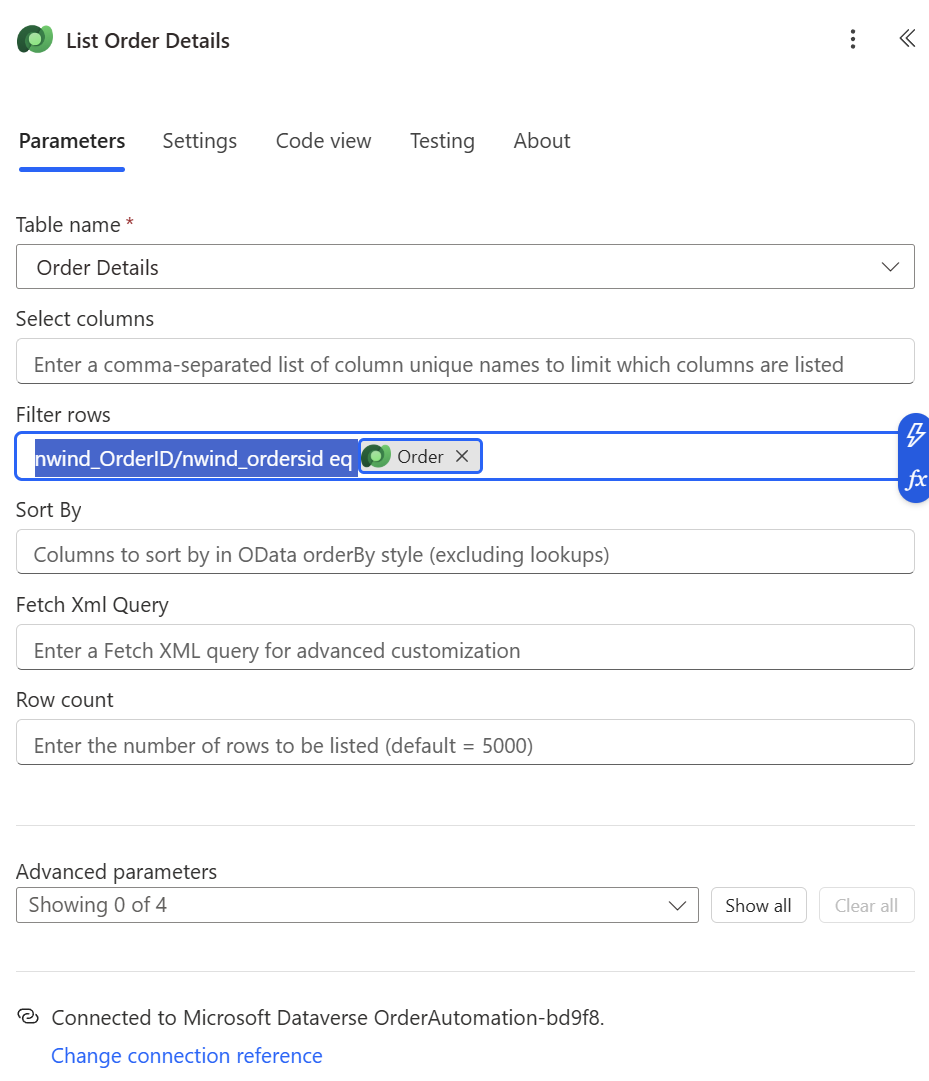
Select Save draft.
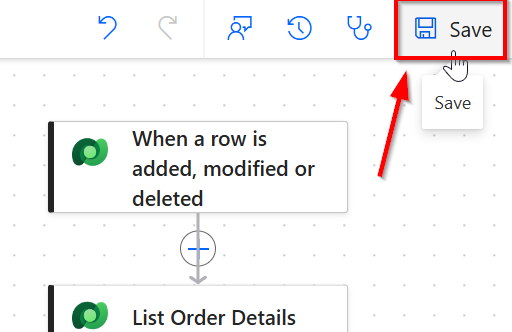
✅ Checkpoint: The flow saves without errors, and List Order Details shows the Order Details table and the filter expression.