Configure security and networking
Securing your Azure DocumentDB cluster involves configuring network access, authentication, encryption, and monitoring. Azure DocumentDB provides multiple layers of security that you configure based on your environment's requirements.
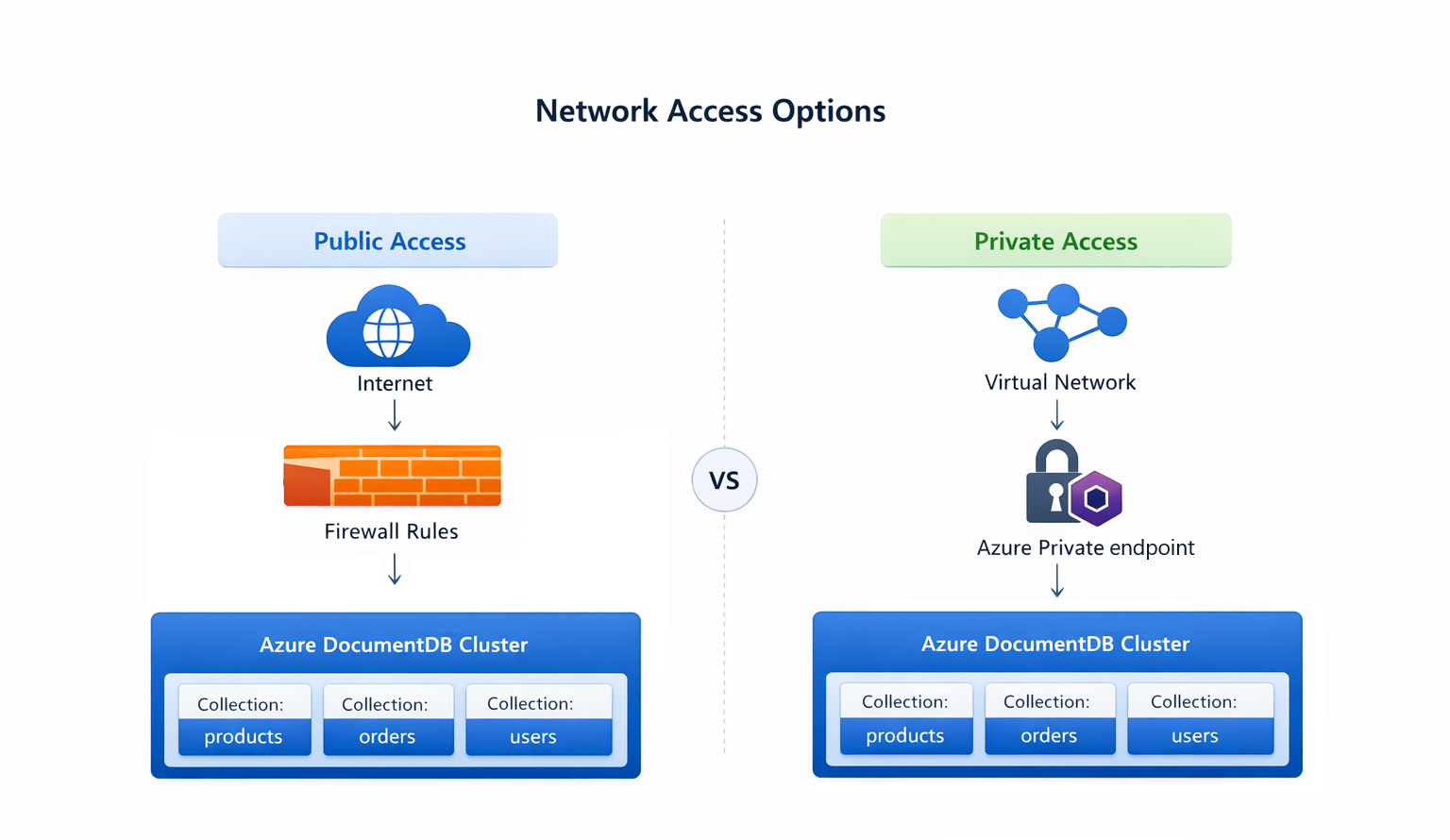
Configure network access
By default, Azure DocumentDB clusters are locked down. No clients can connect until you explicitly configure network access through firewall rules or private endpoints.
Public access with firewall rules
Firewall rules allow connections from specific IP addresses or ranges over the public internet. This approach is suitable for development, testing, or scenarios where private networking isn't available.
To configure firewall rules:
- In the Azure portal, open your cluster.
- Under Settings, select Networking.
- Under Public access, enabled Allow public access to this resource through the internet using public IP address.
- Under Firewall rules, add rules for each IP address or range that needs access.
- Optionally enable Allow public access from Azure services and resources within Azure to permit connections from other Azure services.
- Select Save.
Private access with Azure Private Link
For production workloads, Azure Private Link provides network isolation by routing traffic through private IP addresses in your virtual network. With Private Link, the cluster endpoint isn't accessible over the public internet.
To add a private endpoint to an existing cluster:
- On the cluster's Networking page, select + Add private endpoint.
- Configure the endpoint's subscription, resource group, name, and region.
- Select the virtual network and subnet where the private endpoint is created.
- Enable private DNS zone integration (recommended) for automatic DNS resolution.
- Select Create.
- Select Approve to authorize the private endpoint connection.
- Select Save to finalize the private endpoint configuration.
Once you create the private endpoint, clients within the virtual network (or connected networks) can reach the cluster using the same mongodb+srv connection string.
Important
Private DNS integration must be enabled on the cluster for proper DNS resolution. The private DNS zone name is privatelink.mongocluster.cosmos.azure.com.
You can configure both public and private access on the same cluster and change these settings at any time.
Configure authentication
Azure DocumentDB supports two authentication approaches:
Native MongoDB authentication: Uses SCRAM-SHA-256, the same authentication mechanism that MongoDB uses. You create an admin user during cluster provisioning and can create secondary users for more granular access control.
To create secondary users with specific privileges:
- Read-write users: Can read and write data across all databases on the cluster.
- Read-only users: Can query data across all databases but can't modify it.
Roles are assigned at the cluster level, so you can't restrict a secondary user to a specific database. Secondary users help you follow the principle of least privilege. Give application service accounts only the permissions they need.
Microsoft Entra ID authentication: Integrates with Microsoft Entra ID for centralized identity management. This option isn't enabled by default. You must enable it on the cluster after provisioning. Once enabled, you can register Microsoft Entra principals as users on the cluster. Supported principal types include human users, service principals, user-assigned managed identities, system-assigned managed identities, and workload identities.
With Entra ID authentication, you can:
- Use managed identities for service-to-service authentication, eliminating the need to store credentials.
- Apply Azure role-based access control (RBAC) for fine-grained permissions.
- Use the same identity provider your team already uses for other Azure resources.
Note
Microsoft Entra ID groups aren't supported. You must register individual principals.
Tip
For production environments, use Microsoft Entra ID authentication with managed identities. This approach eliminates credential management and integrates with your organization's identity governance policies.
To enable Microsoft Entra ID authentication, navigate to the Authentication page under Settings in your cluster, select Native DocumentDB and Microsoft Entra ID, and then select Save to apply the change.
Additionally, you can reset the admin password from the Authentication page by selecting Reset password, entering a new password, and then selecting Save to apply the change.
Understand encryption
Azure DocumentDB encrypts your data at multiple levels:
- Encryption at rest: All data, backups, logs, and temporary files are encrypted on disk using Advanced Encryption Standard (AES) 256-bit encryption. This encryption is enabled by default and can't be turned off.
- Service-managed keys: Azure manages the encryption keys automatically. No configuration is required.
- Customer-managed keys (CMK): For organizations that need to control their encryption key lifecycle, you can configure customer-managed keys through Azure Key Vault. With Customer-managed keys (CMK), you're responsible for key rotation, backup, and access management.
- Encryption in transit: Transport Layer Security (TLS) up to version 1.3 is enforced for all client connections. Only MongoDB client connections are accepted, and encryption is always active.
Monitor security
Azure DocumentDB provides monitoring and logging capabilities to help detect and respond to security events:
- Audit logging: Track who performed operations and when. Audit logs capture administrative actions, authentication events, and data access patterns.
- Activity logs: Monitor control plane operations like cluster creation, scaling changes, and firewall rule modifications.
- Diagnostic logging: Send logs to Azure Monitor, Log Analytics, or your security information and event management (SIEM) solution for centralized analysis and alerting.
Enable diagnostic settings on your cluster to forward logs to your preferred destination. Set up alerts for unusual patterns, such as failed authentication attempts or connections from unexpected IP addresses.
Automated backups
Azure DocumentDB creates automated backups of your cluster with a 35-day retention period. Backups are enabled at cluster creation and can't be disabled.
You can restore your cluster to any point in time within the retention period. This capability protects against accidental data deletion, corruption, or application errors. Restores create a new cluster with the data from the specified point in time.
To initiate a restore, navigate to the Point in time restore page under Settings in your cluster, select the desired point in time within the retention period, the restore target cluster name, admin credentials for the new cluster, and then select Submit.