Define Group Policy Objects
Since early versions of Windows Server, the Group Policy feature of Windows operating systems has provided an infrastructure with which administrators can define settings centrally and then deploy them to computers across their organizations.
Consequently, IT staff at Contoso can define, enforce, and update their entire configuration by using GPO settings. By using GPO settings, they can affect an entire site or a domain within their organization, or they can narrow their focus to a single organizational unit (OU).
Tip
Filtering based on security group membership and physical computer attributes also enables Contoso to define the target for their GPO settings even further.
What is Group Policy?
Group Policy is a framework in Windows operating systems with components that reside in Active Directory (AD), on domain controllers, and on each Windows Server and client. By using these components, you can manage configuration in an AD DS domain. You define Group Policy settings within a group policy object (GPO). A GPO is an object that contains one or more policy settings that apply to one or more configuration settings for a user or a computer.
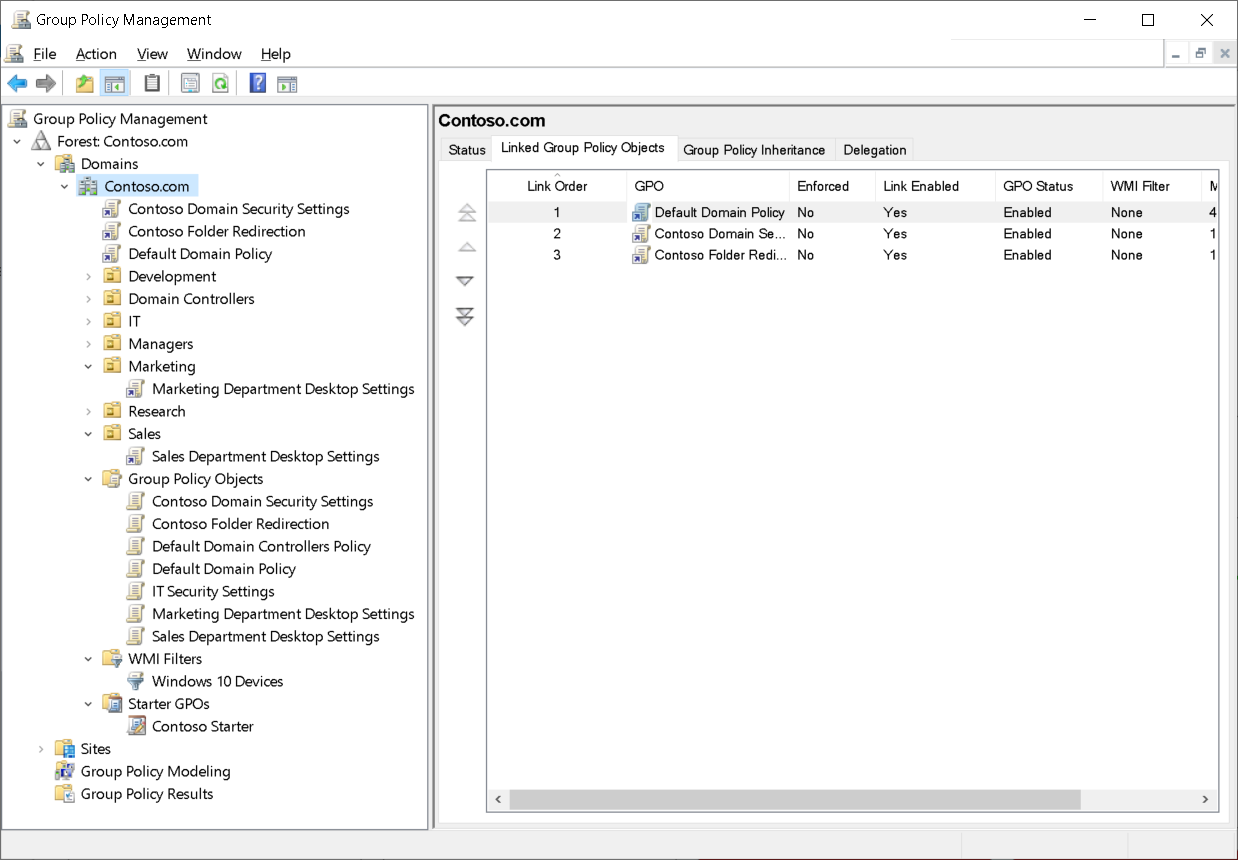
Group Policy is a powerful administrative tool. You can use GPOs to push various settings to a large number of users and computers. Because you can apply them to different levels, from the local computer all the way up to the domain, you can focus these settings precisely. Primarily, you use Group Policy to configure settings that you do not want users to configure. Additionally, you can use Group Policy to standardize desktop environments on all computers in an OU or in an entire organization. You also can use Group Policy to provide additional security, to configure some advanced system settings, and for other purposes.
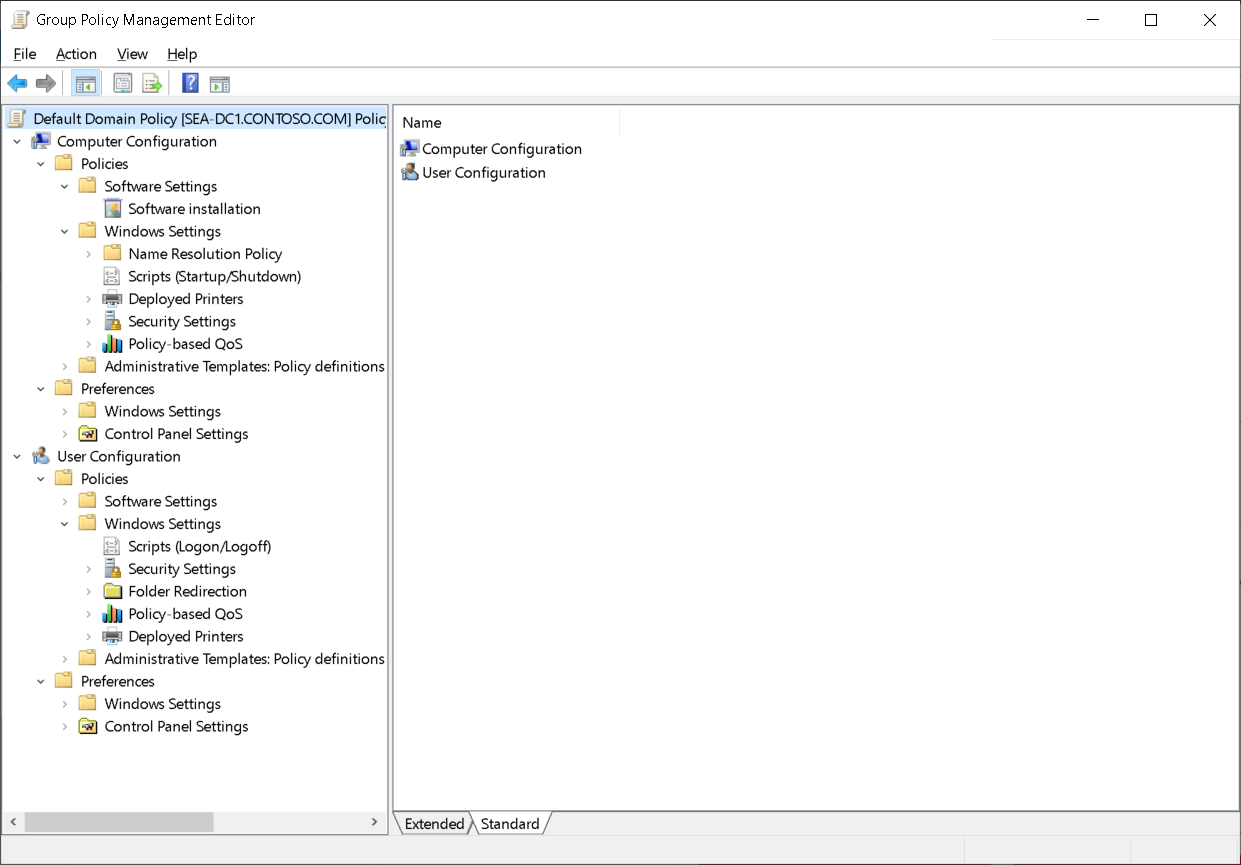
What are GPOs?
The most granular component of Group Policy is an individual policy setting. An individual policy setting defines a specific configuration, such as a policy setting that prevents a user from accessing registry-editing tools. If you define that policy setting and then apply it to a user, that user will be unable to run tools such as Regedit.exe.
Some settings affect a user, known as user configuration settings or user policies, and some affect the computer, known as computer configuration settings or computer policies.
Important
Settings do not affect groups directly and apply only to user and computer objects.
Group Policy manages various policy settings, and the Group Policy framework is extensible. You can manage almost any configurable setting with Group Policy.
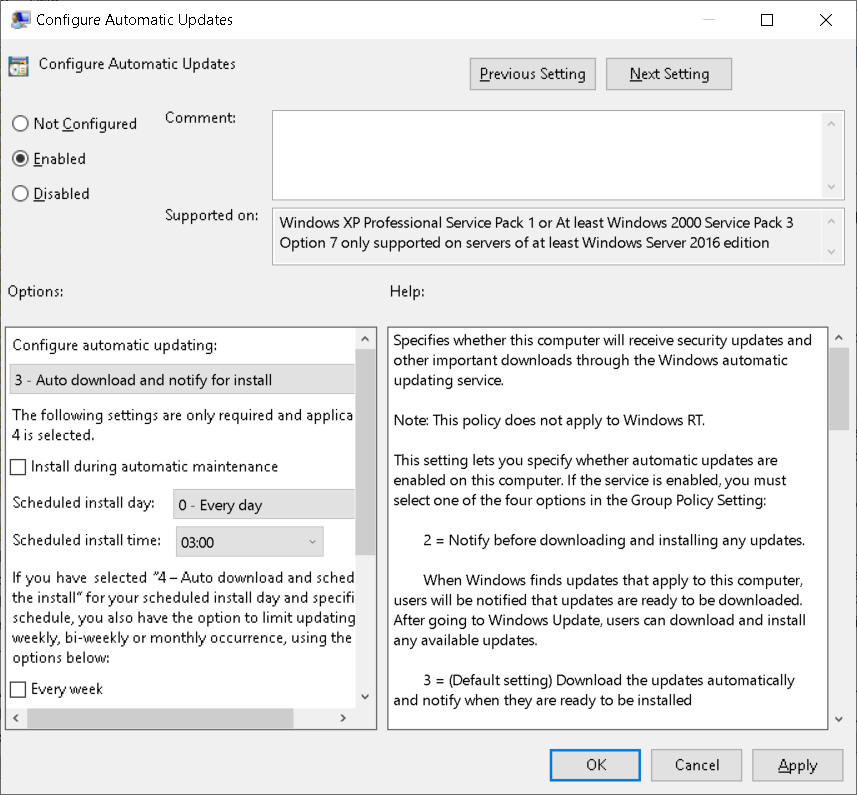
To define a policy setting:
- In the Group Policy Management Editor, locate the policy setting and then select Enter. The policy setting Properties dialog box appears.
- Change the policy state to Enabled or Disabled. Most policy settings can have three states: Not Configured, Enabled, and Disabled.
- If required, configure additional values, and when complete, select OK.
GPOs store Group Policy settings. In a new GPO, every policy setting defaults to Not Configured. When you enable or disable a policy setting, Windows Server makes a change to the configuration of users and computers to which the GPO is applied.
Note
Even GPOs that are Not Configured have a default state. If you change a GPO, and then return the GPO to a Not Configured value, it does not reset all of the resources to the default state. The GPO will revert to its default state. However, any devices or resources already impacted by this GPO aren't reverted by simply setting the GPO to Not Configured.
To create a new GPO in a domain:
- In Group Policy Management, right-click or access the context menu for the Group Policy Objects container, and then select New.
- To modify the configuration settings in a GPO, right-click or access the context menu for the GPO, and then select Edit. This opens the Group Policy Management Editor snap-in.
The Group Policy Management Editor displays all the policy settings that are available in a GPO in an organized hierarchy that begins with the division between computer settings and user settings: the Computer Configuration node and the User Configuration node.
GPOs display in a container named Group Policy Objects. The next two levels of the hierarchy are nodes named Policies and Preferences. Progressing through the hierarchy, the Group Policy Management Editor displays folders, called nodes or policy setting groups. The policy settings are within the folders.
What are starter GPOs?
You can use a Starter GPO as a template from which to create other GPOs within the Group Policy Management Console. Starter GPOs only have Administrative Template settings. You might use a Starter GPO to provide a starting point to create new GPOs in your domain. The Starter GPO might already have specific settings that are best practices for your environment. You can export starter GPOs to, and import them from, cabinet (.cab) files to make distribution to other environments simple and efficient.
Note
The Group Policy Management Console stores Starter GPOs in a folder called StarterGPOs, which is in SYSVOL.
Note
SYSVOL is a shared folder on domain controllers.
Microsoft includes pre-configured Starter GPOs for Windows client operating systems. These Starter GPOs have Administrative Template settings that reflect best practices that Microsoft recommends for the configuration of the client environment.