Exercise - Configure Azure OpenAI Service to generate information about your podcast
Background
In this exercise, you explore Azure OpenAI Service. You learn about the service and models, and then you go through the process of creating deployments. This exercise establishes the basis for seamless AI integration.
Definition: Azure OpenAI Service
Azure OpenAI Service provides REST API access to the powerful language models of OpenAI, including the GPT-4, GPT-4 Turbo with Vision, GPT-3.5-Turbo, and Embeddings model series. Additionally, the new GPT-4 and GPT-3.5-Turbo model series have now reached general availability. You can adapt these models to your specific tasks, including content generation, summarization, image understanding, semantic search, and natural language-to-code translation. Users can access the service through REST APIs, Python SDK, or the web-based interface in the Azure OpenAI Studio.
For more information, see What is Azure OpenAI Service?
Prerequisites
For this exercise, make sure that you meet the following prerequisites:
An active Azure subscription
Access to Azure OpenAI Service
Exercise steps
The following video goes through the steps for this unit's exercise.
Create the Azure OpenAI Service resources
To create the Azure OpenAI Service resources, follow these steps:
Go to portal.azure.com and sign in with your Azure account.
Search for and select Resource groups.
Select Create.
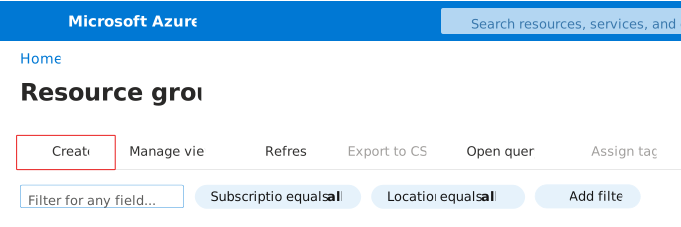
Name your resource group PodcastCopilotPowerApp, select Review + Create, and then select Create.
Create a new Azure OpenAI Service resource and then configure the following parameters:
Name - podcastcopilotwe-{your initials}, for example podcastcopilotwe-jd
Subscription - Select your Azure subscription
Resource group - Select the resource group that you created in the previous step
Location - West Europe
Pricing tier - Select the Standard S0 pricing tier
You use this resource to access the Whisper and GPT-3.5 models.
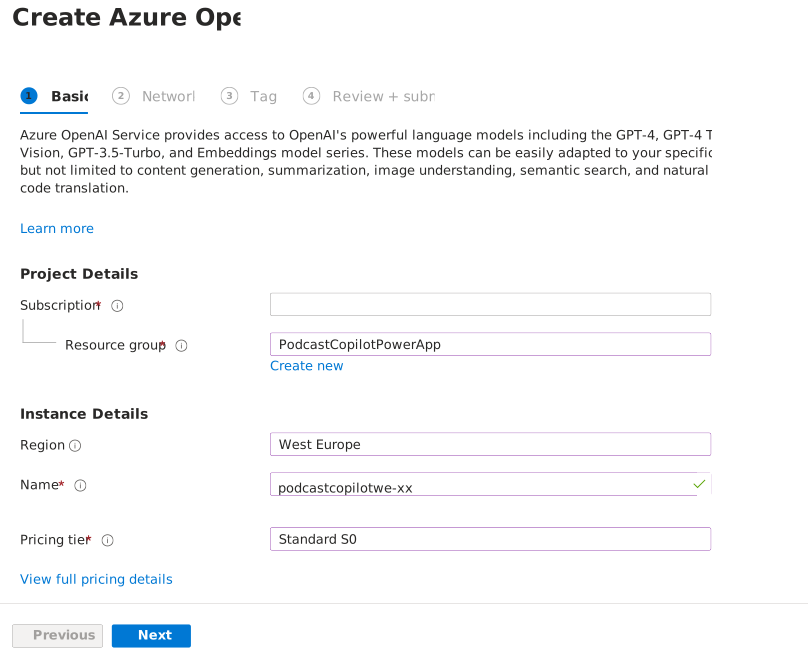
Select Next until you get to the Review + Submit page, and then select Create to create the resource.
Create another new Azure OpenAI Service resource, and then configure the following parameters:
Name - podcastcopilotsc-{your initials}, for example podcastcopilotsc-jd
Subscription - Select your Azure subscription
Resource group - Select the resource group that you created in the previous step
Location - Sweden Central
Pricing tier - Select the Standard S0 pricing tier
You use this resource to access the Dall.E 3 model.
Select Next until you get to the Review + Submit page, and then select Create to create the resource.
Create the Bing Search resource in Azure
To create the Bing Search resource in Azure, follow these steps:
Create a Bing Search resource in Azure, and then configure the following parameters:
Name - podcastcopilotbing-{your initials}, for example podcastcopilotbing-jd
Subscription - Select your Azure subscription
Resource group - Select the resource group that you created in the previous step
Region - Global
Pricing tier - Select the F1 pricing tier
Read the Terms and Notice and then select the checkbox to agree to them.

Select Review + Create, and then select Create to create the resource.
Open your PodcastCopilotPowerApp resource group in the Azure portal.
Select the podcastcopilotbing-{your initials} resource.
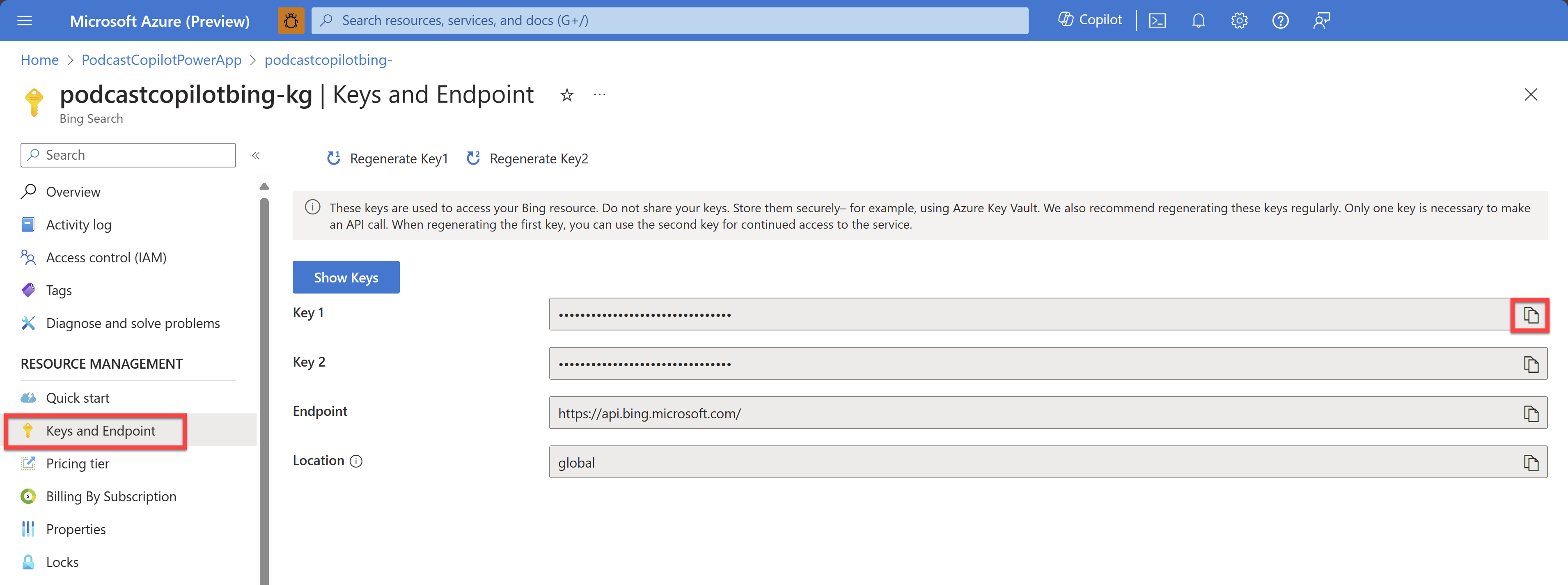
Select Keys and Endpoint on the left menu and then note the Key 1 value because you need it for subsequent steps.
Create model deployments in Azure OpenAI Studio
To create model deployments in Azure OpenAI Studio, follow these steps:
Open your PodcastCopilotPowerApp resource group in the Azure portal.
Select the podcastcopilotwe-{your initials} resource.
From the upper menu, select Go to Azure OpenAI Studio.
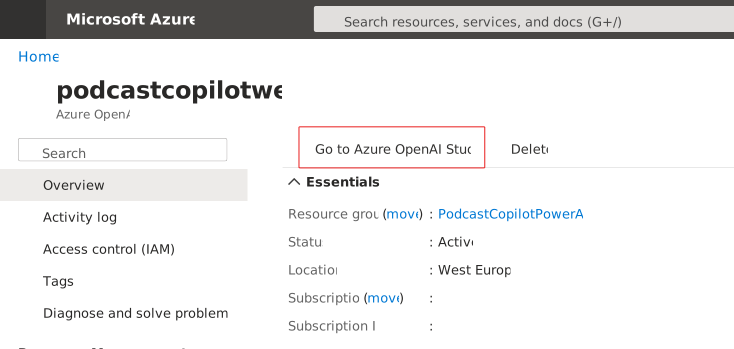
In Azure OpenAI Studio, select Deployments on the left menu.
Select + Create New Deployment, and then configure the following parameters:
Select a model - GPT-35-Turbo
Model version - Auto-update to default
Deployment name - gpt35turbo
Select Create to create the deployment.
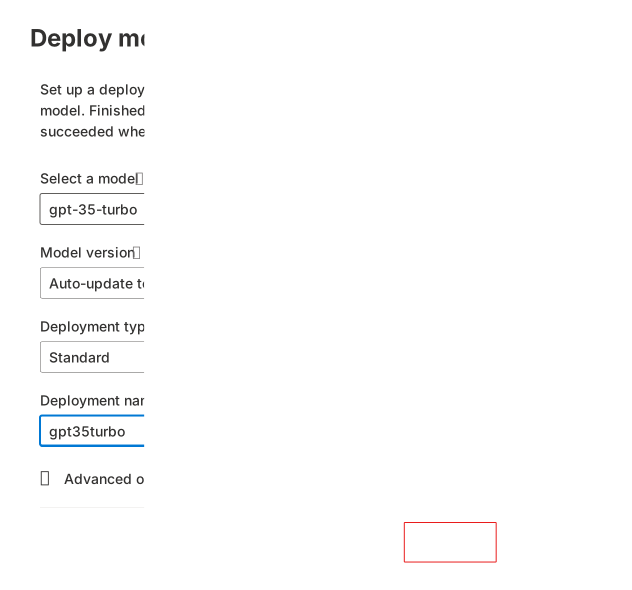
Select + Create New Deployment again, and then configure the following parameters:
Select a model - Whisper
Model version - Auto-update to default
Deployment name - whisper
Select Create to create the deployment.
Select the gpt35turbo deployment and then select Open in Playground.
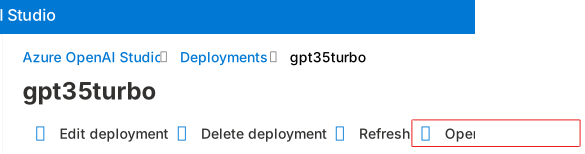
In the playground, select View Code. Note the following information because you need it for later steps:
Deployment Name - gpt35turbo
Endpoint -
https://podcastcopilotwe-{your initials}.openai.azure.com/Key - xxxxxxxxxxxxxxxxxxxxxxxxxxxxxxxx
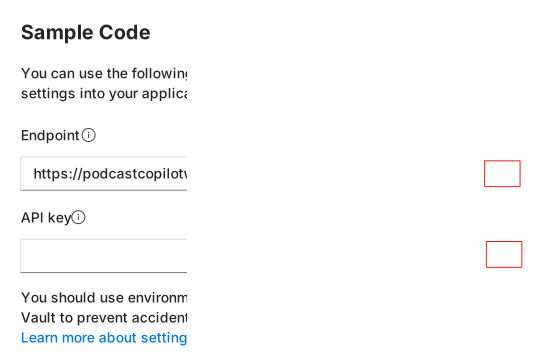
When you complete the process, repeat it for the whisper deployment.
Select Deployments on the left menu, select the whisper deployment. Then, select Open in Playground.
Scroll down to the Next Steps section, select the podcastcopilotwe-{your initials} resource, and then note the following information because you need it for subsequent steps:
Deployment Name - whisper
Endpoint -
https://podcastcopilotwe-{your initials}.openai.azure.com/Resource Key - xxxxxxxxxxxxxxxxxxxxxxxxxxxxxxxx
In the upper-right corner, select your name. Then, under Current resource, select Switch.
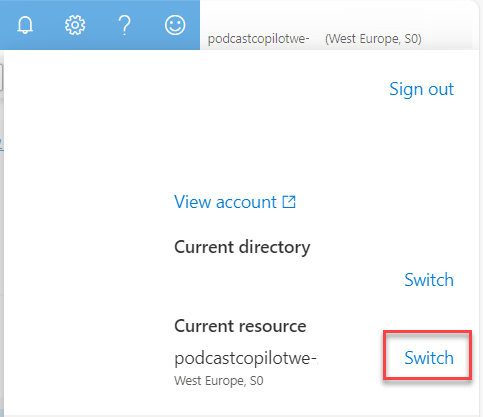
Select the podcastcopilotsc-{your initials} resource and then select Use resource.
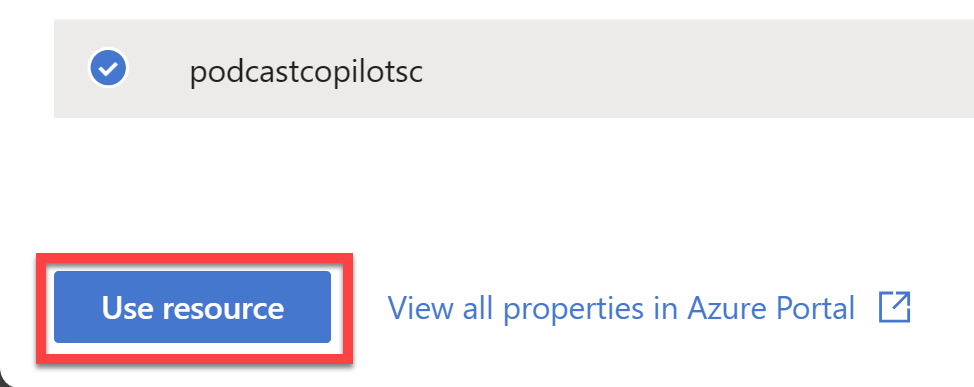
Select Deployments on the left menu, select Create New Deployment, and then configure the following parameters:
Select a model - dall-e-3
Model version - Auto-update to default
Deployment name - dalle3
Select Create to create the deployment.
Select the dalle3 deployment and then select Open in Playground.
Select View Code and then note the following information because you need it for later steps:
Deployment Name - dalle3
Endpoint -
https://podcastcopilotsc-{your initials}.openai.azure.com/Key - xxxxxxxxxxxxxxxxxxxxxxxxxxxxxxxx
Upload a podcast snippet to Azure Blob Storage
In this exercise, you use Microsoft Azure Blob Storage to store the podcast snippet audio file. This step allows you to easily test your API and application with a real-world audio file.
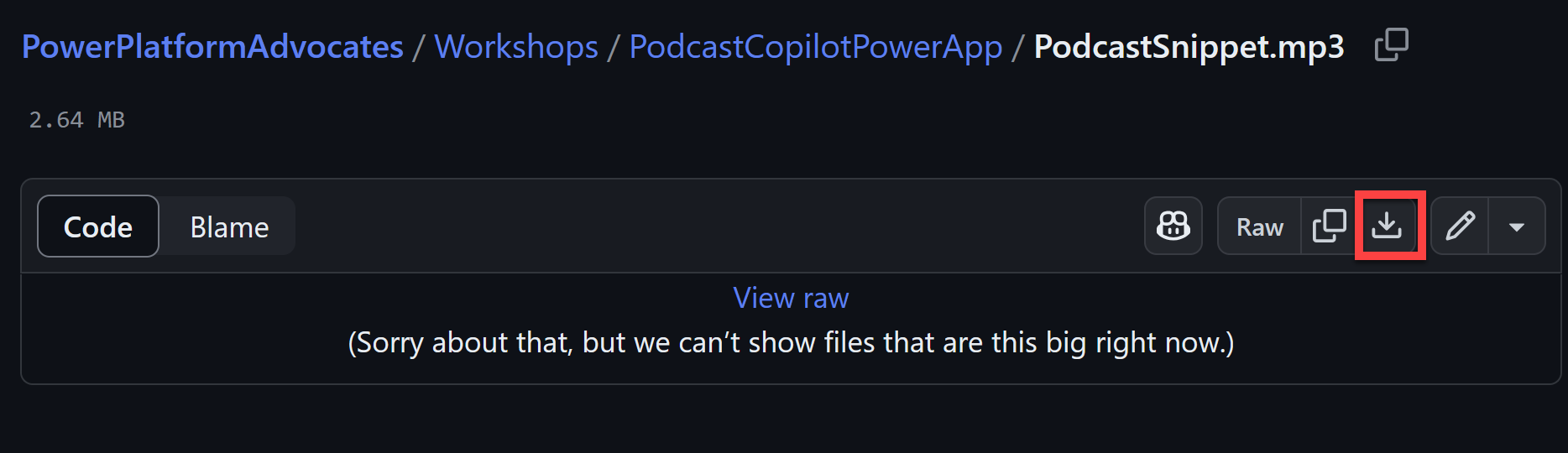
Go to the PodcastSnippet.mp3 file in this repository and download it to your local machine.
Go to portal.azure.com and sign in with your Azure account.
Go to Create a storage account and set the following parameters:
Subscription - Select your Azure subscription
Resource group - Select PodcastCopilotPowerApp
Storage account name - Enter podcaststorage{your initials}, such as podcaststoragejd, to make it unique
Location - East US
Performance - Standard
Redundancy - Geo-redundant storage (GRS)
Ensure that Make read access to data available in the event of regional unavailability is selected
Select Review + Create and then select Create to create the storage account.
After you create the storage account, select Go to resource.
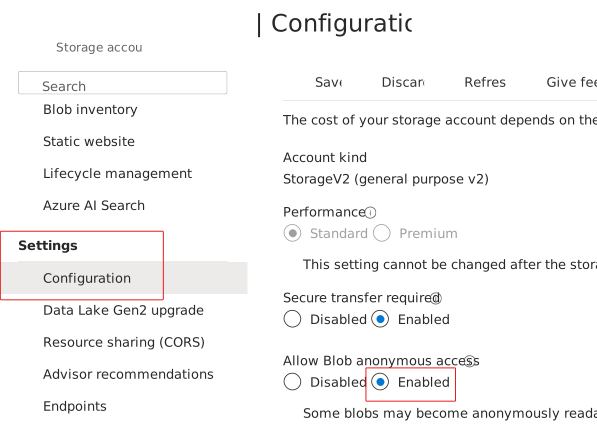
On the left panel, scroll to the Settings section and select Configuration.
Search for the Allow Blob anonymous access option and set it to Enabled.
Select Save in the upper part of the page to save the changes.
After the changes save, scroll to the Data Storage section, select Containers > + Container. Then, enter the following information.
Name - audio
Anonymous access level - Blob (anonymous read access for blobs only)
Select Create to create the container.
After you create the container, select the audio container and then select Upload.
Upload the PodcastSnippet.mp3 file that you downloaded earlier and then select Upload.
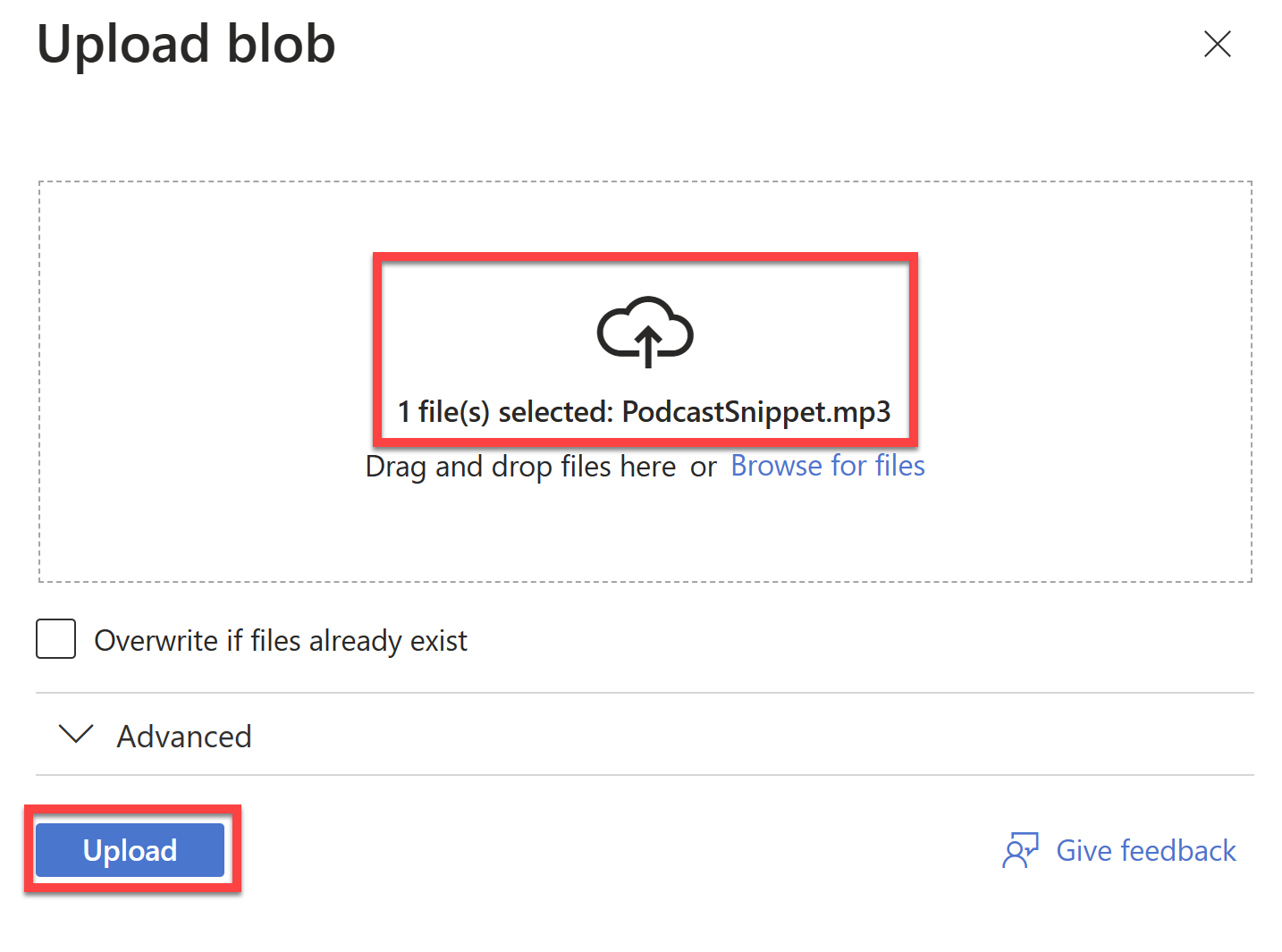
When the file uploads, select the PodcastSnippet.mp3 file and then copy the URL value. Note this value because you need it for later steps.
Next steps
Now, you've learned how to generate information about a recorded podcast by using Azure OpenAI Service. Next, you learn how to bridge the gap to Microsoft Power Platform with custom connectors and .NET API.