Exercise - Import data into Power BI Desktop
This exercise is written to use the Cronus sample company from the US version of Business Central. You might need to make adjustments to the steps if you use the sample company from your country or region.
Scenario
You've created an extension that contains a query object. The extension has been published and installed on your Business Central sandbox. The next step is to import the data from this query API in Power BI Desktop.
Steps
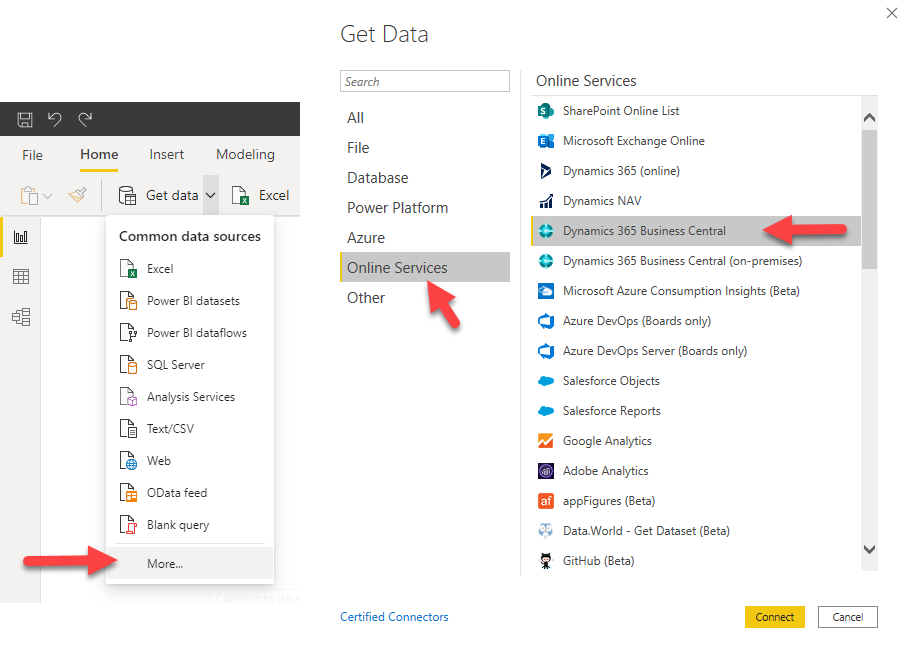
In Power BI Desktop, in the left navigation pane, select Get Data.
On the Get Data page, select Online Services, select Microsoft Dynamics 365 Business Central, and then select the Connect button.
Power BI displays a wizard that guides you through the connection process, including signing into Business Central. Select Sign in, and then select the relevant account. Use the same account that you sign into Business Central with. Once you've successfully connected to Business Central, you aren't prompted again to sign in.
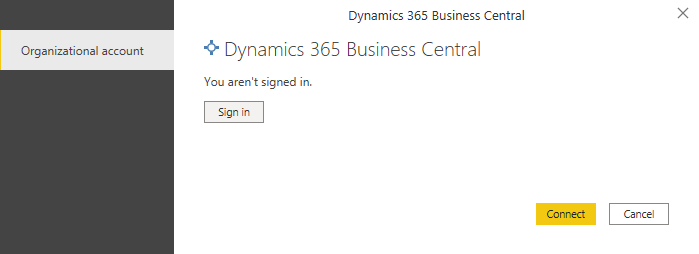
Select the Connect button to continue.
The Power BI wizard shows a list of Business Central environments, companies, and data sources. These data sources represent all the APIs and web services that you've published from Business Central. The Navigator window displays these data sources.

Specify the data you want to add to your data model, and then select the Load or Transform Data button.
Your Item Availability query is now imported in Power BI.

Select Close & Apply.

