Create a new project card manually
You can create new project cards as necessary in Business Central.
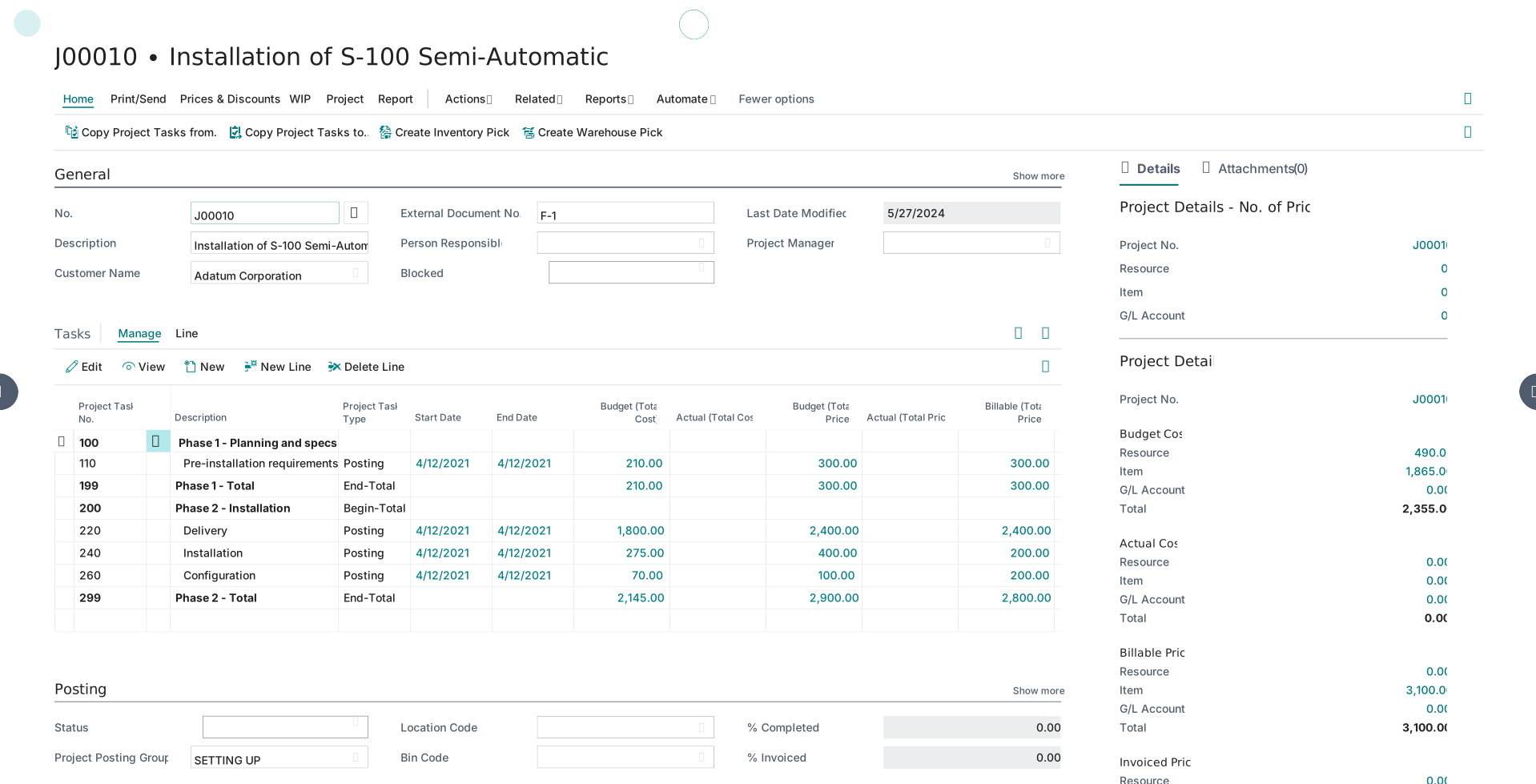
Create a new project
To create a new project, follow these steps:
Select the Search for Page icon in the upper-right corner of the page, enter projects, and then select the related link.
Select New.
On the General FastTab, enter the general information about the project:
No. - Specifies the unique number for the project.
Description - Specifies a short description for the project.
Customer Name - Select the customer for whom the project is performed and to whom the project is invoiced. After you select a customer, the other fields that are related to this customer are automatically populated. Optionally, you can select a different bill-to or ship-to customer on the Invoice and Shipping FastTab. In addition to the customer on the General FastTab and the bill-to customer on the Invoice and Shipping FastTab, you can enter different customers on the project task lines. This means that you can invoice one project to multiple customers.
External Document No. – An external reference from your customer.
Person Responsible - Specifies the person at your company who is responsible for the project. The person responsible must be set up as a resource.
Blocked – The option Posted specifies that the related record is blocked from being posted in transactions. With the option All selected, any change to the project is blocked by the program.
Project Manager - Specifies the person who is assigned to manage the project. The project manager must be set up as a user on the User Setup page.
On the Tasks FastTab, set up the project tasks. For more information on project tasks, see the Set up project task lines in Dynamics 365 Business Central module in this learning path.
On the Posting FastTab, enter information that is related to posting the project:
Status - In this field, specify the current project's status. You can change the status for the project as it progresses. Final calculations can be made on completed projects. The following four status options are available:
Planning - Select this status to initiate the project's planning stage. The purpose of this step is to make preliminary calculations and to set up the project's structure.
Quote - This step lets you make preliminary calculations. The project is offered to a customer. You can set up or change the project's structure and schedule.
Open - You can switch the status to Open when you want to start posting usage and sales to the project.
Completed - The purpose of this status is to close the project. You can use the statistics on a completed project for comparison purposes and for the planning of future projects. The actual costs of the completed project can be compared to the scheduled figures. You can keep this information for comparison and to use as a guideline or template for future projects.
Project Posting Group - Specifies the posting group that links transactions that are made for the project with the appropriate general ledger accounts according to the general posting setup.
Location Code – Specifies the location from where the project consumes items. The location entered in this field is the default location for project tasks.
Bin Code – When the project location is set up with bins, you can specify the bin code from where items should be consumed. If you define a To-Project Bin Code on the location, the bin code is populated when you select the location code. If your warehouse flow requires warehouse picks, you can also define other bins from which to consume items.
WIP Method - Specifies the method that is used to calculate the value of work in process for the project. If you need additional information on WIP methods and WIP calculations, you can refer to the Learn training content on WIP methods and calculations.
WIP Posting Method - Specifies how WIP posting is performed.
Per Project - The total WIP costs and the sales value are used to calculate WIP.
Per Project Ledger Entry - The accumulated values of WIP costs and sales are used to calculate WIP.
Allow Budget/Billable Lines - Specifies if you can add planning lines of type Both Budget and Billable. If this field isn't selected, you have to set up separate planning lines for budget and billing.
Apply Usage Link - Specifies whether usage entries, such as from the project journal or purchase line, are linked to project planning lines. Select this option if you want to be able to track the quantities and amounts of the remaining work that is needed to complete a project and to create a relationship between demand planning, usage, and sales. On a project card, you can select this option if no existing project planning lines that include the Budget type are posted. The usage link only applies to project planning lines that include the Budget type.
% Completed - Specifies the percentage of the project's estimated resource usage that posts as used.
% Invoiced - Specifies the percentage of the project's invoice value that posts as invoiced.
% Overdue Planning Lines - Specifies the percentage of the project's planning lines where the planned delivery date is exceeded.
On the Invoice and Shipping FastTab, you can select the bill-to and ship-to customer:
Task Billing Method - Specifies whether to use the customer specified for the project for all tasks or allow people to specify different customers. One customer lets you invoice only the customer specified for the project. Multiple customers lets you invoice customers specified on each task, which can be different customers.
Bill-to - Specifies the customer that the sales invoice is sent to. You can select one of the following options:
Default (Customer): The customer specified in the Customer Name field on the General FastTab.
Another Customer: Select this option when you want to invoice the project to another customer than the one specified in the Customer Name field on the General FastTab. If you select this option, more fields are displayed. In the Name field, you can select the bill-to customer.
Custom Address: Select this option when you want to use another address for the customer specified in the Customer Name field on the General FastTab.
Ship-to - Specifies the address that the products on the sales document are shipped to. You can select one of the following options:
Default (Sell-to Address): The same as the customer’s sell-to address.
Alternate Shipping Address: One of the customer's alternate ship-to addresses.
Custom Address: Any ship-to address that you specify in the fields that are displayed when you select this option.
Payment Terms Code – Select the payment terms for the project. The payment term specifies the formula that calculates the payment due date, payment discount date, and payment discount amount.
Payment Method Code: Specifies how to make payments for the project.
On the Duration FastTab, you can enter information about the project time frame:
Starting Date - Specifies the date on which the project is supposed to start.
Ending Date - Specifies the date on which the project is expected to end.
Creation Date - Specifies the date on which you set up the project.
On the Foreign Trade FastTab, you can enter the currency-related information about a project:
Currency Code - If you plan and invoice the project in a foreign currency, you can enter the code for that currency in this field. If you want to plan the project in local currency and invoice it in a foreign currency, don't set up a currency code in this field. Instead, you can set up an invoicing currency in the Invoice Currency Code field. You can't change the currency of a project when planning lines or project ledger entries exist for this project.
Invoice Currency Code - In this field, select the currency code that you want to apply to invoices that you have the project set up for. Using this field means that the entire project is calculated in local currency (LCY). If you want to plan and implement the project in a foreign currency (FCY), you must enter that currency in the Currency Code field instead.
Exch. Calculation (Cost) - Specifies how project costs are calculated if you change the Currency Date or Currency Code fields on a project planning line or run the Change Project Planning Line Dates batch job.
Fixed LCY - With this option, the project costs in the local currency are fixed. Any change in the currency exchange rate changes the value of project costs in a foreign currency.
Fixed FCY - With this option, the project costs in a foreign currency are fixed. Any change in the currency exchange rate changes the value of project costs in the local currency.
Exch. Calculation (Price) - Specifies how project sales prices are calculated if you change the Currency Date or Currency Code fields on a project planning line or run the Change Project Planning Line Dates batch project.
Fixed LCY - With this option, the project prices in the local currency are fixed. Any change in the currency exchange rate changes the value of project prices in a foreign currency.
Fixed FCY - With this option, the project prices in a foreign currency are fixed. Any change in the currency exchange rate changes the value of project prices in the local currency.
On the WIP and Recognition FastTab, you can track the statistics for WIP calculation and posting in addition to recognized sales and cost amounts. The left column displays the amounts that are calculated but not yet posted to the general ledger. The right column displays the calculated amounts that are posted to the general ledger:
WIP Posting Date - Specifies the posting date that was entered when the Project Calculate WIP batch project was last run.
Total WIP Sales Amount - Specifies the total WIP sales amount that was last calculated for the project. The WIP sales amount is the value in the WIP Sales Project WIP Entries window minus the value of the Recognized Sales Project WIP Entries window. For projects with the Cost Value or Cost of Sales WIP methods, the WIP sales amount is normally zero.
Total WIP Cost Amount - Specifies the total WIP cost amount that was last calculated for the project. The WIP cost amount is the value in the WIP Cost Project WIP Entries window minus the value of the Recognized Cost Project WIP Entries window. For projects with Sales Value or Percentage of Completion WIP methods, the WIP cost amount is normally zero.
Recog. Sales Amount - Specifies the recognized sales amount that was last calculated for the project, which is the sum of the Recognized Sales Project WIP Entries window.
Recog. Cost Amount - Specifies the recognized cost amount that was last calculated for the project. The value is the sum of the entries in the Recognized Cost Project WIP Entries window.
Recog. Profit Amount - Specifies the recognized profit amount for the project.
Recog. Profit % - Specifies the recognized profit percentage for the project.
WIP G/L Posting Date - Specifies the posting date that was entered when the Project Post WIP to General Ledger batch project was last run.
Total WIP Sales G/L Amount - Specifies the total WIP sales amount that was last posted to the general ledger for the project. The WIP sales amount is the value in the WIP Sales Project WIP G/L Entries window minus the value in the Recognized Sales Project WIP G/L Entries window. For projects with the Cost Value or Cost of Sales WIP methods, the WIP sales amount is normally zero.
Total WIP Cost G/L Amount - Specifies the total WIP cost amount that was last posted to the G/L for the project. The WIP cost amount for the project is the value in the WIP Cost Project WIP G/L Entries window less the value of the Recognized Cost Project WIP G/L Entries window. For projects with WIP Methods of Sales Value or Percentage of Completion, the WIP cost amount is normally zero.
Recog. Sales G/L Amount - Specifies the total recognized sales amount that was last posted to the general ledger for the project. The recognized sales G/L amount for the project is the sum of the entries in the Recognized Sales Project WIP G/L Entries window.
Recog. Cost G/L Amount - Specifies the total Recognized Cost amount that was last posted to the general ledger for the project. The Recognized Cost G/L amount for the project is the sum of the entries in the Recognized Cost Project WIP G/L Entries window.
Recog. Profit G/L Amount - Specifies the profit amount that is recognized with the general ledger for the project.
Recog. Profit G/L % - Specifies the profit percentage that is recognized with the general ledger for the project.