Configure Purchases and Payables Setup
Purchase order management depends on foundational setup decisions that affect how every purchase document posts, how inventory updates, and how your company tracks vendor transactions. The Purchases and Payables Setup page is where you define these core policies once during implementation, rather than adjusting them for each transaction.
Before you create purchase quotes, blanket orders, or purchase orders, you need to configure the Purchases and Payables Setup page with settings that control posting behavior, document numbering, and compliance options.
Why Purchases and Payables setup matters
Configuring this page correctly ensures:
- Control system behavior during document creation – Vendors and purchase documents receive reliable identification numbers according to your company's policies, including unique document numbering and automations such as copying comments to documents and filling quantity for G/L accounts.
- Consistent posting behavior – Your invoice discounts, payment rounding, and currency handling work the same way every time, and the system can automatically create a receipt during invoice posting or a return shipment on credit memo posting.
- Compliance and traceability – Audit trails capture external vendor references and cost allocations for returns.
- Data integrity – Inventory and accounts update predictably when you post purchase receipts and invoices.
If setup is incomplete or inconsistent, purchase documents might not post, or they might post incorrectly, leading to inventory and accounting discrepancies.
Configure general purchasing options
The General FastTab contains options that affect how purchase transactions are calculated and posted.
Open the Search for Page icon in the top-right corner of the page.
Enter Purchases & Payables Setup, and then choose the related link.
On the General FastTab, review the available fields.
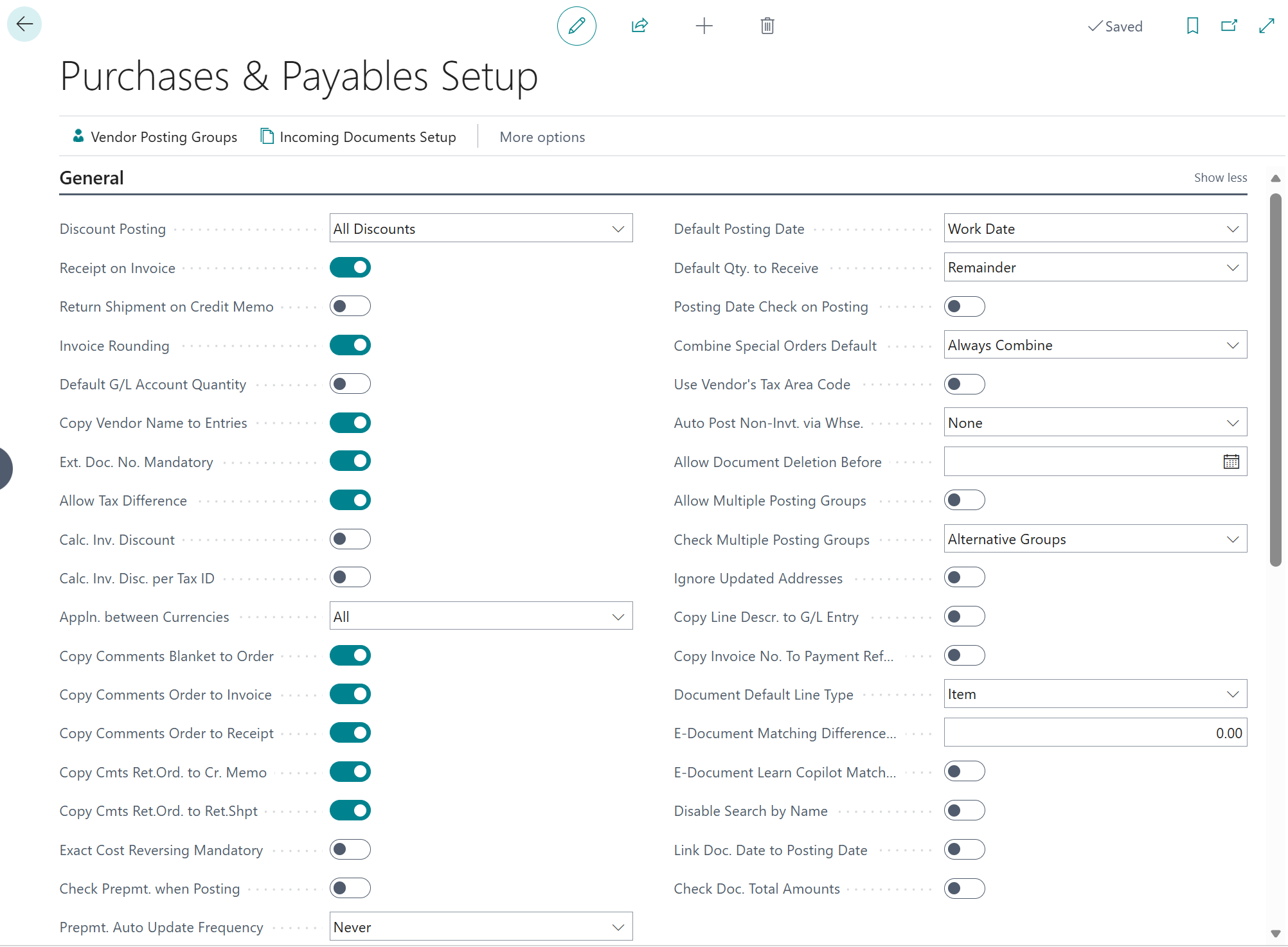
Key options include:
- Discount Posting – Controls how different purchase discounts are separated for visibility in posted entries.
- Calc. Inv. Disc. per VAT/Tax ID – Specifies whether invoice discounts are calculated based on the tax identifier or the total invoice amount. Your finance team determines this based on local tax regulations.
- Appln. between Currencies – Controls how Business Central matches payment entries to invoices in different currencies. Enable this if your company trades with international vendors.
- Check Prepmt. when Posting – Works with the prepayment auto-update setting to validate pending prepayments before posting. Enable this if your company requires prepayment verification.
Select the options appropriate for your company's accounting and purchasing policies. For most fields, hover over the field label to read the short description provided.
Tip
If you're unsure about a setting, consult your finance or procurement manager. These settings typically remain unchanged after initial setup.
Configure number series for vendors and purchase documents
Business Central requires unique number series to identify vendors and purchase documents. These sequences ensure no two vendors or documents share the same number.
On the Number Series FastTab, locate the following fields.
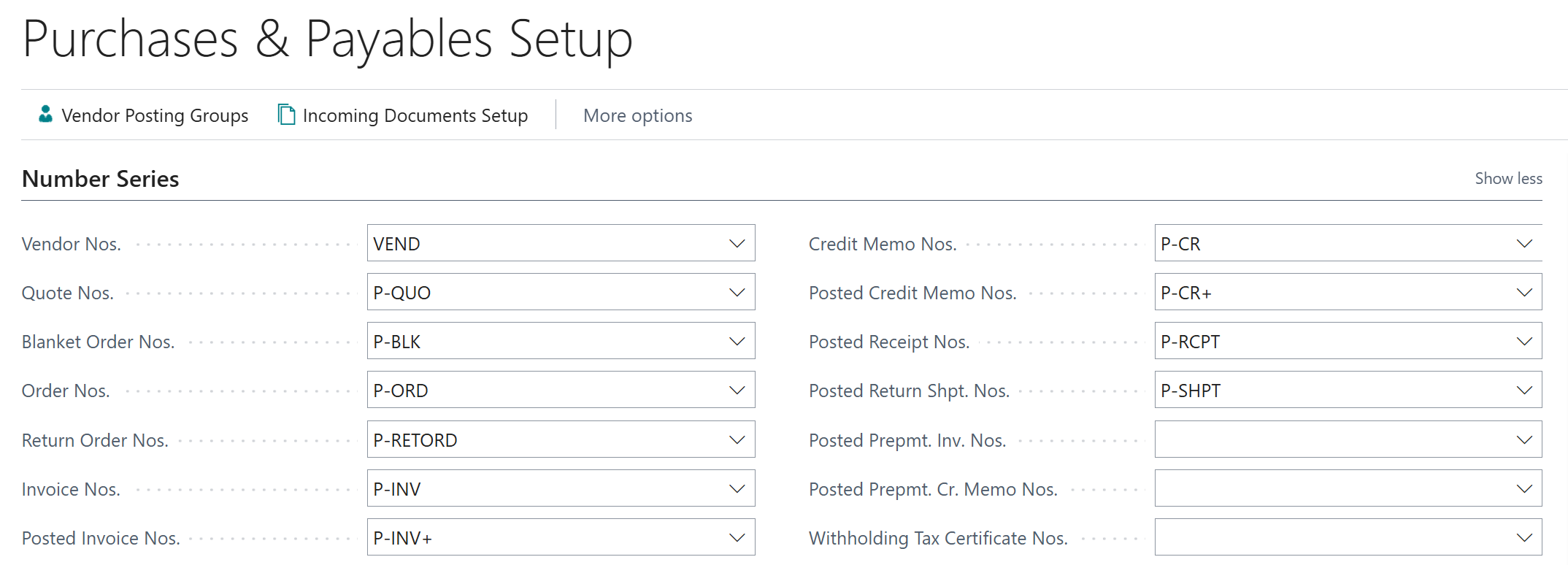
- Vendor Nos. – The sequence Business Central uses to assign numbers to new vendor cards.
- Quote Nos. – The sequence for purchase quotes.
- Order Nos. – The sequence for purchase orders.
- Posted Invoice Nos. – The sequence for posted purchase invoices.
- Posted Return Shpt. Nos. – The sequence for posted purchase return shipments.
For each field, select a number series from the lookup, or select New to create a new series. Number series are shared company-wide, so coordinate with your administrator before creating new ones.
Note
Number series might be required to follow local legal numbering rules or audit requirements. Check your company's policy before changing them.
Configure control options for compliance
Two optional control fields help enforce compliance and cost-tracking policies.
On the same page, locate the External Document Number section.
- Ext. Doc. No. Mandatory – When enabled, users can't post vendor invoices, credit memos, or related journal lines without entering the vendor's reference number (such as the vendor invoice number). Enable this if your company requires traceability of all vendor documents.
Locate the Exact Cost Reversing section.
- Exact Cost Reversing Mandatory – When enabled, return orders must reference the original item ledger entry number so returns are valued at the original cost. Enable this if your company has strict return-cost policies or frequent returns.
Select the checkboxes for the options your company requires. These are policy decisions and should be coordinated with your finance and procurement teams.
Important
If you enable these options, users can't post the affected documents without meeting these requirements. Train users accordingly.
Quick validation scenario
To confirm your setup is working, consider this scenario:
Your company trades with international vendors and requires vendor invoice numbers on all purchase documents for audit compliance. You've enabled Ext. Doc. No. Mandatory. When a user tries to post a purchase invoice without entering the vendor's invoice number in the Vendor Invoice No. field, Business Central prevents posting and displays an error message. This is the intended behavior and confirms your setup is enforcing the rule.
Summary
You've now configured the foundational settings that control posting behavior, numbering, and compliance for all purchase transactions. The next step is to set up payment journals to prepare for vendor payment processing.