Import the solution (optional)
If you've already completed the module Integrate with Microsoft Teams to get approvals - Online workshop, skip to the next unit.
To import the solution, follow these steps.
Go to Power Automate and select the correct environment.
Select Solutions and then select Import solution.
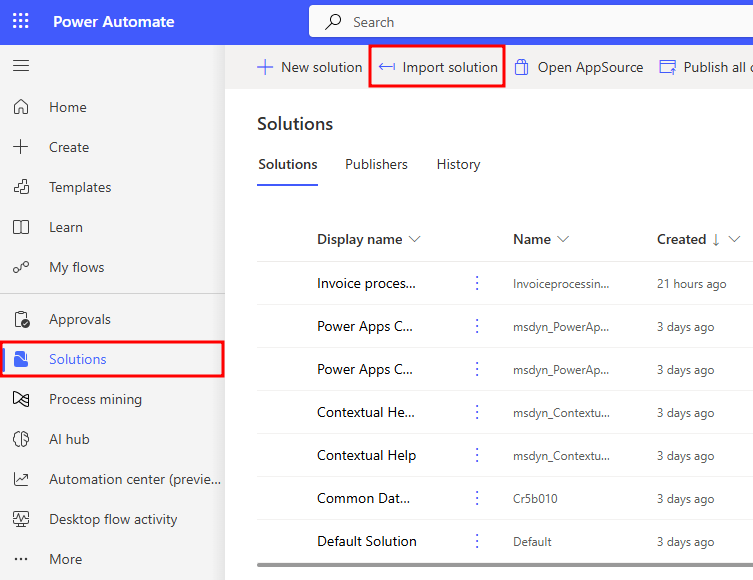
Select Browse.
Select the InvoiceprocessingsolutionFirstLast_1_0_0_6.zip solution file located in the resources folder and then select Open.
Select Next.
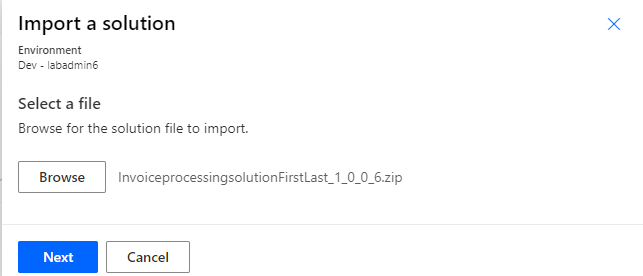
Select Next again.
Select New connection for the desktop flow.
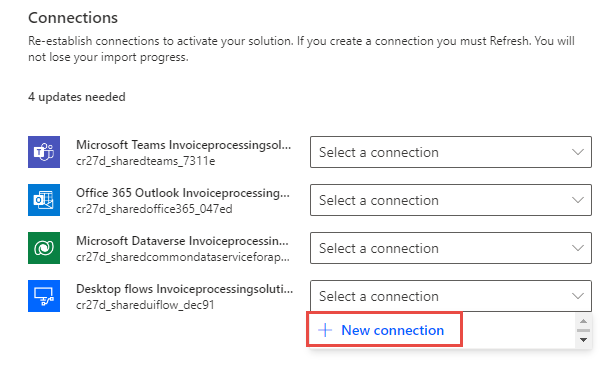
Select Direct to machine, select the machine that you registered in the module Install required software - Online workshop, provide your sign-in information, and then select Create.
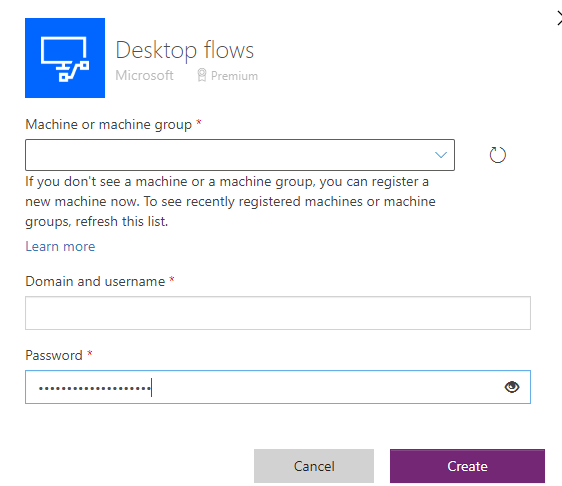
Close the connections browser window or tab.
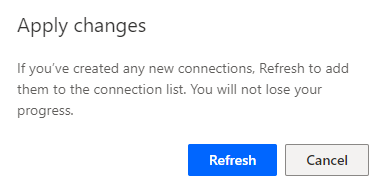
Select Refresh.
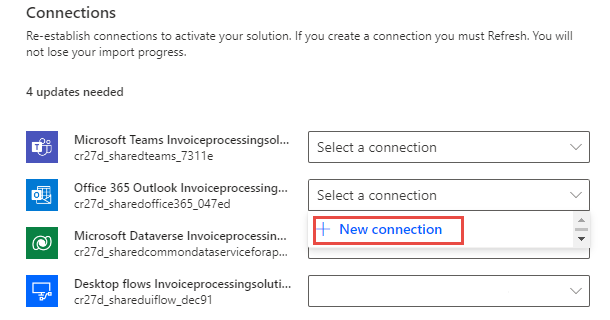
Select New connection for Microsoft Office 365.
Select Create.
Provide your credentials.
Close the connections browser window or tab.
Select Refresh.
Select New connection for Microsoft Dataverse.
Select Create.
Provide your credentials.
Close the connections browser window or tab.
Select Refresh.
Select New connection for Microsoft Teams.
Select Create.
Provide your credentials.
Close the connections browser window or tab.
Select Refresh.
You should now have a desktop flow and Office 365, Microsoft Dataverse, and Microsoft Teams connections. Select Import.
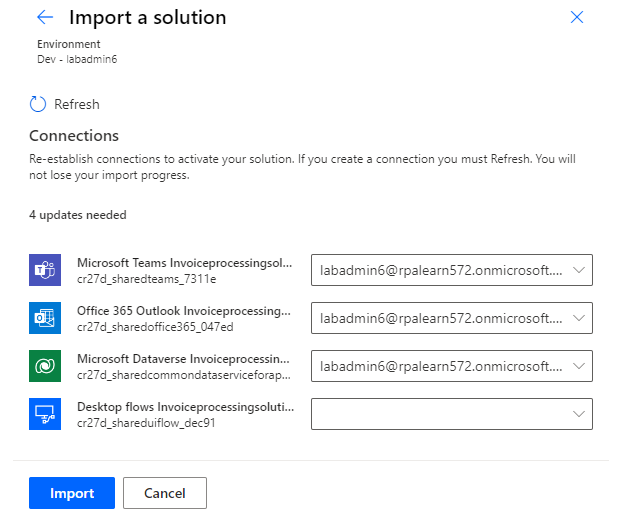
Wait for the solution to be imported.
Open the imported Invoice processing solution.
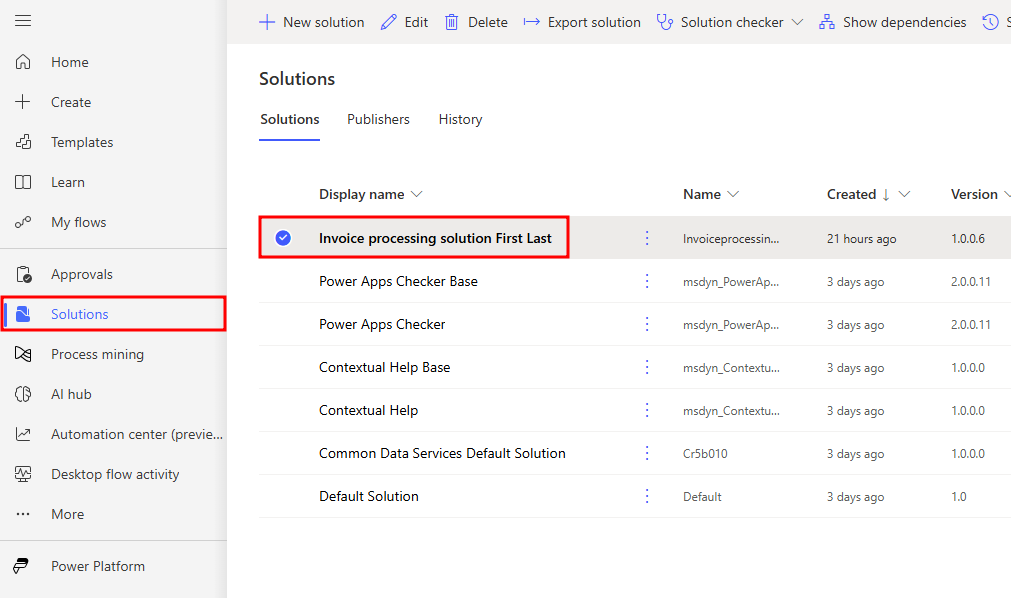
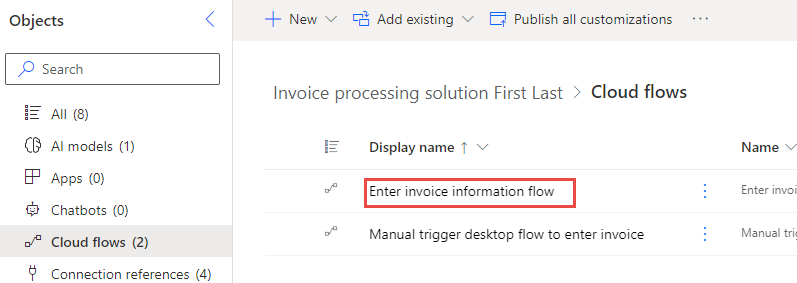
Select Cloud flows and then open Enter invoice information flow.
Select Edit.
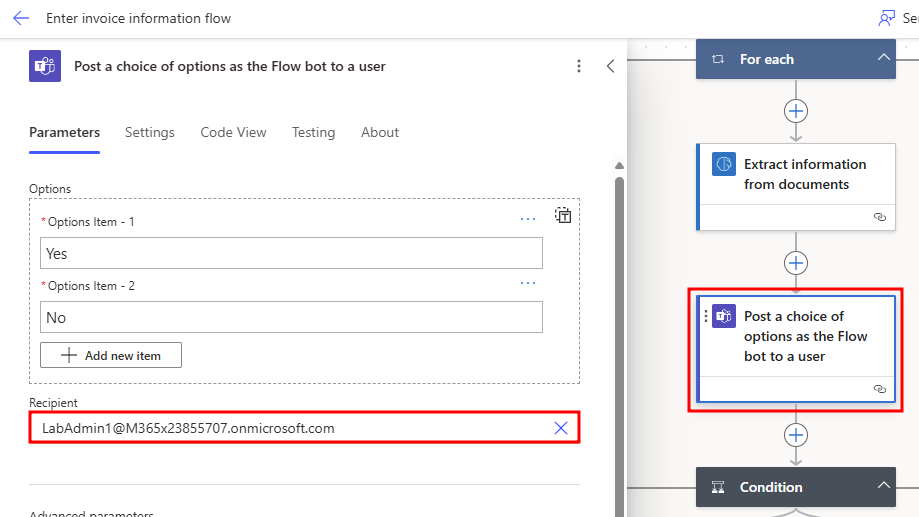
Expand the Apply to each and the Post a choice of options steps.
Change the Recipient email to your user's email address.
Select Save and then wait for the flow to be saved.
