Review, approve, and block tools for agents
The financial-database tool that the new customer-support agent finds so useful didn't appear overnight, and nobody broke any rule by adding it. It's already listed in Relecloud's tenant with a status of Available—the default state for any tool that's registered but never reviewed. Nothing ever restricted it, so nothing stops an agent from reaching it. That's the actual gap: the tool was available and unreviewed, not the product malfunctioning or a rule being bypassed. Existing in the Agent Tools registry and being safe to use turn out to be two separate questions, and this unit closes that gap for Relecloud.
Locate every tool agents can reach
In the Microsoft 365 admin center, you navigate to Agents > Tools > Registry to see every tool available to agents across the tenant, including the one the support agent picked up. Each row shows four details: the tool's Name (a display name such as "Microsoft Teams MCP Server"), its Status (Available or Blocked), its Type (for example, MCP Server), and its Publisher (Microsoft for first-party tools, or another provider for third-party and custom tools). You filter this list by status or publisher, so when you're chasing down every tool a specific vendor supplies, or every tool still sitting at Available, you don't scroll through the entire registry by hand.
| Column | What it shows |
|---|---|
| Name | Display name (for example, "Microsoft Teams MCP Server") |
| Status | Available or Blocked |
| Type | The kind of tool (for example, MCP Server) |
| Publisher | Microsoft (first-party), or another provider (third-party/custom) |
This registry view answers the first question Relecloud's security team needed answered: which tools exist, and which of them nobody has looked at yet. But seeing a tool listed doesn't tell you whether anyone signed off on it. That decision lives on a separate tab.
Review and approve a tool request
The Requests tab sits next to Registry, and it's where you review and approve tool requests from users, such as a newly registered remote MCP server that a developer wants agents to use. Approving a request isn't only a record-keeping formality: when you approve an MCP server, you also consent to the Microsoft Entra permissions the server needs on the tenant's behalf. That consent is what makes the server available to agent-building surfaces—it can take up to 30 minutes to show up across every Copilot Studio environment in the tenant, so you don't expect instant results the moment you approve a request.
Because approving a request grants tenant-wide consent, only two roles qualify to do it: AI Administrator and Global Administrator. Both give you access to the admin center's tool page and the ability to grant that consent, but they aren't equally scoped. Global Administrator carries permissions far beyond agent tooling, so you assign AI Administrator whenever the job is reviewing and approving tools. It's the least-privileged role that still gets the work done, and it keeps your admin population from accumulating tenant-wide access it doesn't need.
Block a tool that shouldn't be available
Once you spot the financial-database tool sitting at Available with no review behind it, you have a direct lever: select the tool in the Registry and choose Block. Blocking prevents the tool from being used by agents or workflows, closing the exact gap the introduction describes. If the team later reviews the tool and decides it's safe under the right conditions, you select Unblock to restore access. The tool's status flips between Available and Blocked, and every agent in the tenant reads that same status.
Know which lever you're pulling
Before you block that tool, consider what happens to the customer-support agent that's already using it. Does blocking the tool also remove that specific agent from the Registry, or shut it down?
It doesn't. Blocking a tool is a tenant-wide action: it removes the tool from every agent and every user, but the agent itself keeps running, just without that one capability. Blocking an agent in the Registry is a separate action, one that governs whether that agent can run at all, regardless of which tools it calls. One lever controls what agents are allowed to use. The other controls which agents are allowed to exist. Confuse the two, and you either leave a risky tool reachable by every other agent while you focus on one agent, or you shut down a legitimate agent when the tool it happens to call is the actual problem.
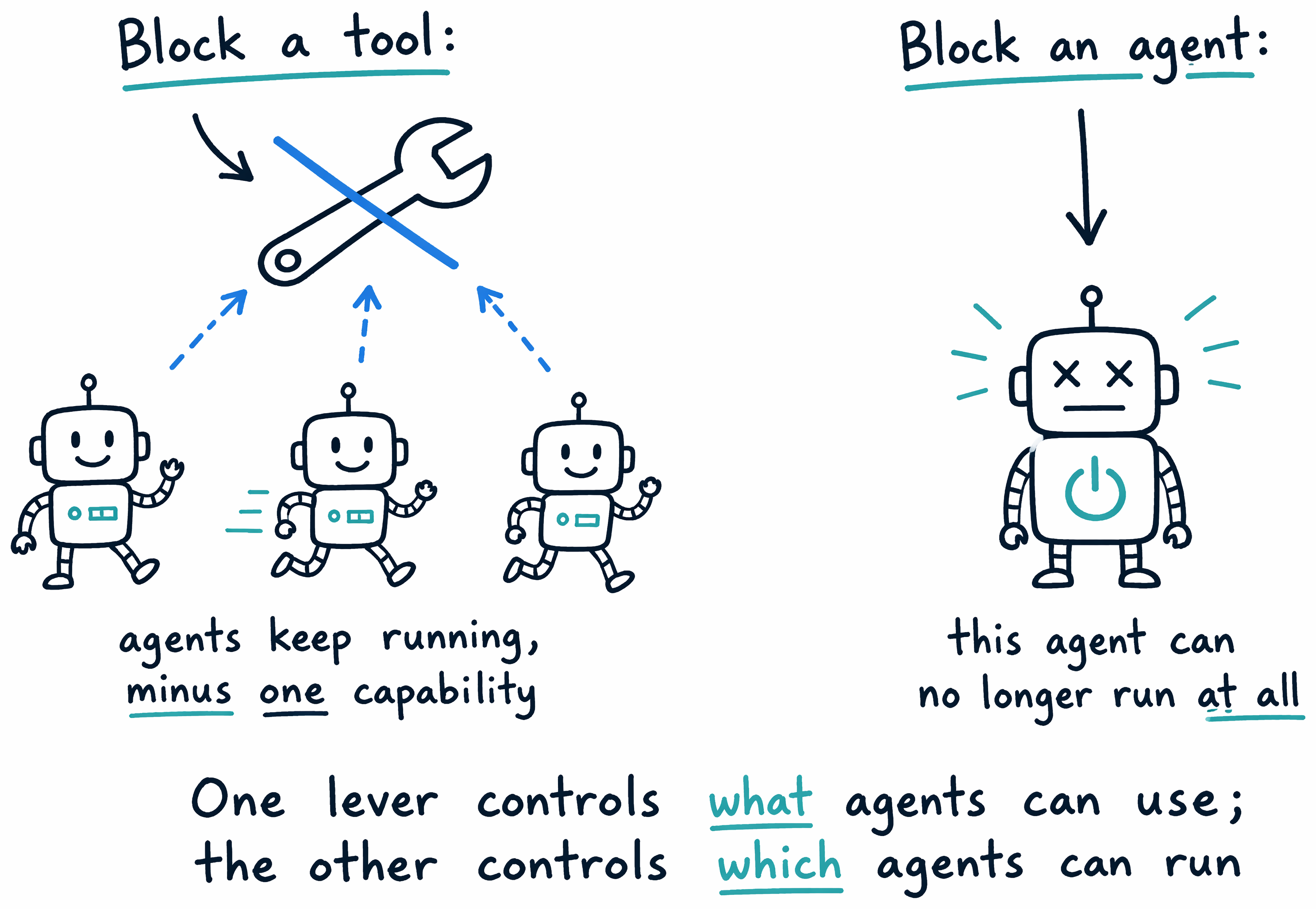
Guiding question: In your own words, explain why Relecloud's security team needs both the tool-blocking lever and the agent-blocking lever, rather than relying on just one of them.
What's still unresolved
Blocking the financial-database tool closes the gap this unit set out to close: it was Available, nobody had reviewed it, and now it's Blocked until someone does.
This tool already existed in the tenant. But Relecloud's engineers are also bringing in their own tools nobody built centrally—how does one of those ever reach "reviewed and approved" in the first place?