Work with Power Fx formulas in canvas apps
Power Fx is the formula language of Microsoft Power Apps. If you've used formulas in Excel, Power Fx will feel familiar. Instead of calculating values in cells, though, you use it to control how your app behaves: filtering which records appear, navigating between screens, responding to user actions, and writing data back to your data source.
In this unit, you learn the Power Fx formulas you'll use most often when building canvas apps.
How Power Fx works in canvas apps
Every control in a canvas app has properties, or settings that define how it looks and behaves. You set those properties using Power Fx formulas in the formula bar.
For example, a button's OnSelect property defines what happens when a user taps it. A gallery's Items property defines which records it displays. A label's Text property defines what text it shows.
The formula bar is where you write and edit these formulas. Select any control, choose a property from the property dropdown, and type your formula.
Filter data with Filter()
The Filter() function returns only the records from a data source that match a condition you specify. This is how you control what a gallery shows.
Filter(DataSource, Condition)
To show only Espresso and Commercial machines, set the gallery's Items property to:
Filter('Coffee Machines', Type = "Espresso" || Type = "Commercial")
To show only machines added by the current user:
Filter('Coffee Machines', 'Created By' = User().FullName)
Note
User().FullName is a built-in Power Fx expression that returns the display name of the currently signed-in user. User().Email returns their email address.
Set this formula on the Items property of a gallery to control which records appear.
Test a condition with If()
The If() function lets your app behave differently depending on a condition, similar to an IF statement in Excel.
If(Condition, TrueResult, FalseResult)
To change a label color based on machine type, set the label's Color property to:
If(ThisItem.Type = "Espresso", RGBA(101, 67, 33, 1), If(ThisItem.Type = "Commercial", RGBA(0, 80, 128, 1), RGBA(100, 100, 100, 1)))
To show a message only when a record is selected, set a label's Text property to:
If(IsBlank(Gallery1.Selected), "Select a machine to view details", Gallery1.Selected.'Machine Name')
Navigate between screens with Navigate()
The Navigate() function moves the user to a different screen in your app. You place it in the OnSelect property of a button or icon.
Navigate(ScreenName, ScreenTransition)
To go to a detail screen with a slide transition, add this to a button's OnSelect property:
Navigate(DetailScreen, ScreenTransition.Slide)
To go back to the previous screen:
Back()
The second parameter of Navigate() controls the animation. Choose based on the feel you want:
| Transition | Effect | Best for |
|---|---|---|
ScreenTransition.Slide |
Slides new screen in from the side | Moving forward through a flow |
ScreenTransition.Fade |
Fades out and in | Subtle, nondirectional changes |
ScreenTransition.None |
Instant switch, no animation | Fast navigation or accessibility |
Back() always returns to whichever screen the user came from, regardless of which transition was used to get there.
Pass data between screens with context variables
When you navigate to a detail screen, you often need to pass the selected record so the screen knows what to display. You can do this using context variables.
To set a context variable when navigating:
Navigate(DetailScreen, ScreenTransition.Slide, {SelectedMachine: Gallery1.Selected})
To read the context variable on the detail screen, set the Item property of a form or the Text property of a label to:
SelectedMachine.'Machine Name'
Alternatively, if you set the form's Item property directly to Gallery1.Selected, Power Fx automatically passes the selected record to the form, no context variable needed.
Write data with Patch()
The Patch() function creates or updates a record in a data source directly from a formula without needing a form control.
Patch(DataSource, BaseRecord, ChangeRecord)
To update the product summary of the selected machine:
Patch('Coffee Machines', Gallery1.Selected, {'Product Summary': TextInput1.Text})
To create a new machine record:
Patch('Coffee Machines', Defaults('Coffee Machines'), {'Machine Name': TextInput1.Text, Type: "Espresso", 'Product Summary': TextInput2.Text})
Note
Defaults(DataSource) returns a blank record with all default values for that table. Use it as the BaseRecord argument when creating new records rather than updating existing ones.
Submit a form with SubmitForm()
When you use an Edit form control, you write the record by calling SubmitForm() rather than Patch().
SubmitForm(FormName)
Place this in the OnSelect property of a Save button:
SubmitForm(Form1)
After a successful submission, you can navigate away automatically using the form's OnSuccess property:
Navigate(ListScreen, ScreenTransition.Slide)
Use Copilot to write and understand Power Fx formulas
Power Apps has Copilot built directly into the formula bar. You can describe what you want your app to do in plain English, and Copilot writes the Power Fx formula for you—or explain a formula that already exists.
Get a formula suggestion from Copilot
There are two ways to ask Copilot for a formula.
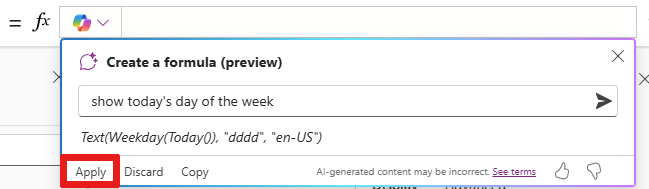
From the Create a formula panel
Select a control and choose a property in the formula bar (for example, a gallery's Items property).
Select the Copilot functionality menu (the dropdown arrow next to the
fxlabel on the left side of the formula bar).Select Create a formula.
Describe what you want in plain language. For example:
Filter the gallery to show only coffee machines where the Type is Espresso or Cold BrewSelect the Create arrow. Copilot generates a formula based on your description.
Review it, then select Apply to insert it into the formula bar—or refine your description and try again.
From a comment in the formula bar
You can also write a plain-English comment directly in the formula bar. Copilot reads it and suggests a formula inline without opening any panel.
Select a control and choose a property in the formula bar.
Type
//followed by a description of what you want. For example:// filter to show only espresso machinesWait a moment (or press Enter). Copilot suggests a formula on the next line.
Press Tab to accept the suggestion. The comment stays in place as documentation, so you don't need to delete it.
Note
Comment-based formula generation only works with general Power Fx functions such as Filter(), If(), and LookUp(). It doesn't support Power Apps-specific functions like Navigate(), SubmitForm(), or Back(). Use the Create a formula panel for those.

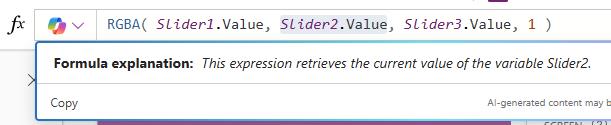
Ask Copilot to explain a formula
If you encounter a formula you don't understand—whether it was written by Copilot, inherited from another maker, or copied from documentation—you can ask Copilot to explain it.
- Select the control and the property whose formula you want to understand.
- Select the Copilot functionality menu dropdown next to the
fxlabel. - Select Explain this formula. Copilot provides a plain-English explanation of what the formula does and how each part works.
To explain just a portion of a longer formula, select that portion in the formula bar first, then choose Explain this selection from the same menu.
Tips for effective Copilot prompts in Power Fx
| Instead of... | Try... |
|---|---|
filter machines |
Filter the Coffee Machines table to show only records where Type is Espresso or Cold Brew |
show current user |
Use LookUp to find the current user's record in the Users table by their email address |
update summary |
Use Patch to update the Product Summary field of the selected gallery item |
The more specific your description, including the table name, field names, and the exact behavior you want, the more accurate Copilot's formula will be. If the first result isn't exactly what you want, refine your description rather than starting over.
Note
Copilot in the formula bar is context-aware. It knows which table your app is connected to and which controls are on the current screen. This means it can suggest formulas that reference your actual field names rather than generic placeholders.
Store values with variables and collections
Formulas run each time a property is evaluated, but sometimes you need to store a value and reuse it across multiple controls or screens. That's where variables and collections come in.
Set() |
UpdateContext() |
|
|---|---|---|
| Scope | Entire app | Current screen only |
| Use for | Values shared across screens | Temporary state on one screen |
| Typical use | Selected record, user role, edit mode toggle | Show/hide a dialog, local form state |
Global variables with Set()
A global variable holds a single value and is accessible from any screen in your app.
Set(VariableName, Value)
To store whether the app is in edit mode:
Set(IsEditMode, true)
To store the currently selected machine so it's accessible from any screen:
Set(SelectedMachine, Gallery1.Selected)
Read the variable anywhere by using its name directly:
If(IsEditMode, "Cancel", "Edit")
Note
Global variables persist for the lifetime of the app session. They're ideal for values you need to share across screens, like the currently signed-in user's role, or a toggle state.
Screen variables with UpdateContext()
A context variable is scoped to the screen where it's set. It's useful for temporary state that only one screen needs.
UpdateContext({VariableName: Value})
To show or hide a confirmation dialog:
UpdateContext({ShowConfirm: true})
Then set the Visible property of the dialog container to ShowConfirm.
Collections with Collect() and ClearCollect()
A collection is a local in-memory table that you can build, modify, and use as a data source, without writing anything to Dataverse.
To add a record to a collection:
Collect(MyCollection, {'Machine Name': "Alpine Pro 3000", Type: "Espresso"})
To build or rebuild a collection from a data source:
ClearCollect(MyCollection, Filter('Coffee Machines', Type = "Espresso"))
Use the collection as the Items property of a gallery, just like a data source:
MyCollection
Tip
Use ClearCollect() in the App.OnStart property to preload data when the app launches (for example, loading lookup data you need throughout the session). This reduces the number of calls to Dataverse during use.
Handle errors gracefully
Formulas can fail; for example, due to an unavailable data source, an empty required field, or a rejected Patch() call. Power Fx gives you tools to handle these situations without the app crashing or showing a confusing error to the user.
IfError()
IfError() evaluates a formula and returns a fallback value if it produces an error.
IfError(Value, FallbackIfError)
To show a user-friendly message if a Patch() call fails:
IfError(Patch('Coffee Machines', Gallery1.Selected, {'Product Summary': TextInput1.Text}), Notify("Unable to update the machine. Please try again.", NotificationType.Error))
Notify()
Notify() displays a banner message at the top of the screen — useful for confirming an action completed successfully or explaining why something failed.
Notify(Message, NotificationType)
The four notification types are:
| Type | Color | Use for |
|---|---|---|
NotificationType.Success |
Green | Confirming a successful save or action |
NotificationType.Error |
Red | Reporting a failure |
NotificationType.Warning |
Yellow | Alerting the user to something they should know |
NotificationType.Information |
Blue | General informational messages |
To confirm a record was saved and then navigate away:
SubmitForm(Form1);
Notify("Machine record saved successfully.", NotificationType.Success)
Note
In Power Fx, you can chain multiple statements on consecutive lines using a semicolon (;). The statements run in order, useful for combining a Patch() or SubmitForm() with a Notify() and a Navigate() in a single button.
Quick reference
The following table summarizes the Power Fx formulas covered in this unit. Use it as a reference while you complete the labs.
| Formula | What it does | Common property |
|---|---|---|
Filter(DataSource, Condition) |
Returns records matching a condition | Gallery Items |
If(Condition, True, False) |
Returns different values based on a condition | Label Text, control Color, Visible |
Navigate(Screen, Transition) |
Goes to another screen | Button OnSelect |
Back() |
Returns to the previous screen | Button OnSelect |
Patch(DataSource, Record, Changes) |
Creates or updates a record | Button OnSelect |
SubmitForm(Form) |
Saves the data in a form control | Button OnSelect |
User().FullName |
Returns the current user's display name | Any text property |
IsBlank(Value) |
Returns true if the value is empty | If() condition |
Set(Variable, Value) |
Sets a global variable | Button OnSelect, App.OnStart |
UpdateContext({Variable: Value}) |
Sets a screen-scoped context variable | Button OnSelect |
Collect(Collection, Record) |
Adds a record to a collection | Button OnSelect |
ClearCollect(Collection, Source) |
Clears and rebuilds a collection | Button OnSelect, App.OnStart |
IfError(Value, Fallback) |
Returns a fallback value if an error occurs | Any property |
Notify(Message, Type) |
Shows a notification banner to the user | Button OnSelect |
These are the formulas you use throughout the remaining labs in this course. As you build the coffee machine catalog app, the model-driven app, and the automation flows, you see these same patterns appear in different contexts. The underlying Power Fx logic remains the same.