Manage entity change tracking
The change tracking functionality allows you to incrementally export data from finance and operations apps by using the Data management framework. To do this, you must first enable change tracking for entities. If change tracking is not enabled, you can only enable a full export each time.
Change tracking supports both Bring Your Own Database (BYOD) and non-BYOD scenarios, including retrieving record changes through Dataverse virtual entities. Record deletion is tracked only for BYOD and Dataverse virtual entity scenarios, if the entity supports it, and only for the root data source in the entity. Other non-BYOD scenarios don't include tracking of record deletion.
To enable change tracking, you will need access to the Data
management workspace. For non-BYOD scenarios, change tracking can be
enabled from the data entities list page in the Data management
workspace by selecting Change tracking on the entity. After change tracking is enabled for the entity, you can retrieve changes through the entity's OData endpoint by adding odata.track-changes as a preference header.
To enable change tracking for BYOD scenarios:
Within the Data management workspace, select Configure entity export to database.
Select the database to export the data to.
Select Publish in the Action Pane. You can publish more than one entity to the database.
When the entity is published, select the entity.
Select Change tracking.
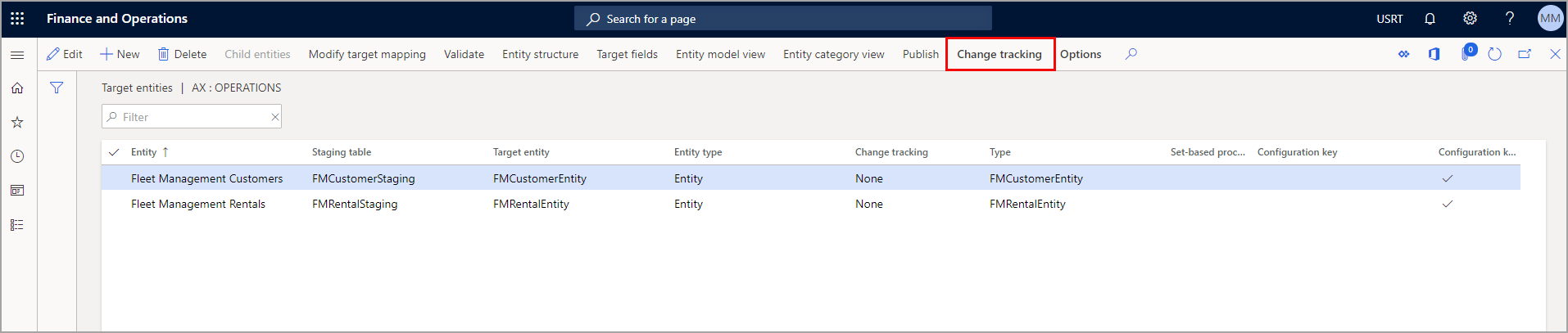
An entity can use more than one table, so you can select from several options that specify the granularity at which changes are tracked:
- Enable primary table - Changes that are made to any fields in the primary table trigger a change in the entity. Changes that are made to fields in secondary tables don't trigger a change in the entity.
- Enable entire entity - Changes that are made to any fields in any table in the entity trigger a change in the entity.
- Enable custom query - Uses a custom query that is defined in the entity to identify the tables that changes must be tracked on.
Note
Regardless of the option that you select, changes are tracked on the entire record and not at the field level. The entire entity record is exported to the destination.
Row version change tracking is especially useful for integrations that run on a recurring schedule. Instead of processing an entire dataset, consuming applications can identify and retrieve only records that have changed since the previous synchronization.
Note
Change tracking is a prerequisite for features like data archival, Synapse integration, Fabric Link and mobile offline capabilities.
Track entity changes using row versioning
When you integrate data by using data entities, it’s often important to identify which records have changed since the last integration run. Finance and operations apps support row version–based change tracking to enable efficient, incremental data synchronization.
Row version change tracking allows external systems to request only new or updated records, rather than reprocessing the entire dataset.
What is row version change tracking?
Row version change tracking uses a system-generated row version value to track changes to records in an entity. This is implemented using a rowversion column called SysRowVersion that is automatically added to tables. Each time a tracked record is inserted or updated, its row version value changes.
This mechanism allows integrations to:
Detect incremental changes
Reduce data transfer volume
Improve performance for recurring integrations
Support near–real-time synchronization scenarios
Enable row version change tracking for an entity
Row version change tracking must be enabled on all underlying tables before it can be enabled on the data entity
To enable row version change tracking for a table:
In Visual Studio, open the table in the designer
Set the Allow Row Version Change Tracking property to Yes
This adds a new system field of type rowversion, named SysRowVersion
To enable row version change tracking for a data entity:
Open the data entity in Visual Studio
Set the Allow Row Version Change Tracking property to Yes
Validation rules are applied at build time to ensure compatibility
Rebuild the project and deploy the updated entity
After change tracking is enabled, the entity exposes a row version column that can be used by consumers to request only changed records.
Use row version values in integrations
Integration consumers store the last processed row version value and include it in subsequent requests. The system then returns only records with a greater row version value.
Common usage patterns include:
Incremental exports to external systems
Data lake or reporting syncs
Scheduled integrations that process deltas instead of full loads
This pattern is especially useful when working with large entities or frequent synchronization cycles.
When to use row version change tracking
Row version change tracking is recommended when:
The entity is large or frequently updated
The integration runs on a schedule
Only changed data needs to be synchronized
Performance and throughput are priorities
Avoid using full exports when row version change tracking is available and appropriate.
Row version change tracking vs full data export
| Scenario | Recommended Approach |
|---|---|
| Initial data load | Full export |
| Nightly or recurring sync | Row version change tracking |
| Large entities with frequent updates | Row version change tracking |
| One-time migration | Full export |
Considerations and limitations
When using row version change tracking:
Row version change tracking does not capture delete operations as row version updates. Delete handling must be implemented separately (for example, via BYOD delete tracking or custom logic)
All tables in a data entity must allow row version change tracking
All participating tables must support row versioning
Relationships between data sources must be many-to-one
Data entities with custom change tracking queries or range filters are not supported
Data sources with group-by conditions or non-table data sources are not supported
Consumers must persist the last processed row version value
Schema changes may require redeployment of the entity
Tip
When feasible, independent software vendors (ISVs) and partners should consider creating new data entities when enabling row version change tracking to avoid validation rule conflicts.
Understanding these considerations helps ensure reliable integrations.