Create CI/CD automations by using Power Platform Build Tools
Contoso's pipeline now moves a solution through QA validation and a delegated, approved production deployment, but a maker still has to request every run by hand. This unit shows how Power Platform Build Tools automate that trigger. You move from manually exporting, packing, and importing solutions, to composing automated, source-control-driven CI/CD pipelines that build and release the equipment-provisioning solution on their own.
Replace manual solution handling with purpose-built build tasks
Contoso's developers used to select Export solution in the maker portal, unzip the result, and import it somewhere else by hand. Power Platform Build Tools replace that routine with a collection of Power Platform-specific Azure DevOps tasks you install once from Azure Marketplace into your organization. After installation, every pipeline you author can search for them under "Power Platform," the same way you'd search for any other build task.
The tasks group into four categories, each solving a different part of the automation problem:
| Category | What it handles |
|---|---|
| Helper | Installs required tooling and verifies a service connection before other tasks run |
| Quality check | Runs static analysis (solution checker) against a solution |
| Solution | Exports, unpacks, packs, imports, versions, and otherwise manipulates solution files |
| Environment management | Creates, deletes, resets, backs up, copies, or restores environments |
Build Tools version 2.0 runs on the Power Platform CLI, which makes it cross-platform and gives it the same underlying tasks that Power Platform GitHub Actions use. That shared foundation means Contoso's team gets a consistent experience whether the equipment-provisioning solution builds in Azure DevOps or GitHub. You can't mix version 1.0 and 2.0 tasks in the same pipeline, so when you author new pipelines, choose version 2.0 consistently.
Turn every change into a validated, versioned artifact
With Build Tools installed, Contoso's build pipeline picks up where a maker's edits leave off. An Export Solution task pulls the current solution out of the development environment as a .zip, and an Unpack Solution task decomposes that .zip into individual XML files the team can store in source control.
This pattern reflects the same dependency-and-layer discipline from the earlier unit on Contoso's solution components. Unpacking as SolutionType Unmanaged keeps the version in source control editable and mergeable, matching the unmanaged layer every active customization shares. A later pack step then produces the managed artifact that actually becomes its own layer in a target environment.
A second build pipeline reverses the process. A Pack Solution task reassembles the source-controlled XML back into a solution.zip, this time as SolutionType Managed, since a managed solution is what installs cleanly as its own layer and uninstalls as a predictable unit.
The same unpack and pack tasks also carry Contoso's environment variable values files along with the rest of the solution. SolutionPackager breaks environment variable current values into their own files during unpack. Because of that, the values for the device-availability endpoint and the approval threshold travel through source control and back into a packed solution exactly like any other component. No one needs to retype them.
Before that packed solution goes anywhere, a Power Platform Checker task runs solution checker against it using the same ruleset the maker portal applies, or an extended Marketplace ruleset. You configure an error threshold by severity, from critical down to informational, and the task fails the pipeline if violations exceed it.
The task also writes a SARIF (Static Analysis Results Interchange Format) file, which tooling in VS Code or Visual Studio can read directly. A developer can then see what solution checker flagged, without opening a separate report.
Let the release stage complete the automation
A third pipeline, or a release stage within the same one, takes the validated managed solution. It runs an Import Solution task against a target environment, such as Contoso's QA or production environment. Put together, these stages form a documented pattern:
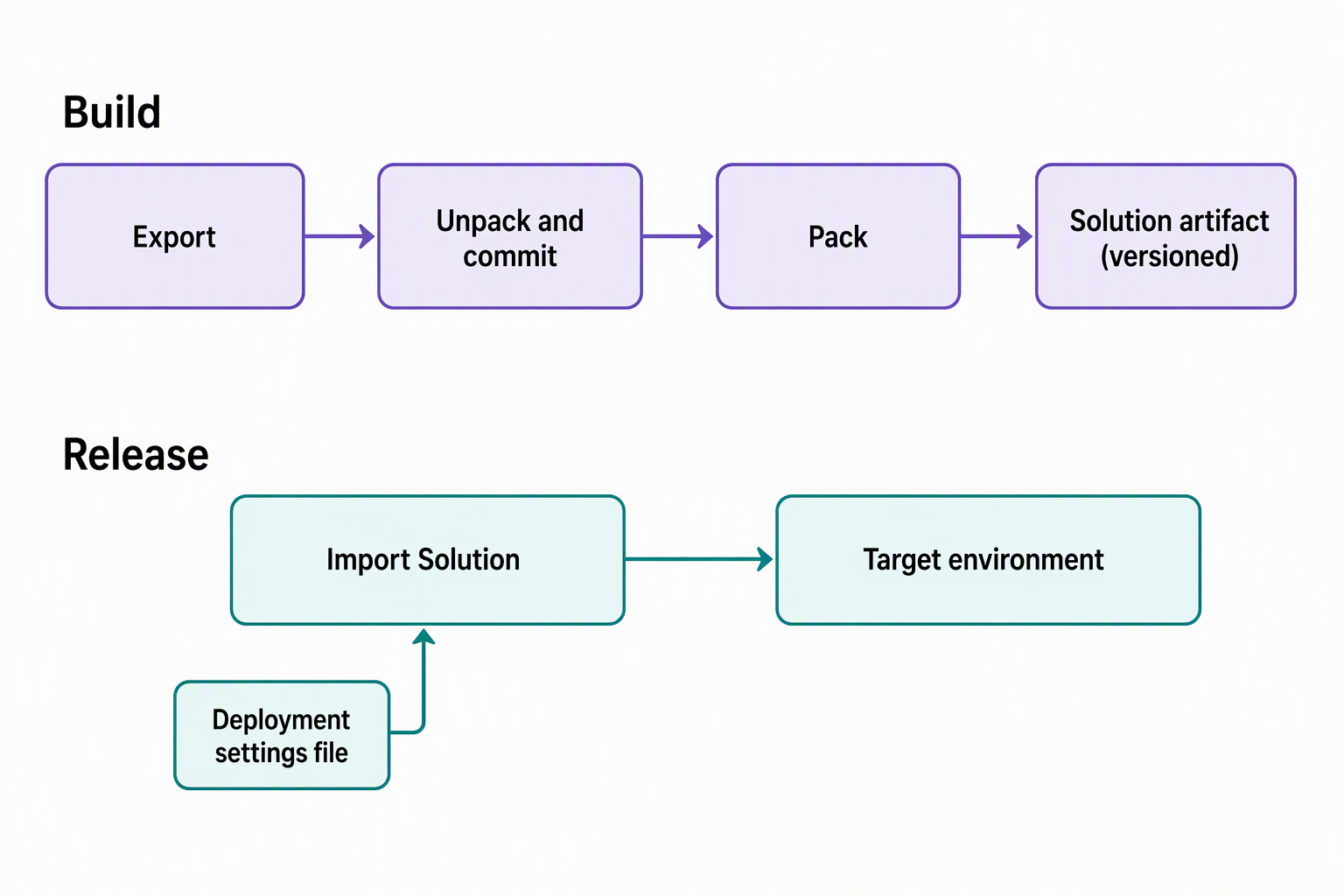
| Pipeline stage | Key tasks | Produces |
|---|---|---|
| Build: sync source | Export Solution, Unpack Solution | Unmanaged source files in version control |
| Build: validate and package | Pack Solution, Power Platform Checker, Set Solution Version | A versioned, checked managed solution artifact |
| Release: deploy | Import Solution | The artifact installed in a target environment |
- A JSON deployment settings file, generated with
pac solution create-settings, holds target-environment values for environment variables and connection references. - The Import Solution task's Use deployment settings file option applies it, so the import runs without prompts.
- It complements the SolutionPackager approach described earlier in this unit, which carries environment variable values through the unpack and pack tasks instead.
This step is also where CI/CD automation connects back to the Power Platform pipeline Contoso built and extended in the previous unit. Build Tools and Power Platform pipelines solve related but distinct problems: Build Tools build and validate the artifact, while a Power Platform pipeline governs when and how that artifact reaches a managed environment through approval gates and delegated deployment identity. Treat these as two complementary layers of automation rather than one replacing the other.
Reflect: Across this module, Contoso moved from manually tracking component dependencies, to externalizing configuration in environment variables. It then moved to a Power Platform pipeline with approval gates, and to this unit's automated build and release tasks. Which of these layers would break first if Contoso removed it, and which two reinforce each other the most directly?
Guard the automation itself
A pipeline that automates deployment still needs its own safeguards, and a few decisions determine whether Contoso's setup is actually trustworthy.
Authentication is the first one. A connection tied to one developer's account means the pipeline stops working the day that person changes roles or loses access. It also means every deployment runs under a single person's permissions, instead of an identity the pipeline owns.
A service principal avoids both problems. Microsoft recommends setting it up with Workload Identity Federation, since it supports tenants that require multifactor authentication, where a client secret alone can't authenticate. You create the service principal with pac admin create-service-principal, which registers an application in Microsoft Entra ID and adds it as an administrator in the tenant. Then you add that same application as an Application User in each target Dataverse environment, with the security role Contoso's deployments need.
Early failure beats a late one. Place a Power Platform Tool Installer task first in every pipeline, and a Power Platform WhoAmI task right after setting up a new connection. Together, these confirm authentication works before the pipeline spends time exporting or packing anything.
Solution checker is only a safeguard if the pipeline enforces it. Setting an error threshold on the Power Platform Checker task turns solution checker from something a developer might remember to run manually into a gate every build passes through automatically.
Finally, version every artifact deliberately. Driving the Set Solution Version task from a pipeline variable like Build.BuildId, instead of a hardcoded version number, gives every build a unique, traceable version. So when something in production needs investigating, Contoso's team can trace it back to the exact build and commit that produced it.
Learn more about Power Platform Build Tools for Azure DevOps and the full task reference.