Create and manage Dataverse solutions
A Dataverse solution is a container that packages your customizations such as tables, apps, flows, agents, and other components into a single transportable unit. Solutions are the foundation of application lifecycle management (ALM) in Power Platform. Every customization you make exists in a solution, whether you explicitly create one or not.
Understand solution types
Solutions come in two forms, each serving a different purpose in the deployment lifecycle:
| Type | Purpose | When to use |
|---|---|---|
| Unmanaged | Active development - components can be freely added, modified, or removed | Development environments |
| Managed | Completed package for deployment - components can't be directly edited in the target | Test and production environments |
When you export an unmanaged solution as managed and import it to another environment, the components become locked. Users can still use the apps and flows, but they can't modify the solution's structure. This protection prevents accidental changes to production systems.
In existing environments, you might find unmanaged customizations in production or extensive use of the default solution. These conditions can increase long-term maintenance and deployment challenges. When remediation is needed, organizations should develop a structured plan involving at least a solution architect, an administrator, and an individual with a thorough understanding of the current system.
Important
Deleting an unmanaged solution removes only the solution container - the components remain in the environment. Deleting (uninstalling) a managed solution removes all its components from the environment. This action can include data loss. Plan carefully before uninstalling managed solutions in production.
Use a custom publisher
Every solution requires a publisher. The publisher's customization prefix is prepended to the logical names of all components you create - tables, columns, choices, and other schema items.
Always create a custom publisher rather than using the default publisher. This practice:
- Clearly identifies which components belong to your organization
- Prevents naming conflicts with other solutions
- Allows managed solutions from the same publisher to update each other
To create a publisher:
- In Power Apps, go to Solutions.
- Select New solution > + New publisher.
- Enter a display name, name, and customization prefix (2–8 alphanumeric characters, can't start with "mscrm").
- Select Save.
At Zava, the admin team uses the publisher prefix zava for all custom solutions. This practice makes it immediately clear in any environment which components originated from Zava's development team versus third-party solutions or Microsoft defaults.
Create and manage solutions
To create a solution:
- Go to Solutions in Power Apps.
- Select New solution.
- Select the publisher.
- Enter a display name, name, and version number.
- Select Create.
Add components to your solution by selecting Add existing (for components that already exist in the environment) or by creating new components directly within the solution context.
Tip
Set a preferred solution in your development environment. When a preferred solution is active, all new components you create are automatically added to that solution instead of the default solution. This step prevents the common mistake of building components that aren't part of any deployable solution.
Understand solution layers
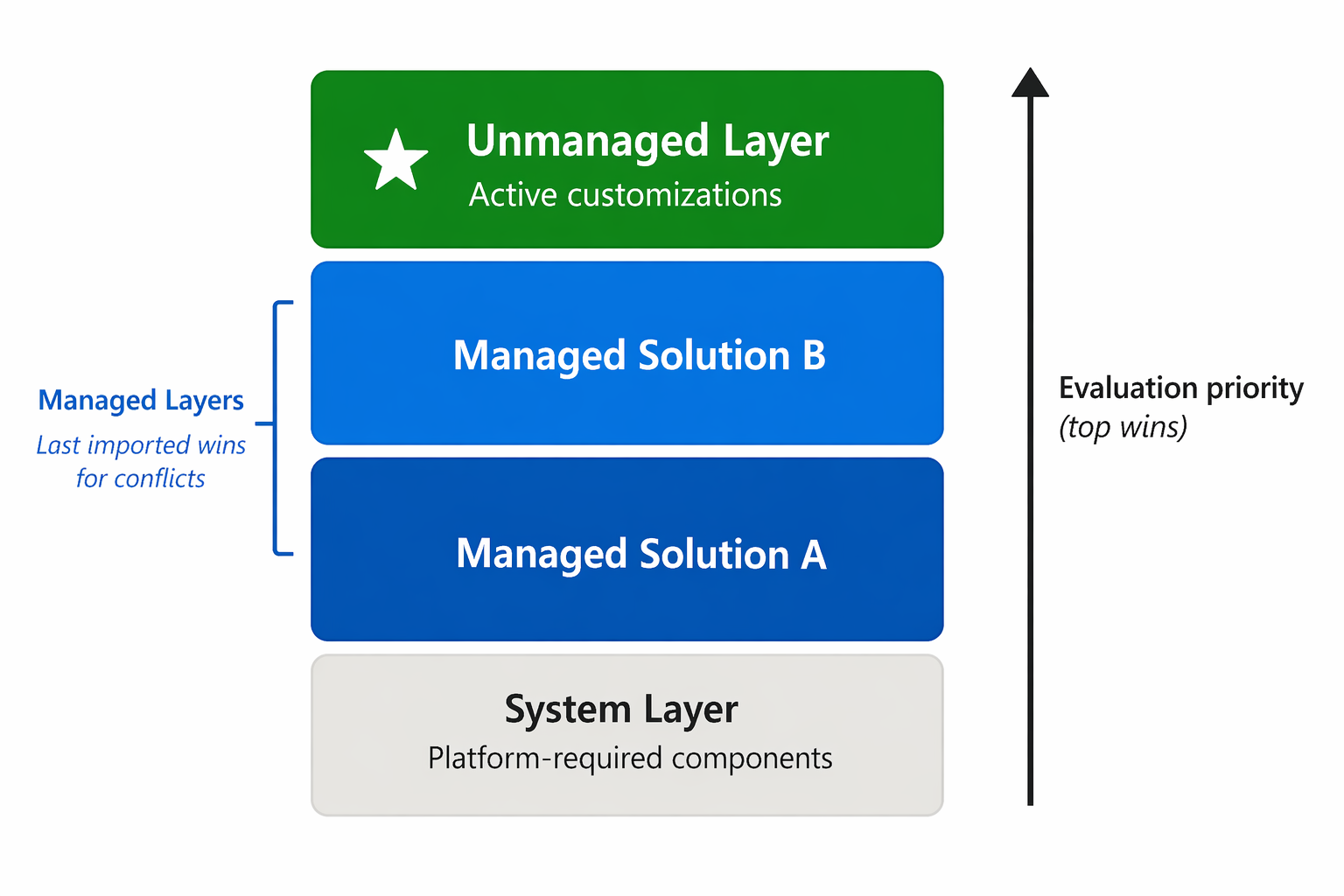
When multiple solutions contain the same component, Dataverse uses a layering system to determine which definition takes effect:
- System layer (bottom) - Platform-required components that you can't remove
- Managed layers (middle) - Imported managed solutions stacked in import order; "last one wins" for conflicts
- Unmanaged layer (top) - All unmanaged customizations; always takes precedence over managed layers
This layering system matters when troubleshooting unexpected behavior. If a component doesn't behave as expected after a managed solution import, an unmanaged customization on top might be overriding it.
To view solution layers for a component:
- Open the solution containing the component.
- Select the component.
- Select Advanced > See solution layers.
Note
Select Remove active customization to remove the unmanaged layer from a specific component, and allow the managed solution's definition to take effect. This action can't be reversed.
Export and import solutions
Export a solution:
- Go to Solutions and select the target solution.
- Select Export solution from the command bar.
- Select Managed (for deployment) or Unmanaged (for continued development in another environment).
- Wait for the export to complete, then download the .zip file.
Import a solution:
- Go to Solutions and select Import solution.
- Browse for the exported .zip file and select Next.
- Provide values for any connection references and environment variables.
- Select Import and wait for completion.
Import behaviors:
- When exporting a solution, you're prompted to publish your customizations.
- Managed solution imports bring changes in a published state - they're immediately active.
- Unmanaged solution imports arrive in draft state and must be published manually.
- Maximum solution file size is 95 MB.
- You need the System Administrator role to import solutions containing plug-in assemblies.
- While you can manually export and import solutions, it's still the recommended best practice to build pipelines to automate this process.
Solution checker
Solution checker analyzes solutions for potential issues related to performance, maintainability, security, and supportability. It uses a set of Microsoft-authored rules to identify risks and recommended improvements before solutions are deployed. Running solution checker regularly helps teams detect problems early and promote more consistent development practices. If you haven't yet run solution checker on a solution, the system prompts you to run it when you attempt to export. For more information, see Use solution checker to validate your model-driven apps.
Plan your solution architecture
For complex deployments like Zava's, organize components across multiple solutions:
- Foundation solution - Shared tables, security roles, and configuration used by multiple apps
- App-specific solutions - Individual apps, flows, and their unique components
- Custom connector solution - Custom connectors packaged separately (import these connectors before connection references that depend on them)
This segmented approach lets teams develop and deploy independently while sharing a common foundation. It also keeps individual solution files under the 95 MB limit and makes troubleshooting easier when issues arise.