Customize encrypted email branding with Microsoft Purview
You can customize the appearance of encrypted emails and the Microsoft Purview encryption portal using branding templates. These templates let your organization personalize elements like logos, colors, disclaimers, and portal text so recipients can easily recognize and trust encrypted messages.
Branding customization is available through Exchange Online PowerShell. If you have Microsoft Purview Advanced Message Encryption, you can create multiple templates and assign them to different departments, locations, or scenarios.
Requirements
To customize branding, you need:
- A supported Microsoft 365 license (for example, Microsoft 365 E3 or E5)
- Compliance Administrator or equivalent permissions
- Exchange Online PowerShell access
Modify the default branding template
You can update the default template to include your organization's logo, color scheme, and custom text. Use the Set-OMEConfiguration cmdlet with parameters for each element you want to change.
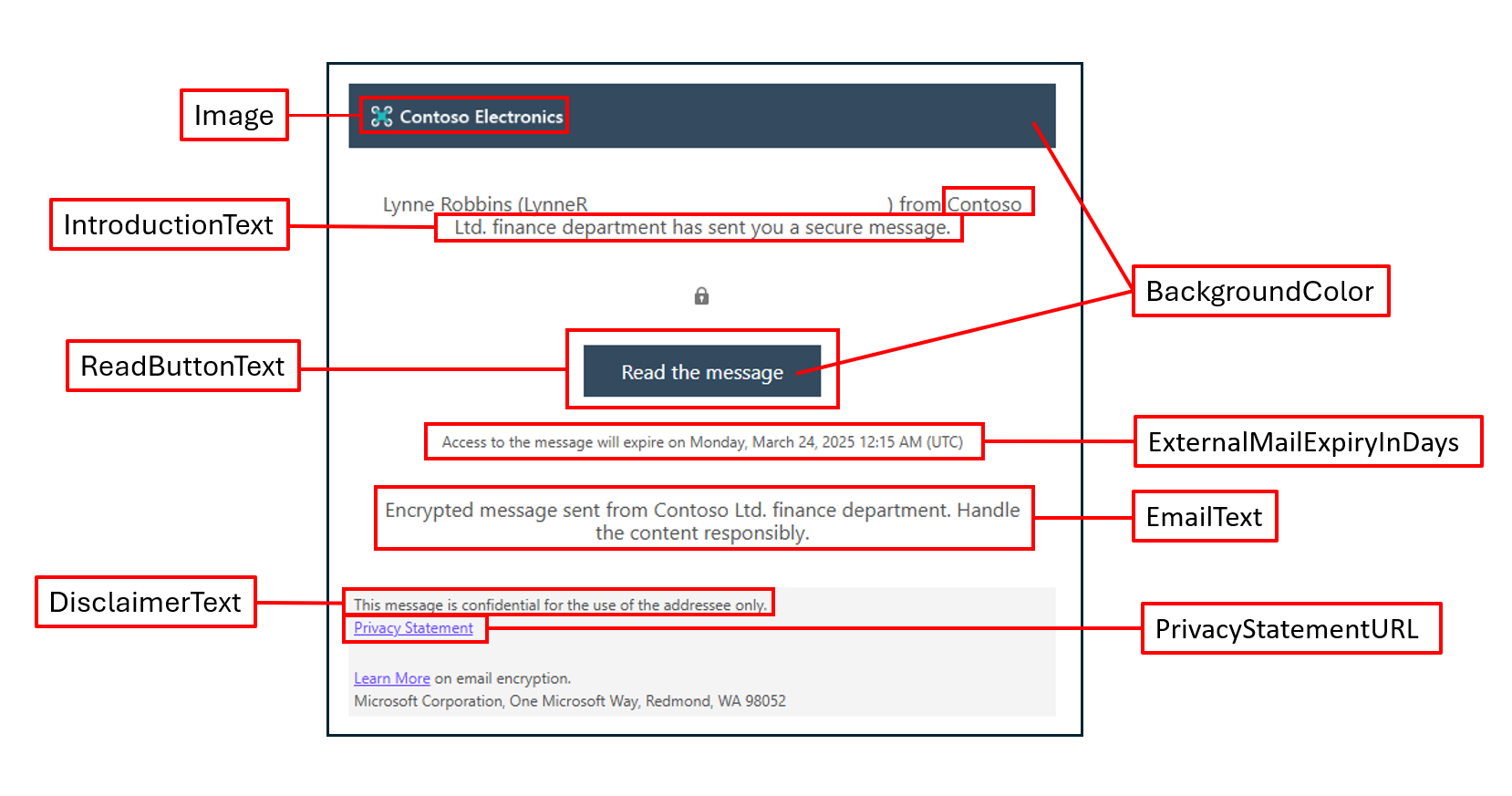
Example:
Set-OMEConfiguration -Identity "Default Branding" -DisclaimerText "This message is confidential." -PortalText "Contoso secure portal" -BackgroundColor "#ffffff"
Common branding options:
| Feature | Example command |
|---|---|
| Logo | Set-OMEConfiguration -Identity "Template 1" -Image ([System.IO.File]::ReadAllBytes('C:\Temp\logo.png')) |
| Background color | -BackgroundColor "#f0f8ff" |
| Introduction text | -IntroductionText "has sent you a secure message." |
| Disclaimer text | -DisclaimerText "This message is confidential." |
| Read button text | -ReadButtonText "Read Secure Message" |
| Privacy URL | -PrivacyStatementURL "https://contoso.com/privacy" |
Create additional templates with Advanced Message Encryption
If your organization uses Microsoft Purview Advanced Message Encryption, you can create multiple branding templates for different departments, regions, or use cases.
Connect to Exchange Online PowerShell.
Create a new template:
New-OMEConfiguration -Identity "Sales Template"Customize it using
Set-OMEConfiguration.
You can also control authentication options, like requiring one-time passcodes or enabling Google and Yahoo sign-in:
Set-OMEConfiguration -Identity "Sales Template" -OTPEnabled $true -SocialIdSignIn $false
Apply branding with mail flow rules
To apply branding to encrypted messages:
- In the Exchange admin center, go to Mail flow > Rules.
- Create a rule that matches the messages you want to brand (for example, based on sender group or keywords).
- Under Do the following, select Apply custom branding to OME messages and choose your branding template.
Note
Mail must already be encrypted before branding is applied. Make sure your encryption rule runs before the branding rule.
Revert to the default appearance
You can reset the branding template values using empty strings or $null:
Set-OMEConfiguration -Identity "Default Branding" -DisclaimerText "" -PortalText "" -Image $null -BackgroundColor $null
Remove a custom template
You can only remove templates you've created with Advanced Message Encryption:
Remove-OMEConfiguration -Identity "Sales Template"
Background color reference
Use standard hex codes or supported color names like white, aliceblue, or lightgray. Always wrap hex codes in quotes:
-BackgroundColor "#ffffff"
For a full list of supported color names and hex values, see Microsoft documentation.
Branding templates help reinforce your organization's identity and build recipient trust. With support for custom logos, disclaimers, colors, and portal messaging, Microsoft Purview makes it easy to create a secure and familiar experience for encrypted communications.