Configure Content Security Policy settings for a code app
In the introduction, you saw that Contoso's code app calls an external service to confirm device stock before an employee's request moves forward. This unit shows you how to open exactly enough of the app's Content Security Policy (CSP) to let that call succeed, without loosening the policy anywhere else.
Why the browser enforces its own boundary
A code app doesn't run inside a trusted container on a server. It runs in the employee's browser, which means the browser itself decides what the app is allowed to load, call, or embed. Content Security Policy is the mechanism that makes that decision possible: it's a set of rules, applied at the platform level, that tells the browser which origins are safe sources for scripts, styles, images, frames, and network calls.
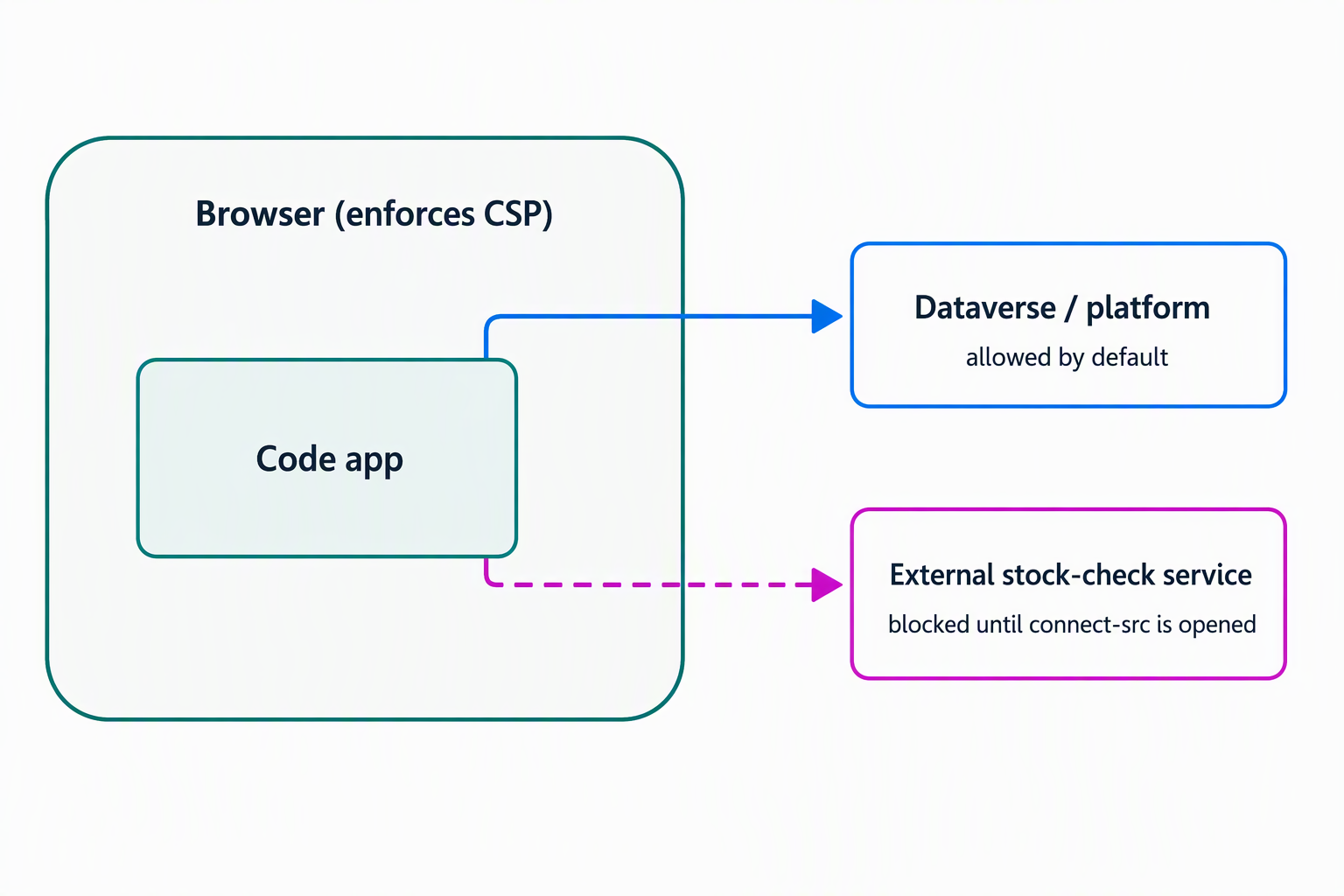
For Contoso's equipment-provisioning app, this matters immediately. The app's core logic, checking eligibility, reading device records, routing approvals, all runs against Dataverse and the platform the app is built on. But the stock-check call reaches outside that boundary to a separate external service.
Without an explicit rule allowing it, the browser treats that call the same way it treats any unrecognized destination: it blocks it. Understanding CSP as a browser-side allowlist, rather than a server-side setting, is the mental model that makes every decision in this unit make sense.
What's locked down by default
CSP settings apply at the environment level, so whatever you configure affects every code app running in that environment, not just one. By default, CSP is already enforced, and each directive starts with a conservative value:
| Directive | Default value |
|---|---|
| frame-ancestors | 'self' https://*.powerapps.com |
| script-src | 'self' <platform> |
| img-src | 'self' data: <platform> |
| style-src | 'self' 'unsafe-inline' |
| font-src | 'self' |
| connect-src | 'none' |
| frame-src | 'self' |
| form-action | 'none' |
| base-uri | 'self' |
| child-src | 'none' |
| default-src | 'self' |
| manifest-src | 'none' |
| media-src | 'self' data: |
| object-src | 'self' data: |
| worker-src | 'none' |
Three shorthand values show up repeatedly, and each one answers a different question. 'self' means "only this app's own origin." 'none' means "nothing is allowed, full stop." <platform> is a placeholder for whatever the platform itself needs to inject to run the app correctly, you don't manage that part directly.
Look closely at connect-src. It's set to 'none', meaning the app can't open an outbound network connection to anything beyond what the platform already permits. That default is deliberately strict, and it's exactly why Contoso's stock-check call fails until you act. The policy isn't broken; it's doing its job by assuming nothing external is trusted until you say otherwise.
Decide which directive to open, and how
You configure CSP in the Power Platform admin center: select the environment, open Settings, expand Product, then go to Privacy + Security > Content security policy > App tab. This path requires the environment to have Dataverse enabled; otherwise, use the Power Platform API path described later in this unit.
Each directive has a toggle. Leave it on and the default value applies. Turn it off and you supply your own list of sources, for example the hostname of the external stock-check service.
The behavior that matters most here isn't the toggle, it's what happens to your custom value once you set it. For most directives, your addition merges with the default, your sources get appended alongside 'self' and whatever else was already there. connect-src is the exception. Because its default is 'none', any source you add replaces 'none' entirely.
That's a meaningful decision point: once you add the stock-check service's origin to connect-src, that origin is the connect-src policy, not an addition to a broader list. If another integration, such as a monitoring endpoint, needs to connect later, you add its origin to the same list rather than assuming it's covered by default.
Guiding question: Before you continue, think about which directive you'd update to let your app call an external service, and whether your addition merges with the default value or replaces it.
When you're managing CSP for one environment, the admin center is the natural place to work. When you need the same configuration applied consistently across many environments, for example as Contoso scales equipment-provisioning to additional regions, the Microsoft Power Platform API is a better fit.
Its Environment Management Settings endpoint accepts settings like PowerApps_CSPEnabledCodeApps and PowerApps_CSPConfigCodeApps, letting you script the same directive values everywhere instead of repeating the same clicks per environment. Environment groups and rules extend this further, applying one CSP configuration automatically across a whole set of environments.
Learn more about configuring Content Security Policy settings.
Confirm the fix before you trust it
CSP enforcement is on by default, meaning a violation is blocked outright. A separate Enable reporting toggle sends violation reports to an endpoint you specify, and it works whether enforcement is on or off. That combination gives you a safe way to test a new directive value: watch the reports a change would generate before you commit to it fully.
The fastest way to confirm what's actually blocked is the browser's own developer tools. Open DevTools (F12), switch to the Console tab, and filter to Errors only. A blocked CSP call shows up as a message similar to Connecting to 'https://...' violates the following Content Security Policy directive. The URL in that message is the origin you need to add, and the directive name tells you exactly where to add it.
For Contoso's app, this is precisely how the stock-check problem surfaces. You open the console, see the violation naming the external service's URL under connect-src, and add that origin through the admin center, replacing the inherited 'none' value. CSP changes take a few minutes to propagate, so the next step is refreshing the app and checking the console again to confirm the violation is gone.
The same technique applies later when Contoso wires up Azure Application Insights for monitoring: its ingestion endpoint needs to land in connect-src too, or its telemetry calls get silently dropped the same way.
Who can make the change
Only an environment administrator can configure CSP settings, whether through the admin center or the API. As the developer, you don't usually have that access yourself, which makes this less a solo task and more a handoff.
Your job is to identify the exact directive and origin the app needs, ideally confirmed through the console or a report-only test. Then hand that specific, narrow request to whoever administers the environment. That's a better outcome for everyone: the admin applies a precise change instead of guessing, and the app's security boundary stays as tight as the scenario allows.
With the app's CSP correctly scoped to let it reach the services it actually depends on, the app is ready for the next concern: getting it packaged, deployed, and into the hands of the employees and coordinators who rely on it.