Package, deploy, and share a code app
With the CSP scoped so Contoso's equipment-provisioning app reaches its stock-check service and nothing else, the app is secure enough to run. It still isn't shipped. This unit shows you how to package the app into a governed Dataverse solution, and how to publish updates predictably by hand or through a pipeline. It also shows you how to share the right level of access with employees, a coordinator, and any automation that publishes on your behalf.
Place the app in a solution for governed ALM
Application lifecycle management (ALM) covers an app from initial build through deployment and ongoing maintenance. For a code app, ALM extends the same practices Power Platform already applies to canvas and model-driven apps to the custom code a developer writes. Those practices include consistency across environments, governance, and predictable deployments.
The payoff shows up the moment Contoso needs to move the app anywhere: once the app belongs to a Dataverse solution, that solution is portable. Export it from a test environment, import it into production, and the app moves with everything else the solution contains.
Getting into a solution doesn't require a separate step. Running pa app push from the Power Apps CLI can place the app in a solution automatically, provided the target environment has Dataverse enabled. In an environment without Dataverse, the app still publishes, without a solution.
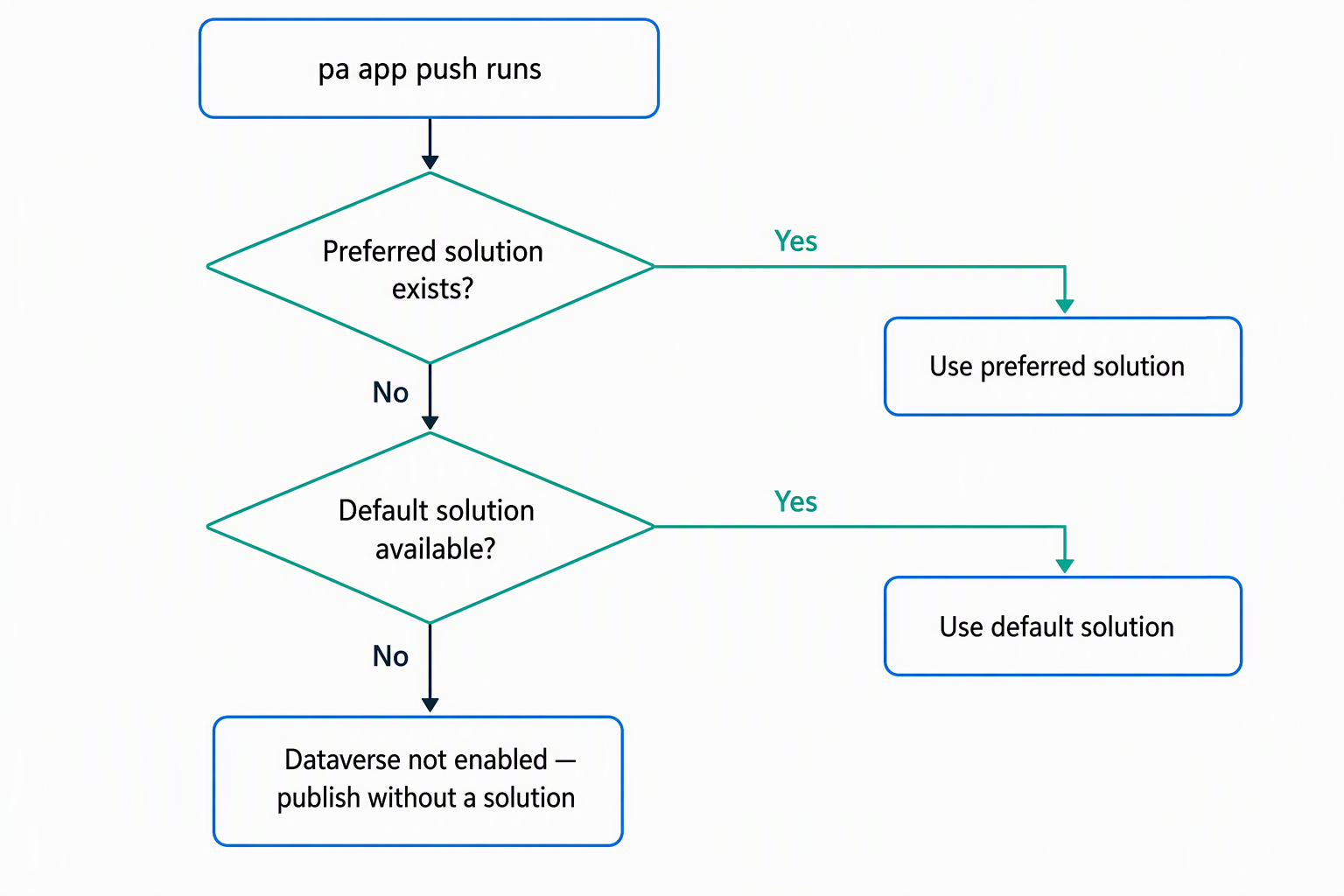
What happens on that push depends on whether the app already exists in the environment:
| Scenario | Behavior |
|---|---|
| First publish, preferred solution set | App lands in that preferred solution automatically |
| First publish, no preferred solution set | App lands in the default (all-components) solution |
| First publish, no Dataverse | App publishes with no solution |
Subsequent publish, no --solution-id |
Existing solution membership stays unchanged |
Subsequent publish, with --solution-id |
App is added to the solution you specify |
That first row is worth acting on before you ever run pa app push in Contoso's environment: setting a preferred solution for the environment means every first publish lands where you expect, without anyone needing to remember a flag.
For explicit control, pa app push --solution-id <solution-id> targets a specific solution by its GUID. The CLI checks that value. It fails with a clear error if the value isn't a GUID, if no solution with that ID exists in the environment, or if the environment doesn't have Dataverse enabled. In that last case, it tells you to publish again without --solution-id.
You find a solution's ID in make.powerapps.com: open Solutions, open the solution, and copy the ID from the URL. You can also skip the CLI entirely and add an already-published app to a solution from the UI, under Solutions > select the solution > Add existing > App > Code app.
So when do you reach for --solution-id instead of trusting the default resolution? Use it whenever Contoso is promoting the app toward a specific target. Examples include adding it to a release solution that doesn't match whatever the environment resolves to automatically, or adding an already-published app to a second solution. For routine pushes within a single environment that already has its preferred solution configured correctly, letting the CLI resolve automatically is simpler and less error-prone.
Once the app is solution-based, Power Platform Pipelines becomes available for moving it through stages like Dev, Test, and Prod. Preflight checks for dependencies and connection references run along the way. That's a deployment topic in its own right and goes beyond what this unit covers, but it's the natural next step after the app is packaged into a solution.
Learn more about pipelines in Power Platform.
Publish updates predictably, including in automation
pa app push is the command you run locally for every update. The same command drives automation when the publish needs to happen without a person at the keyboard. Setting the PA_CLI_SOLUTION_ID environment variable before running pa app push --non-interactive applies the same solution-targeting behavior described above, deterministically, inside a CI/CD pipeline.
Non-interactive publishing needs non-interactive authentication, which is where a Microsoft Entra service principal comes in. The CLI authenticates as the service principal instead of a cached browser sign-in. But authentication alone doesn't let the pipeline publish: the service principal needs access to the target environment, and separately, edit access to the app itself.
Environment access without app-level edit access isn't enough, and a service principal can never grant that access to itself. An app maker grants it once, manually, before the pipeline ever runs for real, with a command like pa app share --principal <object-id> --access edit.
Guiding question: A pipeline only needs to publish updates, it never opens the app's runtime UI as an end user. Does that pipeline's service principal need
playaccess,editaccess, or both, and why does the distinction matter for how narrowly you scope automation permissions?
That one-time sharing step hides a common pitfall: Microsoft Entra ID exposes two different object IDs for what looks like the same identity. The Enterprise Application object ID is the one pa app share expects. The App Registration object ID, visible under App registrations in the Entra portal, looks similar but represents a different object entirely.
Sharing with the wrong ID fails silently enough that it's worth confirming you copied the Enterprise Application value before Contoso's pipeline runs its first real deployment.
Share the app with the right access level
Publishing gets the app into a solution; sharing is what puts it in front of people. pa app share --principal <principal> --access <play|edit> grants access to one or more users or service principals, identified by comma-separated email addresses or Microsoft Entra object IDs. The --access flag defaults to play when you omit it.
| Access level | What it grants | Who needs it |
|---|---|---|
play |
Open and use the app | Employees submitting equipment requests |
edit |
Open, use, and publish updates to the app | A co-developer, or a service principal running pa app push in a pipeline |
Most of Contoso's audience, the employees filing requests, only needs play. The coordinator reviewing and approving requests also only needs play unless that person is expected to make changes to the app itself, in which case edit is the right call. Reserve edit deliberately: every principal holding it can publish a new version of the app. It's a decision about who can change production behavior, not just who can see more features inside the running app.
Control what users see and confirm they can run it
Two more decisions shape what employees and the coordinator actually experience when they open the app. First, the Power Apps header that normally wraps a running app can be turned off. Running pa app set-setting --show-header false followed by pa app push applies the change for every user, every time they open the app.
That's a good fit if Contoso embeds the app inside an intranet page and the extra chrome doesn't belong there. For a one-off instead of a permanent change, appending ?hideNavBar=true to the play URL (or &hideNavBar=true if the URL already has other query parameters) hides the header for that link only.
Second, confirm licensing before sharing broadly rather than after someone reports they can't open the app. Running a code app requires a Power Apps Premium license, pay-as-you-go enabled, an App Pass, or auto-claim enabled. Auto-claim assigns a premium license automatically if one is available in the tenant. This isn't something the CLI configures; it's a tenant-level condition worth checking against Contoso's employee and coordinator accounts before the share list grows.
The app is now packaged into a solution, published predictably by both you and a pipeline, and shared at the right level for employees, the coordinator, and automation. It's live and in people's hands. The next unit turns to what happens after that: monitoring and troubleshooting the app's behavior once real usage starts.