Monitor and troubleshoot a code app
With Contoso's equipment-provisioning app packaged, deployed, and shared from the previous unit, employees and the coordinator now use it daily. Once real usage starts, you can't see the app run from your own machine anymore. This unit explores how to monitor its health and troubleshoot problems when a user reports something isn't working.
Check platform health before you add anything
A coordinator mentions device-stock checks feel slow today. An employee says the app "won't load." Before you touch any code, the Monitor page in the Power Platform admin center already has an answer. It works the moment the app is shared, with no instrumentation required.
That access isn't entirely in your hands, though. An environment administrator has to turn on tenant-level analytics and the environment's Analytics data available to Makers setting before you see any Monitor data at all. Recommendations additionally require the environment to be a managed environment.
If Monitor comes up empty for Contoso's environment, that's a handoff to whoever administers it, not a sign the feature doesn't work. Go to Monitor under Products, then select Power Apps to see metrics and recommendations for every app in the environment, including code apps.
Each metric answers a different kind of question:
| Metric | What it tells you |
|---|---|
| App open success rate | Percentage of attempts where the app actually opened |
| Time to interactive (TTI) | Seconds until the first screen responds to input after it opens |
| App session count | Distinct user sessions per day, useful for spotting unusual drops |
| Data request success rate | Percentage of data calls (like the stock check) that succeed |
| Data request latency | Average time for all data requests in a session to complete |
Because Monitor aggregates across every user, it's the right first stop for "is this happening to one person or everyone." If App open success rate drops tenant-wide right after a release, that's a different problem than one employee with a local network issue.
Monitor doesn't leave you entirely guessing about why a data request failed. Alongside each metric, it surfaces recommendations tied to secondary metrics:
- A spike in HTTP 429 responses points to throttling.
- HTTP 403 points to a permissions problem.
- HTTP 0 points to a network failure.
- The error code
WorkflowTriggerIsNotEnabledpoints to a flow that's turned off.
Unit 5 shows how the HTTP 429 recommendation specifically flags throttling. Those recommendations categorize why at the aggregate level, across every user and session, not the specific request, user, or session that hit the problem. For that level of detail, you need something you add yourself.
Learn more about Power Apps metrics and recommendations.
Add deeper visibility with Application Insights
Azure Application Insights is a telemetry service that, once wired into the app, captures granular session and network data that Monitor's aggregate numbers don't show. The integration point is a logger: you call setConfig({ logger: { logMetric } }) from @microsoft/power-apps/app, and the platform calls your logMetric function with metric payloads as the app runs. Your implementation decides where those payloads go, so the same pattern works with Application Insights or any other monitoring tool.
import { setConfig } from '@microsoft/power-apps/app';

setConfig({
  logger: {
    logMetric: (value) => appInsights.trackEvent({ name: value.type }, value.data)
  }
});
The platform forwards two kinds of metrics to that logger. SessionLoadSummaryMetricData reports whether the launch succeeded, whether load was optimal or had a reason it wasn't (interactionRequired, throttled, screenNavigatedAway, other), and the time to interactive for that session. NetworkRequestMetricData reports the URL, method, duration, status code, and response size for each network call the app makes. That's exactly the shape of detail you'd want for the stock-check service specifically.
Here's the catch worth remembering: Application Insights only captures telemetry after the app successfully loads. A startup failure, including one caused by a resource the Content Security Policy blocks, never reaches the logger, so it never appears in Application Insights. Monitor is still the only place that surfaces a failure that happens before the app finishes loading. That's a direct reason to keep both tools rather than replacing one with the other.
CSP affects this integration in one more way. Suppose Contoso's environment enforces CSP the way the earlier CSP unit describes. Application Insights' own ingestion endpoint can be blocked exactly like the stock-check service was, until its origin is added to connect-src.
You diagnose it the same way too: open DevTools, filter the console to Errors only, and look for a message naming the blocked endpoint under the connect-src directive. Once the admin adds that origin, refresh the app and confirm the violation is gone.
Captured data lands in the Azure portal, under the Application Insights resource's Monitoring > Logs, where you query the customEvents table for session summaries and network requests.
Learn more about setting up Azure Application Insights for a code app.
Inspect a live problem in the browser
Monitor and Application Insights both answer questions about patterns over time. Neither helps when the coordinator messages you right now saying device-stock checks feel slow or fail intermittently, and you want to watch it happen. For that, you reach for the browser's own DevTools, open with F12, Ctrl+Shift+I, or right-click > Inspect, in whichever browser the coordinator uses.
Open the Network tab and filter by data-source type: apihub.net for connector-backed sources, dynamics.com for Dataverse. If Contoso exposes the stock-check integration through a connector, filtering by apihub.net narrows the request list to that call. If the app calls the stock-check service directly, filter by the service's own host name instead.
From there, the status code and duration tell you where the delay or failure actually sits. It could be a slow connector response, a failed call that the app silently retries, or something unrelated to data access at all. This is the one technique of the three that needs no setup and no history, only a live session to inspect.
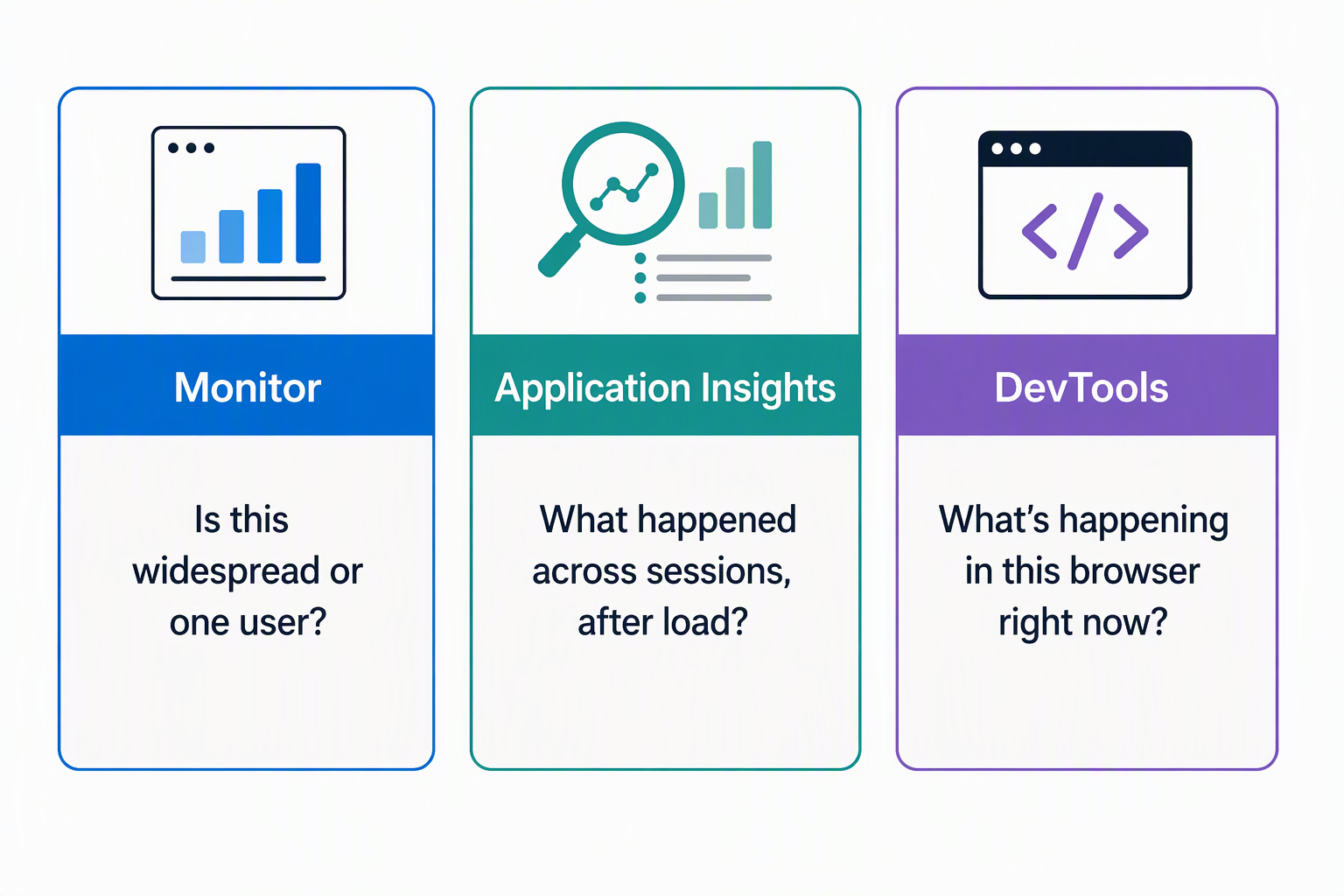
Each tool now answers a distinct question:
| Tool | Answers |
|---|---|
| Monitor | Is this widespread, or specific to one user or session? |
| Application Insights | What happened across many sessions, in detail, after they loaded? |
| DevTools | What's happening in this one browser, right now? |
Guiding question: Several employees report the app won't open at all one morning. On a different day, the coordinator says approvals feel slow, but everyone else opens the app fine. For each symptom, which tool do you reach for first, and why do the other two matter less for that particular question?
Recognize common data-source and network failure patterns
Some failures aren't about speed at all, they show up as errors like Fetch Failed, timeout messages (ETIMEDOUT, ENOTFOUND, ECONNRESET), or a data source that can't be found because of an environment mismatch. A structured flow narrows these down faster than guessing:
- Confirm the Power Apps CLI is on its latest version, and run
pa auth statusto confirm the signed-in account and environment. - Check that
power.config.json'senvironmentIdandregionmatch the environment you intend to target, and re-run the failing command, reading the HTTP status or error it returns. - If it still fails, check whether a corporate proxy or firewall blocks outbound HTTPS calls to Power Platform endpoints.
That last check matters more often than it sounds. SSL-inspecting proxies, Zscaler is one documented example, decrypt and re-encrypt HTTPS traffic to inspect it, which can produce TLS handshake or certificate errors like UNABLE_TO_VERIFY_LEAF_SIGNATURE or SELF_SIGNED CERT IN CHAIN. If a teammate's connection to Dataverse or a connector fails only on the corporate network and works fine elsewhere, this kind of proxy is a reasonable first suspect.
Learn more about troubleshooting data source issues in code apps.
When to escalate
Not every problem is yours to solve with the tools above. Suppose Power Apps CLI or SDK behavior doesn't match what the documentation describes, or previously working app behavior regresses without any change on your part. That's a case for your organization's standard Microsoft Support channel, rather than more local debugging.
The code apps GitHub repository issues, including closed issues, are the better fit for general feedback, guidance on an uncovered scenario, or seeing how someone else solved a similar problem. Recognizing which bucket a problem falls into is the last piece of judgment this unit asks for: Monitor, Application Insights, and DevTools tell you what's wrong, and this distinction tells you who fixes it.
With monitoring and troubleshooting in place, the next unit turns to optimizing the app's performance as request volume grows.