Setup and deployment options
After you purchase Resource Scheduling Optimization (RSO), you can deploy it to a specific Dynamics 365 instance through the Applications tab in the Dynamics 365 Admin center. You can access the Dynamics 365 Admin Center from the Microsoft Power Platform Admin Center. Resource Scheduling Optimization is available in the applications list.
If your organization has more than one Dynamics 365 environment, you need to indicate which environment to deploy the solution to. As RSO is deployed, a Microsoft hosted Azure instance is deployed, which is used to host the optimization engine and service. Microsoft manages and maintains this instance and uses it only for the RSO deployment.
After RSO is deployed to an organization, it can be managed from this same area moving forward.
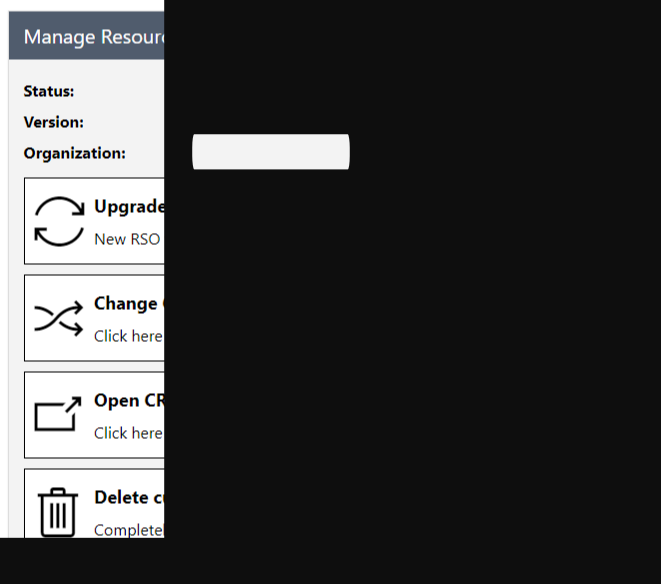
Additionally, after RSO is deployed, the RSO instance management screen provides the following capabilities:
Upgrade to new version - The RSO solution is updated regularly and, as newer versions become available, the updates can be applied from the management screen.
Change Organization - Lets you link the existing RSO instance to another organization.
For example, you could change the organization if you wanted to move from a testing to a production organization.
Open CRM organization - Allows you to access the Dynamics 365 organization that is associated with the RSO instance.
Delete current deployment - This option deletes the RSO Azure resources. The RSO solution remains in your Dynamics 365 environment. It doesn't affect anything inside the Dynamics 365 organization.
Initial configuration
After the solution is deployed, it needs to be configured inside your Dynamics 365 instance. By default, RSO isn't enabled, so it needs to be turned on. This task is completed from the Resource Scheduling application. Change the area from Resource Scheduling to Settings.
While on the Settings page, you can enable RSO by going to the Administration and Scheduling Parameters page. When the solution was installed, it added the Resource Scheduling Optimization tab, where you can enable RSO by setting the Enable Resource Scheduling Optimization field to Yes.
Additionally, you can define a default optimization goal for the organization, if needed. A default goal helps expedite interactions with RSO through the schedule board by predefining how the engine optimizes data. Though a default goal is in place, users can still pick different goals. (More information on creating a goal can be found in the Creating Resource Scheduling Optimization Goals module.)
Enabling maps
RSO uses mapping functionality to locate the closest resource to work on an item. For this reason, organizations should enable the mapping functionality. By default, the Connect to maps field is set to No. To enable mapping, set the field to Yes. Enabling this option ensures that the schedule board and schedule assistant can use maps to schedule items. Bing maps are used by default. Organizations can also configure a custom mapping entity to populate items like longitude and latitude, if needed.
