Define optimization goals
Any RSO job that runs needs to be associated with a goal. A goal defines the result that the RSO solution is trying to achieve. For example, an organization goal might be to ensure that technicians are maximizing their available working hours while minimizing the amount of time that they spend traveling.
Organizations define how items should be optimized based on two factors:
Objectives - Defines the result that you're trying to achieve such as maximize working hours.
Constraint - Defines factors to be considered while you're attempting to meet the objective such as ensuring that items are only scheduled during a technician's working hours.
When an RSO job is run, the RSO engine processes a list of resources. Additionally, new resource requirements and existing bookings are processed based on a predefined scope to create the optimal route or list of bookings for the resources.
Bookings are considered optimally scheduled when they:
Meet all the constraints that are defined in the goal.
Have the highest possible score for all the company's objectives.
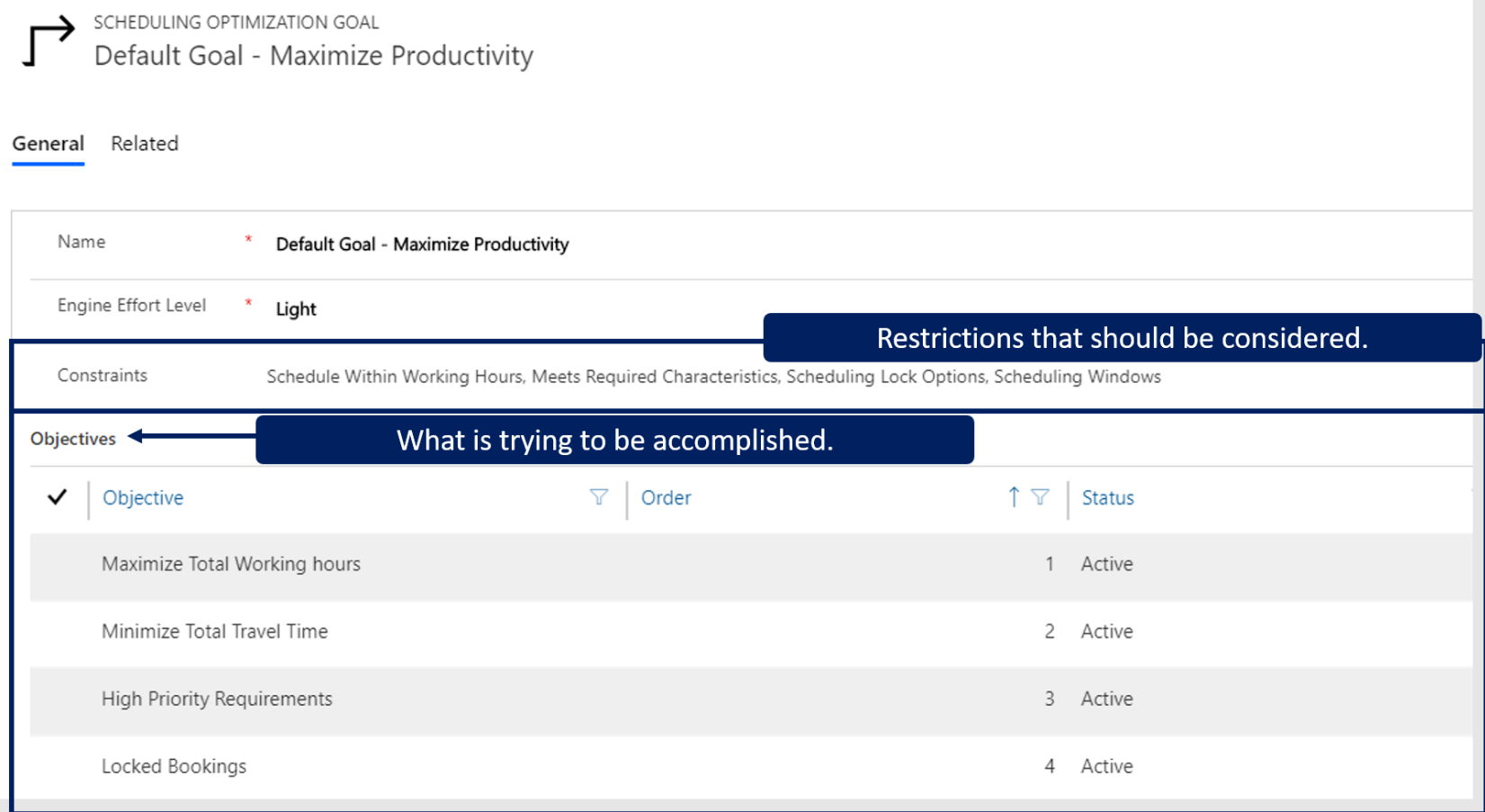
Objectives
Objectives define what the goal is trying to achieve, such as maximizing working hours or minimizing total travel time. Within a goal, you can define multiple objectives by selecting the Add New Scheduling Optimization Objective button on the Objectives sub-grid.
The RSO solution includes six objectives that you can apply:
Maximize total working hours - The combination of the engine results (iteration) with the total highest aggregate work time.
Minimize total travel time - The version of the engine results (iteration) with the total lowest aggregate travel time.
Locked bookings (deprecated) - When this option is selected, RSO tries to include locked bookings into the optimal route.
High priority requirements - RSO evaluates this objective and gives priority to the resource/booking combination with the highest score for priority.
Maximize preferred resources - RSO evaluates the preferred resources that are defined for a requirement and attempts to use the preferred defined resources.
Best matching skill level - RSO evaluates the proficiency of resources that are relevant to the defined skills in the requirement record. Resources with a higher proficiency in a specific skill are considered first. For more information related to Best Matching skill, see: Best Matching Skill Level.
Schedule as soon as possible - Occasionally, there might be more resource capacity than demand for resources. To effectively front-load optimized bookings, add the Schedule As Soon As Possible objective into your optimization goal.
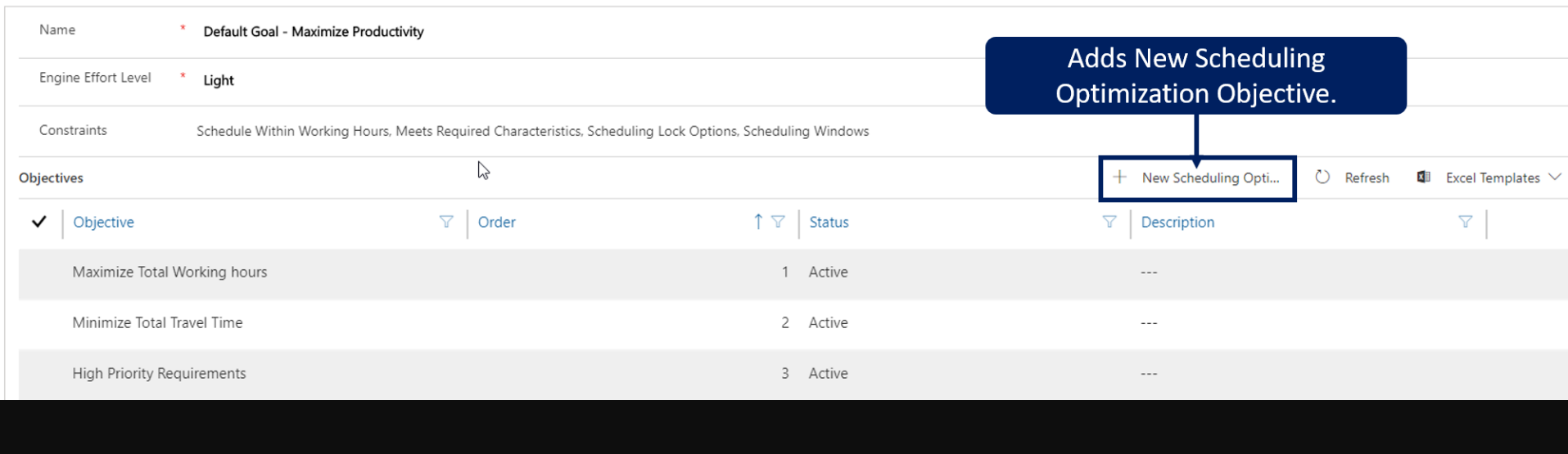
When adding an objective, you can define the order of importance for it. Objectives with a higher priority are considered before objectives with a lower number. Objectives can be reordered as needed.
For example, a goal might have the following defined objectives (in order of preference):
Maximize working hours
Minimize travel time
Best matching skill level
When an RSO job that uses this goal runs, it first attempts to maximize the working time of the resources that it's optimizing. Then it looks at the location information to determine resources that are closest. The closest resource that contains the necessary skills is scheduled.

Important
Minimizing total travel time cannot be the first objective in the list. If minimizing total travel time was the first objective, RSO might not schedule anything. This selection would create a travel time of zero (0) minutes to meet the first objective.
Constraints
Like objectives, a goal might have multiple constraints that are defined for it. Unlike objectives, constraints don't have numeric numbers associated with them. Each constraint that needs to be considered is added to the goal. When constraints are added to a goal, it reduces the number of records that need to be considered, which results in overall faster performance.
Seven constraints that can be added to a goal are:
Schedule within working hours - Creates the booking if it can be completed within the resource's working hours.
This constraint verifies that the booking isn't scheduled out of the resource's working hours. This verification includes travel time from the last booking to the resource's end location; though, it isn't shown on the schedule board in a visual way.
Meets required characteristics - Verifies that the resource has all the required characteristics and that they meet the minimum required skill level that is noted on the item.
Scheduling lock option (deprecated) - If this constraint is selected, it retains lock options that are configured on a booking record.
Scheduling windows - If this constraint is selected, RSO schedules work to comply within the time window start and end fields on the resource requirement or booking record.
Meet Resource Preferences - If this constraint is selected, RSO looks at the preferred or restricted resources that are associated with the booking.
Preferred Resource - Attempts to schedule the resource that is defined as preferred.
Restricted Resource - Doesn't schedule restricted resources.
Must choose from - The defined resource gets scheduled if available during the time range. For multiple resources, the system schedules the first that is available. If none of them are available, the requirement doesn't get scheduled.
Matches territories - RSO matches the territory between the requirements and resources to ensure that a matching resource is in the same territory as the requirement.
Matches resource type - RSO matches the resource type between requirements and resources to decide which type of resource can fulfill a requirement.
Bookable resources include generic, users, contacts, accounts, equipment, facility, crew, and pool resource types.
Requirement records allow multi-select so you can specify which resource types are needed for a given requirement.
Effort level
When a goal is created, you can define how much effort the engine puts into finding the optimal schedule based on the value that is defined in the Engine effort level field. The engine effort level can be set to one of the following levels:
Very light
Light
Moderate
Intense
Very intense
The higher the effort, the longer RSO takes to complete the implementation. For example, a goal that is set to Very intense takes longer to run than one set to Light because there are more iterations of combinations that the RSO engine considers.
Travel time calculation
Travel time calculations determine and factor in how long it takes to travel between work order jobs. By default, you can use travel time with Bing Maps without using any historical traffic. There's an option to include and use Historical traffic.
Default optimization goal
When an organization deploys Resource Scheduling Optimization, the solution includes an optimization goal called Default Goal - Maximize Productivity that is set as the default goal for the organization. The default goal is used automatically unless another goal is specified when an optimization job is run. In addition, the default goal is used when Single Resource Optimization is selected from the schedule board. Organizations can modify the default goal to fit their needs, or they can create a new goal and define it as the default.

The default goal can be modified from the Settings area of the Resource Scheduling application. From the Settings, go to Administration > Scheduling Parameters. The default goal is defined on the Resource Scheduling Optimization tab.

For more detailed information on goals and more details on how optimization is calculated and achieved, go to Resource Scheduling Optimization configuration.