Register and import devices into Autopilot
Before a device can be deployed using Windows Autopilot, it must be registered with the Windows Autopilot service. Device registration associates the device with the organization's tenant so that the Autopilot service can recognize the device during the Windows out-of-box experience (OOBE). Organizations can register devices with Windows Autopilot in several ways, depending on how the devices were purchased or how they are managed.
Manage Windows Autopilot in Intune
If you want to manage Windows Autopilot using Microsoft Intune, automatic mobile device management (MDM) enrollment must be configured for Microsoft Entra ID–joined Windows devices. Automatic MDM enrollment ensures that devices are enrolled in Intune when users sign in during the Windows Autopilot deployment process.
You can configure automatic MDM enrollment by performing the following steps:
- In the Microsoft Entra admin center, select Entra ID.
- On the Entra ID page, select Mobility, and then on the Mobility (MDM and WIP) page select Microsoft Intune.
- On the Microsoft Intune page, under MDM user scope, select All if all users should be able to enroll their devices in mobile device management.
- If only certain users should be able to enroll devices, select Some, specify the groups whose members can enroll devices, and then select Save.
After automatic enrollment is configured, devices that join Microsoft Entra ID during the Autopilot deployment process are automatically enrolled in Intune.
Register devices through an OEM or partner
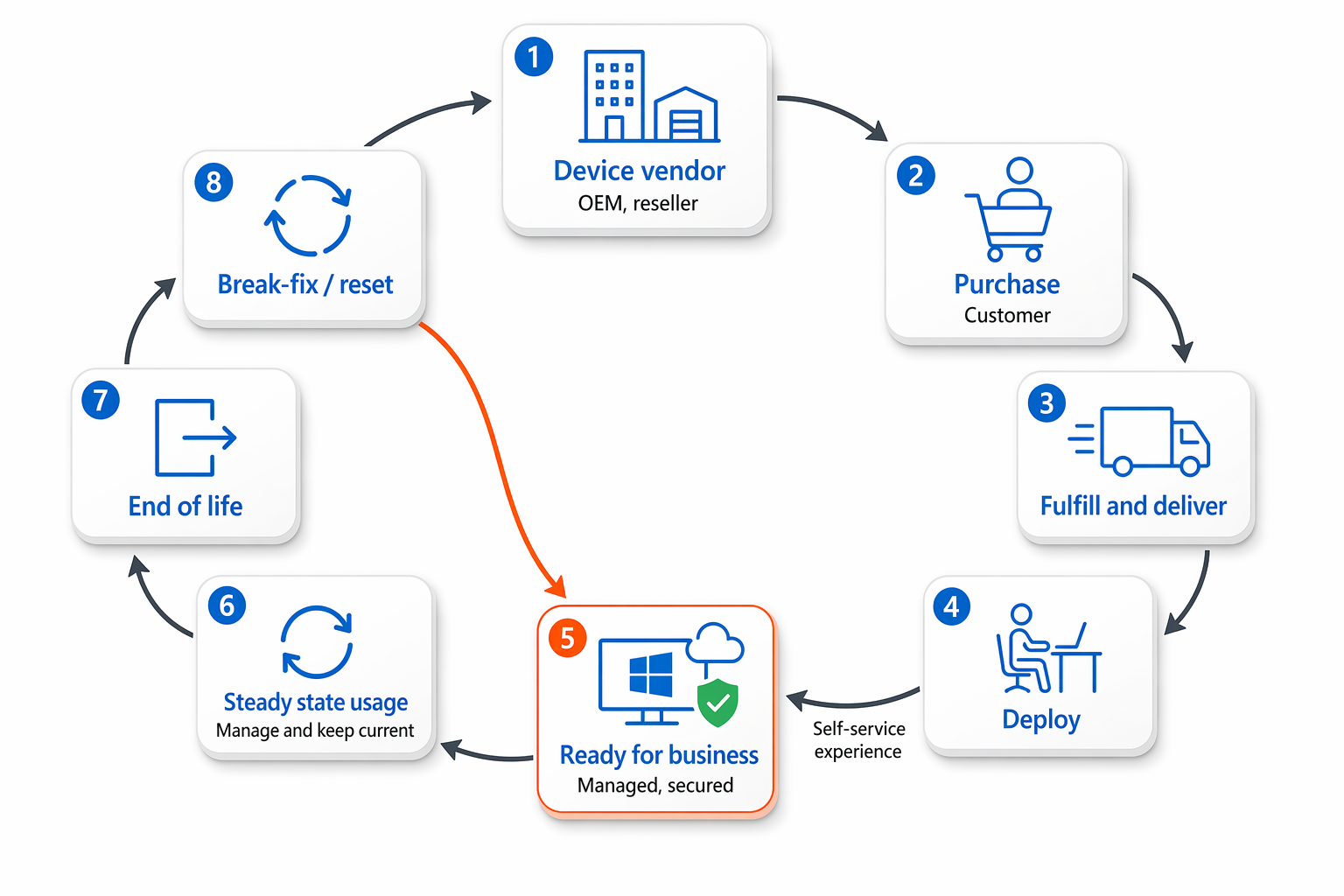
The most common method for registering devices is through the device manufacturer or an authorized partner. Many original equipment manufacturers (OEMs) and resellers can register devices with the organization’s Windows Autopilot tenant when the devices are purchased.
In this scenario, the hardware information for each device is uploaded by the OEM or partner directly to the Windows Autopilot service. When the device is delivered to the user and powered on for the first time, the Autopilot deployment process begins automatically.
This approach simplifies device provisioning and allows organizations to ship devices directly to users without requiring IT staff to prepare the device beforehand.
Generate your own CSV file
If the OEM or partner doesn't provide a CSV file, you can generate a device-specific file by obtaining and running the Get-WindowsAutopilotInfo.ps1 Windows PowerShell script. You can install the script by running the following cmdlet:
Install-Script -Name Get-WindowsAutopilotInfo
After installing the script, you can generate device-specific information and save it to the D:\Devices\Device1.csv file by running the following cmdlet:
Get-WindowsAutopilotInfo.ps1 -OutputFile D:\Devices\Device1.csv
Upload the device-specific CSV file
To upload a CSV file, use the Microsoft Intune admin center. When you upload a CSV file, you'll receive a notification indicating whether the upload was successful and how many devices were added.
When you upload a CSV file, you can add devices to an existing Windows Autopilot deployment group, create a new Windows Autopilot deployment group for the devices, or add them without using groups. You can use groups when you want to apply the same deployment settings to multiple devices at once.
To complete this process, use the following procedure:
- In the Microsoft Intune admin center, navigate to Devices > By platform > Windows > Enrollment.
- Under Windows Autopilot, select Devices.
- On the Windows Autopilot devices page, select Import.
- Browse and locate your CSV file.
Import a device hash directly into Intune
In certain circumstances, it might be beneficial to directly import the device hash into Microsoft Intune rather than generating the file as shown above. This is often useful in testing scenarios or perhaps could be useful if you have a batch of machines that are being built by onsite technicians ready for users.
The following example imports the device directly into Intune along with assigning a group tag to an Entra ID group to ensure the device ends up in a specific group:
Open a PowerShell prompt on the Autopilot device at the 'Welcome screen':
Install-Script -Name Get-WindowsAutopilotInfo
Get-WindowsAutoPilotInfo.ps1 -online -GroupTag "Autopilot-Devices" -Assign