Manage vendors
Each accounts payable transaction must be associated with a vendor. Use the Vendors page to create, maintain, and inquire about vendors.
To create a new vendor, follow these steps:
- Go to Procurement and sourcing > Vendors > All vendors.
- In the action pane, select New.
- In the Vendor account field, enter a value that uniquely identifies the vendor.
- If the value populates automatically, skip this step.
- You can create vendor accounts for a person or an organization. This selection affects which fields are available.
- In the Name field, enter or select a vendor name. If the vendor is already registered in your system, select the name in the drop-down list. The new vendor account inherits the registered address and contact information.
- In the Group field, select a vendor group.
- In the Number of employees field, enter the number of employees.
- In the Organization number field, enter the legal organization number of the vendor.
Templates
To speed up vendor creation, you can create templates based on specific vendor field entries that you designate as template models. Templates can be used by all users or a single user. If a template is available when you create a new vendor, a page displays the available vendor templates. Select the template that applies to the new vendor. The template's field values are copied to the new vendor's fields. You can then change the fields and enter more information as appropriate.
FastTabs
On the Vendor page, FastTabs categorize vendor-related data. The base data on the Vendor page automatically defaults for all transactions that involve the vendor. You can change default information during transactions.
General
This FastTab contains the vendor's identification information like the account number or name. It also contains a mandatory Vendor group field.
Vendor account
The Vendor account field uniquely identifies a vendor. You can associate a number sequence that generates the account number automatically when you create a new vendor.
You can have a shared number sequence for vendors, where vendor account numbers are generated from a single, common number sequence across multiple legal entities. You can also set up vendor number sequences for each vendor group.
Vendor group
A vendor group plays an important role in accounts payable configuration and processing. Vendor groups classify vendors and apply default settings, financial controls, and reporting structures.
A vendor group is a logical grouping of vendors that share common financial and posting settings, which simplifies vendor management. The group determines ledger account postings during accounts payable transactions.
Addresses
On this FastTab, you can enter multiple vendor addresses, although you should set one as the primary address.
The Addresses FastTab also includes a Map button, which opens a Bing map based on the entered address.
Contact information
Define types of contact information on this FastTab, such as phone and fax numbers, email, URL, and social media profiles for Facebook, LinkedIn, Telex, and X.
You can define multiple contacts under the same type. For each contact type, you can select one primary.
Miscellaneous details
This section covers additional vendor-specific settings, such as credit limits and vendor holds, for managing financial risk and controlling transactions.
Credit limit
A vendor credit limit controls and monitors how much your company owes to a vendor. A credit limit helps you avoid exceeding agreed payment limits and supports better cash flow and risk management.
The system sends warnings or blocks further transactions based on open purchase orders, pending invoices, and outstanding balances when you define a vendor credit limit.
Vendor hold
To temporarily block transactions with a vendor, you can create a vendor hold. This helps organizations control purchasing and payments in the event of issues such as disputes, compliance checks, or financial concerns.
To put a vendor on hold:
- Navigate to Accounts payable > Vendors > All vendors.
- Select the vendor you want to put on hold.
- In the action pane, go to the Vendor tab.
- In the Maintain group, select the On hold button.
A dialog box opens where you select the required hold status (No, Invoice, All, Payment, Requisition, or Purchase Order) and provide a reason code.
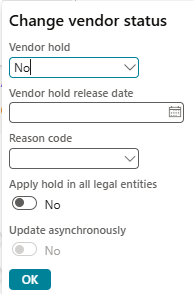
Users with the appropriate security role can access the vendor hold option. If a vendor approval workflow is pending, the vendor record, including its hold status, is blocked from updates until the workflow completes.
Intercompany vendor
The Intercompany vendor FastTab marks the intercompany setup of a vendor. Intercompany vendors are used when one legal entity (company) procures goods or services from another legal entity within the same organization.
Instead of treating the transaction like an external procurement, the system links both sides:
- A purchase order in the buying company
- A sales order in the selling company
Over/under tolerance group
By setting up the details of over/under transaction policies, you enable the system to determine how it should manage the over-processing and under-processing of goods at the time of receipt. The over/under tolerance group binds all vendors together who follow the same policy.
Vendor profile
The Vendor profile FastTab contains basic information about a vendor that you might need for reporting purposes, like Bid only, One-time supplier, Small business, Woman owner, or Minority owned.
Purchasing demographics
This FastTab has fields for reporting purposes like line of business, segment, and subsegment. These fields classify and group vendors for reporting, analytics, and business insights. They help organizations better understand vendor behavior and tailor strategies accordingly. You can also define the primary contact and the employee responsible for the vendor on this FastTab.
Currency
The Currency FastTab is a mandatory field that holds currency information. This field automatically populates from the legal entity's currency. You can change the currency based on the vendor's operating currency. When you create a new vendor document like a purchase order, the currency defaults to the value defined in this field.
Invoice and delivery
This FastTab contains configurations related to invoice and taxes. It also contains fields like Mode of delivery and Delivery terms.
For more information, see Describe core accounts payable components.
Purchase order defaults
This FastTab includes several configurations required for managing purchase orders.
Charges group
You can define specific charge codes for a group of vendors. Defining charge codes automatically creates the charge entries in purchase orders for that vendor. You can define the Charges group in the Charges setup under the Accounts payable module.
Site and warehouse
You can define the default site and warehouse for a vendor. This setting automatically updates the site and warehouse fields in the purchase order. You can modify these values as needed.
Purchase calendar
A purchase calendar defines the specific days when you can place orders with a vendor and receive goods. It helps ensure that procurement and delivery planning align with the vendor's working schedule and improves delivery date accuracy during master planning.
Price and discount
This FastTab includes fields like Price group, Line discount group, Multiline discount, and Total discount group. These fields define a group of vendors that share similar price and discount figures in trade agreements.
Supplementary item
A supplementary item group is an item that's automatically suggested or added when a main item is selected in a purchase order. It helps ensure that related or required products are included in the transaction. Use this field to add a group of vendors eligible for supplementary items.
Change management
You can activate purchase order change management from the Vendor page. Change management ensures that purchase orders are reviewed and approved before confirmation. It's mainly used to enforce approval workflows and governance in the procurement process.
Payment
This FastTab contains payment setup like Terms of payment, Method of payment, Payment days, and Cash discount.
For more information, see Describe vendor payments and settlements.