Describe trade agreements
The price of a product depends on multiple criteria. You might need to define different conditions to calculate a discount for the same product. You can define trade agreements for a single vendor or a group of vendors to set up the purchase price and vendor discount. The discount can apply to a specific product or multiple products.
Trade agreements can apply to:
- A specific vendor or product
- Groups of vendors or items
- All vendors or all items
To use trade agreements, you must activate the combinations of price agreements. Supply Chain Management has control structures to activate these pricing and discount structures.
To activate prices and discounts for vendors, navigate to Procurement and sourcing > Setup > Prices and discounts > Activate price/discount.
Activate trade agreements so that each organization can enable relevant structures and deactivate structures that aren't relevant to the company's business processes. This feature provides more control for purchase order processing.
You can use trade agreements for purchase orders or purchase requisitions.
When you open the Activate price/discount page from Procurement and sourcing > Setup > Prices and discounts, each FastTab displays checkboxes for the possible combinations. These options consist of:
- Vendor
- Vendor group
- All vendors
- Items
- Item group
- All items
You can select these checkboxes for access to the various combinations of trade agreements. However, not all combinations are available for selection.
- Price: can be activated for specific items only.
- Line discount: can be activated for a specific item, a group of items, or all items.
- Multiline discount: can be activated for a group of items or all items.
- Total discount: can be activated for all items only.
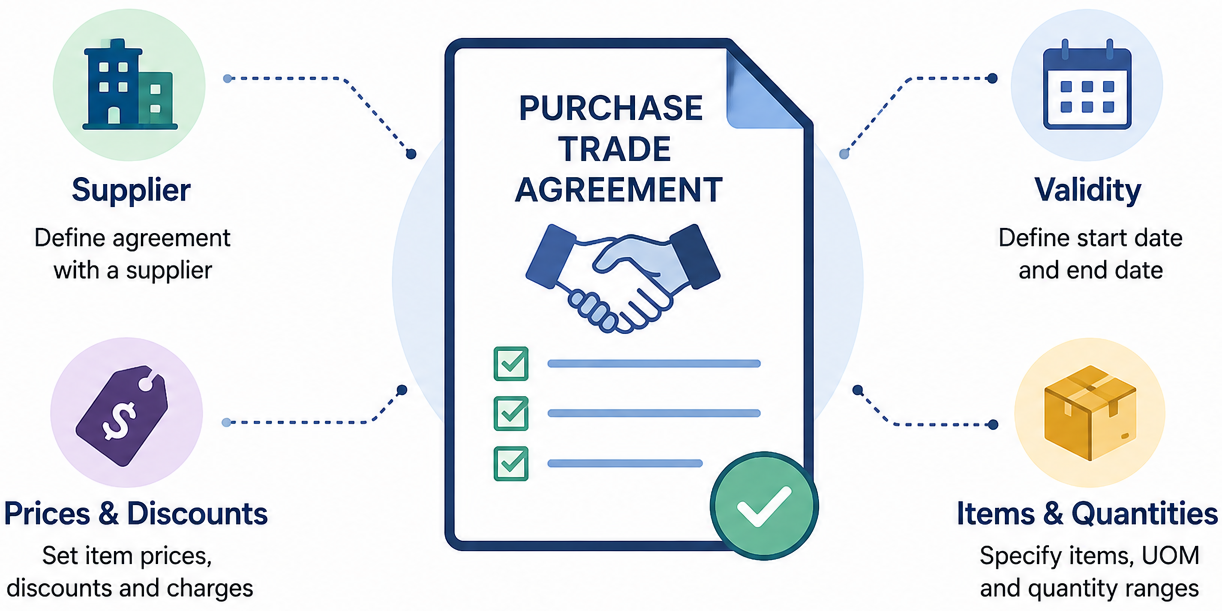
Trade agreement journals
You can use trade agreement journals to create and maintain trade agreements.
You can create new agreements manually or by copying and modifying existing ones. This capability is helpful if a company is starting without any agreements specified.
Use existing agreements to manage changes that occur, for example, in price or delivery days. You can copy or change prices and keep existing agreements as historical information so you have a record of transactions with prior prices.
You can create trade agreements and change them in a journal to post and update at a future time. This situation might apply if the journals must be approved before they're posted.
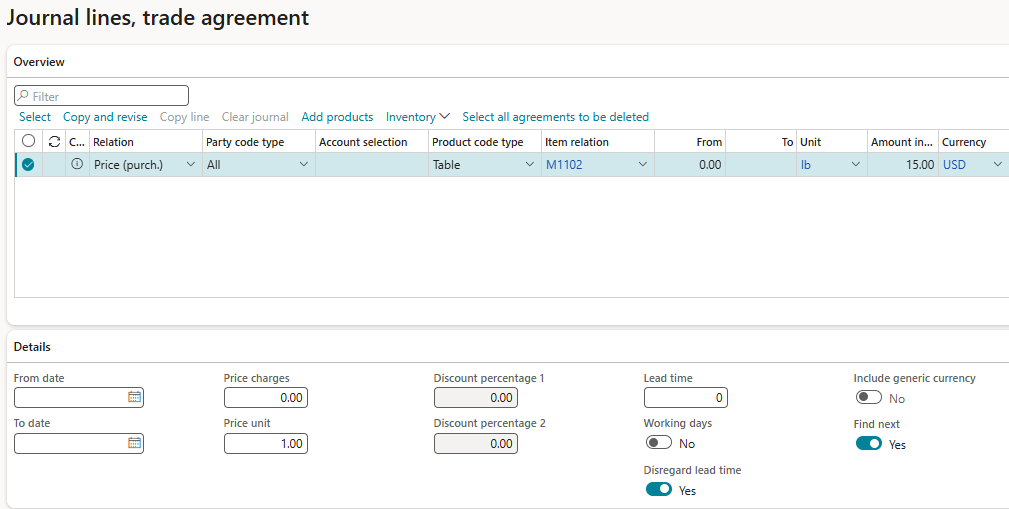
Purchase price
You can create purchase price agreements and use them for specific items, vendors, groups of vendors, or all vendors.
When you configure a trade agreement based on price, you can define prices for specific quantities of items, typically within specified ranges where the price is applicable. The defined prices can be valid for specific time periods. You can also define different prices for an item in different currencies. When you place orders, prices are picked based on the order currency.
For example, if multiple vendors use the same pricing, create the Vendor Price group under Procurement and sourcing > Prices and discounts > Vendor price/discount groups. The system supports one instance of the agreed prices under a specific group. You can then attach this group to individual vendors to use automatic pricing across the group.
Trade agreement parameters describe the trade agreement discount options.
The Discount field determines how the system calculates discounts in purchase orders, when both Line and Multiline discount agreements apply to the order line. The Discount field is the only parameter setting that directly applies to vendor trade agreements.
Line discounts
Line discount agreements provide a discount percentage or a discount amount. Line discounts apply if the quantity on the purchase order line meets the minimum and maximum quantity required by the agreement.
Multiline discounts
The multiline discount applies when one or more purchase order lines added together meet the discount requirement. The items must be in the same multiline discount group.
Total discounts
The system applies total discounts on the entire value of a purchase order. You can use this type of discount, for example, when a company wants to give a discount for single purchase orders that include a minimum of USD 3,000 worth of items.
Total discounts apply only to items that have the Total discounts checkbox selected on the Released products page on the Purchase FastTab.
Consider the following options when you're setting up discount fields:
- Line: Only a line discount is applied to the line.
- Multiline: Only a multiline discount is applied to the line.
- MAX (Line, Multiline): The system considers both the calculated line discount and the multiline discount and applies only the better of the discounts.
- MIN (Line, Multiline): The system considers both the calculated line discount and the multiline discount and applies only the lesser of the discounts.
- Line + Multiline: The discount applied to the order line is the sum of both the line discount and multiline discount. The two discounts are added, and then the discount is calculated.
- Line Multiline: The discount applied to the order line is the value of the Line discount added to the value of the Multiline discount, calculated based on the price minus the Line discount. The multiline discount is calculated after the line discount is deducted from the list price.
You can also define two discount percentages for a specific combination of item and vendor. In that case, both discounts are applied to the amount.
Interactive simulation
The following simulation walks you through the process of working with trade agreements in Dynamics 365 Supply Chain Management. You practice creating and managing trade agreement journals, configuring purchase prices, and applying discounts.
By completing this simulation, you gained hands-on experience with trade agreements and how they streamline procurement pricing and discount management in Dynamics 365 Supply Chain Management.