Describe purchase requisitions
A purchase requisition is an internal document that authorizes the purchasing department to buy items and services. A purchase requisition goes through the workflow process. After approval, you can generate the purchase order. Alternatively, you can initiate the request for quote process to finalize the vendor before creating the purchase order.
To create a purchase requisition, complete the following steps:
- Navigate to Procurement and sourcing > Purchase requisition > All purchase requisitions.
- Select New in the action pane.
- In the Create purchase requisition dialog, enter a requisition for sports equipment.
- Select OK.
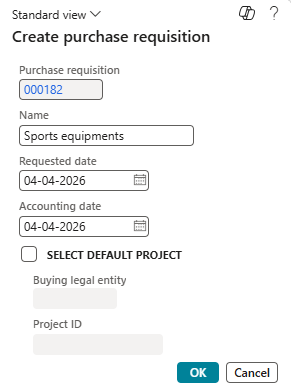
In the requisition line, you can select the procurement category or the item number. Workers who initiate the requisition might not know the item number. If you intend to procure a new item that isn't available in the item master, workers can select the procurement category followed by the product description.
To configure a procurement category, complete the following steps:
- Navigate to Procurement and sourcing > Procurement categories.
- Under CORP PROCUREMENT CATEGORIES in the USMF company, select Edit category hierarchy.
- Select New category.
- Enter SPORTS.
- Select Save.
You can create or edit a procurement category, but it isn't available in a purchase requisition unless you configure the new category in the procurement policy.
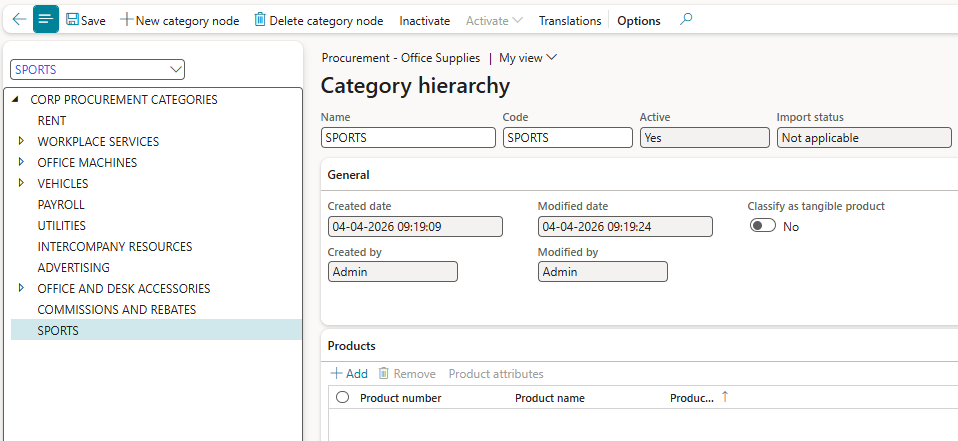
To make the SPORTS category available in purchase requisitions, complete the following steps:
Create a new purchase requisition line and open the Procurement category lookup.
Confirm that SPORTS isn't available yet.
Navigate to Procurement and sourcing > Setup > Policies > Purchasing policies.
Select Procurement policy USMF and then select Edit.
On the Policy rule FastTab, select Category access policy rule.
Select the active policy for that rule.
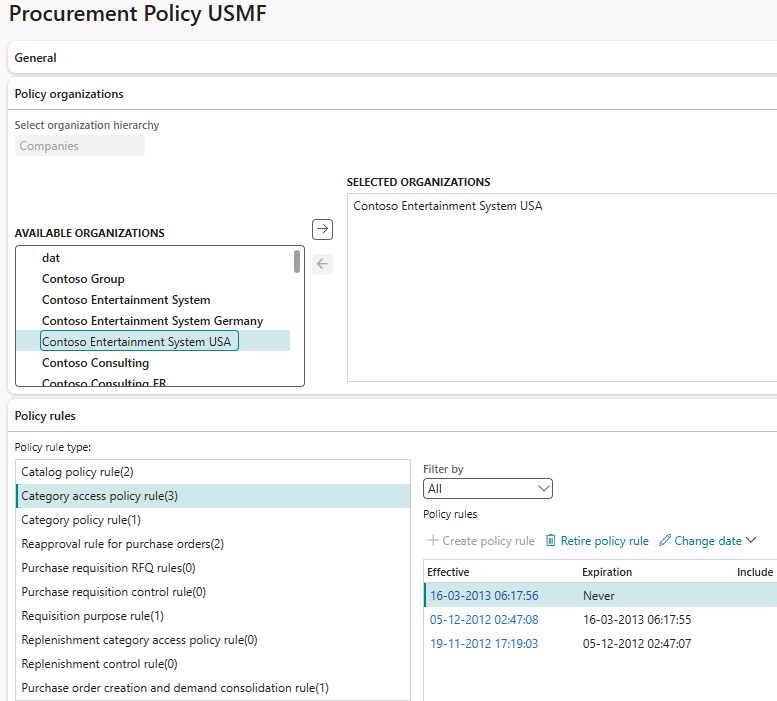
From the available list of categories, select SPORTS and move it to the selected list of categories.
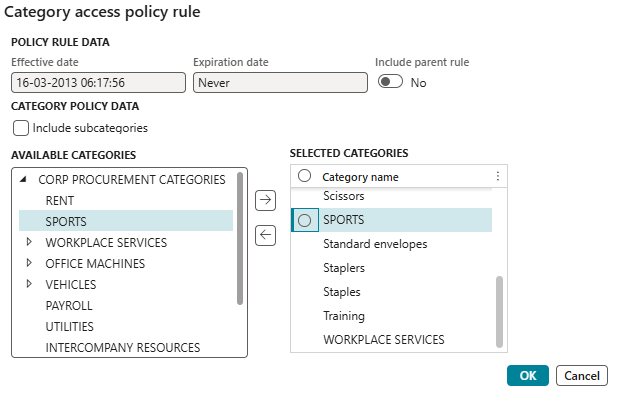
- Navigate back to the purchase requisition line and select the SPORTS procurement category.
When you select the procurement category, the Item number field becomes read-only. However, you can manually enter a product name if you plan to procure a new product that isn't yet in the item master.
If you select the item number instead of the procurement category, only items associated with a procurement category are available for selection.
To add and publish product 0001 for this category, complete the following steps:
- Select product 0001 and release it to the USMF legal entity.
- Select the SPORTS node of Procurement category.
- Add product 0001 on the Products FastTab.
- Navigate to Procurement and sourcing > Catalogs > Procurement catalogs.
- Select the existing catalog Office Suppliers USMF.
- Confirm that the SPORTS node is available and product 0001 is listed on the Products FastTab.
- Select Publish catalog.
- Navigate back to the purchase requisition line and confirm that item 0001 is available in the lookup.
After the purchase requisition is created, submit it to the workflow. Configure the workflow in the Procurement and sourcing > Setup > Procurement and sourcing workflows pages. Two workflow types are available for purchase requisitions:
- Purchase requisition review
- Purchase requisition line review
After the requisition is created, you can process the RFQ from the requisition. When a quotation is approved, a purchase order is automatically created for the selected item. If you already have a fixed vendor for the item, you can bypass the RFQ process. In that case, approving the purchase requisition automatically creates the purchase order.