Describe the fulfillment process
Inventory reservations
Reservation is an important step in sales order processing. You can automatically reserve inventory quantities for a specific sales order. This means that reserved inventory can't be withdrawn from the warehouse for other orders unless the inventory reservation, or part of the inventory reservation, is canceled.
You reserve inventory for several reasons:
First ordered, first delivered for customers to get available items in the same order in which they place their orders.
Shortage of items due to a long or unknown delivery time from the vendor. You might want to make sure that certain customers or orders get delivery of the first-available items.
Certain customers and certain types of orders that have priority for delivery.
Items with serial or batch numbers to mark certain items that have been or will be delivered to specific orders.
Specially ordered items reserved for certain orders.
You can reserve inventory automatically when you create a new order line, or reserve inventory manually on individual orders. You can reserve only stocked products. You can't reserve services as there's no on-hand inventory. You can reserve both physical on-hand inventory and ordered but not yet received inventory. If you reserve a larger quantity than the on-hand inventory, you may get a display message stating that you can't reserve such a large quantity. If a company reserves more items than are available, the shortage is covered the next time items are available for delivery.
You can select the Reservation button from the Sales line > Inventory button to reserve the item. On the Reservation page that appears, enter the quantity you want to reserve.
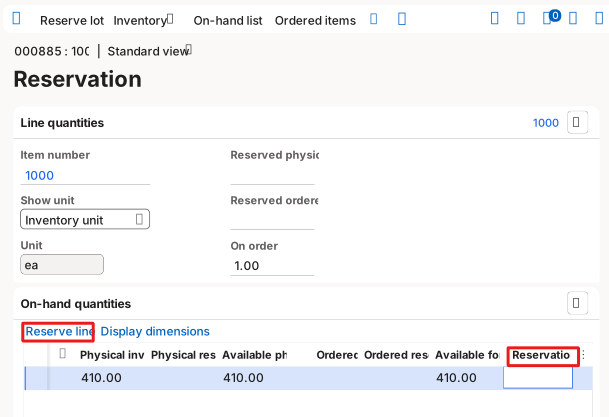
When the reservation process is complete, the amount entered in the Reservation field appears in the stock as reserved inventory.
Picking list
Picking items from inventory is an important process of inventory and warehouse management. Whenever you have an outbound transaction, you may have a requirement for picking. This requirement may include sales orders, transfer orders, raw material issues for production or purchase returns.
To pick items for sales orders, you can navigate to the Pick and pack action pane and select Generate picking list. If you want to print the picking list, select the Print picking list checkbox. You can update the quantity to be picked and select OK to post the picking list. The picking process doesn’t have any impact on the stock.
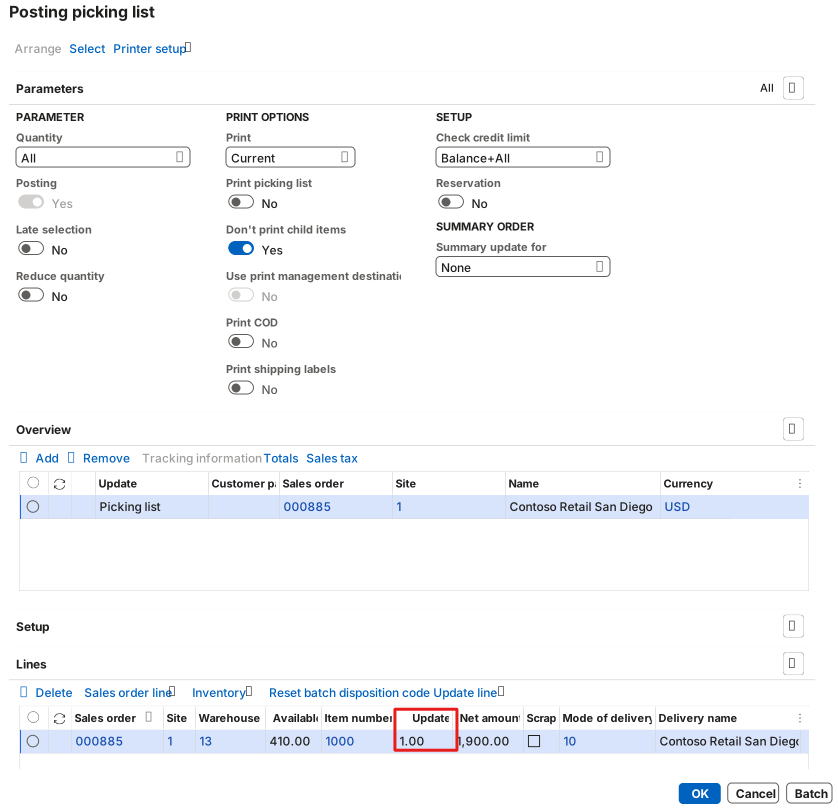
If you want to notify the warehouse to pick items, you can handle picking list registration without using the warehouse management functionalities.
Output orders
Output orders are used to link sales order lines and transfer order lines with the outbound picking processes that use picking lists.
The generation of picking lists from sales or transfer orders automatically results in the creation of corresponding output orders and shipments. Everything on a picklist is in a single shipment, but multiple picklists can go to the same shipment. You can process the transfer order shipment or the sales order packing slip from the shipment.
You can set up outbound rules to define how the program should handle the outbound process, and then use these rules to control the shipment process. You can also use the rules to control in which stage of the process a shipment is sent.
Packing slip
A packing slip is a process that delivers the ordered items to the customer. The simplest way of processing a packing slip is from the Sales order page, where you can navigate to the Pick and pack menu in the action pane. You can select the Post packing slip button to deliver the item. For a partial delivery, you can change the delivered quantity in the Update field and select OK. Packing slip posting impacts the stock, which gets reduced by the delivered quantity.
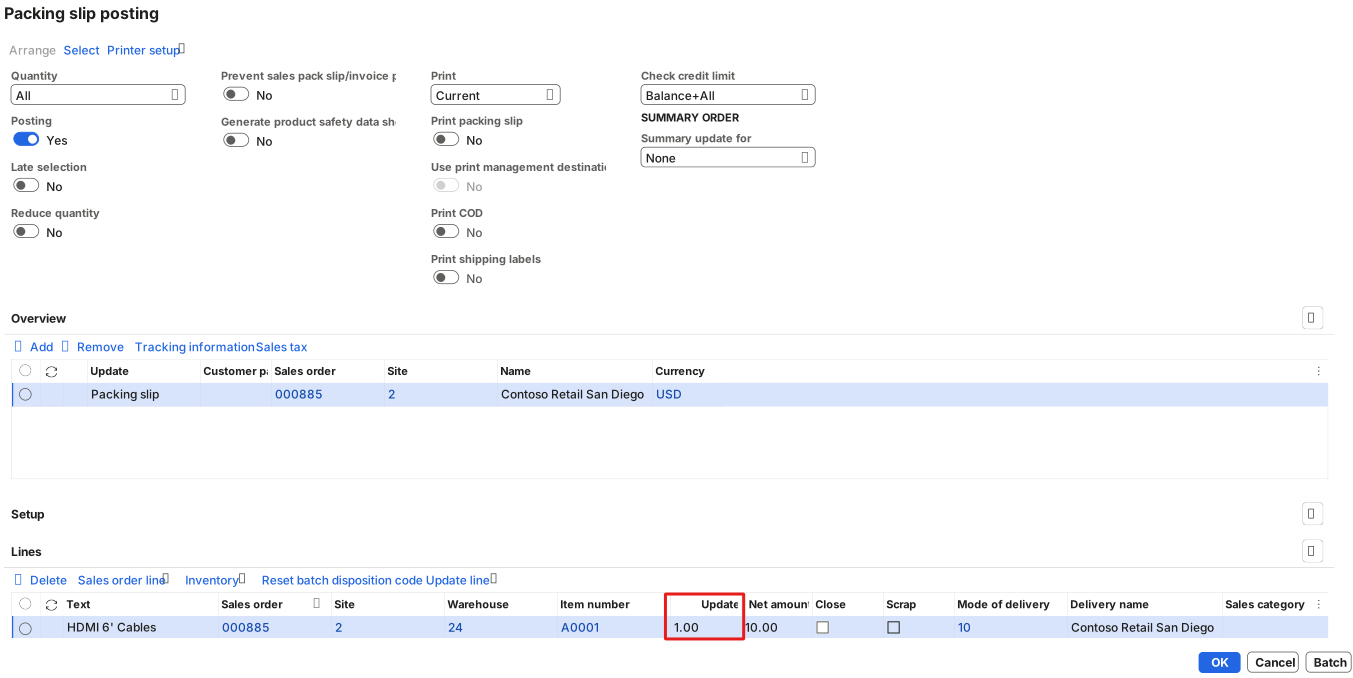
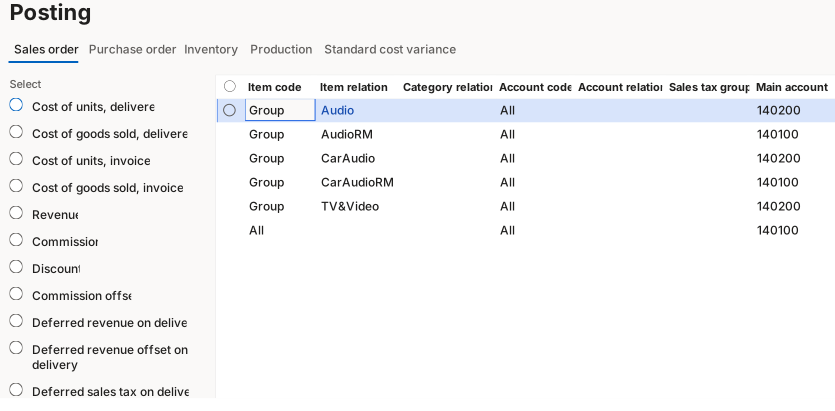
You can select Pro-forma packing slip to print a packing slip without posting it. It displays how the packing slip looks like without posting it. When you post a packing slip, subledger accounts are updated based on the posting profile configuration. You can find the posting profile configuration on the Inventory management > Setup > Posting > Posting page. On the posting page, you can configure the posting profile under the Sales order tab.
You can post packing slips for shipments that are picked using warehouse management. This procedure assumes that you already created output orders, posted picking lists, and printed picking slips. When you post the packing slip, information about the sales order and shipment is transferred to the shipping carrier software.