Design your data structure
Rarely do you start an application with no existing data. When designing your data structure, first understand where the data is located that the app uses.
You can import existing data into your application or integrate it into your application by using an existing system or data source.
Find and organize the required information
Typically, you import existing data when your application replaces an existing solution, whether it's an older application or static data from a spreadsheet. Review which data is available and decide how much of it the application requires.

Perhaps the data that you're working with is more than 10 years old, but your users only need access to the last three years' worth of data. At that point, it's beneficial to clean the data before you import it into your environment. It's also a good time to remove duplicate records, inaccurate records, and other data that are irrelevant to the tasks that users complete in the application. Additionally, analyze the contents of legacy fields and identify any that are rarely used. If these fields aren't needed in the new system, it might not make sense to migrate data from them.
Cleaning up data doesn't just display relevant data to users, it also helps you identify data storage capacity. Exceeding storage capacity is one of the greatest setbacks that an enterprise can encounter during the deployment of Microsoft Power Apps.
Analyzing the existing data also allows you to identify columns or fields that you need to add to your app. You can create a plan that describes which origin fields match which destination fields and how these fields appear after migration.
Integrate with existing systems and apps that people already use
Apps that you create with Power Apps have two ways to integrate with existing data.
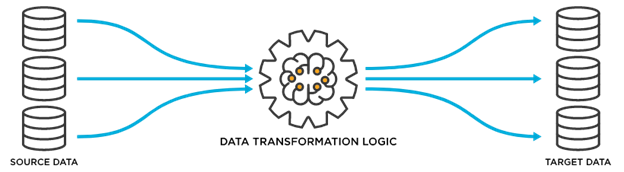
One way is by using a connector, which you use to connect directly to a data source. The other method is to use a dataflow, which copies a snapshot of the data.
Connector - A connector is a feature in Power Apps where you can connect to various systems and sources, such as SharePoint, SQL Server, or Microsoft 365, and directly retrieve data from them or save data to them. For more information, see Overview of canvas-app connectors for Power Apps.
Dataflow - Dataflow is a feature in Power Apps where you can extract, transform, and load data from another system to Microsoft Dataverse or Microsoft Azure Data Lake Storage. Unlike a connector, a dataflow fetches data in a scheduled batch. Instead of retrieving the data as it is from the data source, you can use Power Query Online to manipulate, cleanse, and transform data before you store it to the target storage. For more information, see Self-service data prep with dataflows.
The method that you choose depends on your use cases and how data needs to be handled. The following table lists some items that you can use for comparison.
| Item to compare | Connectors | Dataflow |
|---|---|---|
| Freshness of data | Real-time | Static or snapshot |
| Direction | Bidirectional | One direction (from origin to Microsoft Dataverse) |
| Modify existing data? | Yes | No |
| Example use cases | Production order, timesheet, sales quotation | Customer database, past invoices, employee list |
Depending on the data that you need to access, you might need more technical assistance. When you need to work and integrate with existing enterprise systems, such as SAP and Oracle, seek cooperation and support from your IT administration team or the team that's in charge of the system.
For more information, see Working with enterprise systems.