Assign lessons to learners
You can choose the way you want to assign lessons to students. You can share it using a link or a short code, and you can assign it through a Microsoft Teams assignment or through your chosen LMS, if it's connected to Microsoft Teams through LTI integration.
Assign a lesson using a share link
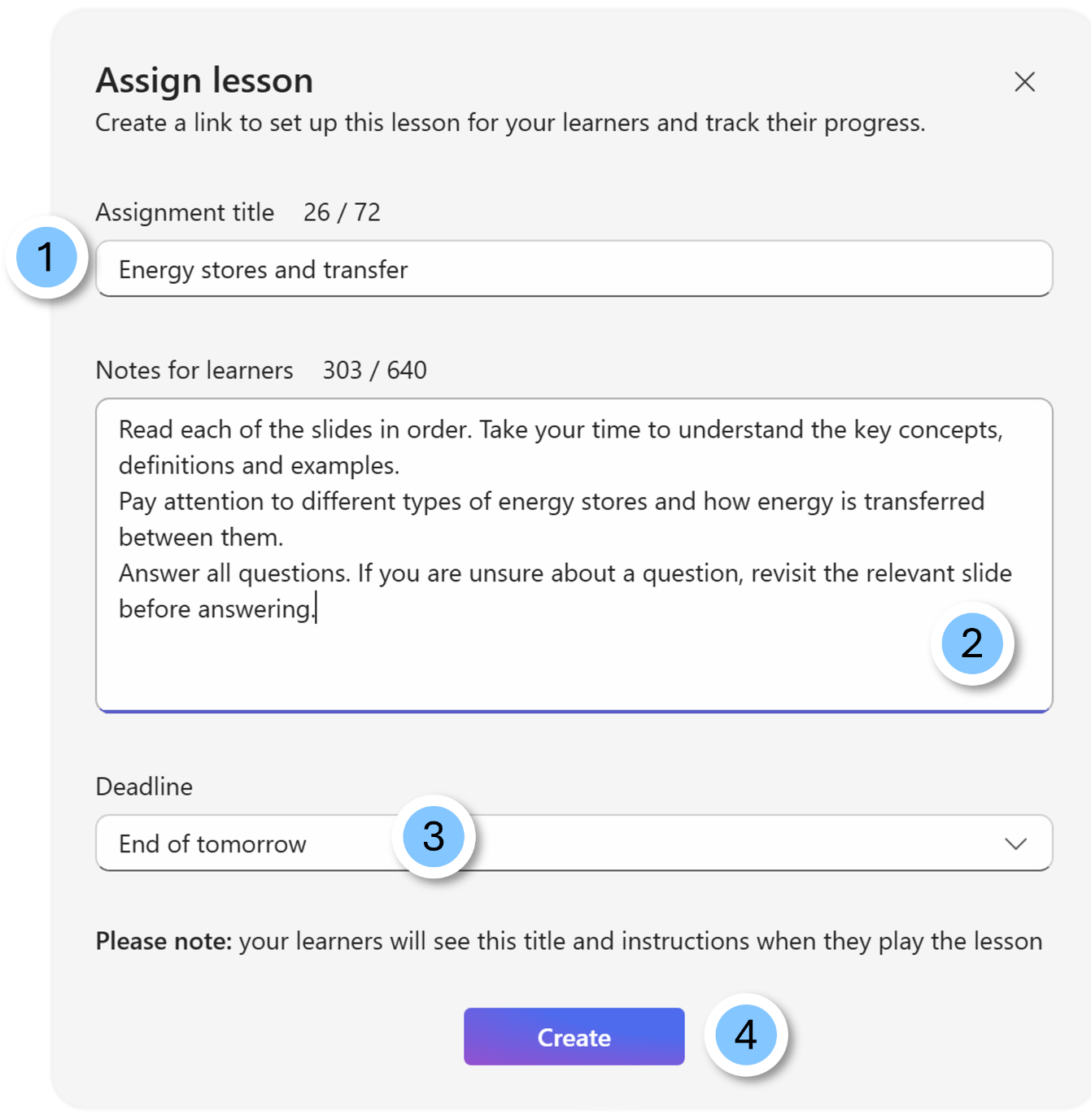
Select the lesson from the My lessons gallery and select Use this lesson. You can also use the ellipsis menu on the lesson tile in the gallery and choose Assign.
- Give the lesson a title
- Add any useful notes to help learners with the lesson
- Set a deadline for lesson completion
- Select Create to assign the lesson to learners.
Note
The deadline for lesson completion is an indication of the time available to students to complete the lesson. It isn't a closing date. The lesson remains open and accessible after this date.
Invite students to the lesson with a link or a code
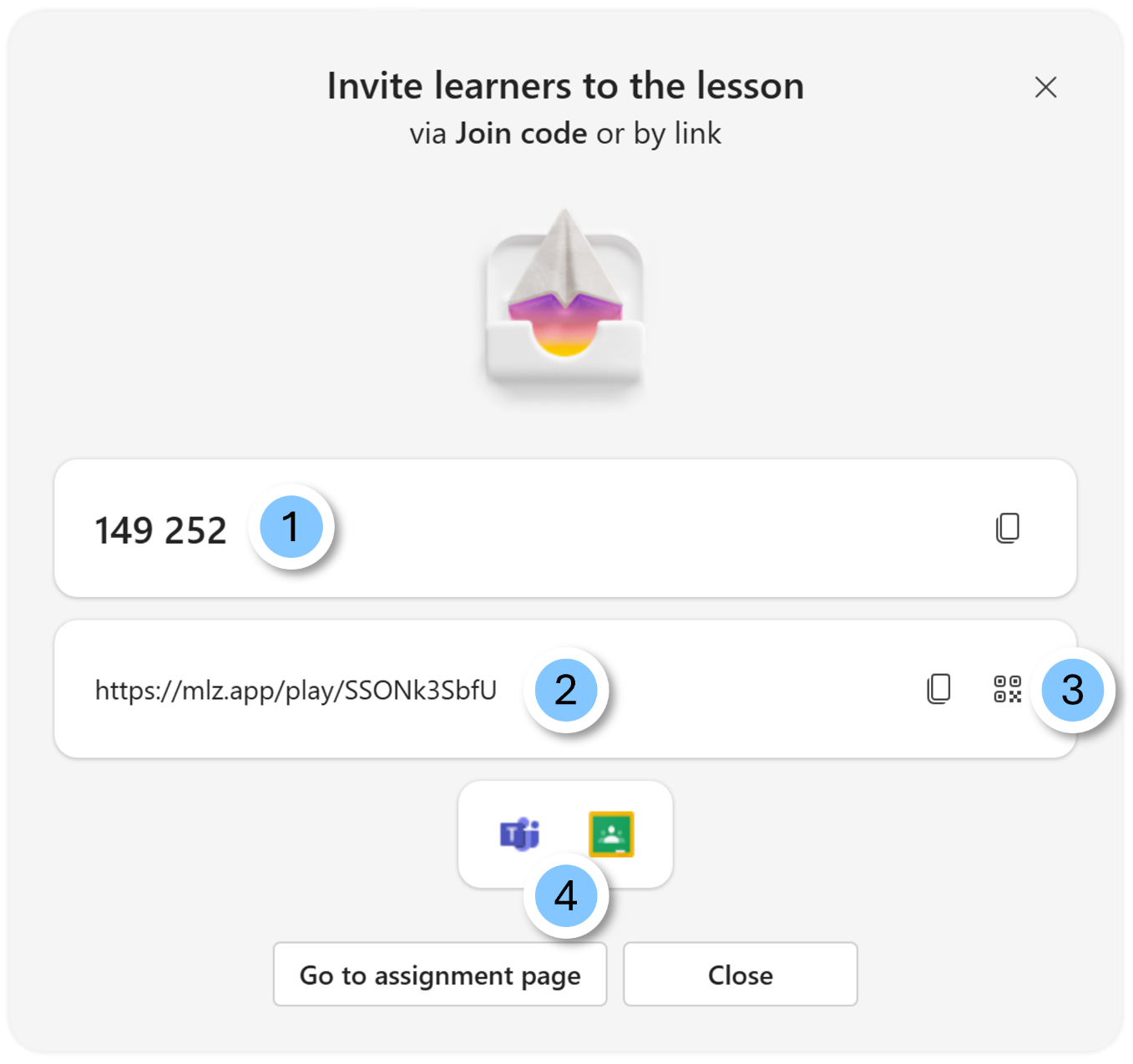
Once you assign the lesson, you can share it with your learners with:
- A short code that students input into the Learning Zone app
- A shareable link
- A QR code (useful for students using devices with cameras)
- A shared link in Teams or Google Classroom
Share a lesson as an assignment with Microsoft Teams (or other learning management systems)
You can share lessons created in Learning Zone as an embedded element in a Microsoft Teams assignment. This provides a wrap-around experience, embedding the Learning Zone interface in the assignment and connecting the lesson to the grades function in Microsoft Teams classes.
To set a Learning Zone lesson using a Microsoft Teams assignment:
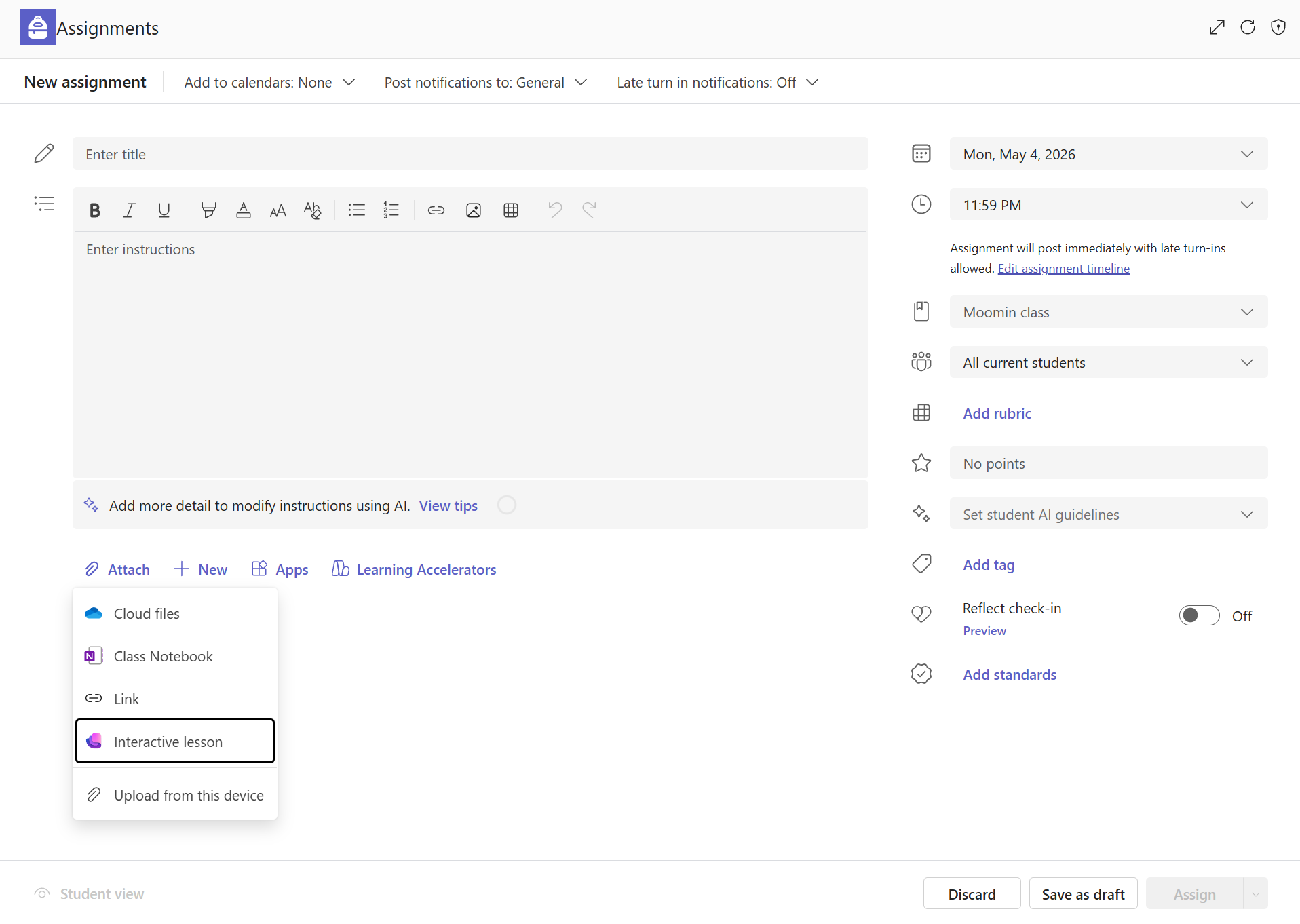
- Navigate to Microsoft Teams.
- Create a new assignment from scratch.
- When adding content to the lesson, choose Interactive lessons from the list of choices to attach.
- Select the lesson you want to assign.
Note
To assign a Learning Zone lesson in a Teams assignment, make sure you first assign or copy the lesson. You know a lesson is ready when you find it under the Lessons tab.
Once you attach the lesson to the assignment, you select and review it from the assignment window to explore the lesson content and flow.
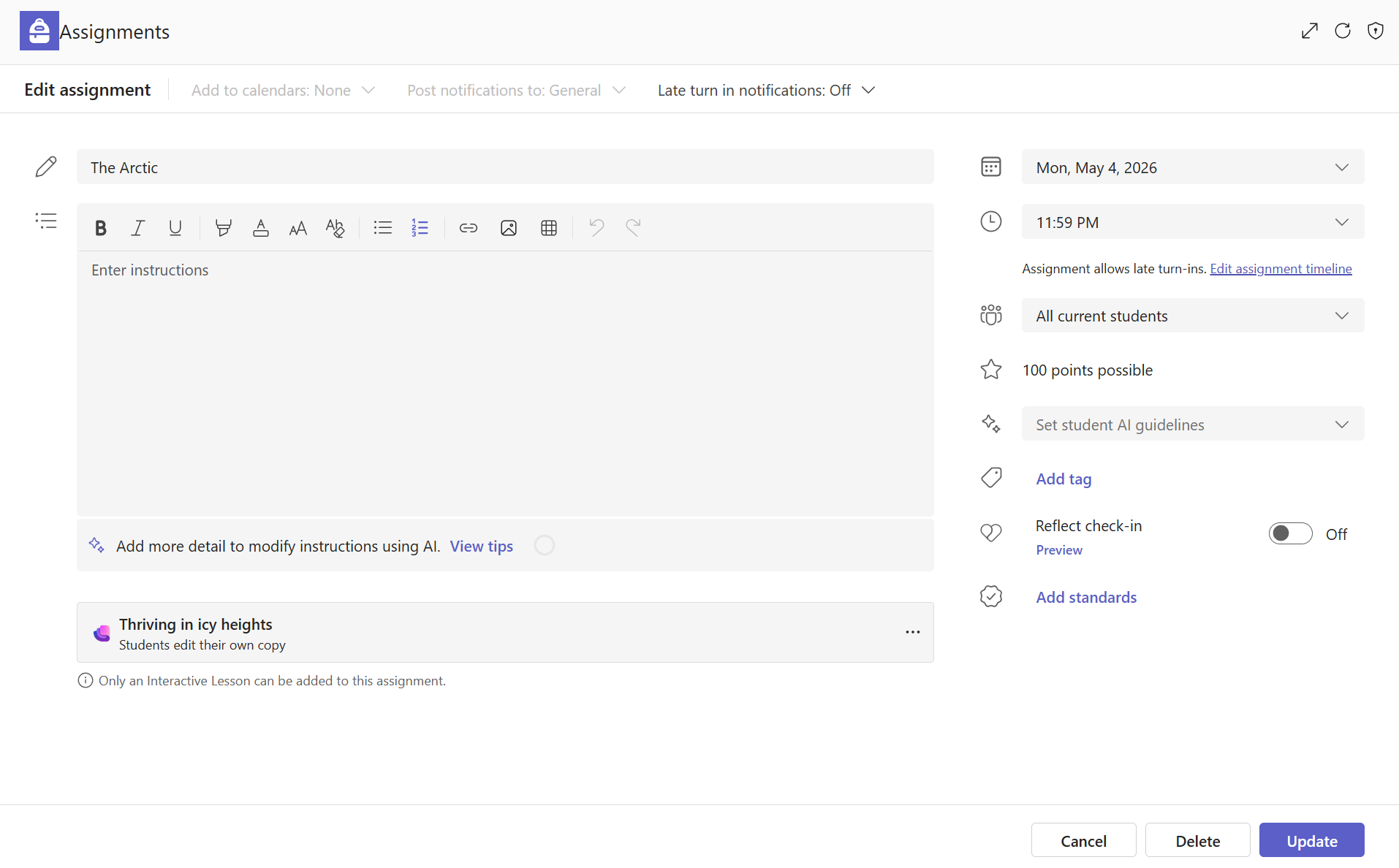
Once you fill out the assignment details, you can assign the lesson to students. It's connected to the assignment and linked with the Grades tab in your class team.
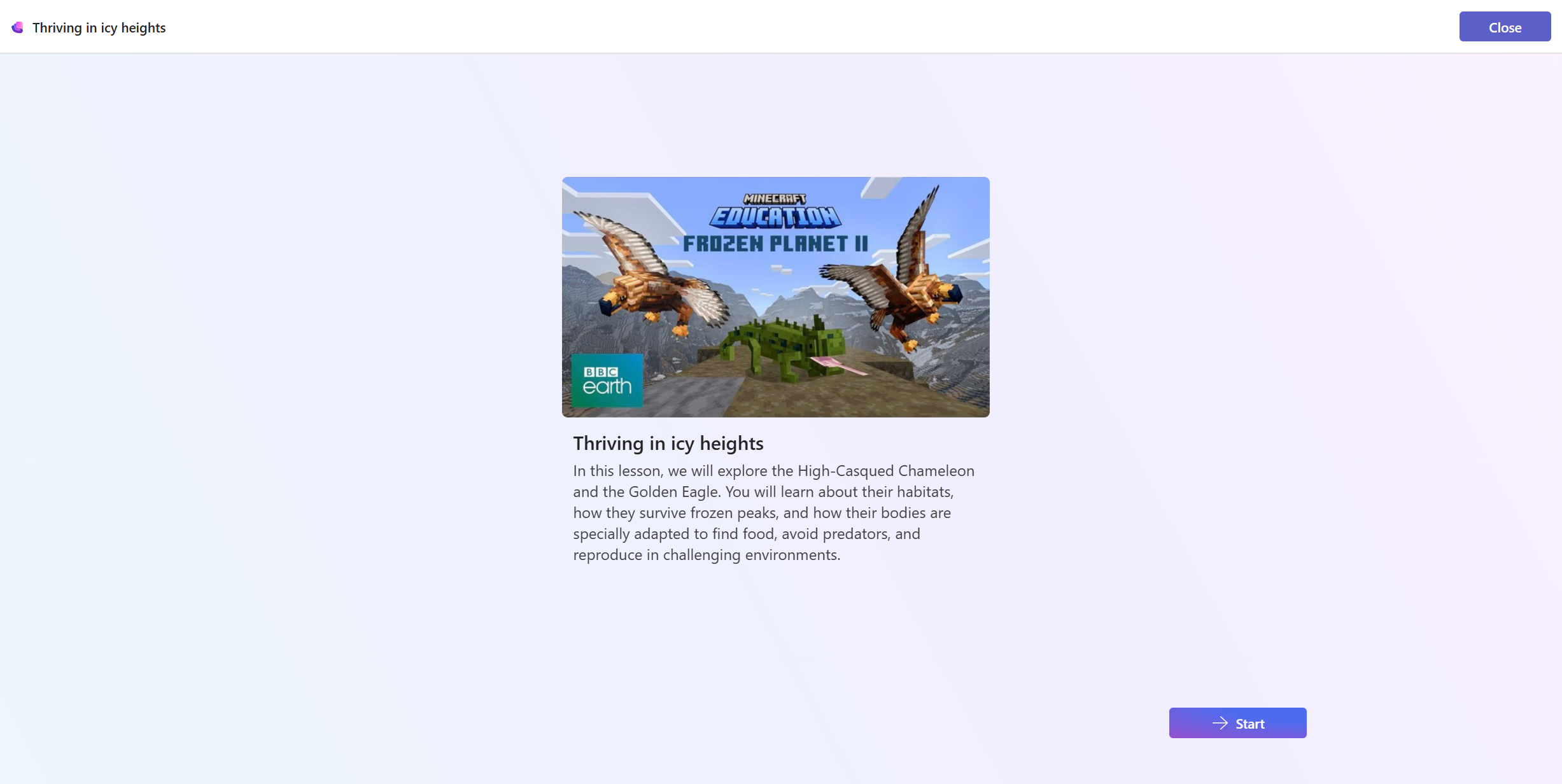
Students access an embedded view of the lesson from the Teams assignment, without the need to open a separate window and creating a seamless workflow.
Other learning management systems
If you use a learning management system connected to Microsoft Teams, you can set Learning Zone lessons through your normal assignment setting process, ensuring you select Microsoft Education when creating a new assignment.
Find more information about supported learning management systems.