Create a Kahoot! with Learning Zone
With Microsoft Learning Zone, you can create a Kahoot! quiz, which you can then connect with your Kahoot account to edit and share. Creating a Kahoot quiz works on a similar process to creating interactive lessons. You're in control of outlining the topic, the level of learning, and specific aspects to cover. Learning Zone saves time by creating the quiz for you, ready to edit, adapt, and share with learners.
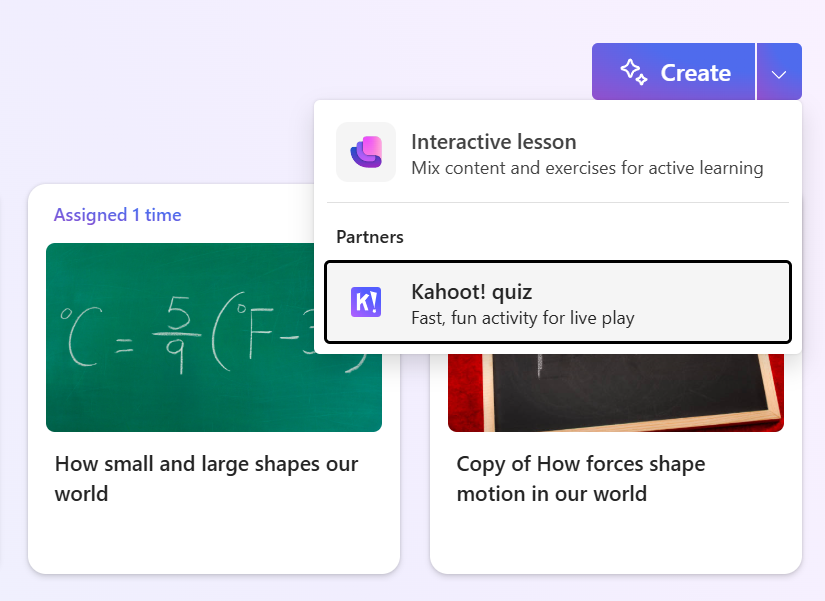
On the Home page, select Create and choose Kahoot! quiz from the menu.
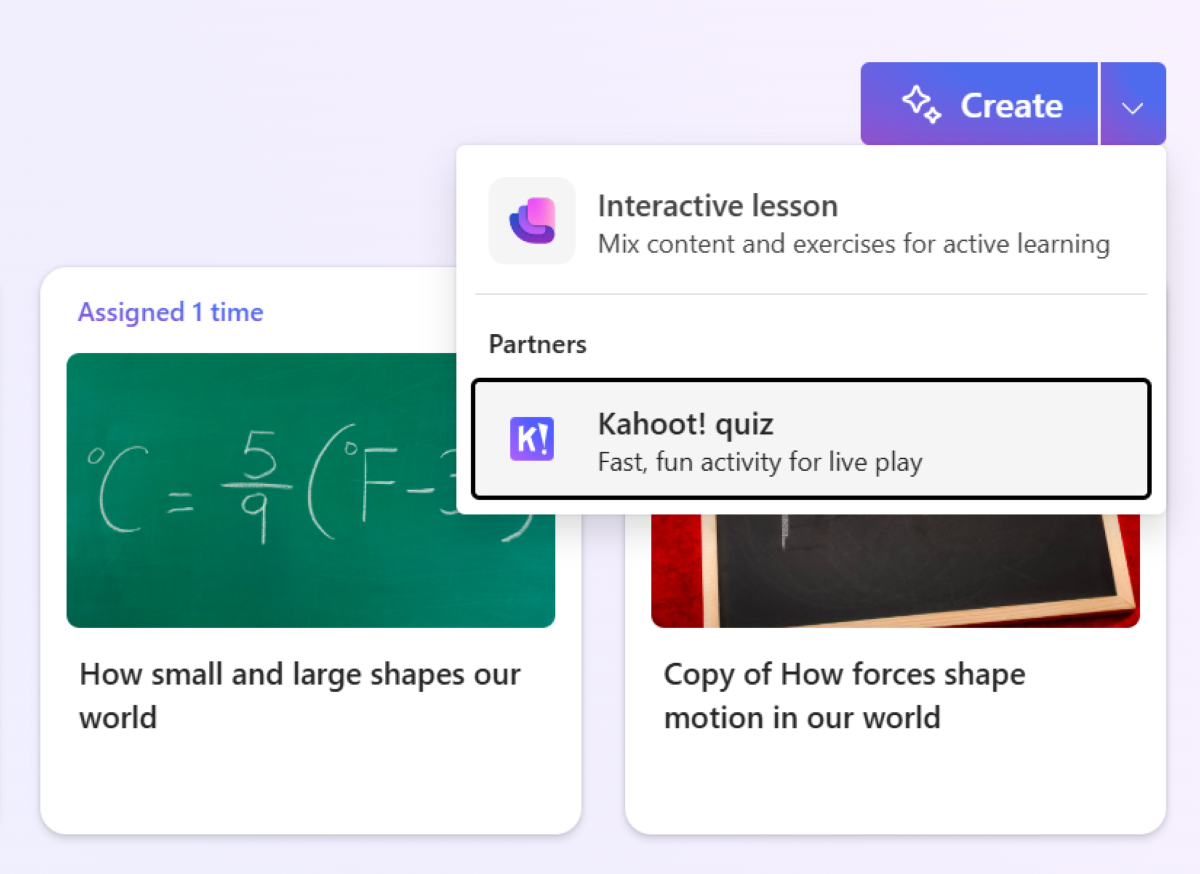
You're asked to review the outline for the quiz before it generates the Kahoot To edit, select the text and revise it. Customize it by adding more detail so Learning Zone can fine-tune the lesson. When you're happy with the outline, select Generate quiz.
Tip
If you don't have an existing Kahoot account, create one first at https://kahoot.com so you can connect when your quiz is created. If you prefer, use single sign-on with your Microsoft account.
Learning Zone generates a Kahoot quiz that you can link to your account by selecting Open.
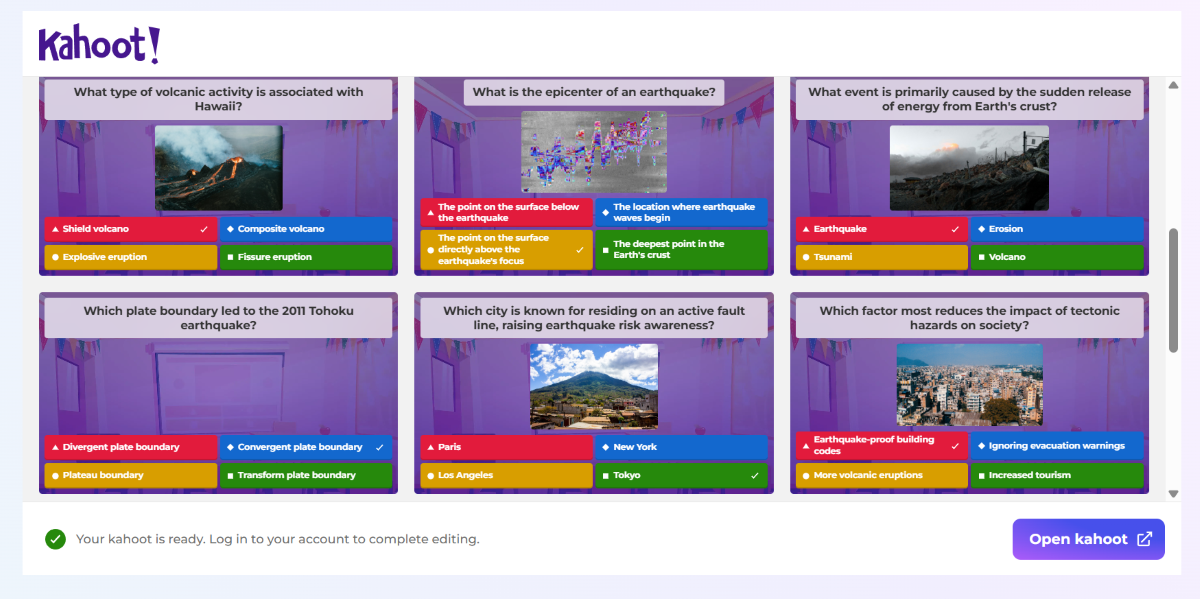
You're directed to sign in to your Kahoot account. Use the same sign-in method used when you created the account.
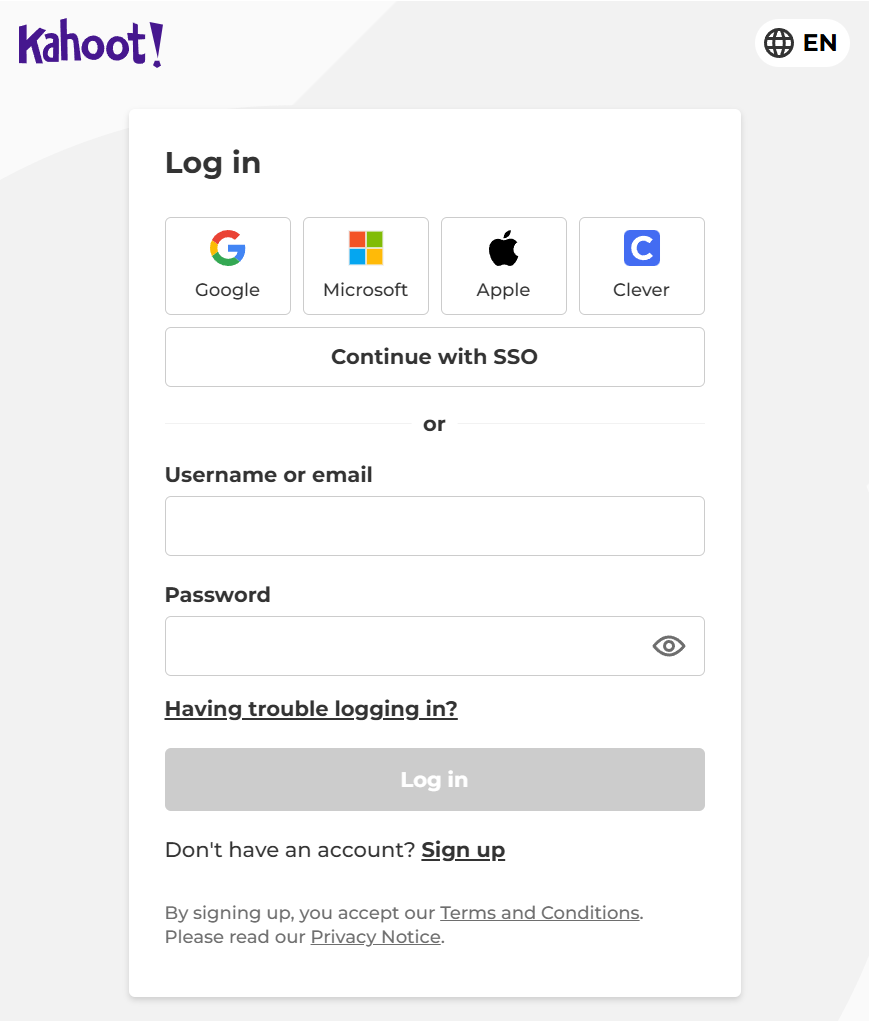
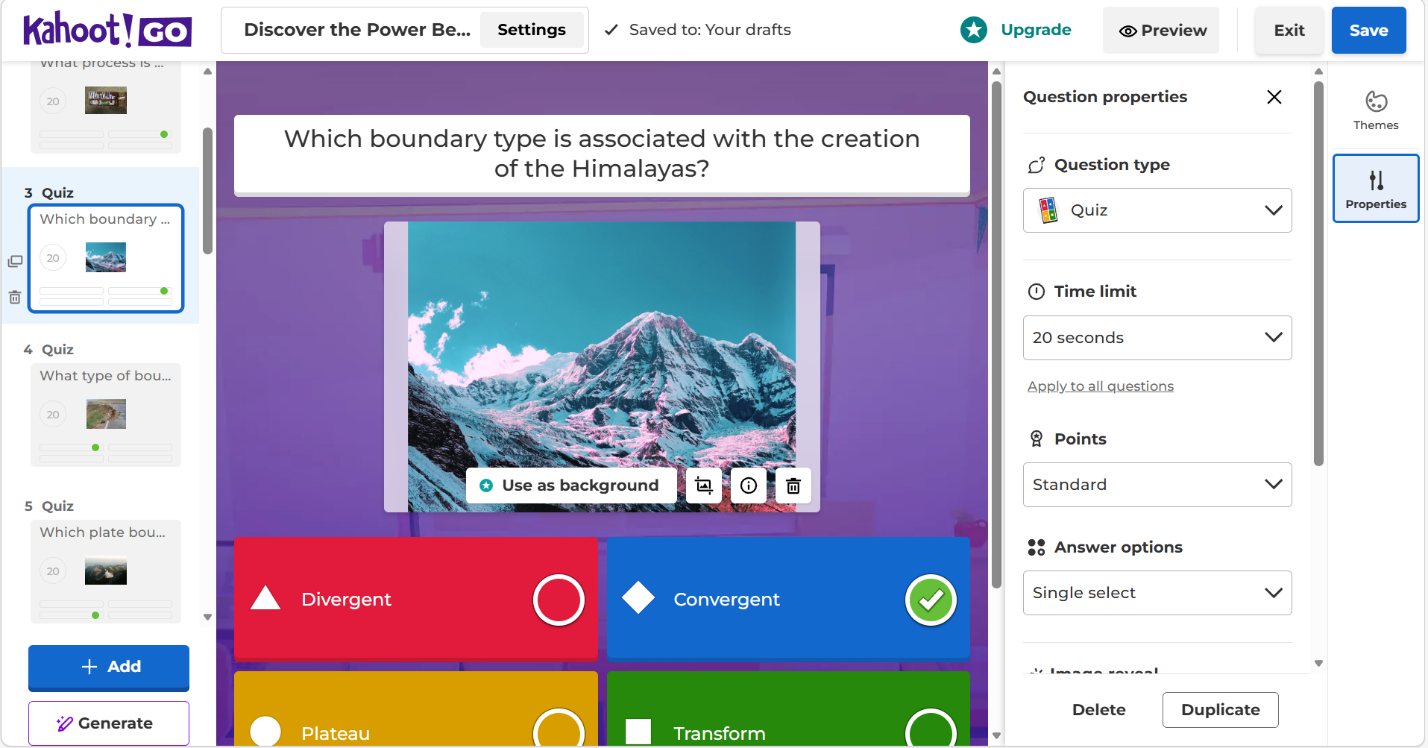
Once you sign in, your quiz is saved in your Kahoot account. From there you can edit the questions, images, settings, and question order.
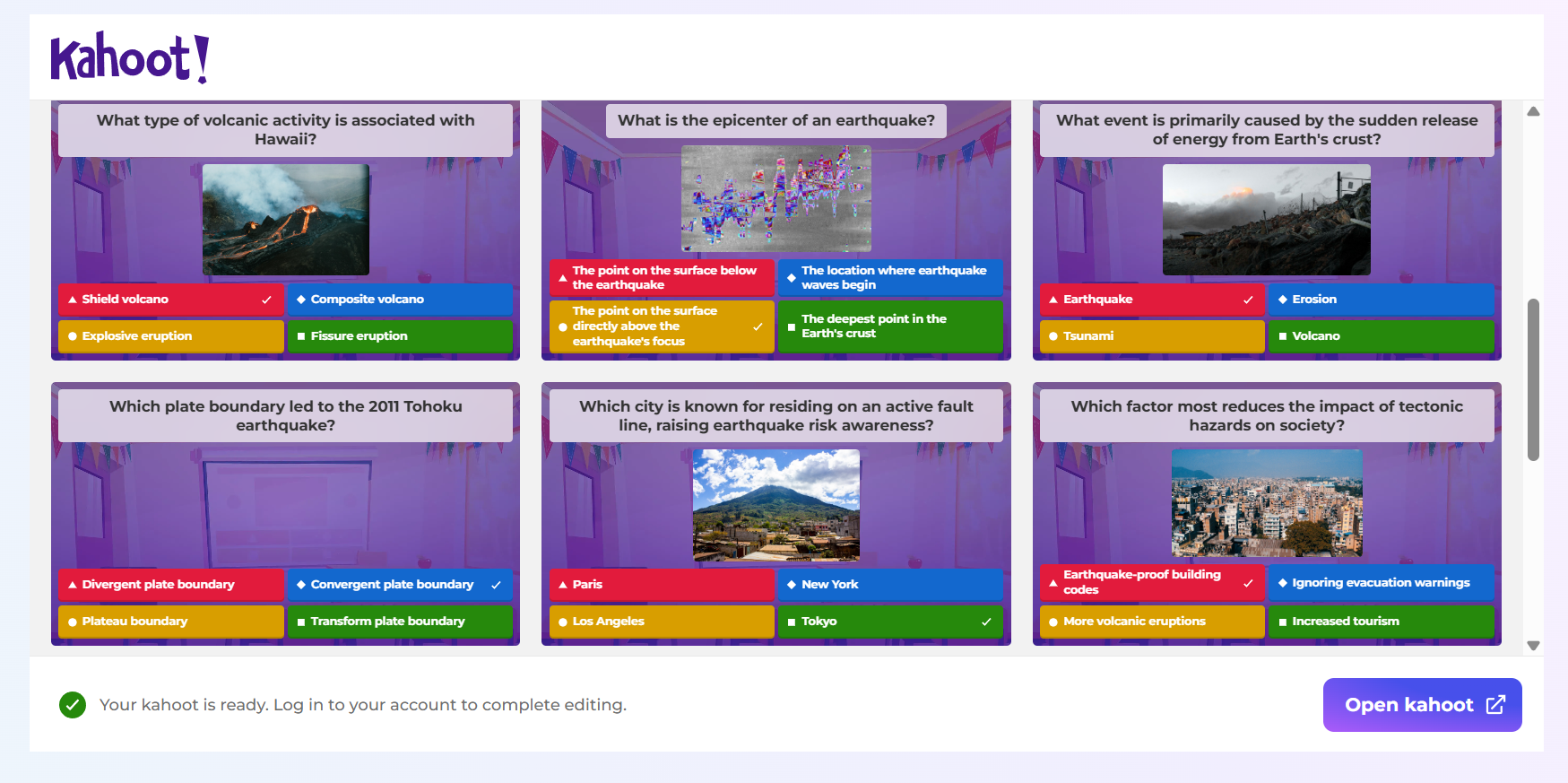
You can now set your Kahoot quiz using your existing workflow.