Create and refine a lesson
Creating lessons using your own prompts and resources is simple and intuitive. At the end of the process, you have a classroom-ready, easily distributable interactive lesson.
To create a lesson with Microsoft Learning Zone:
Using a Copilot+ PC, select the Create button in the Learning Zone lobby.
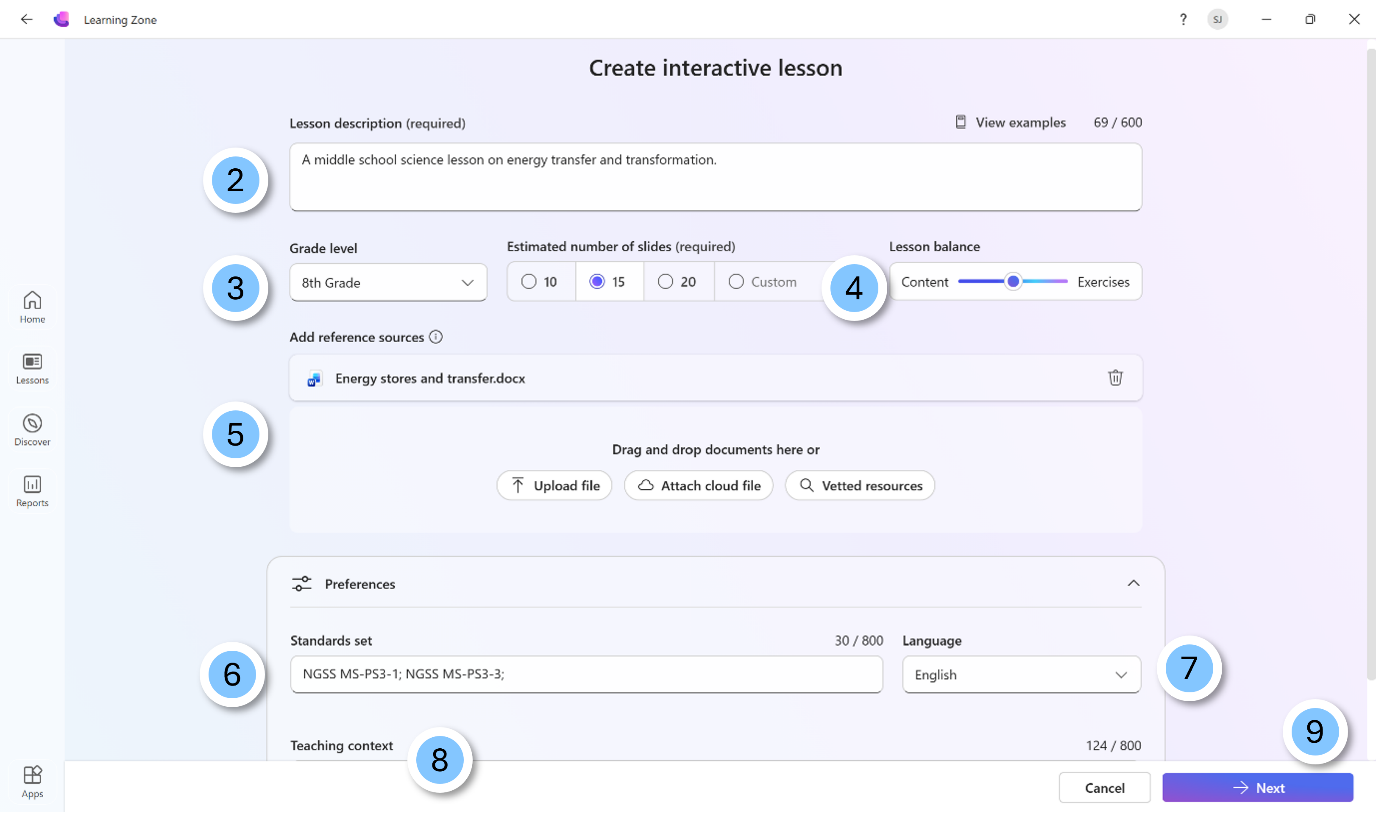
Describe the lesson using natural language. Descriptions may include a topic, relevant standards, prior knowledge, learning goals, or expected standards, for example.
Tip
Include as much detail as possible, so that the AI tool drafts a relevant response.
Assign a grade level.
Select the desired number of slides and use the slider to set the appropriate balance of content versus exercises.
(Optional) Attach content like lesson plans, unit plans, syllabus, national or state curriculum materials, from cloud files or a computer, or explore a selection of vetted resources, to add context.
(Optional) Apply the relevant standard set for your topic. These can be state or national curriculum standards, or the core lesson objectives for that specific topic.
Select the desired language (Choose from English, English (United Kingdom), Spanish, Spanish (Mexico)).
(Optional) Add teaching context, such as tone of voice, learner needs, or skills to prioritize.
Select Next to generate the lesson outline.
The AI tool works with the ideas you shared and generates an outline based on the number of slides you requested.
Refine a lesson outline
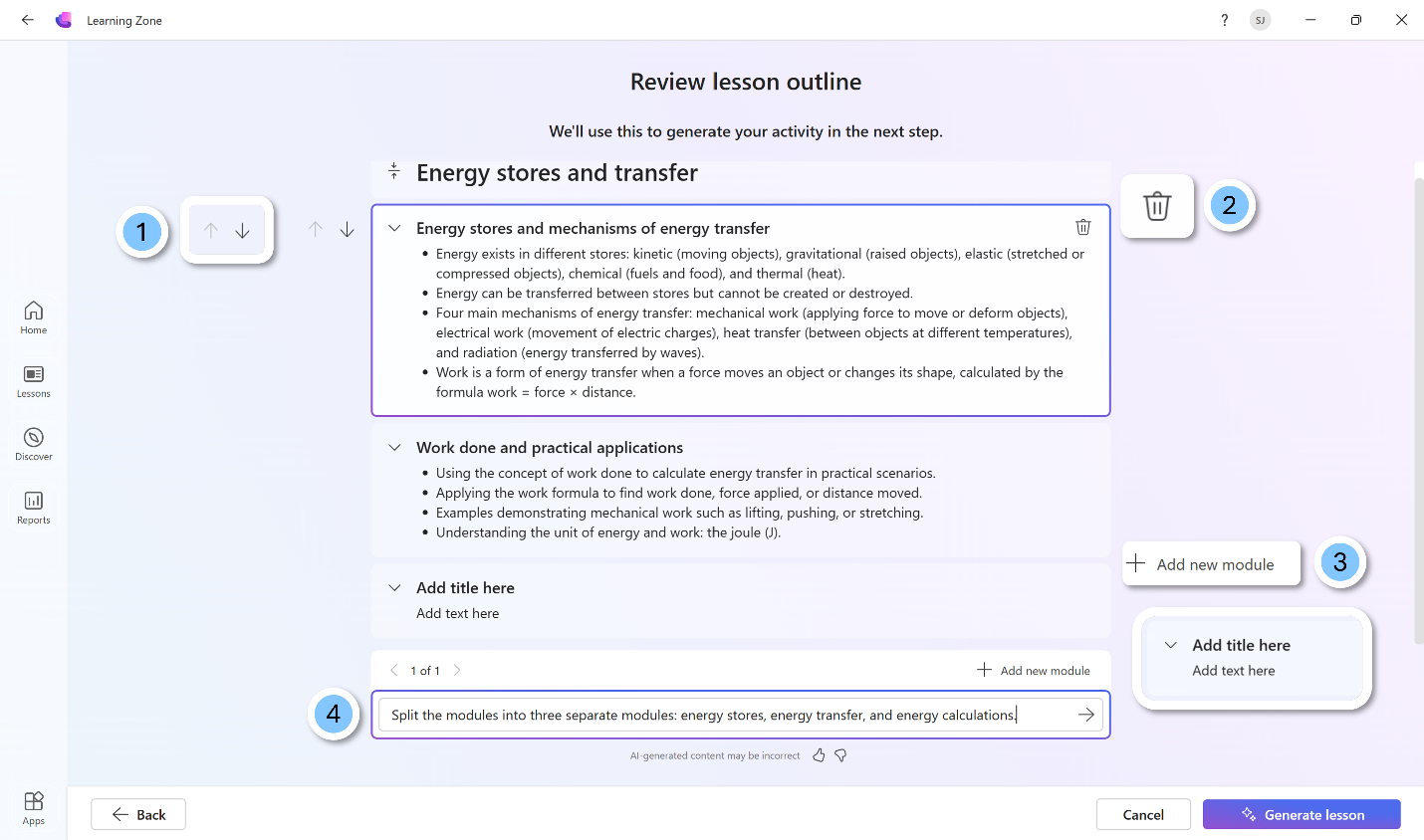
Learning Zone creates an overview showing the modules included in the lesson. As the educator, you can review this lesson outline to ensure it meets the brief for your topic before generating the lesson. You can make changes by:
- Changing the order of the modules
- Deleting a module
- Adding a module
- Refining the outline using natural language instructions
Once you're satisfied with the overall outline, select Generate lesson.
Lesson flow
The lesson Learning Zone generates includes a mix of content slides with images and a variety of interleaved exercises.
The lesson flow is adapted to each student:
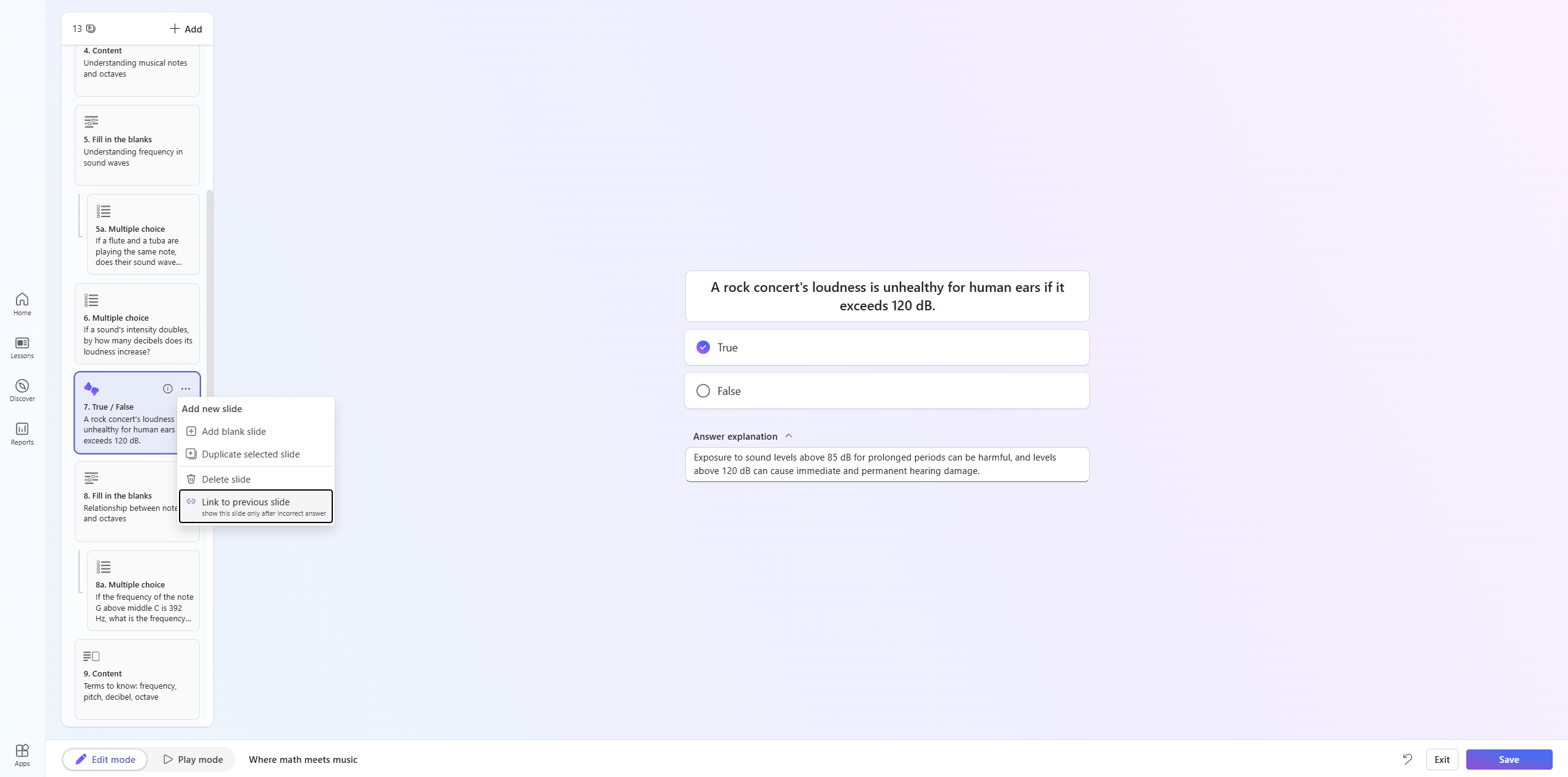
- Each exercise is a pair of a main exercise and a conditional exercise. These pairs of exercises are based on the same concept. Students see the first exercise during the lesson and only receive the second if they answer incorrectly. This allows you to reinforce specific knowledge areas while giving each student a path that fits their level. Teachers can edit them or add more to shape how the lesson responds to student answers.
- At the end of the lesson, students can retry questions they answered incorrectly, creating a learning loop that helps reinforce understanding where it is needed.
Review and refine generated lessons
Educators are in full control of the lesson content and can make changes to any generated lesson element produced by Learning Zone. This includes adjusting the order of slides, editing content, adding new content and deleting or duplicating existing slides and exercises.
Make structural changes
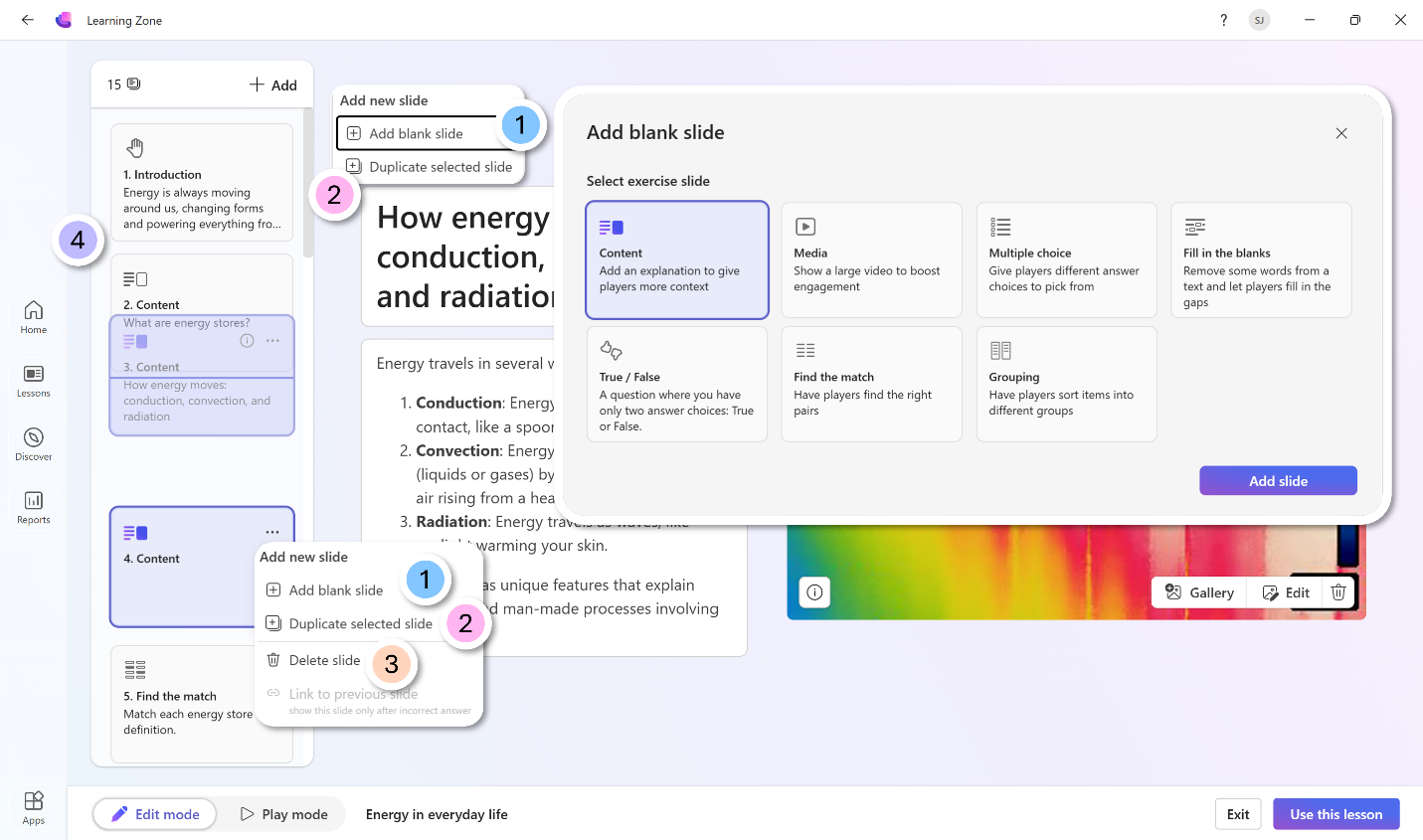
- Add a blank slide. This can be either content slides or you can choose from a range of exercises. You can do this from the Add button or from the ellipsis on an individual slide.
- Duplicate the selected slide. Like adding a blank slide, you can duplicate a slide using the Add button on the slide panel or on the individual slide.
- Delete slides.
- Reorder slides from the side panel by dragging individual slides into the preferred order.
Update conditional exercises
You can link and unlink exercise dependencies to update the student's personalized flow.
Make changes to content
Reviewing and refining the structure of the lesson, you can make changes to each of the elements, both on content slides and on exercises.
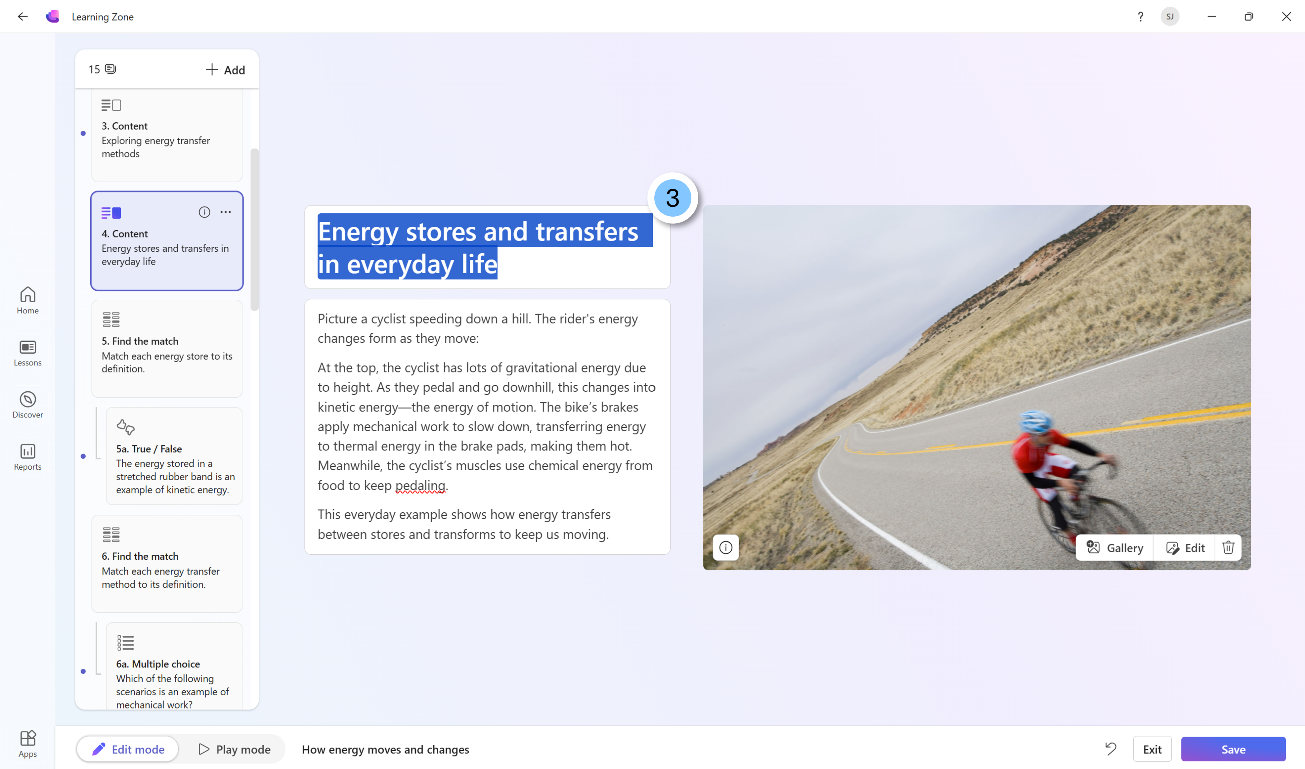
For content slides, you can:
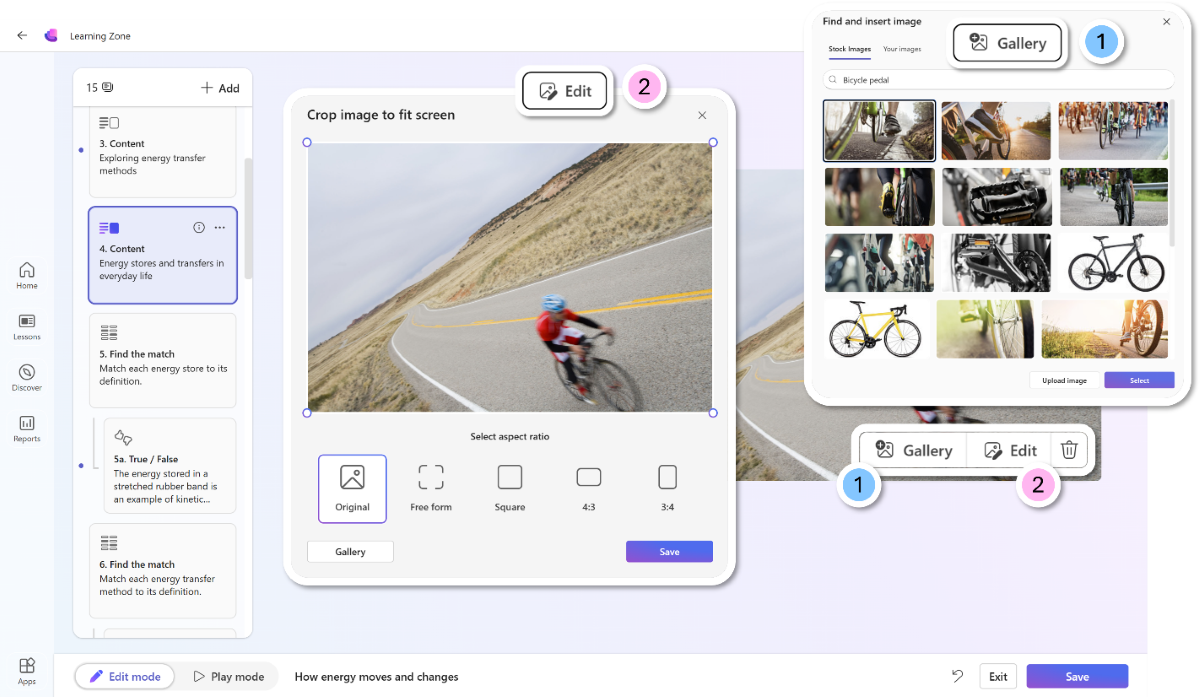
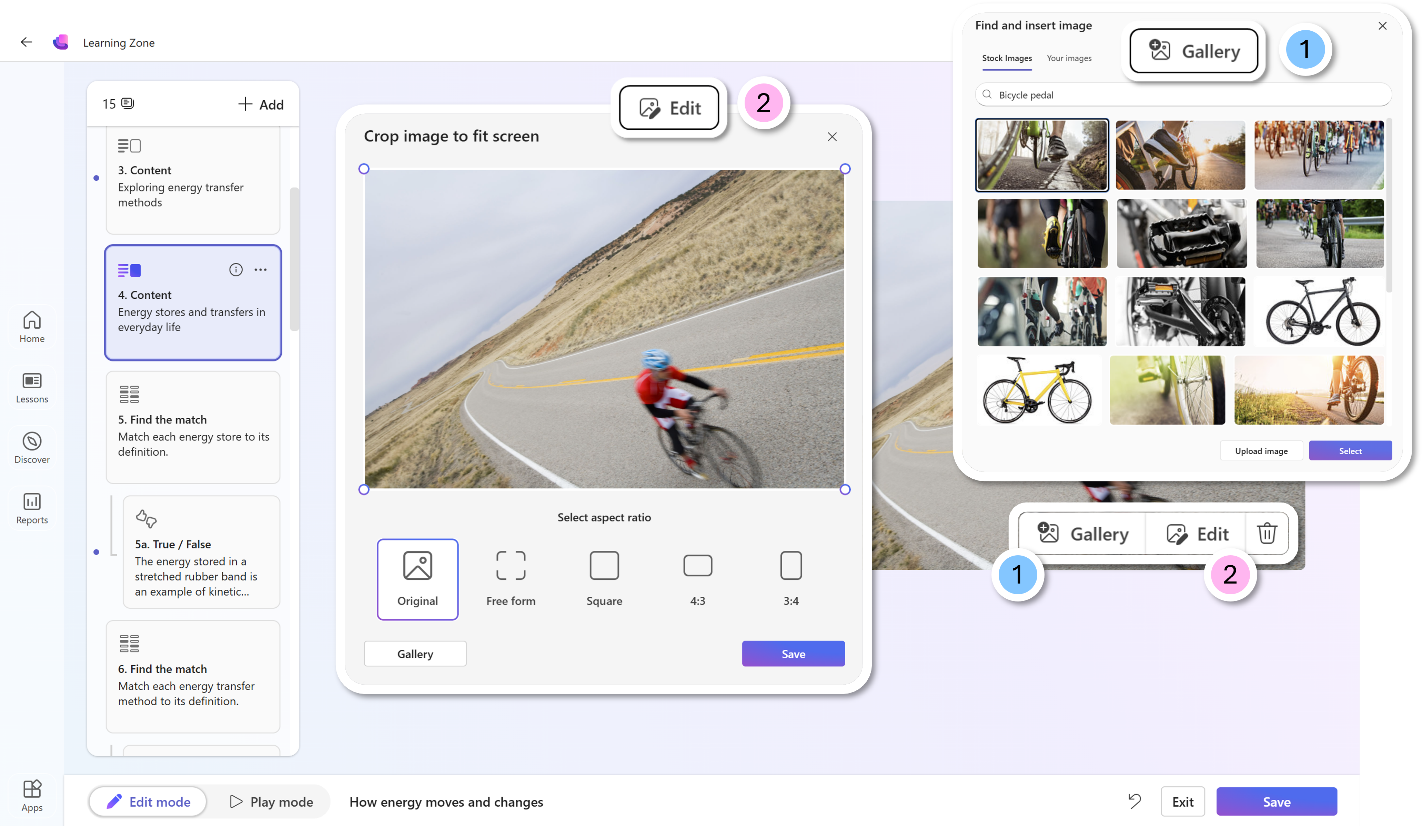
Replace images from a gallery of stock images or your own uploaded images.
Edit the existing image (zoom in and change aspect ratio).
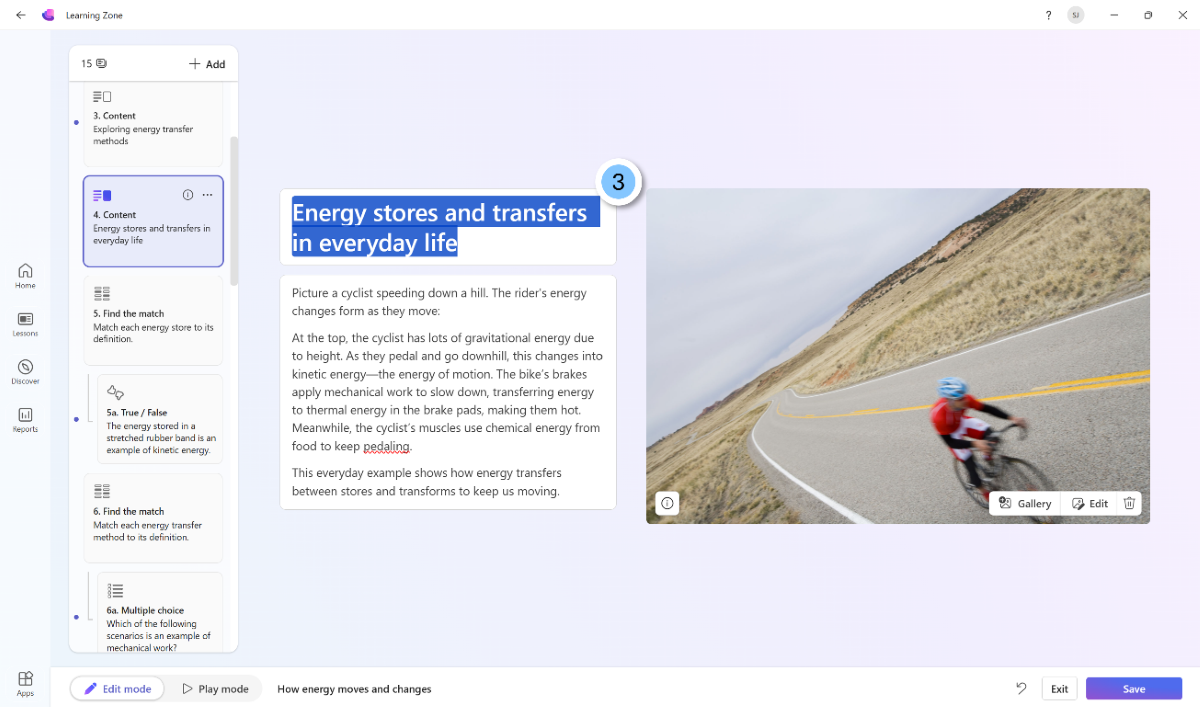
Edit the text on a slide.
For exercise slides, you can:
Edit the text of the task and student response options.
Regenerate an exercise.
Adjust a slide to change the complexity of the language.
Add a different exercise type.
Create or edit branched exercises that support personalized approaches to learning.
Edit the answer explanations.
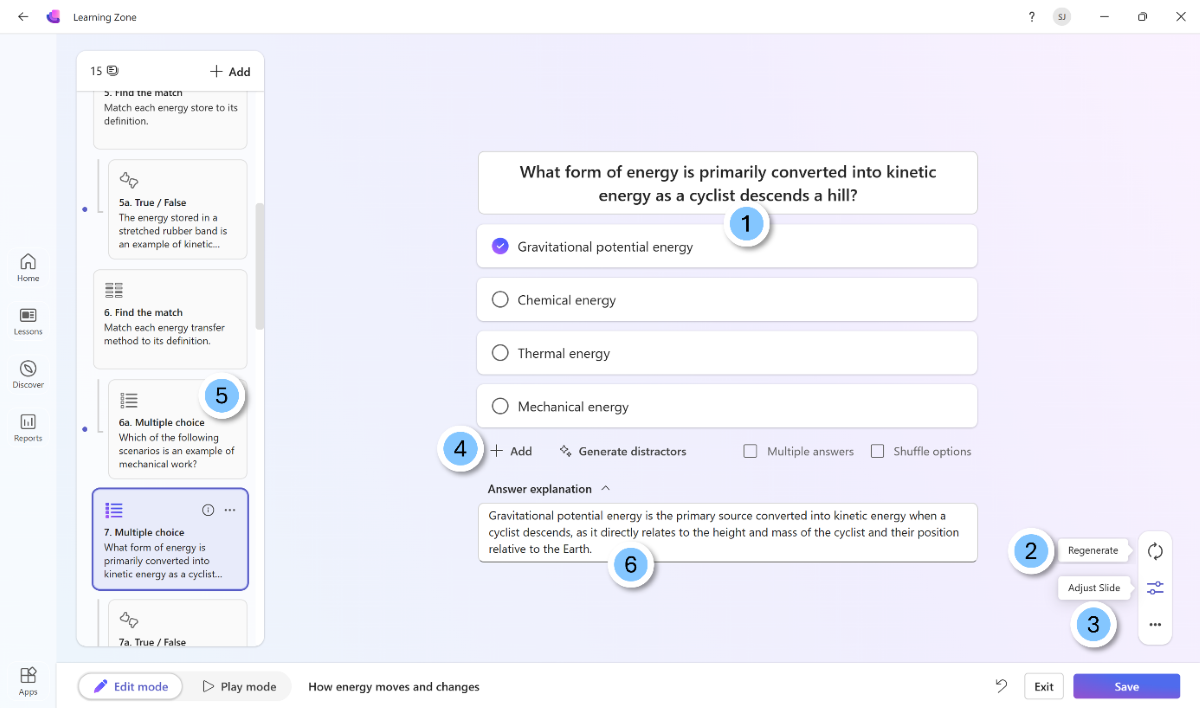
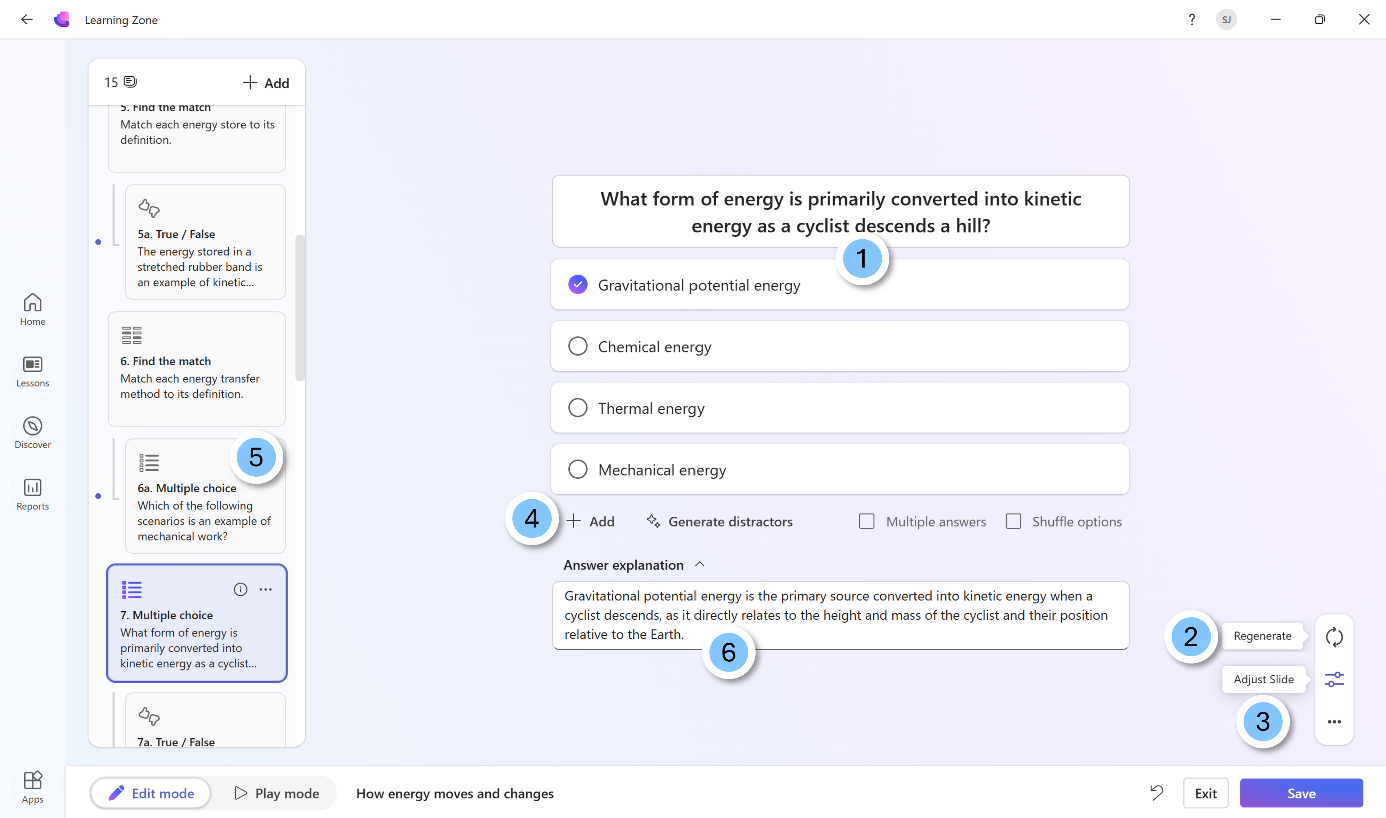
There is a range of ways specific exercise types can be edited. The table outlines the options for adjusting and amending exercises.
| Question type | Capabilities |
|---|---|
| Multiple choice | Add, remove, and edit options Shuffle answers Reorder options Allow multiple answers Add feedback shown after submission Generate distractors |
| True / false | Add feedback shown after submission |
| Fill the blanks | Add, remove, and edit distractors Edit text and blanks Add feedback shown after submission Generate distractors |
| Sort | Add, remove, edit and reorder items Shuffle answers Add feedback shown after submission |
| Group | Add, remove, and edit items Add, remove and edit categories Add feedback shown after submission |
| Match | Add, remove, and edit pairs Shuffle answers |
Play mode
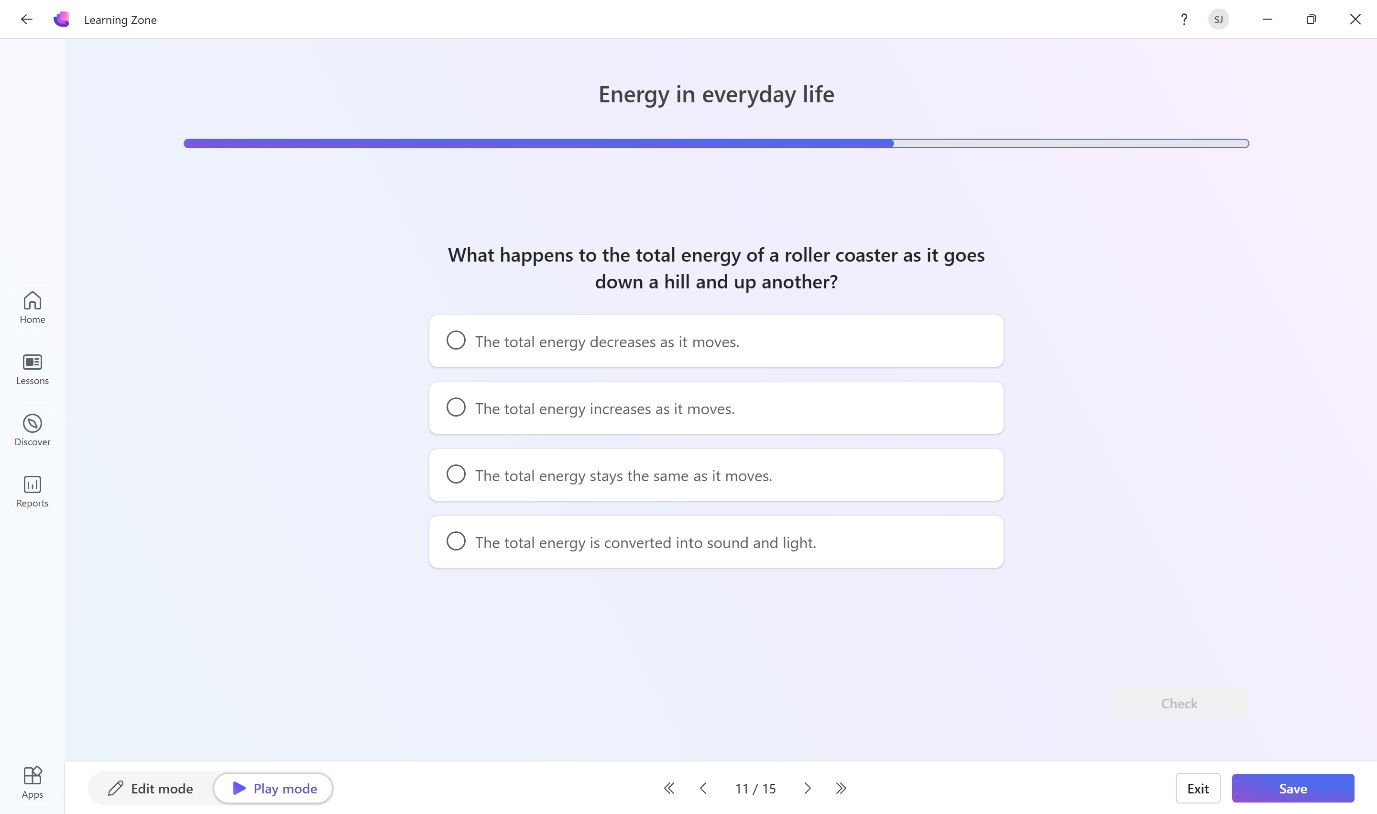
Use Play mode to view the interactive lesson from a learner's perspective and evaluate further adjustments that are needed.
Tip
When reviewing the lesson in play mode use the arrows to easily move between slides without completing the activities.
Save lessons
Your lesson must be saved in order to use it with learners. Once you complete your review of the lesson, select Save.
Note
You're prompted to check the slides before finishing your review ensuring you're happy with the generated content, supporting responsible AI use.
The lesson is added to your lessons library and is found in the My lessons area. Access this area from the Home screen and from the side rail, under Lessons.
Manage lessons
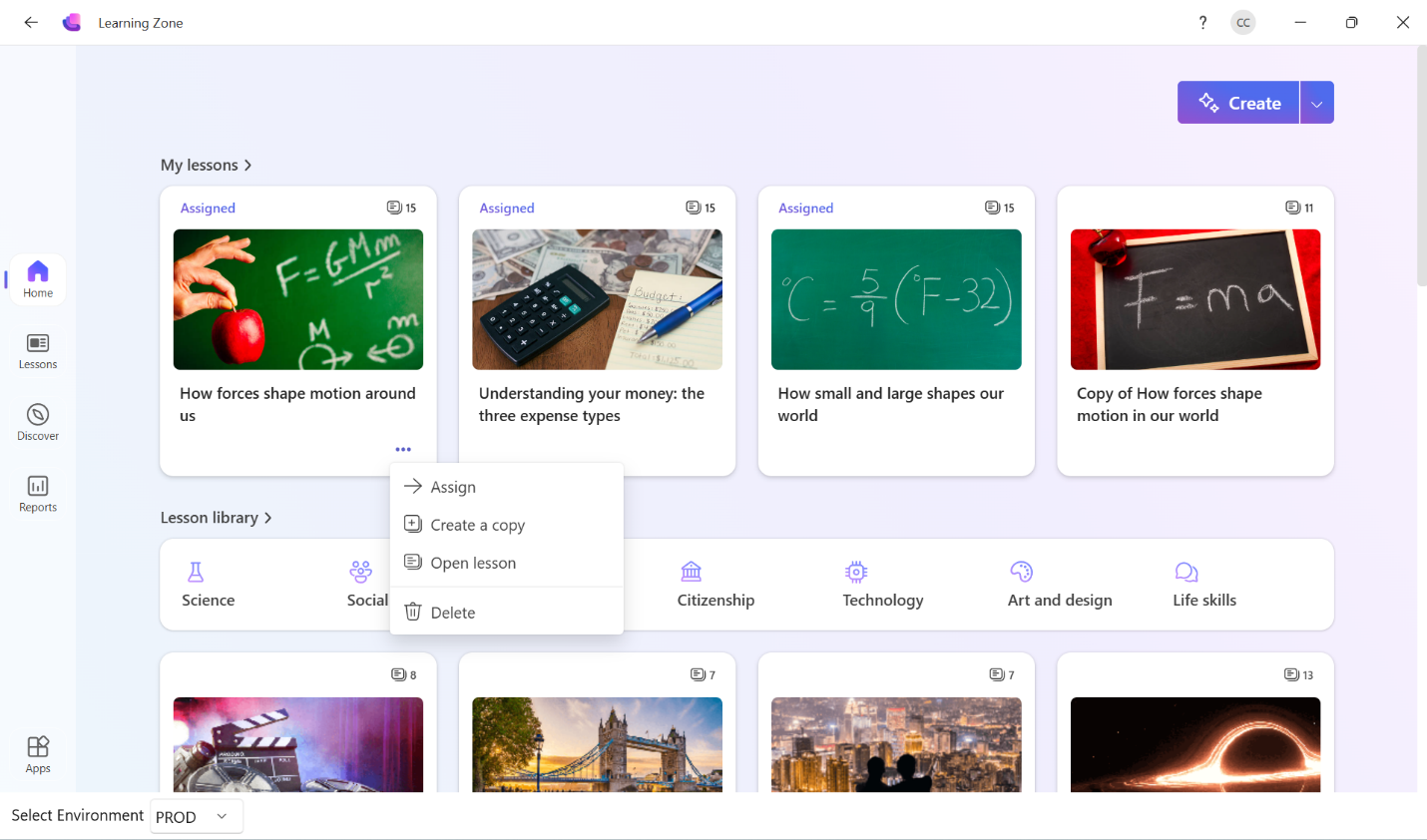
Manage your lessons in the My lessons gallery. Using the ellipsis menu, choose to assign the lesson, create copies for use with multiple classes, open the lesson, or delete it.